
Supprimer les arrière-plans des photos de produits pour Amazon
Répondez aux exigences d'Amazon en matière de photos de produits avec la suppression d'arrière-plan par IA : fond blanc obligatoire, dimensions d'image, A+ Content et workflows par lots.
Product Team
Vérifié par Magic Eraser Editorial ·
Sommaire
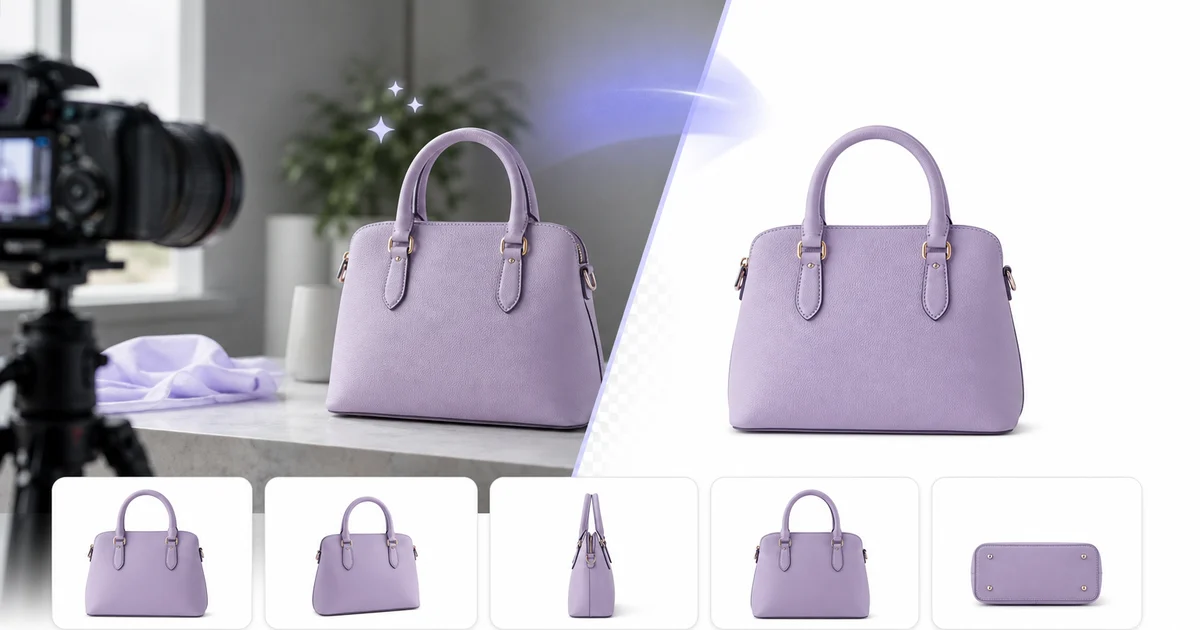
Vendre sur Amazon implique de respecter des directives strictes en matière d'images de produits. Le besoin le plus important est un fond blanc pur sur votre photo de liste principale. Amazon applique cette règle pour maintenir une expérience d'achat propre et cohérente sur des millions de pages de produits. Si votre image principale ne respecte pas leurs normes d'arrière-plan, votre annonce peut être supprimée ou retirée complètement des résultats de recherche.
Pour de nombreux vendeurs, principalement ceux qui gèrent des centaines ou des milliers de SKUs, éditer manuellement les arrière-plans dans Photoshop n'est pas pratique. Les outils de suppression d'arrière-plan par IA sont devenus la solution standard, permettant aux vendeurs de traiter les photos de produits en quelques secondes plutôt qu'en minutes par image. Les économies de coût et de temps sont majeures, principalement lors des lancements de produits et des mises à jour saisonnières de catalogue.
Ce guide couvre tout ce que vous devez savoir sur les exigences d'Amazon en matière d'images, comment utiliser les outils IA pour y répondre efficacement, et comment mettre en place des workflows par lots qui maintiennent l'ensemble de votre catalogue conforme sans grever votre budget ni votre temps.
- Amazon exige un fond blanc pur (RVB 255, 255, 255) sur l'image principale du produit.
- Les images doivent mesurer au moins 1000 pixels sur le côté le plus long pour la fonctionnalité de zoom.
- Le produit doit occuper au moins 85 % du cadre de l'image.
- Les outils de suppression d'arrière-plan par IA traitent les images en quelques secondes, remplaçant des heures de travail manuel dans Photoshop.
- Les workflows de traitement par lots sont essentiels pour les vendeurs gérant de grands catalogues.
- Les images non conformes peuvent entraîner la suppression de l'annonce ou son retrait des résultats de recherche.
Comprendre les exigences d'Amazon en matière d'images de produits
Les exigences d'Amazon en matière d'images sont plus spécifiques que la plupart des vendeurs ne le pensent lorsqu'ils commencent à référencer leurs produits. L'image principale du produit, souvent appelée image hero, doit avoir un fond blanc pur avec la valeur RVB exacte de 255, 255, 255. Ce n'est pas simplement une préférence ou une recommandation. Les systèmes automatisés d'Amazon analysent les images téléchargées et peuvent signaler ou supprimer les annonces dont l'arrière-plan de l'image principale est blanc cassé, gris ou contient des éléments de décor visibles.
Au-delà de la règle du fond blanc, Amazon exige que le produit occupe au moins 85 pour cent de la zone de l'image. L'image doit mesurer au moins 1000 pixels sur le côté le plus long pour activer la fonctionnalité de zoom. Amazon a démontré que cela augmentait les taux de conversion. La taille recommandée est de 2000 pixels sur le côté le plus long pour une expérience de zoom optimale. Les images doivent être aux formats JPEG, PNG, TIFF ou GIF, bien que le JPEG soit le format le plus courant pour son équilibre entre qualité et taille de fichier.
Le produit lui-même doit être clairement visible et représenter avec précision ce que le client recevra. Aucun filigrane, logo, badge ou texte promotionnel n'est autorisé sur l'image principale. L'article ne doit pas être présenté sur un mannequin pour les vêtements dans certaines catégories. Les accessoires qui ne sont pas inclus dans l'achat ne doivent pas apparaître. Ces règles existent pour éviter d'induire les clients en erreur et maintenir la cohérence visuelle que les acheteurs Amazon attendent.
Les images secondaires, appelées images lifestyle ou photos de détail, offrent plus de flexibilité. Vous pouvez utiliser des fonds colorés, montrer le produit en utilisation, inclure des infographies superposées et ajouter des tableaux comparatifs. Cependant, ces images doivent toujours répondre aux exigences minimales de résolution et représenter avec précision le produit. Comprendre la distinction entre les règles applicables à l'image principale et celles applicables aux images secondaires est essentiel pour créer une annonce qui convertit bien tout en restant conforme.
- L'image principale doit avoir un fond blanc pur avec une valeur RVB exacte de 255, 255, 255.
- Au moins 1000 pixels sur le côté le plus long ; 2000 pixels recommandés pour la qualité du zoom.
- Le produit doit occuper au moins 85 % du cadre de l'image.
- Aucun filigrane, logo, superposition de texte ou badge promotionnel sur les images principales.
- Les images secondaires autorisent les décors lifestyle, les infographies et les fonds colorés.
- Les images non conformes déclenchent une suppression automatique, réduisant immédiatement la visibilité de l'annonce.
Utiliser la suppression d'arrière-plan par IA pour des photos prêtes pour Amazon
Les outils de suppression d'arrière-plan par IA ont transformé la façon dont les vendeurs préparent les images de produits. Au lieu de passer 10 à 30 minutes par image dans Photoshop à masquer soigneusement les contours du produit, vous pouvez télécharger une photo et obtenir un fond blanc propre en moins de 10 secondes. L'IA identifie le produit, le sépare de l'arrière-plan sur lequel il a été photographié et remplace cet arrière-plan par du blanc pur. Pour la plupart des produits, le résultat est directement utilisable sans aucune retouche manuelle.
La qualité de la suppression d'arrière-plan par IA s'est considérablement améliorée ces dernières années. Les outils modernes gèrent les contours difficiles comme les emballages translucides, les tissus à mailles fines, les surfaces réfléchissantes et les produits aux formes complexes tels que les bijoux, les outils aux poignées fines ou les articles avec des trous et des découpes. L'IA est entraînée sur des millions d'images de produits et comprend les formes et matériaux courants de produits d'une manière que les outils de retouche photo génériques ne font pas.
Pour obtenir les meilleurs résultats avec la suppression d'arrière-plan par IA, commencez par une photo source bien éclairée. Photographiez votre produit avec un éclairage uniforme devant un fond relativement propre, même si ce fond sera supprimé. Un fond encombré ou très sombre oblige l'IA à travailler davantage sur la détection des contours et peut occasionnellement produire des artefacts le long des limites du produit. Un simple fond blanc ou gris clair, même imparfait, donne à l'IA un point de départ plus propre et produit des découpes plus précises.
Après avoir supprimé l'arrière-plan, vérifiez que le blanc obtenu correspond à l'exigence de blanc pur d'Amazon. Certains outils IA produisent par défaut un blanc légèrement cassé ou un gris très clair. Recherchez un outil qui produit du vrai blanc RVB 255, 255, 255, ou vérifiez le résultat dans un éditeur d'image avant de le télécharger. La différence entre 250 et 255 peut sembler insignifiante à l'oeil humain, mais les systèmes automatisés d'Amazon la détectent. Un arrière-plan qui n'est pas blanc pur peut entraîner le signalement de votre annonce.
- Les outils IA suppriment les arrière-plans en quelques secondes, contre 10 à 30 minutes dans Photoshop.
- L'IA moderne gère les emballages translucides, les surfaces réfléchissantes et les formes de produits complexes.
- Commencez par une photo bien éclairée sur un fond propre pour des résultats IA plus précis.
- Vérifiez que l'arrière-plan de sortie est du vrai blanc RVB 255, 255, 255 avant de le télécharger sur Amazon.
- Utilisez le pinceau de retouche pour affiner les artefacts de contour sur les produits complexes.
- Enregistrez les images traitées à 2000 pixels ou plus sur le côté le plus long pour une qualité de zoom optimale.
Raisons courantes de rejet et comment les éviter
Même les vendeurs expérimentés rencontrent des rejets d'images sur Amazon. La raison la plus fréquente est un arrière-plan qui n'est pas blanc pur. Cela se produit souvent lorsque les vendeurs photographient des produits sur une surface blanche qui paraît blanche à l'oeil mais qui est enregistrée comme légèrement blanc cassé dans le fichier image en raison des conditions d'éclairage ou des réglages de balance des blancs de l'appareil photo. Les ombres projetées par le produit sur l'arrière-plan créent également des zones grises qui déclenchent un rejet. La suppression d'arrière-plan par IA résout complètement ce problème en remplaçant tout l'arrière-plan par un blanc parfait au pixel près.
Un autre rejet courant est le produit qui ne remplit pas assez le cadre. Si votre produit apparaît petit dans l'image avec un espace blanc excessif autour, Amazon peut le signaler pour non-respect de l'exigence de remplissage à 85 pour cent. Après avoir supprimé l'arrière-plan, recadrez l'image de sorte que le produit occupe la majeure partie du cadre, en laissant juste assez de marge pour un aspect propre. La plupart des outils IA offrent un recadrage automatique qui centre le produit et supprime l'excès d'espace blanc.
La résolution d'image inférieure au seuil minimal est un autre problème fréquent. Les photos prises avec des smartphones anciens ou les images fortement recadrées peuvent tomber en dessous du minimum de 1000 pixels. Quand c'est possible, photographiez à la résolution la plus élevée que votre appareil photo ou téléphone supporte. Si vous devez agrandir une image, les outils AI boost peuvent augmenter la résolution tout en conservant la netteté, ce qui est bien meilleur que la simple interpolation qui produit des vues zoomées floues.
Le texte, les graphiques ou les logos de marque sur l'image principale déclencheront également un rejet. Certains vendeurs ajoutent des badges comme 'Best Seller' ou 'Nouvel Arrivage' à leur image principale, ne réalisant pas que cela viole la politique d'Amazon. Réservez toutes les superpositions de texte, les tableaux comparatifs et les graphiques promotionnels pour vos images secondaires ou votre contenu A+ en dessous de la ligne de flottaison. L'image principale doit montrer uniquement le produit lui-même sur fond blanc, rien d'autre.
- Les arrière-plans blanc cassé sont la raison de rejet la plus courante, même lorsqu'ils semblent blancs à l'oeil nu.
- Le produit doit occuper au moins 85 % du cadre ; utilisez les outils de recadrage automatique pour supprimer l'excès d'espace blanc.
- La résolution minimale est de 1000 pixels sur le côté le plus long ; photographiez toujours à la résolution la plus élevée disponible.
- Aucun texte, logo, badge ou superposition promotionnelle n'est autorisé sur les images principales du produit.
- Les ombres sur la surface de l'arrière-plan peuvent déclencher un rejet ; la suppression d'arrière-plan par IA les élimine complètement.
- Vérifiez chaque image dans un éditeur à 100 % de zoom avant de la télécharger pour détecter les problèmes de conformité subtils.
Workflows par lots pour les grands catalogues
Si vous gérez un catalogue de 50 produits ou plus, traiter les images une par une n'est pas viable. Les workflows de traitement par lots vous permettent de télécharger des dizaines ou des centaines de photos de produits et d'appliquer la suppression d'arrière-plan à toutes en une seule fois. Cela est particulièrement important lors des mises à jour saisonnières, des lancements de nouveaux produits ou lors de la migration d'un catalogue existant pour répondre aux nouvelles exigences d'Amazon.
Un workflow par lots pratique commence par organiser vos photos sources dans des dossiers par catégorie de produit ou statut d'annonce. Photographiez tous vos produits en une seule séance avec un éclairage cohérent pour minimiser les variations entre les images. Téléchargez ensuite l'ensemble du dossier dans votre outil de suppression d'arrière-plan par IA et traitez-les tous en une fois. La plupart des outils vous permettent de définir les paramètres de sortie comme la couleur de l'arrière-plan, les dimensions de l'image, le format de fichier et le niveau de qualité avant de lancer le lot, de sorte que chaque image soit cohérente et prête à être téléchargée.
Après le traitement par lots, effectuez un contrôle de qualité sur les résultats. Bien que les outils IA soient très précis, il existe occasionnellement des cas limites où des produits complexes nécessitent une rapide retouche manuelle. Passer deux minutes à vérifier un lot de 100 images est bien plus efficace que de passer 15 minutes à éditer chacune manuellement. Signalez les images nécessitant des ajustements, effectuez les corrections, puis téléchargez l'ensemble du lot sur Amazon Seller Central.
Pour les vendeurs disposant de très grands catalogues, intégrer la suppression d'arrière-plan dans votre workflow de photographie de produits dès le départ permet de gagner le plus de temps. Installez votre station de prise de vue, photographiez les produits en séquence et alimentez directement les images dans un pipeline de traitement par lots. Certaines équipes utilisent des outils cloud qui permettent à plusieurs membres de traiter les images simultanément, ce qui est précieux lors de la préparation d'événements comme le Prime Day ou les mises à jour de catalogue de fin d'année, lorsque des centaines de nouvelles images doivent être prêtes dans un délai serré.
- Le traitement par lots vous permet de gérer des dizaines ou des centaines d'images simultanément.
- Organisez les photos sources par catégorie et photographiez avec un éclairage cohérent pour des résultats uniformes.
- Définissez les paramètres de sortie une seule fois (arrière-plan, dimensions, format) et appliquez-les à l'ensemble du lot.
- Examinez les résultats du lot pour les cas limites nécessitant une rapide retouche manuelle.
- Intégrez la suppression d'arrière-plan dans votre workflow de photographie pour une efficacité maximale.
- Les outils cloud permettent aux équipes de traiter les images en parallèle pendant les périodes de fort volume comme le Prime Day.
Contenu A+ et images infographiques
Alors que l'image principale du produit doit respecter les règles strictes d'Amazon concernant le fond blanc, le contenu A+ offre aux vendeurs enregistrés en tant que marque l'opportunité de créer des pages produits riches et visuellement fortes. Le contenu A+ apparaît en dessous de la description standard du produit et peut inclure des tableaux comparatifs, des images lifestyle, des appels de fonctionnalités détaillées et des modules d'histoire de marque. Ces images ont des exigences différentes de la photo principale de l'annonce et bénéficient d'une approche différente de la retouche photo.
Pour les modules de contenu A+, vous avez souvent besoin d'un mélange de photos lifestyle montrant le produit en utilisation, de plans rapprochés de détail mettant en valeur les caractéristiques clés et d'images de style infographique combinant des photos de produits avec des appels texte et des icônes. Les outils IA sont utiles ici non seulement pour la suppression d'arrière-plan mais aussi pour l'amélioration d'image. Vous pouvez éclaircir les photos de produits sombres, affiner les détails pour les vues rapprochées et ajuster les couleurs pour garantir une cohérence dans tous les modules de votre mise en page de contenu A+.
Les images infographiques pour les emplacements d'images secondaires et le contenu A+ doivent clairement communiquer les points de vente clés sans obliger l'acheteur à lire la description textuelle. Utilisez des superpositions de texte en gras pour mettre en évidence les dimensions, les matériaux, les accessoires inclus ou les caractéristiques uniques. Gardez un design propre et évitez de tasser trop d'informations dans une seule image. Chaque infographie doit communiquer un à trois points clés efficacement plutôt que d'essayer de lister chaque caractéristique du produit.
Lors de la création de tableaux comparatifs pour le contenu A+, assurez-vous que vos images de produits sont toutes photographiées et éditées de manière cohérente. Utilisez le même arrière-plan, le même style d'éclairage et les mêmes dimensions d'image pour chaque produit du comparatif afin de créer un aspect professionnel et digne de confiance. Le traitement par lots IA facilite l'obtention de cette cohérence même lorsque les photos originales ont été prises dans des conditions ou à des moments différents.
- Le contenu A+ est disponible pour les vendeurs enregistrés en tant que marque et apparaît en dessous de la description standard.
- Utilisez un mélange d'images lifestyle, de détail et infographiques pour les modules de contenu A+.
- Les outils d'amélioration par IA éclaircissent, affinent et corrigent les couleurs des photos pour des mises en page de contenu A+ cohérentes.
- Les images infographiques doivent communiquer un à trois points de vente clés de manière claire et concise.
- Les tableaux comparatifs nécessitent une retouche d'image cohérente pour tous les produits comparés.
- Traitez par lots les images de contenu A+ pour maintenir une cohérence visuelle sur l'ensemble de la page produit.
How to do it
- 1
Confirm Amazon's product image requirements
Main images must use pure white backgrounds (RGB 255,255,255), occupy at least 85% of the frame, and meet minimum 1,000 px on the longest side.
- 2
Remove the background with AI
Upload your product photo to Background Eraser and apply automatic background removal — the model handles complex edges Amazon's review will flag.
- 3
Avoid common rejection reasons
Check for off-white tints, partial shadows, reflections, and watermarks — Amazon rejects images with any non-white pixels in the background.
- 4
Batch-process your full catalog
Queue all SKUs in a single batch run with white-background output and Amazon's recommended dimensions to ship the whole catalog at once.
- 5
Add A+ Content and infographic images
Secondary images can use lifestyle scenes, dimensioned infographics, and feature callouts. Use AI Fill to add context around the product.
Sources
- Product Image Requirements — Amazon Seller Central
- Product Photography Tips for Beginners — Shopify