
Remove an Emoji From a Photo on Your Android Phone
Aprende cómo Eliminar emoji en Android con Magic Eraser. Guía simple paso a paso con herramienta IA gratuita. Funciona en web, iOS y Android.
Last updated
Probar ahora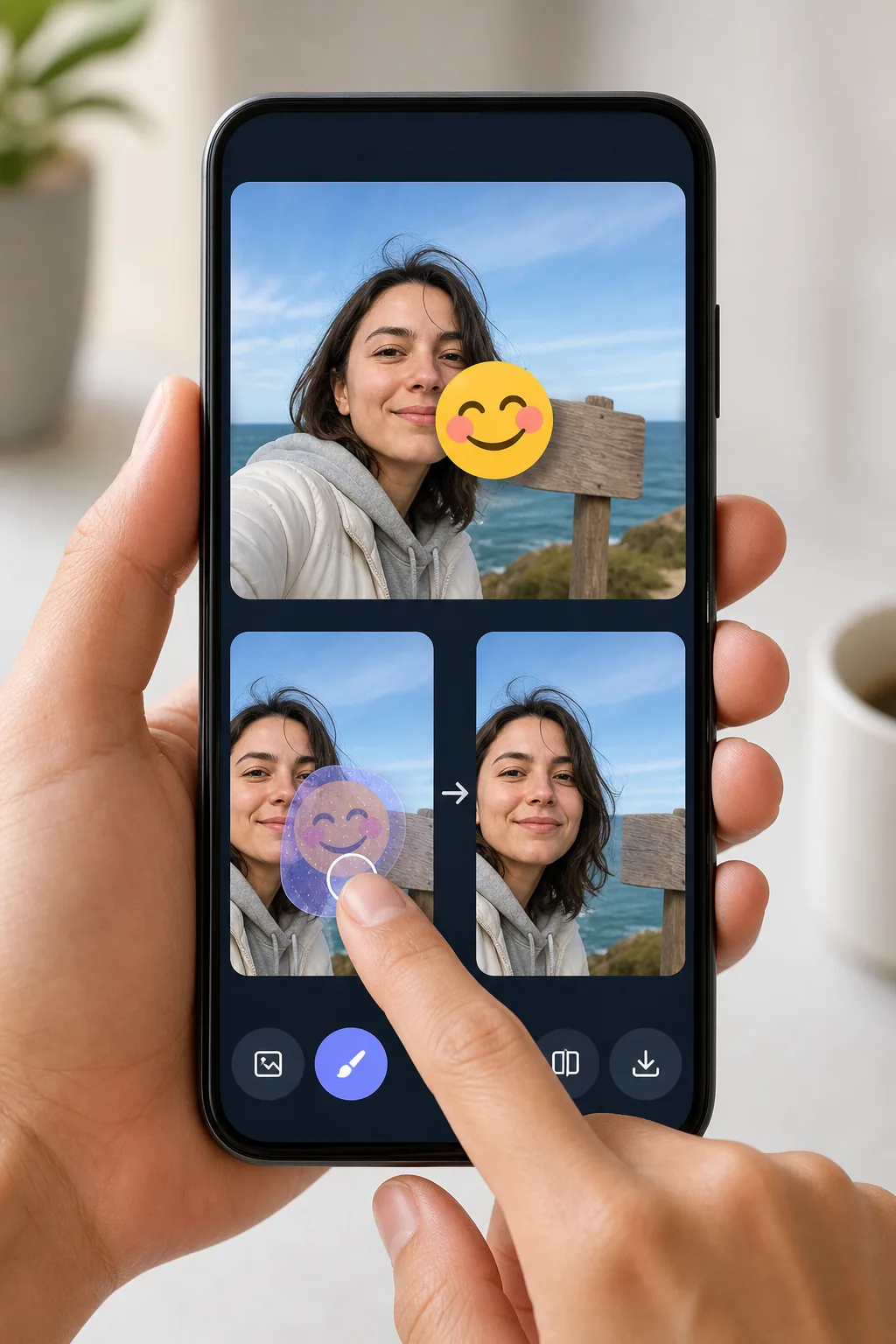
Erase emojis from Android photos without exporting to a desktop con Magic Eraser
Android makes it easy to drop an emoji or sticker onto a shot — Google Photos Markup, the built-in Gallery editor, Snapchat, WhatsApp Status — but undoing it later is the hard part. Once the edited image is saved to your camera roll, the emoji is baked into the pixels, so the Gallery's own undo button can't help. Magic Eraser handles exactly this: open the photo from your Android device, brush over the emoji, and the AI redraws the area behind it. Be clear about what's happening — the tool synthesizes a believable reconstruction of the background or surface, it does not recover the literal pixels that the emoji covered. For a patch of sky, wall, grass, or clothing the result usually looks seamless. It runs in your mobile browser or the Android app, works on the free tier, and never stamps a watermark on what you download back to your phone.
Before you start
Instrucciones paso a paso
Start with sube la foto. The result preview above and tips below use this guide's existing content; no separate before-and-after proof is assumed.
- 1
Sube la foto
Abre Magic Eraser en web, iOS o Android. Arrastra y suelta tu foto JPEG, PNG, HEIC o WebP. No necesitas cuenta para empezar.
- 2
Selecciona la herramienta y el área
Elige la herramienta adecuada y marca el área a procesar. La IA analiza y aplica los cambios automáticamente en segundos.
- 3
Descarga el resultado
Previsualiza el resultado y descarga la foto editada. Exporta en PNG o JPEG de alta calidad.
Ideal para
- Removing a face-covering emoji you added in Google Photos Markup before sharing the photo properly
- Cleaning a sticker off a WhatsApp Status or Snapchat shot that auto-saved to your Gallery
- Taking the smiley or heart emoji off a screenshot so the background reads clearly
- Stripping a privacy emoji from a phone number, plate, or sign once you no longer need it hidden
- Fixing a photo where the Gallery editor's emoji got baked in and undo no longer works
Consejos para mejores resultados
Start from the highest-resolution copy in Google Photos — if you've already shared the picture and got a compressed version back, the AI has less detail to work with. Brush slightly past the emoji's edges to catch the soft anti-aliased halo Android renders around stickers. Emojis sitting on a simple, repeating background (sky, a painted wall, water) reconstruct almost invisibly; one placed directly over an eye, mouth, or detailed pattern will be a convincing guess, not the true hidden detail. If the first pass leaves a smudge, undo and erase in two smaller strokes rather than one large swipe.
Preguntas frecuentes
- ¿La función Eliminar emoji en Android es gratuita?
- Sí, Magic Eraser permite Eliminar emoji en Android gratis con límites diarios. Actualiza a Pro para procesamiento ilimitado y exportaciones de alta resolución.
- ¿Cuánto tiempo tarda Eliminar emoji en Android?
- Solo unos segundos. La IA de Magic Eraser procesa fotos rápidamente — la mayoría de los resultados están disponibles inmediatamente.
- ¿Puedo usarlo en el móvil?
- Sí, Magic Eraser funciona en iOS, Android y todos los navegadores web. Puedes alternar entre dispositivos libremente.
- ¿Se pierde calidad de imagen?
- No, Magic Eraser mantiene la calidad original de la foto. La IA procesa de forma inteligente para conservar detalles y nitidez.