
AI Create style
AI 纸艺切绘图像生成器
根据文字提示生成纸艺切绘风格图像,呈现层叠纸张、利落切边、折叠造型和立体阴影。适合海报、贺卡、编辑插画和手工概念;请明确描述主体、纸张配色、层次和光线。
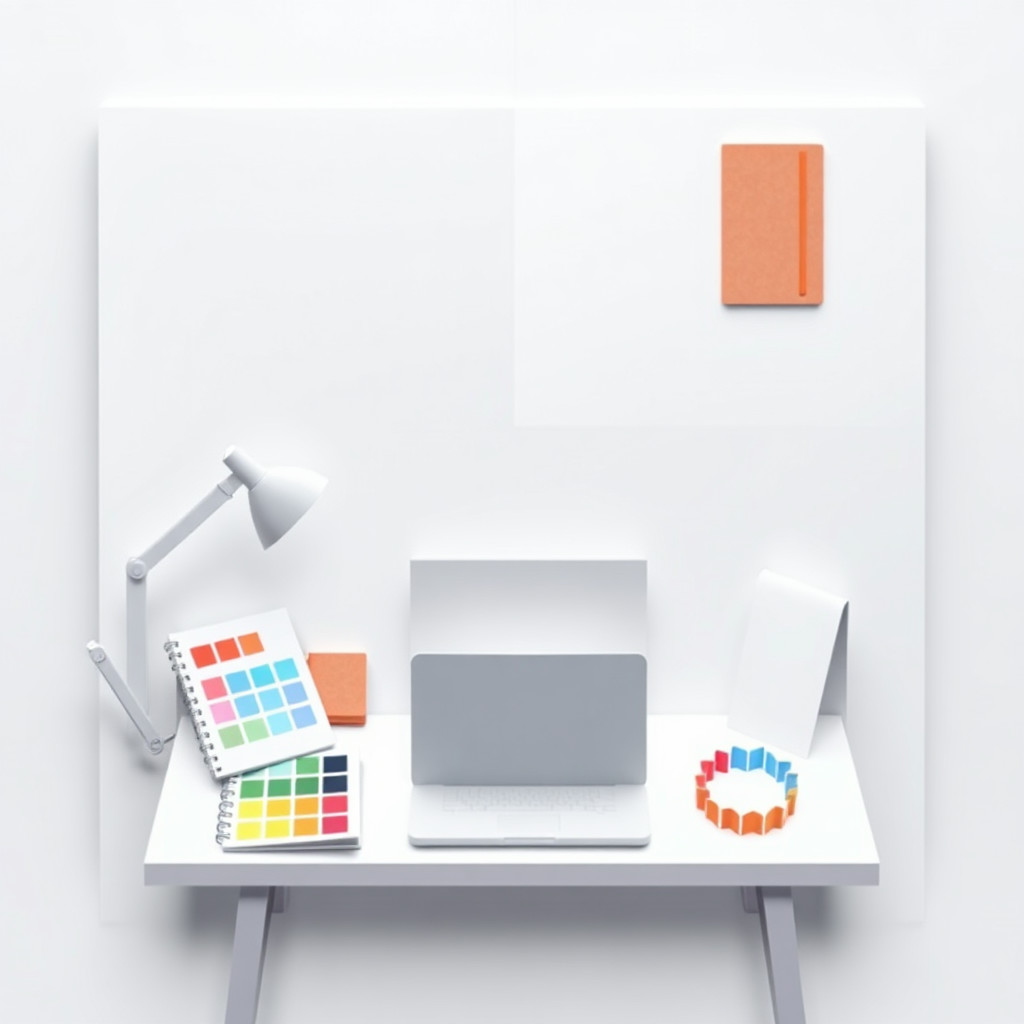
Use case
多层纸艺海报、邀请函、贺卡和封面。
Use case
具有手工剪纸质感的编辑插画和社交视觉。
Use case
手工艺、橱窗、包装和装饰概念板。
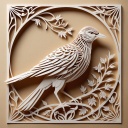
Visual direction preview
Use the style thumbnail as the creative target
The preview gives users a concrete reference for color, texture, edge detail, and mood before they open the generator. Pair it with the prompt starters below to keep the page useful instead of only decorative.
Generated examples
See the 纸艺切绘 style in real outputs
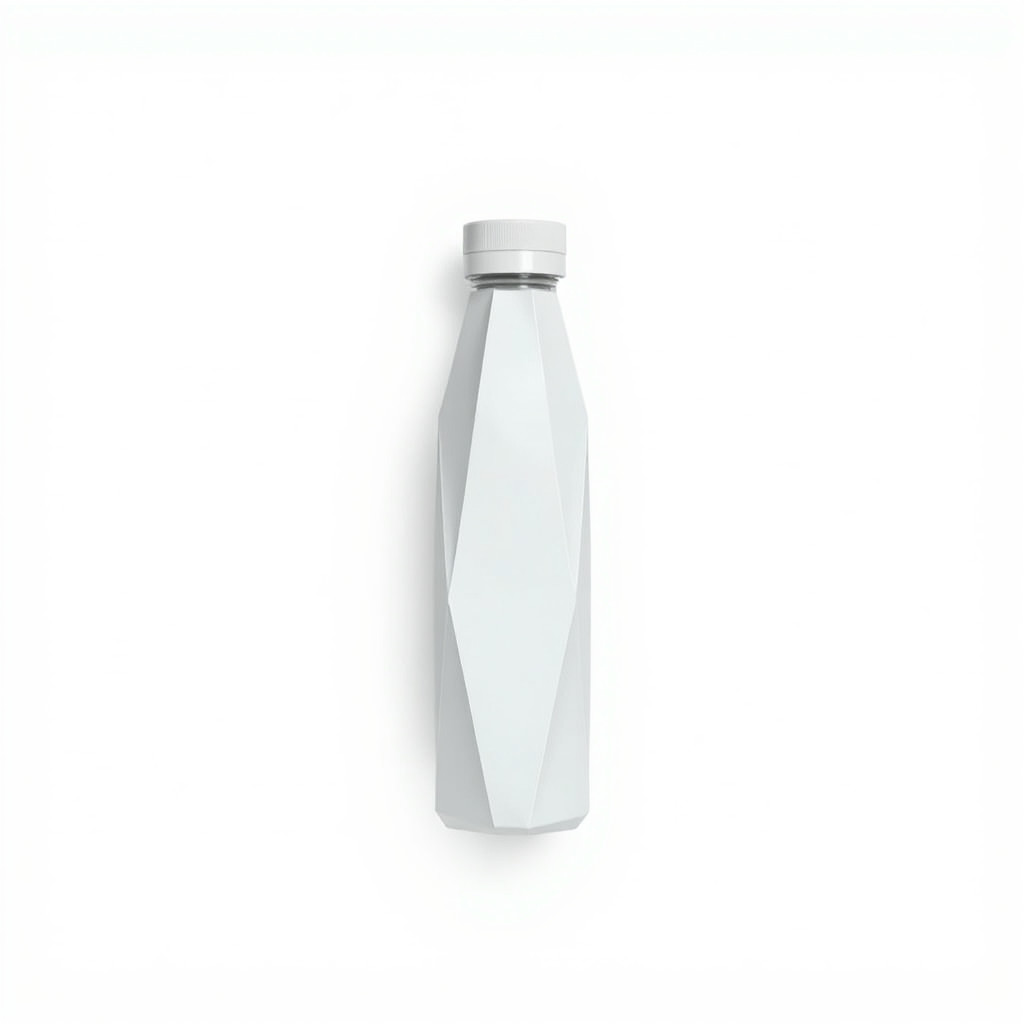
These examples were generated through the Magic Eraser AI Create API with the 纸艺切绘 style selected.
Prompt workflow
How to get a stronger 纸艺切绘 result
描述一个主要主体及目标构图或格式。
加入剪裁折叠纸张、层叠卡纸、清晰边缘和定向阴影。
生成多个版本,选择轮廓最清晰的结果,再裁剪并清除多余碎片。
Prompt starters
- “飞翔的纸艺切绘仙鹤,白色和靛蓝色层叠纸张,利落切边,柔和定向阴影”
- “植物纸艺切绘贺卡,折叠叶片与花朵,珊瑚色和奶油色卡纸,居中构图”
- “多层纸张城市天际线海报,精细窗格,海军蓝与金色,戏剧性侧光”
Style tips
- 保持构图简洁,让切割层次和折痕清晰可见。
- 不要只写风格名称,还应指定纸张颜色、深度和光线方向。
- 准确文字、标志和可打印切割线应在生成后添加。
Output planning checklist
- Decide the final placement before prompting: square post, vertical story, product insert, poster, thumbnail, or wide banner.
- Keep one primary subject and one visual mood so the 纸艺切绘 style has a clear job.
- Describe the background as simple, detailed, bright, dark, studio, outdoor, or textured instead of leaving it open-ended.
- Generate variations first, then edit the selected image for crop, cleanup, and export size.
When to choose this style
Choose 纸艺切绘 when the image needs a clear creative direction before production: an ad concept, a social visual, a character idea, a packaging mood, or a fast design draft. Choose another style if the final asset must look like a camera photo, preserve exact product color, or include precise typography.
For commercial work, treat the generated image as a starting point. Review details, remove distracting artifacts, add exact text separately, and export the final size from the editor.
FAQ
Can I edit the generated image?
Yes. Generate the image, then continue with cleanup, crop, background, and export tools in Magic Eraser.
Should I include exact text?
Use AI Create for the visual direction. Add exact text later with editable design tools for cleaner spelling and layout.
Is this style selected automatically?
The CTA opens AI Create with the 纸艺切绘 style parameter, and the app falls back safely if the option changes.