Skip to content
分步指南

How to remove a background from a photo

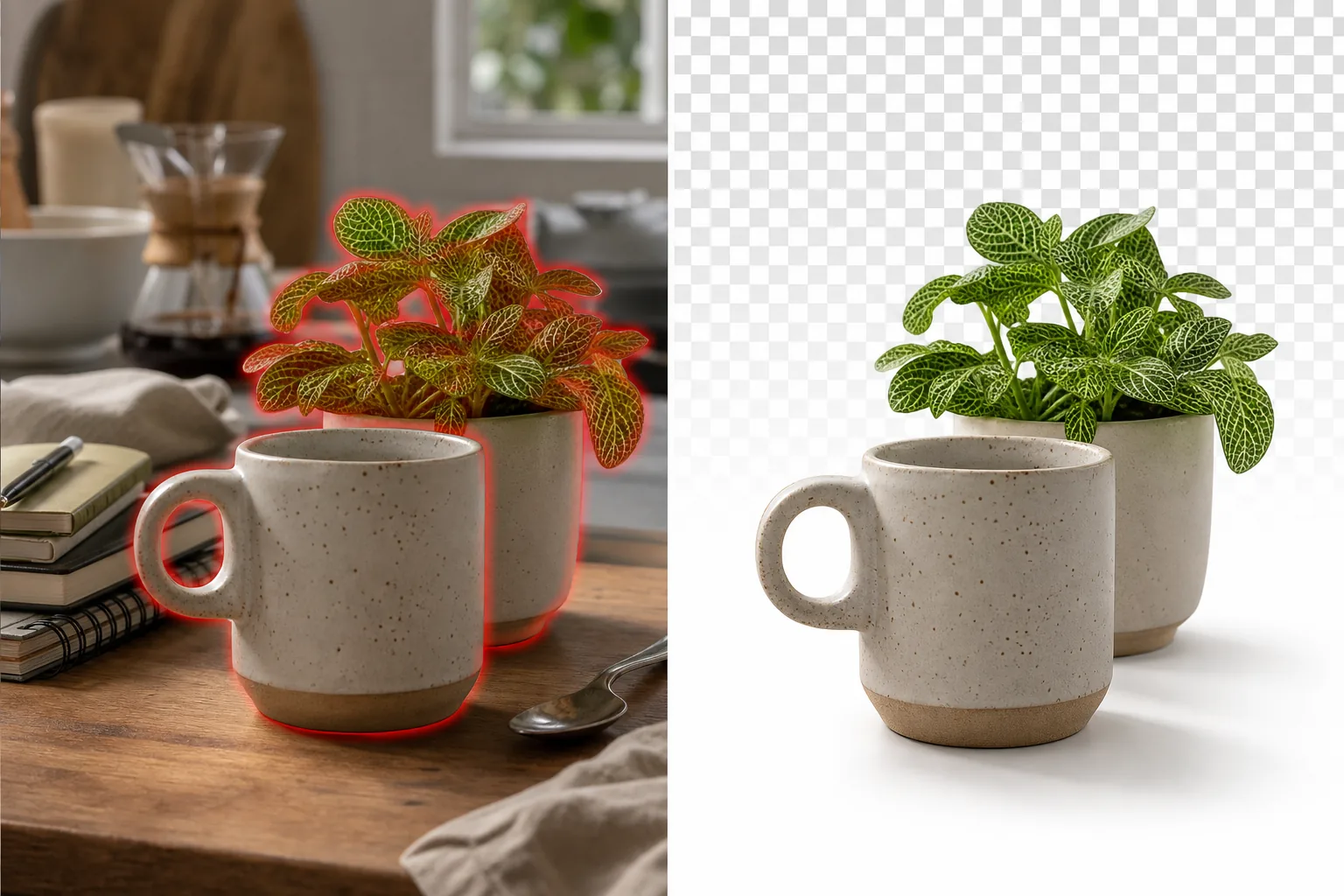
Product photos on cluttered kitchen tables, headshots with distracting office backgrounds, pet portraits with messy living rooms behind them — the subject is great but the background isn't. Magic Eraser's Background Eraser uses AI to separate the subject from the background in one tap, giving you a transparent PNG, a clean white background, or any replacement you choose.

Last updated

立即尝试

Why background removal matters for every photo use case — Magic Eraser

E-commerce product photography requires white or transparent backgrounds for marketplace listings — Amazon, Etsy, eBay, and Shopify all either require or strongly prefer clean product-on-white images for category pages and search results. Shooting on a proper white sweep with controlled lighting is the professional approach, but most small sellers photograph products on whatever surface is available (a desk, a countertop, a bedsheet) and need to replace the background afterward. Professional headshots require neutral, non-distracting backgrounds that keep attention on the subject's face — but many headshots are shot in offices, homes, or outdoor locations where the background includes furniture, other people, signage, or visual clutter. Social media content creators swap backgrounds for aesthetic consistency across their feed — a consistent background style becomes part of their visual brand. Manual background removal in Photoshop uses the pen tool or select-subject feature to create a mask around the subject, then delete or replace the background — a process that takes 5-30 minutes per image depending on edge complexity (hair, fur, translucent materials, complex outlines). Magic Eraser's AI Background Eraser handles the subject detection and edge masking automatically, including the difficult cases: individual hair strands against busy backgrounds, semi-transparent fabric edges, pet fur with fine whiskers, and complex product silhouettes with holes and cutouts.

分步教程

  1. 1

    Upload the photo

    Open Magic Eraser on web, iOS, or Android. Drop in the product photo, headshot, pet portrait, or any image where you want to remove or replace the background. JPEG, PNG, HEIC, and WebP supported. The tool works best when the subject has clear visual separation from the background — strong contrast helps, but the AI handles low-contrast cases (white product on light gray background, dark clothing against dark wall) by using shape and texture cues beyond just color difference.

  2. 2

    Tap Background Eraser

    Select the Background Eraser tool. The AI identifies the primary subject (person, product, animal, object) and separates it from the background automatically — no manual selection or brushing needed. The result appears as the subject on a transparent (checkerboard) background. For images with multiple distinct subjects, the AI selects the visually dominant subject by default. If the wrong region was selected, use the refine brush to include or exclude specific areas.

  3. 3

    Choose a new background and export

    Keep the transparent background for use in design tools (Canva, Figma, Photoshop), apply a solid white background for e-commerce listings, or choose a custom replacement. Export as PNG for transparency, JPEG for solid backgrounds. For product photography, the white-background export is marketplace-ready for Amazon, Etsy, and Shopify listings. For headshots, a neutral gradient or solid color provides the professional studio look without needing the studio.

最适合

获得最佳效果的技巧

Subject-background contrast affects the AI's edge precision. High-contrast pairs (dark subject on light background, bright product on dark surface) produce the sharpest edges in a single pass. Low-contrast pairs (gray product on gray background, blonde hair against a beige wall) produce good results but may benefit from a quick refine brush pass along the edges where the AI had to guess the boundary. For hair specifically: the AI handles individual hair strands well when they have visible contrast against the background — dark hair against a light wall separates cleanly strand by strand. Blonde or light hair against a bright background may lose some fine strands; a refine pass recovers these. For transparent and translucent materials (glass bottles, sheer fabric, tulle, sunglasses): the AI preserves the transparency by detecting the semi-transparent regions and maintaining their opacity level in the output — a glass bottle will show the new background through its body, not appear as an opaque cutout. For products with holes or internal cutouts (handles, straps, mesh sections): the AI detects these and removes the background from inside the cutout too. For batch processing (20+ product photos for a Shopify store), run each through Background Eraser individually — the per-image processing is fast enough that batch-processing a 50-photo product shoot takes under 15 minutes.

常见问题

Is background removal free?
Yes. Magic Eraser's free tier includes the Background Eraser with daily usage limits. Premium ($29.99/year) removes limits and enables high-resolution exports for print and marketplace use.
Can it handle hair and fur edges?
Yes. The AI detects individual hair strands and fine fur edges rather than applying a rough silhouette cut. Dark hair against a contrasting background separates cleanly strand by strand. For low-contrast hair-background combinations or very fine pet whiskers, a quick refine brush pass along the hairline sharpens the edge.
What format should I export for e-commerce?
PNG for transparent backgrounds (useful if your design tool or platform composites the product onto its own background). JPEG with a white background for marketplace listings that require white-background images (Amazon main product images, eBay, most category pages). Most e-commerce platforms accept both — check your specific marketplace's image requirements.
Does it work on group photos with multiple people?
The Background Eraser identifies and selects the visually dominant subject(s). For group photos, it typically selects the entire group as one subject and removes the background behind all of them. If you want to isolate one person from a group, use the refine brush to deselect the others.
Can I replace the background with a custom image?
Yes. After removing the original background, you can apply a solid color, a gradient, or upload a custom replacement image. The subject's edges blend naturally with the new background. For composite work (placing a product in a lifestyle setting, putting a headshot on a studio backdrop), export the transparent PNG and composite in your design tool for precise positioning.

相关工具