Skip to content
分步指南

How to enhance photo quality with AI

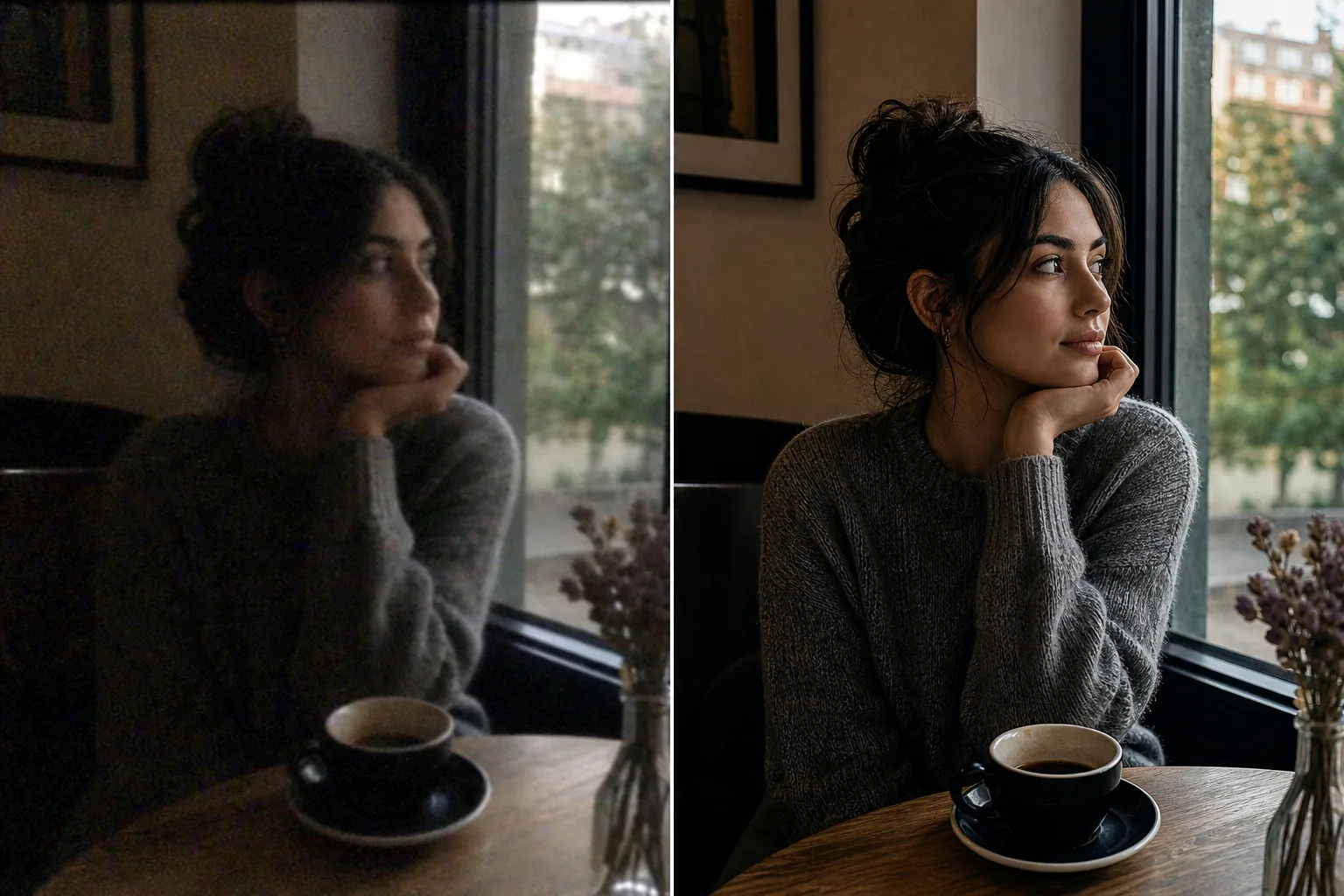
Blurry photos from phone cameras in low light, low-resolution images downloaded from the web, noisy shots from high-ISO settings, soft images from slight camera shake — all share the same result: a photo that doesn't look as sharp and clear as the scene did in person. Magic Eraser's AI Enhance upscales resolution, sharpens detail, reduces noise, and corrects exposure in a single pass.

Last updated

立即尝试

What AI enhancement actually does to a photo — Magic Eraser

Photo quality has four independent dimensions that AI enhancement addresses: resolution (pixel count — how large the image can be displayed or printed before individual pixels become visible), sharpness (edge definition — how crisp the transitions between objects appear), noise (random grain or color speckle from high-ISO sensor readings in low light), and exposure/color (brightness, contrast, and color accuracy). Traditional enhancement in Photoshop addresses each independently: Image > Image Size for upscaling (using bicubic interpolation that smooths rather than sharpens), Unsharp Mask for edge sharpening, noise reduction filters, and Levels/Curves for exposure correction — four separate adjustments that interact with each other (sharpening amplifies noise, noise reduction softens detail, upscaling spreads existing artifacts across more pixels). AI enhancement handles all four simultaneously because the model was trained on millions of matched low-quality/high-quality image pairs and learned the joint relationship between resolution, sharpness, noise, and exposure. It doesn't just interpolate existing pixels — it generates plausible fine detail (skin texture, fabric weave, foliage edges, text clarity) that the original low-quality image implies but doesn't contain. The result is an image that looks like it was shot with a better camera in better conditions, not like a low-quality image that was artificially stretched and filtered.

分步教程

  1. 1

    Upload the photo

    Open Magic Eraser on web, iOS, or Android. Drop in the blurry phone photo, the low-resolution web image, the noisy nighttime shot, the soft handheld capture, or any image that needs quality improvement. JPEG, PNG, HEIC, and WebP supported. The AI handles images from any source — phone cameras, screenshots, scanned documents, downloaded images, cropped sections of larger photos.

  2. 2

    Apply AI Enhance

    Select AI Enhance. The AI analyzes the image for all quality issues simultaneously: resolution deficit, softness, noise, underexposure, color cast. It applies corrections jointly rather than sequentially — upscaling and sharpening happen together so the new detail is sharp from the start rather than being interpolated then sharpened. For images with specific dominant issues (very noisy but adequate resolution, sharp but extremely low-res), the AI automatically weights its correction toward the primary quality gap.

  3. 3

    Compare and export

    Use the before/after comparison to verify the enhancement. Check the areas that matter most: faces (skin texture and expression clarity), text (if any is visible), fine details (fabric texture, hair, product surface). For images that were extremely degraded (very low resolution, heavy noise, significant blur), the AI generates plausible detail that looks natural but may not perfectly reproduce what the original higher-quality capture would have shown — the result is a much better image, not a perfect time machine. Export at full enhanced resolution.

最适合

获得最佳效果的技巧

Source quality sets the ceiling for enhancement quality. A slightly soft photo with good exposure enhances dramatically because the AI has strong content signals to work from. A very dark, very noisy, very low-resolution image improves significantly but can't reach the same level because the source data is too degraded for the AI to fully reconstruct. For best results: if you can control the capture (it's your own photo shoot), expose correctly even if the image is soft — exposure information is harder for AI to recover than sharpness. For images you can't re-shoot: multiple enhancement passes don't stack well — one pass extracts most of the recoverable quality, and running it again on the enhanced result produces diminishing returns with potential artifacts. For batch enhancement (enhancing 50 product photos, a set of event photos, an album of vacation shots), run each through AI Enhance individually — processing time is a few seconds per image, so batch-enhancing a large set takes minutes, not hours. For print output: the enhanced resolution determines the maximum print size at photographic quality (300 DPI). A phone photo enhanced from 4000 pixels wide to 8000 pixels prints cleanly at roughly 26 inches wide — more than enough for most frame sizes.

常见问题

Is AI photo enhancement free?
Yes. Magic Eraser's free tier includes AI Enhance with daily usage limits. Premium ($29.99/year) removes limits and provides the highest-quality enhancement and export resolution.
Can AI fix a very blurry photo?
It depends on the degree of blur. Slight softness from hand shake, autofocus miss, or low-resolution capture enhances very well — the AI sharpens edges, recovers texture, and upscales detail effectively. Heavy motion blur (subject moving fast, camera panning) or extreme defocus (subject far outside the depth of field) is harder because the image content is fundamentally smeared rather than just soft. The AI improves these noticeably but can't fully reconstruct what was lost.
How much can it upscale resolution?
AI Enhance typically upscales 2x-4x effectively, depending on the source content. A 1000-pixel-wide image upscaled to 2000-4000 pixels with the AI generating sharp detail at the new resolution. Beyond 4x, the AI is generating more content than it's preserving, and results become more speculative. For very low-resolution sources (icons, thumbnails), a 2x enhancement pass is realistic; for moderate-resolution sources (phone photos), 4x produces excellent results.
Does it work on noisy nighttime photos?
Yes. Noise from high-ISO capture in low light is one of the primary targets of AI Enhance. The AI separates signal (actual image content) from noise (random grain and color speckle) and reconstructs the clean image underneath. Noise reduction and sharpening happen simultaneously, so the denoised result is sharp rather than the smoothed-over look that traditional noise reduction filters produce.
Can I enhance a screenshot or web image?
Yes. Screenshots, web-downloaded images, and compressed social media images all benefit from AI Enhance. The AI handles JPEG compression artifacts (blocky patterns in gradients, ringing around edges) as a type of quality degradation and reduces them during enhancement. For text-heavy screenshots, the enhancement sharpens text edges for improved readability.

相关工具