
ลบสัญญาณออกจากภาพถ่าย
ลบป้ายถนน ป้ายขาย ป้ายธุรกิจ ป้ายประกาศ และแบนเนอร์ออกจากภาพถ่ายอสังหาริมทรัพย์ ภาพถ่ายท่องเที่ยว และภาพถ่ายกลางแจ้ง Magic Eraser ถอดป้ายออกและสร้างผนัง ท้องฟ้า ทิวทัศน์ หรือส่วนหน้าของอาคารขึ้นใหม่
อัปเดตล่าสุด
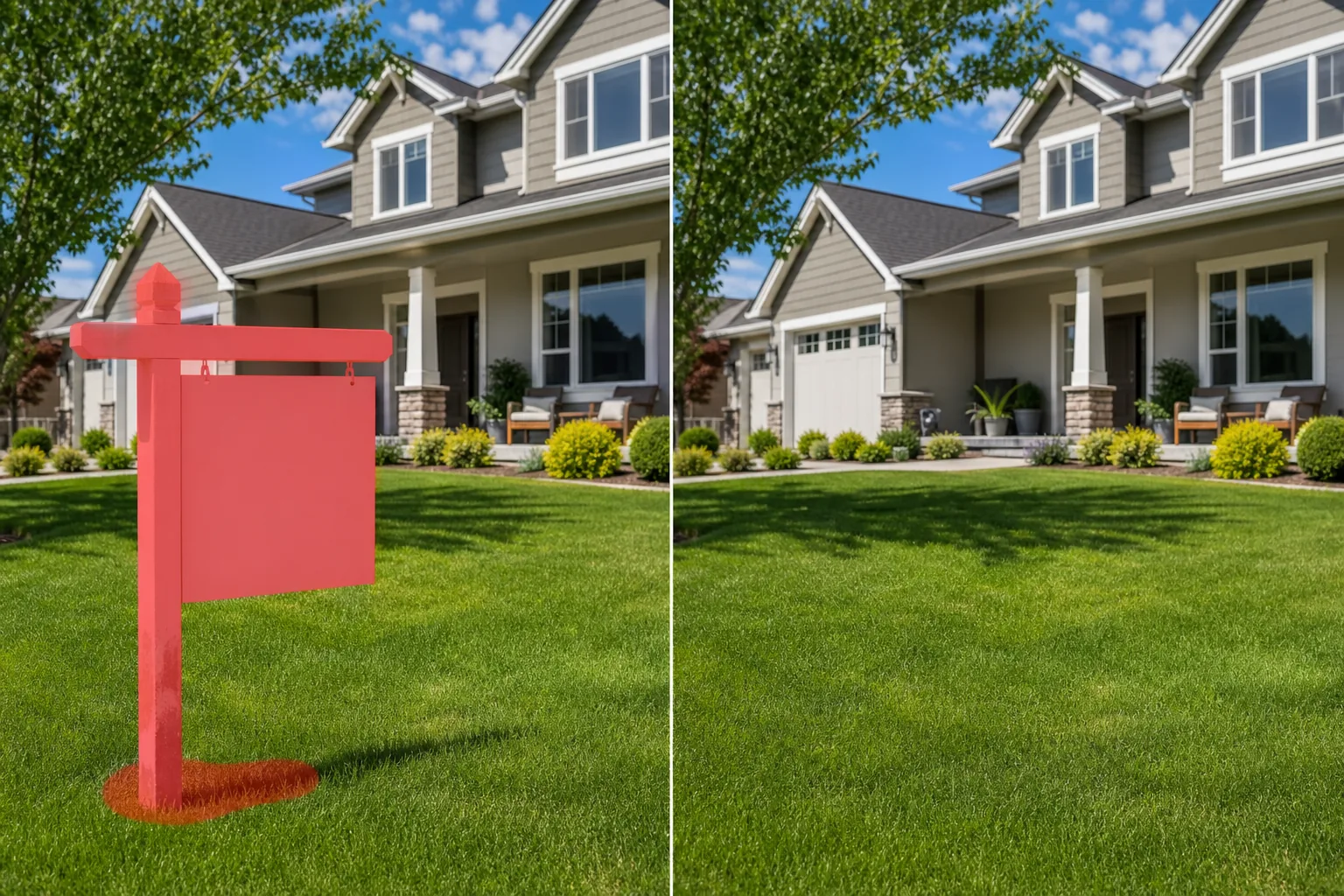
เมื่อสัญญาณเกะกะองค์ประกอบ
หากต้องการลบป้ายออกจากรูปภาพ ให้เปิด Magic Eraser บนเว็บ iOS หรือ Android อัปโหลดรูป แล้วใช้แปรงระบายทับป้าย รวมถึงเสา กรอบ และเงาที่ทอดออกมาด้วย จากนั้นแตะ Erase แล้ว AI จะสร้างสิ่งที่อยู่ด้านหลังขึ้นมาใหม่ ไม่ว่าจะเป็นกำแพงอิฐ รั้ว ท้องฟ้าโล่ง สนามหญ้า หรือผนังด้านหน้าอาคาร ใช้ฟรี ไม่ต้องสมัครสมาชิก สำหรับรูปที่มีป้ายหลายอันให้ระบายทีละอัน เมื่ออยู่บนพื้นหลังเรียบ ๆ อย่างท้องฟ้าหรือกำแพงสะอาดตา ผลลัพธ์จะแนบเนียนแทบไร้รอยต่อ ส่วนพื้นหลังที่มีรายละเอียดมากอาจต้องระบายซ้ำอีกรอบสั้น ๆ ป้ายมีอยู่ทั่วไปในการถ่ายภาพกลางแจ้ง และแทบไม่ค่อยมีในตำแหน่งที่คุณต้องการ ป้าย 'ขาย' บนสนามหญ้าของรายการที่ได้รับการจัดฉากอย่างสวยงาม ประกาศ "ห้ามบุกรุก" บนรั้วในบริเวณจุดชมวิว ป้ายถนนและป้ายจอดรถเกะกะภาพสถาปัตยกรรม ป้ายธุรกิจจากร้านค้าใกล้เคียงบุกรุกรูปภาพหน้าร้าน ติดประกาศไว้บนผนังระหว่างการถ่ายภาพสถานที่จัดงาน ป้ายแต่ละป้ายจะเพิ่มสัญญาณรบกวนภาพที่หันเหความสนใจจากวัตถุ และสามารถออกเดทหรือระบุตำแหน่งภาพถ่ายในลักษณะที่ไม่ต้องการได้ ช่างภาพอสังหาริมทรัพย์ลบป้ายคู่แข่งออกจากภาพถ่ายที่แสดงรายการ ช่างภาพท่องเที่ยวจะทำความสะอาดป้ายที่ทำลายความรู้สึกเหนือกาลเวลาของการถ่ายภาพจุดหมายปลายทาง ช่างภาพสถานที่จัดงานจะลบกฎระเบียบที่โพสต์ไว้และป้ายทางหนีไฟที่บ่งบอกถึงความสง่างามของพื้นที่ต้อนรับ Magic Eraser จัดการกับป้ายบนพื้นผิวที่หลากหลาย เช่น ผนัง รั้ว ท้องฟ้า หญ้า ด้านหน้าอาคาร — สร้างพื้นหลังที่สะอาดตาด้านหลังป้ายแต่ละป้ายขึ้นมาใหม่
ลบเครื่องหมายในสามขั้นตอน
- 1
อัพโหลดรูปภาพของคุณ
เปิด Magic Eraser บนเว็บ iOS หรือ Android แล้วอัปโหลดภาพถ่ายกลางแจ้ง อสังหาริมทรัพย์ หรือกิจกรรมที่มีป้ายที่คุณต้องการลบออก
- 2
แปรงเหนือป้าย
ทาสีให้ทั่วป้าย รวมทั้งเสา วงเล็บ หรืออุปกรณ์ติดตั้ง รวมเงาที่ป้ายทอดไว้บนผนังหรือพื้นดิน สำหรับป้ายบนเสา ให้ปัดทับเสาด้วยหากต้องการให้ถอดโครงสร้างทั้งหมดออก
- 3
ลบและตรวจสอบ
แตะลบ จากนั้น AI จะลบป้ายออกและสร้างกำแพง รั้ว ท้องฟ้า หรือภูมิทัศน์ที่อยู่ด้านหลังขึ้นมาใหม่ ตรวจสอบว่าพื้นผิวและสีที่สร้างขึ้นใหม่ตรงกับพื้นที่โดยรอบ ส่งออกภาพที่สะอาด
ดีที่สุดสำหรับ
- ภาพถ่ายรายการอสังหาริมทรัพย์ที่มีป้ายแข่งขันหรือทำให้เสียสมาธิ
- ถ่ายภาพท่องเที่ยวและจุดหมายปลายทางพร้อมป้ายโพสต์ที่ไม่ต้องการ
- การถ่ายภาพสถาปัตยกรรมที่มีป้ายทำลายการออกแบบด้านหน้าอาคาร
- ภาพถ่ายสถานที่จัดงานพร้อมทางหนีไฟและประกาศระเบียบ
- ถ่ายรูปหน้าร้านพร้อมป้ายธุรกิจใกล้เคียงมองเห็นได้
- สถานที่ถ่ายภาพบุคคลกลางแจ้งพร้อมกฎหรือคำเตือนที่โพสต์ไว้
- ภาพสต็อกที่มีป้ายเพิ่มข้อความที่ไม่ต้องการหรือการแปลเป็นภาษาท้องถิ่น
- เอกสารประกอบอาคารเก่าแก่ที่ป้ายสมัยใหม่ไม่ตรงกับสมัย
เคล็ดลับในการลบป้ายให้สะอาด
การลบป้ายจะทำงานได้ดีที่สุดเมื่อพื้นผิวพื้นหลังมีพื้นผิวที่สม่ำเสมอ เช่น ผนังอิฐ พื้นผิวที่ทาสี ท้องฟ้าใส และรั้วที่สม่ำเสมอ ทั้งหมดนี้สร้างขึ้นใหม่หมดจด สำหรับป้ายบนพื้นหลังที่ซับซ้อน (ป้ายที่ซ้อนทับหน้าต่างและผนังบางส่วน) AI จะจัดการทั้งสองพื้นผิว แต่อาจต้องผ่านครั้งที่สองที่จุดเปลี่ยน รวมเงาของป้ายไว้ในการเลือกของคุณ — เงาที่ค้างอยู่โดยไม่มีเครื่องหมายจะดูไม่เป็นธรรมชาติ สำหรับป้าย "ขาย" บนสนามหญ้า ให้ปัดป้าย เสา และเงาบนพื้นหญ้า AI สร้างพื้นผิวสนามหญ้าขึ้นใหม่ สำหรับป้ายถนนบนเสา ให้ตัดสินใจว่าจะถอดเฉพาะหน้าป้ายหรือทั้งเสา การถอดเสาออกจะทำให้ได้ผลลัพธ์ที่สะอาดยิ่งขึ้น แต่ต้องมีการสร้างท้องฟ้าหรือพื้นหลังใหม่มากขึ้น สำหรับข้อความบนผนัง (สไตล์กราฟิตีหรือประกาศที่ติดไว้แบบเรียบๆ) AI จะลบข้อความและสร้างพื้นผิวและสีของผนังข้างใต้ขึ้นมาใหม่
คำถามที่พบบ่อย
- สามารถลบป้าย For Sale ออกจากรูปภาพรายการได้หรือไม่?
- ใช่. ปัดทับป้าย เสา และเงาบนสนามหญ้า AI จะลบโครงสร้างป้ายทั้งหมด และสร้างสนามหญ้าที่สะอาดและพื้นหลังด้านหลังป้ายขึ้นมาใหม่
- ใช้ได้กับป้ายที่ติดกับอาคารหรือไม่?
- ใช่. แปรงทับป้ายและขายึดใดๆ AI จะสร้างพื้นผิวผนังขึ้นมาใหม่ — จับคู่อิฐ สี ปูนปั้น หรือวัสดุใดๆ ก็ตามที่ติดป้ายไว้
- สามารถลบข้อความที่วาดบนผนังโดยตรงได้หรือไม่?
- ใช่. ข้อความที่ทาสี ประกาศที่ติดประกาศ และป้ายที่วาง ทั้งหมดตอบสนองต่อเวิร์กโฟลว์การแปรงและลบแบบเดียวกัน AI สร้างพื้นผิวผนังที่สะอาดขึ้นมาใหม่ใต้ข้อความ
- การลบป้ายฟรีหรือไม่?
- ใช่. ระดับฟรีของ Magic Eraser ครอบคลุมการลบเครื่องหมาย อัปโหลดรูปภาพของคุณ ปัดทับป้ายที่ไม่ต้องการ และส่งออกเวอร์ชันที่สะอาดตา
- จะลบป้ายออกจากรูปภาพบนมือถือได้อย่างไร?
- เปิด Magic Eraser บนเบราว์เซอร์มือถือใด ๆ หรือแอป iOS หรือ Android โหลดรูปจากคลังภาพ แล้วใช้นิ้วถ่างเพื่อซูมเข้าไปที่ป้าย ใช้นิ้วระบายทับป้ายทั้งหมด รวมถึงเสาและกรอบ จากนั้นแตะ Erase การซูมเข้าช่วยให้คุณลากตามขอบได้สะอาดขึ้นเมื่อเทียบกับกำแพง รั้ว หรือท้องฟ้าด้านหลัง ผลลัพธ์เหมือนกับเวอร์ชันบนเดสก์ท็อปและบันทึกกลับลงในคลังภาพของคุณได้ทันที
- ลบป้ายหลายอันออกจากรูปเดียวพร้อมกันได้ไหม?
- ได้ ระบายทับป้ายทุกอันที่ต้องการลบในรอบเดียว ไม่ว่าจะเป็นกลุ่มป้ายจราจร แถวประกาศที่ติดไว้ หรือป้ายขายบ้านพร้อมป้ายของเพื่อนบ้าน แล้วแตะ Erase เพียงครั้งเดียว AI จะสร้างพื้นหลังแต่ละจุดขึ้นมาใหม่แยกกัน หากป้ายสองอันอยู่บนพื้นผิวที่ต่างกันมาก การระบายและตรวจดูทีละอันจะช่วยให้แต่ละจุดกลมกลืนกับพื้นหลังของตัวเองได้ดีขึ้น
- กำแพงหรือท้องฟ้าด้านหลังป้ายจะดูเหมือนถูกปะแบบเห็นได้ชัดไหม?
- เมื่ออยู่บนพื้นหลังเรียบง่าย อย่างท้องฟ้าโล่ง กำแพงทาสีเรียบ หรือรั้วที่สม่ำเสมอ ผลลัพธ์มักแนบเนียนไร้รอยต่อ ส่วนพื้นหลังที่มีรายละเอียดอย่างผนังอิฐ ใบไม้ หรือผิวอาคารที่มีลวดลายจะยากกว่า ให้ระบายเลยขอบป้ายและเงาที่ทอดออกมาเล็กน้อย จากนั้นซูมไปที่ 100% แล้วตรวจดูรอยต่อ ระบายซ้ำสั้น ๆ ตรงจุดที่ลวดลายซ้ำขาดช่วงจะช่วยให้ดูกลมกลืนยิ่งขึ้น