
วิธีลบไฝออกจากภาพถ่าย
ไฝ ปาน และจุดด่างดำอาจทำให้เสียสมาธิในการถ่ายภาพบุคคลในระยะใกล้ Magic Eraser ลบออกด้วยการรีทัชผิวที่ขับเคลื่อนด้วย AI เพื่อรักษาพื้นผิว รูขุมขน และโทนสีของผิวโดยรอบตามธรรมชาติ
Last updated
กำจัดไฝเดี๋ยวนี้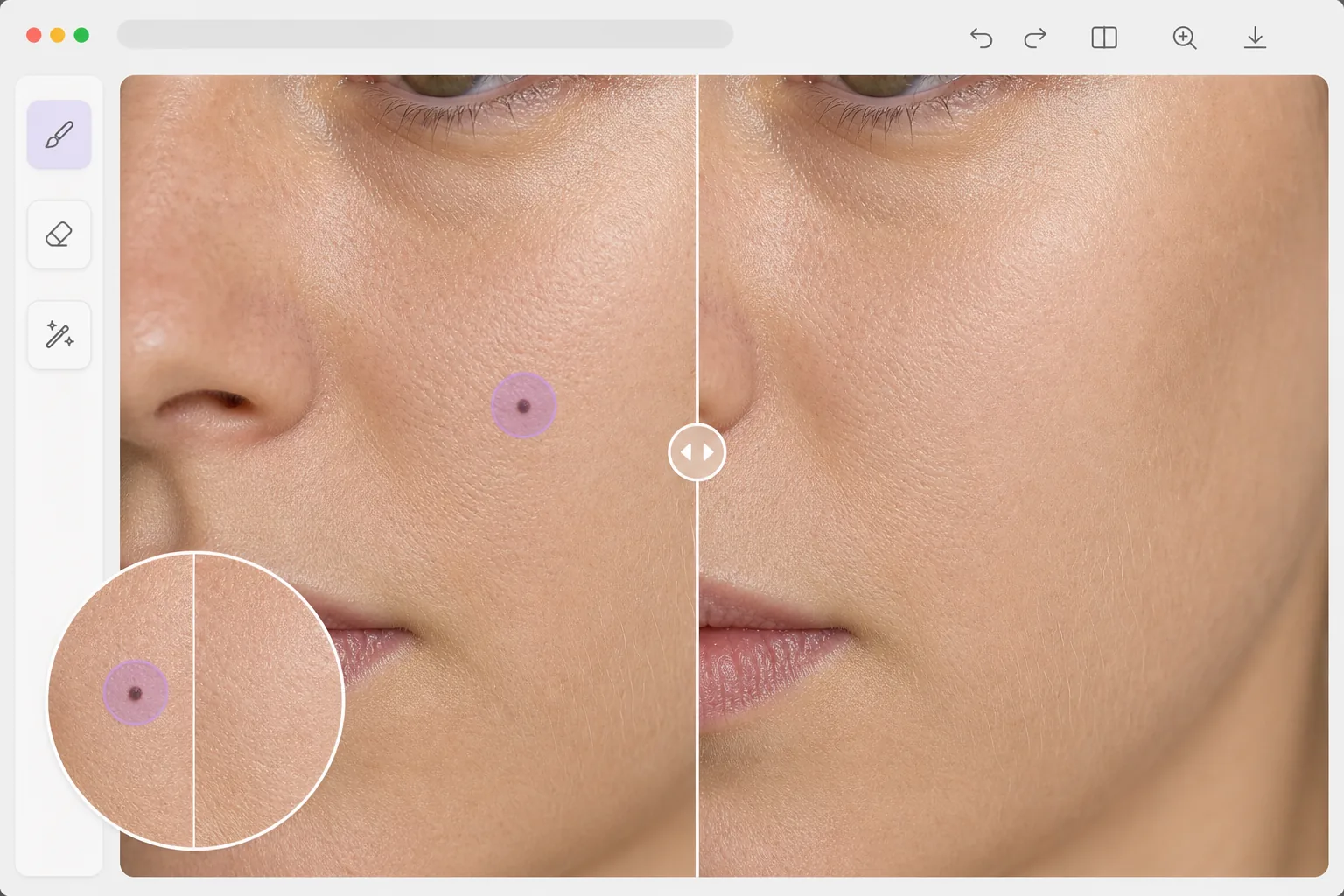
การรีทัชผิวด้วย AI ที่ดูเป็นธรรมชาติ
หากต้องการลบไฝออกจากรูปภาพ ให้เปิด Magic Eraser บนเว็บ iOS หรือ Android อัปโหลดรูปพอร์เทรตของคุณ ใช้แปรงระบายตรงไฝ แล้วปล่อยให้ AI แทนที่ด้วยผิวที่กลมกลืนกับเนื้อผิวและโทนสีรอบ ๆ ใช้งานฟรี ไม่ต้องสมัครสมาชิก ขั้นตอนนี้แก้ไขเฉพาะรูปภาพเท่านั้น ซึ่งเปลี่ยนแค่หน้าตาผิวของคุณในภาพ และไม่ส่งผลใด ๆ ต่อผิวจริงของคุณ มันเป็นเพียงการรีทัชเพื่อความสวยงามเท่านั้น ไม่ใช่เครื่องมือทางการแพทย์ ฉะนั้นอย่าใช้รูปที่ลบไฝออกแล้วมาตัดสินว่าไฝจริงของคุณกำลังเปลี่ยนแปลงหรือไม่ เรื่องนั้นควรไปพบแพทย์ เพื่อผลลัพธ์ที่ดูเป็นธรรมชาติที่สุด ให้ทำทีละไฝ และลองพิจารณาเก็บไฝเด่น ๆ ที่เป็นเอกลักษณ์ของหน้าตาคุณเอาไว้ การลบจุดแบบดั้งเดิมในโปรแกรมแก้ไขภาพใช้เครื่องมือโคลนแสตมป์หรือแปรงรักษาที่จะคัดลอกพื้นผิวบริเวณใกล้เคียงเพื่อปกปิดรอยตำหนิ วิธีนี้ใช้ได้ผลกับจุดเล็กๆ แต่สามารถสร้างรูปแบบซ้ำๆ ที่มองเห็นได้บนไฝขนาดใหญ่ โดยเฉพาะบนแก้มและหน้าผากที่เนื้อผิวแตกต่างกันไปทั่วทั้งบริเวณ การกำจัดที่ขับเคลื่อนด้วย AI จะทำให้เข้าใจว่าผิวเป็นพื้นผิวที่ต่อเนื่องกันซึ่งมีพื้นผิวที่แตกต่างกัน ความหนาแน่นของรูพรุน และการไล่ระดับสี สร้างผิวใหม่ที่กลมกลืนกับพื้นที่โดยรอบได้อย่างลงตัว ไม่ใช่แค่สีเท่านั้น แต่ยังเข้าคู่กับขนาดรูขุมขน ริ้วรอย และฝอยสีพีชที่ทำให้ผิวดูสมจริงอีกด้วย ผลลัพธ์ที่ได้แยกไม่ออกจากผิวหนังที่ไม่เคยมีไฝนั่นเอง
Before you start
กำจัดไฝในสามขั้นตอน
Start with อัปโหลดภาพบุคคล. The result preview above and tips below use this guide's existing content; no separate before-and-after proof is assumed.
- 1
อัปโหลดภาพบุคคล
เปิด Magic Eraser บนเว็บ, iOS หรือ Android อัปโหลดภาพบุคคลหรือภาพระยะใกล้ที่มองเห็นไฝได้ ภาพถ่ายที่มีความละเอียดสูงกว่าจะให้ผลลัพธ์ที่เป็นธรรมชาติมากกว่า เนื่องจาก AI มีรายละเอียดพื้นผิวที่ใช้งานได้มากกว่า
- 2
แปรงให้ทั่วตัวตุ่น
ใช้แปรงขนาดเล็กที่มีขนาดใหญ่กว่าไฝ การแตะเพียงครั้งเดียวก็เพียงพอสำหรับจุดเล็กๆ สำหรับไฝที่ยกขึ้นขนาดใหญ่ซึ่งทำให้เกิดเงา ให้รวมพื้นที่เงาไว้ในการเลือกของคุณด้วยเพื่อให้ได้ผลลัพธ์ที่สะอาดหมดจด
- 3
ตรวจสอบและส่งออก
AI จะแทนที่ไฝด้วยผิวหนังตามธรรมชาติที่เข้ากับโทนสี พื้นผิว และแสงของพื้นที่โดยรอบ ซูมเข้าเพื่อตรวจสอบว่าการผสมผสานนั้นราบรื่น ส่งออกภาพบุคคลที่รีทัชด้วยความละเอียดสูงสุด
ดีที่สุดสำหรับ
- ช่างภาพพอร์ตเทรตที่นำเสนอการตกแต่งผิวให้กับลูกค้าที่ต้องการลบรอยตำหนิ
- การเตรียมภาพศีรษะแบบมืออาชีพโดยคาดหวังให้มีรูปลักษณ์ที่สะอาดตา
- ผู้ใช้โซเชียลมีเดียที่ต้องการรูปลักษณ์ที่นุ่มนวลในโปรไฟล์และรูปถ่ายที่โพสต์
- โรคผิวหนังก่อน/หลังเอกสารที่ต้องแยกเครื่องหมายเฉพาะออก
- ช่างภาพงานแต่งงานและงานอีเว้นท์ทำการรีทัชภาพบุคคลเป็นชุด
เคล็ดลับเพื่อผลลัพธ์ที่ดีที่สุด
ใช้แปรงที่เล็กที่สุดซึ่งครอบคลุมไฝได้เต็มที่ — พื้นที่ในการสร้างใหม่น้อยลงหมายถึงผลลัพธ์ที่เป็นธรรมชาติมากขึ้น สำหรับไฝบริเวณใบหน้า (ตา จมูก ริมฝีปาก) ควรวางแปรงให้แม่นยำเพื่อหลีกเลี่ยงผลกระทบต่อบริเวณที่อยู่ติดกัน ดำเนินการทีละโมลเพื่อสร้างผิวใหม่ที่แม่นยำที่สุด หากไฝเป็นลักษณะเฉพาะของบุคคลนั้น (เช่น เครื่องหมายความงามของซินดี้ ครอว์ฟอร์ด) ให้พิจารณาว่าลูกค้าต้องการกำจัดไฝจริงๆ หรือไม่ สำหรับการรีทัชภาพบุคคลเป็นชุด ให้กำหนดแนวทางที่สอดคล้องกัน: ลบจุดรบกวนสายตาโดยยังคงรักษาคุณลักษณะที่กำหนดตัวละครไว้
คำถามที่พบบ่อย
- ภาพถ่ายระยะใกล้จะดูเป็นธรรมชาติหรือไม่?
- ใช่. AI สร้างผิวที่มีรูขุมขน ริ้วรอย และสีที่เข้ากัน ที่ระยะการมองปกติ พื้นที่ที่ถูกถอดออกจะแยกไม่ออกจากผิวหนังโดยรอบ แม้จะซูมภาพระยะใกล้ พื้นผิวก็ยังดูเป็นธรรมชาติ
- ฉันสามารถลบไฝหลายตัวพร้อมกันได้หรือไม่?
- ใช่. แปรงทาไฝแต่ละอันที่คุณต้องการเอาออก จากนั้นจึงประมวลผลทั้งหมดเข้าด้วยกัน แต่ละพื้นที่ของไฝจะถูกสร้างขึ้นใหม่โดยอิสระตามบริบทจากผิวหนังที่อยู่รอบๆ
- การลบไฝออกจากภาพถ่ายฟรีหรือไม่?
- ใช่. คุณสมบัติการลบวัตถุทำงานสำหรับการรีทัชสกินในระดับฟรีโดยจำกัดการใช้งานรายวัน พรีเมียมลบข้อจำกัดสำหรับการรีทัชภาพบุคคลเป็นชุด
- ควรลบไฝออก หรือเก็บไว้เป็นไฝเสน่ห์ดี?
- เรื่องนี้ขึ้นอยู่กับคุณ และควรคิดถึงจุดประสงค์ของรูปด้วย ถ้าเป็นรูปงานอีเวนต์แบบครั้งเดียว การลบจุดที่รบกวนสายตาออกก็ไม่มีปัญหา แต่ถ้าเป็นรูปโปรไฟล์ รูปในแอปหาคู่ หรือรูปใด ๆ ที่คุณจะได้เจอผู้คนตัวจริง ลองพิจารณาเก็บไฝเด่น ๆ และไฝเสน่ห์ที่เป็นเอกลักษณ์เอาไว้ เพราะมันเป็นส่วนหนึ่งของหน้าตาจริงของคุณ และการแก้ไขที่ลบมันออกอาจทำให้รูปดูไม่เหมือนตัวคุณ การเลือกแบบไหนก็ไม่ผิดทั้งนั้น แค่อย่าแก้ไขจนหน้าไม่ตรงกับตัวจริง โดยเฉพาะรูปแบบบัตรประจำตัวหรือรูปที่เชื่อมโยงกับตัวตนของคุณ
- เครื่องมือนี้บอกได้ไหมว่าไฝอันตรายหรือเปล่า หรือช่วยลบไฝที่น่ากังวลออกได้ไหม?
- ไม่ได้ นี่คือเครื่องมือแก้ไขรูปภาพ ไม่ใช่เครื่องมือทางการแพทย์ และไม่สามารถประเมินสุขภาพผิวได้ การลบไฝออกจากรูปเป็นการเปลี่ยนแปลงภาพ ไม่ใช่ผิวของคุณ และไม่ควรนำมาใช้ติดตาม วินิจฉัย หรือปกปิดไฝที่คุณกังวลโดยเด็ดขาด หากไฝเพิ่งขึ้นใหม่ มีขนาด รูปร่าง หรือสีที่เปลี่ยนไป มีอาการคัน หรือมีเลือดออก อย่าพึ่งพาการแก้ไขรูปภาพ ควรไปให้แพทย์หรือแพทย์ผิวหนังตรวจดู