
사진에서 렌즈 플레어 제거
풍경 사진, 웨딩 사진, 인물 사진, 건축물 사진에서 렌즈 플레어 아티팩트(밝은 점, 색 줄무늬, 안개, 잔상)를 제거합니다. Magic Eraser은 광학적 왜곡을 제거하는 동시에 뒤에 숨겨진 디테일을 재구성하여 육안으로 보였던 장면을 복원합니다.
마지막 업데이트
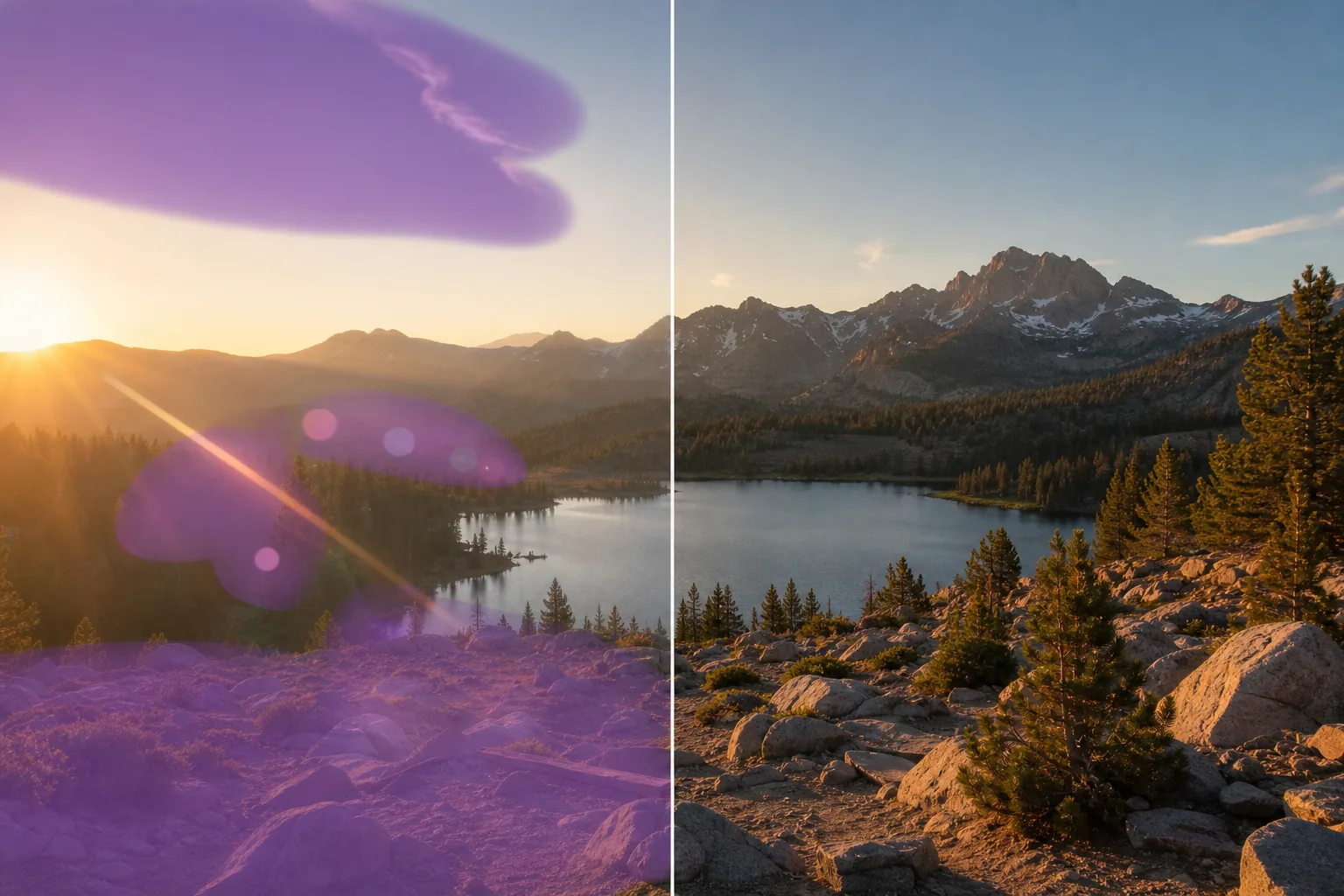
사진에서 렌즈 플레어를 제거하는 방법
사진에서 렌즈 플레어를 제거하려면 웹, iOS, Android에서 Magic Eraser를 열고 이미지를 업로드한 뒤, 플레어(색이 있는 점, 동그란 고리, 뿌연 줄무늬)를 브러시로 칠하면 AI가 그 뒤에 가려진 장면을 다시 만들어 줍니다. 회원가입 없이 무료로 사용할 수 있어요. 하늘이나 균일한 표면처럼 단순한 영역에 플레어가 걸쳐 있을 때 가장 깔끔하게 지워지고, 얼굴이나 나뭇잎, 건물처럼 복잡한 부분은 그럴듯하게 추측해 복원합니다. 남기고 싶은 실제 광원이나 하늘이 아니라 밝은 잔상만 브러시로 칠하세요. 플레어가 강한 경우에는 구역을 나눠 작업하고 한 번 더 실행한 다음, 확대해서 결과를 확인하면 좋습니다. 렌즈 플레어는 강한 빛이 특정 각도에서 렌즈에 들어오고 유리 요소 사이에서 반사되어 실제 장면을 오버레이하는 아티팩트를 생성할 때 발생합니다. 이러한 아티팩트는 대비를 감소시키는 미묘한 안개부터 피사체의 세부 묘사를 모호하게 만드는 밝은 색상의 점과 줄무늬까지 다양합니다. 플레어는 복잡한 기본 콘텐츠(얼굴, 나뭇잎, 건축물) 위에 위치하며 간단히 복제하면 문제가 다른 문제로 대체되므로 수동 제거가 어렵습니다. Magic Eraser의 AI는 주변 상황을 분석하여 플레어 뒤에 무엇이 있는지 이해한 다음 가려진 세부 사항을 재구성합니다. AI는 플레어 아티팩트(제거해야 함)와 하늘이나 광원과 같은 의도적인 밝은 영역(보존해야 함)을 구별하여 자연스럽게 조명이 켜진 것처럼 보이는 깨끗한 결과를 생성합니다.
3단계에 걸쳐 렌즈 플레어 제거
- 1
사진 업로드
웹, iOS 또는 Android에서 Magic Eraser을 열고 영향을 받은 풍경, 결혼식, 인물 사진 또는 건축 사진을 업로드하세요. 이 도구는 모든 해상도에서 JPEG, PNG, HEIC 및 WebP 형식을 허용합니다.
- 2
플레어 아티팩트를 브러시로 덮습니다.
렌즈 플레어 요소 위에 페인트를 칠합니다. 즉, 밝은 중앙 지점, 색상 줄무늬, 고스트 오브, 영향을 받은 영역의 대비를 감소시키는 안개 등을 칠합니다. 플레어가 깨끗한 이미지로 전환되는 희미한 가장자리를 포함하여 각 아티팩트의 전체 범위를 덮습니다. 프레임 전체에 분산된 여러 플레어 요소의 경우 각 요소를 개별적으로 브러싱합니다.
- 3
결과를 지우고 검사합니다.
지우기를 탭하면 AI가 플레어 아티팩트를 제거하는 동시에 밑에 숨겨진 세부 사항을 재구성합니다. 결과를 100% 확대/축소한 원본과 비교합니다. 재구성된 영역이 주변 질감, 색상 및 조명과 일치하는지 확인합니다. 플레어로 인해 희미한 잔류 연무가 남아 있으면 영향을 받은 부위에 두 번째 패스를 실행하십시오. 전체 해상도로 내보냅니다.
다음에 가장 적합
- 플레어가 얼굴을 교차하는 황금시간대 역광으로 촬영한 웨딩 및 약혼 사진
- 태양의 위치에 따라 하늘이나 전경에 플레어가 생기는 풍경 사진
- 태양광으로 인해 렌즈 플레어가 건물의 일부를 씻어내는 부동산 외부 사진
- 컬러 플레어 줄무늬를 유발하는 무대 조명을 사용한 콘서트 및 이벤트 사진 촬영
- 자동차 헤드라이트나 네온 사인으로 인해 원치 않는 플레어가 발생하는 거리 사진
- 유리 표면의 반사로 인해 2차 플레어가 발생하는 건축 사진
- 과도한 플레어 아티팩트를 생성하는 의도적인 역광을 사용한 인물 사진 세션
- 타이밍이나 프레이밍으로 인해 태양을 향해 촬영이 불가피했던 여행 사진
효과적인 렌즈 플레어 제거를 위한 팁
일부 렌즈 플레어는 의도적인 것입니다. 웨딩 사진작가와 촬영 감독은 의도적으로 태양을 향해 촬영하여 따뜻하고 낭만적인 빛을 연출합니다. 플레어를 제거하기 전에 이미지에 추가 또는 감소 여부를 결정하십시오. 플레어를 제거할 때 AI는 희미한 가장자리를 포함하여 전체 아티팩트를 선택할 때 가장 잘 수행됩니다. 플레어 줄무늬를 중간에 잘라내면 눈에 띄는 경계가 남을 수 있습니다. 중앙에 밝은 플레어 지점과 보조 유령 구체가 프레임 전체에 분산되어 있는 이미지의 경우 중앙 지점을 먼저 제거한 다음(보통 가장 크고 가장 방해가 되는 지점) 유령 구체를 개별적으로 처리합니다. 고대비 가장자리(색수차)를 따라 나타나는 녹색 및 보라색 무늬는 렌즈 플레어와 다릅니다. 이는 브러시 및 지우기 접근 방식에도 잘 반응하지만 무늬 가장자리를 정확하게 따르는 매우 촘촘한 브러시의 이점을 얻는 별도의 광학 문제입니다.
자주 묻는 질문
- 사진에서 렌즈 플레어를 무료로 제거할 수 있나요?
- 예. Magic Eraser의 무료 등급에는 일일 사용량 한도와 함께 렌즈 플레어 제거가 포함됩니다. 프리미엄(연간 29.99달러)은 제한을 제거하고 전문적인 사진 작업을 위한 고해상도 내보내기를 제공합니다.
- 플레어 뒤에 숨겨진 세부 사항을 재구성할 수 있습니까?
- 예. AI는 주변 이미지 콘텐츠를 분석하여 플레어 아티팩트 뒤에 무엇이 있었는지 추론합니다. 질감이 있는 영역(잔디, 건물, 직물)에 대한 플레어의 경우 재구성이 매우 정확합니다. 얼굴이나 복잡한 피사체에 대한 플레어의 경우 결과는 플레어 가장자리 주변에 보이는 피사체의 양에 따라 달라집니다.
- 렌즈 플레어로 인해 발생하는 흐릿한 저대비 모양은 어떻습니까?
- 흐릿한 영역을 브러시로 칠하면 AI가 대비와 색상 채도를 복원합니다. 플레어로 인해 밝은 점이 아닌 전체적인 안개가 생성되는 이미지의 경우 영향을 받는 전체 영역을 선택합니다. AI는 지나치게 선명하게 하지 않고 기본 색상과 대비를 복원합니다.
- 비디오 프레임 캡처에서도 작동합니까?
- 예. 영향을 받은 프레임을 JPEG 또는 PNG로 내보내고 Magic Eraser을 통해 처리한 다음 정리된 프레임을 프로젝트에 사용하세요. 여러 프레임에 걸쳐 비디오 플레어를 제거하려면 플레어 패턴이 카메라 움직임에 따라 변경되므로 각 프레임을 개별적으로 처리해야 합니다.