
AI Filter style
Filtro foto di arte digitale con IA
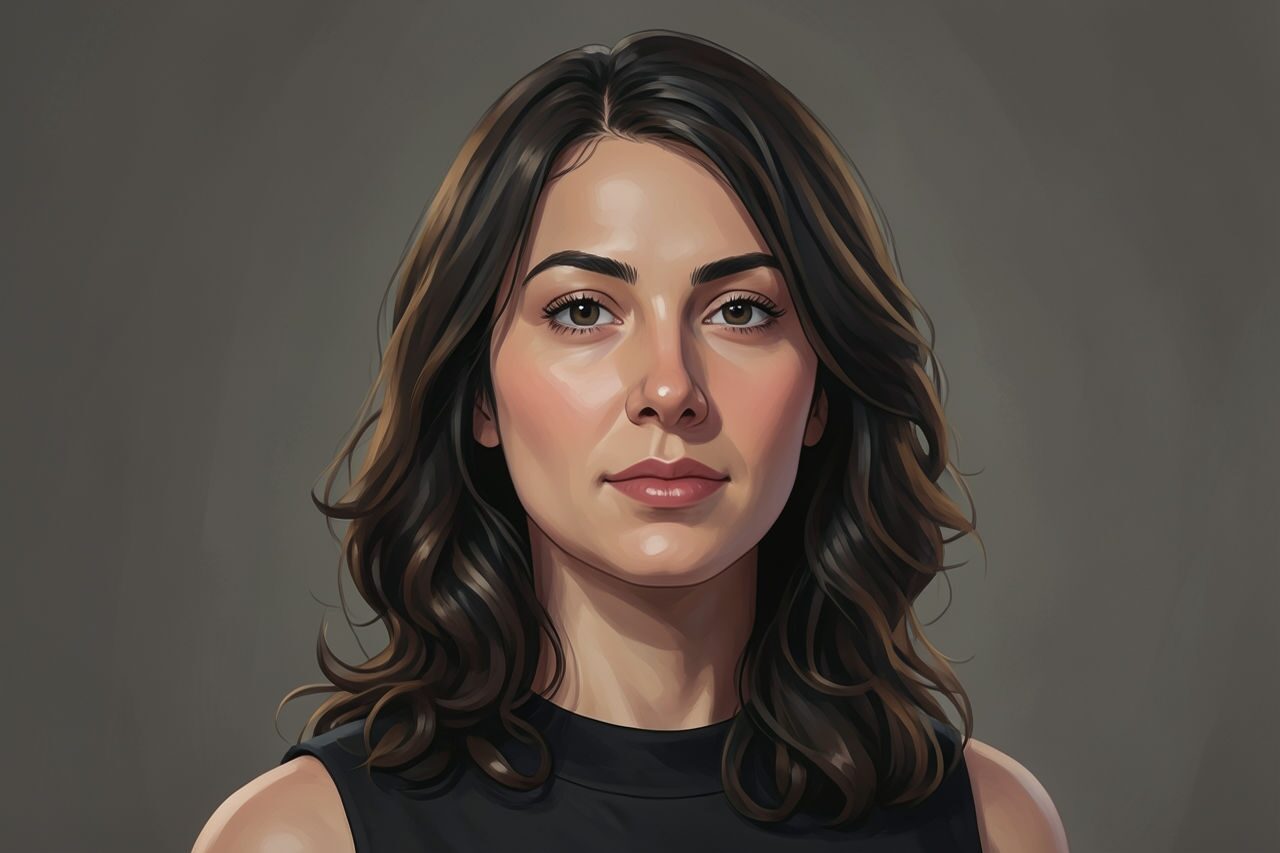
Trasforma una foto in un’illustrazione digitale curata, con colori più ricchi e una resa uniforme, mantenendo riconoscibile il soggetto. È adatto a ritratti, animali, viaggi, lifestyle e concept di campagna; controlla testi, etichette e piccoli dettagli prima dell’uso.

Use case
Ritratti creator, immagini profilo e banner social.
Use case
Foto di animali, viaggi e lifestyle che richiedono una finitura illustrata.
Use case
Concept di campagna in cui il soggetto originale deve restare riconoscibile.
Filter preview
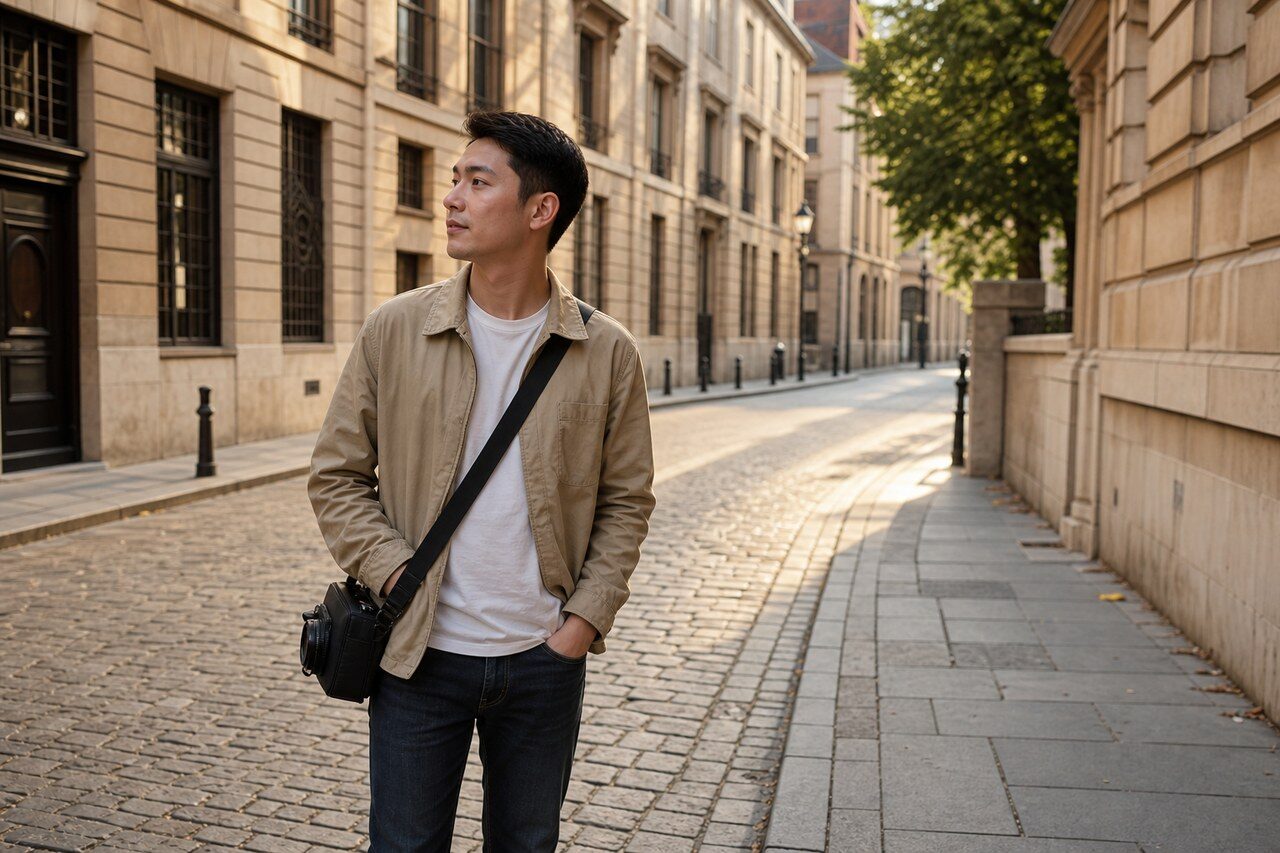
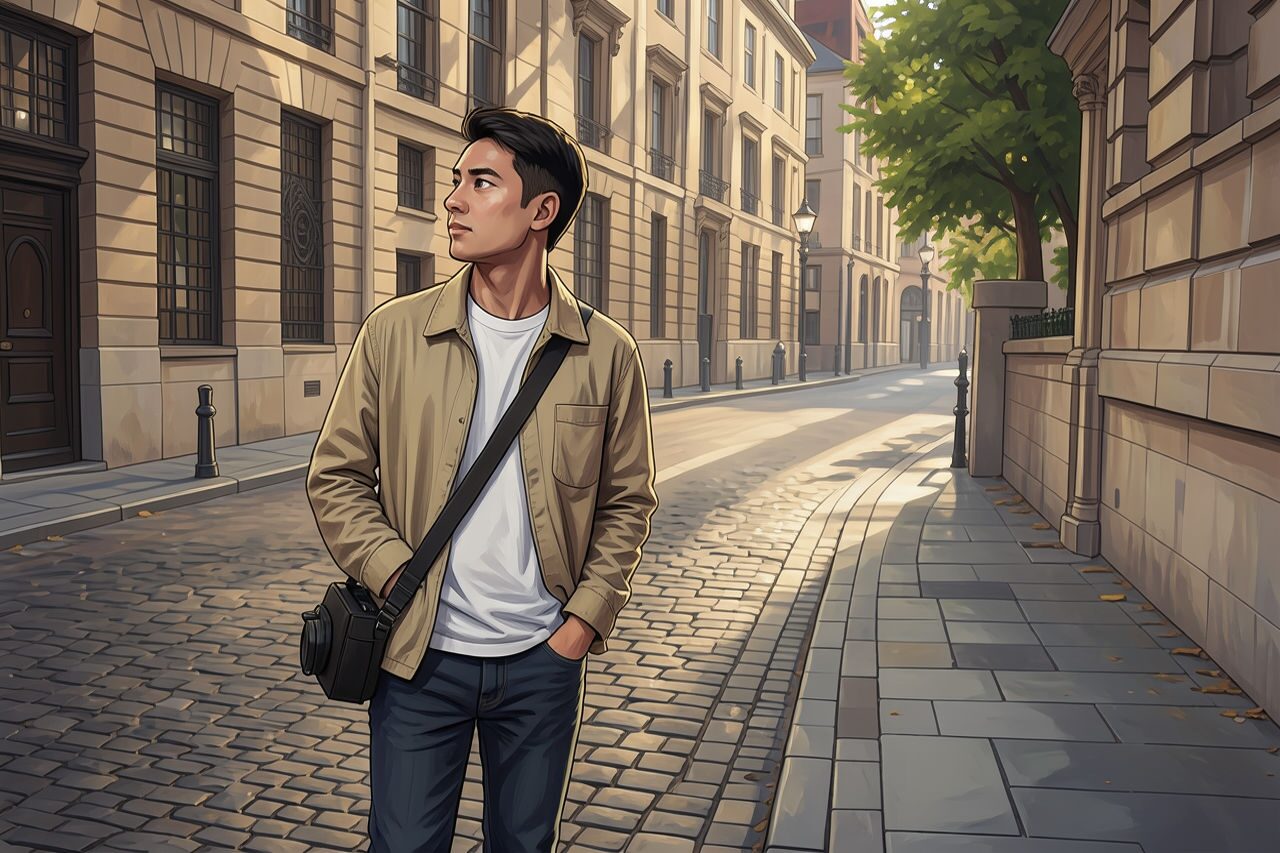
Compare the original photo with the digital art result
The example uses a generated source photo and the same filter API path as the app, so users can judge the visual treatment before uploading their own image.
More examples
Test the digital art filter on different photo types
Compare portrait, product, and pet examples before opening the filter. Each result uses the same filter API path as the Magic Eraser app.

Portrait
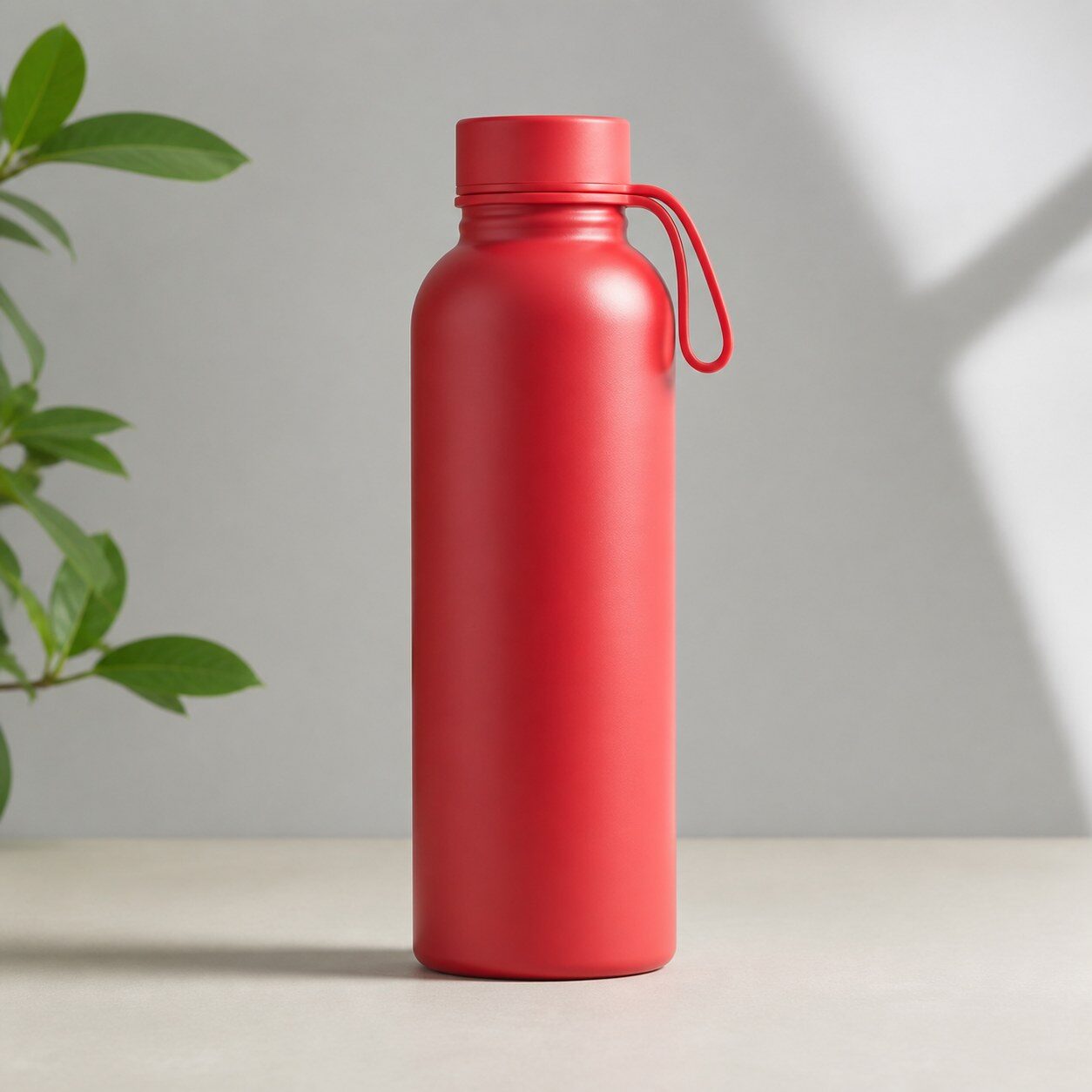
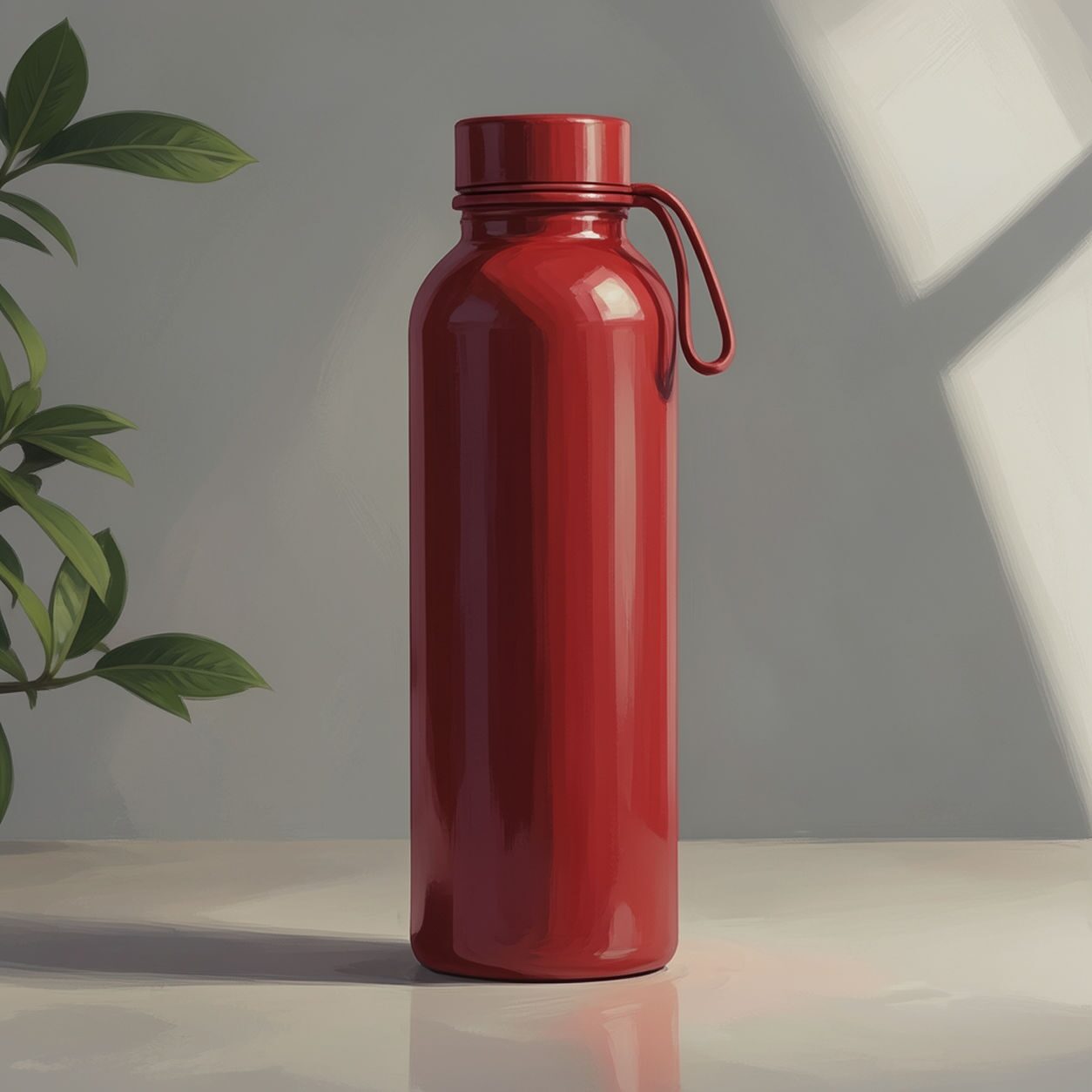
Product
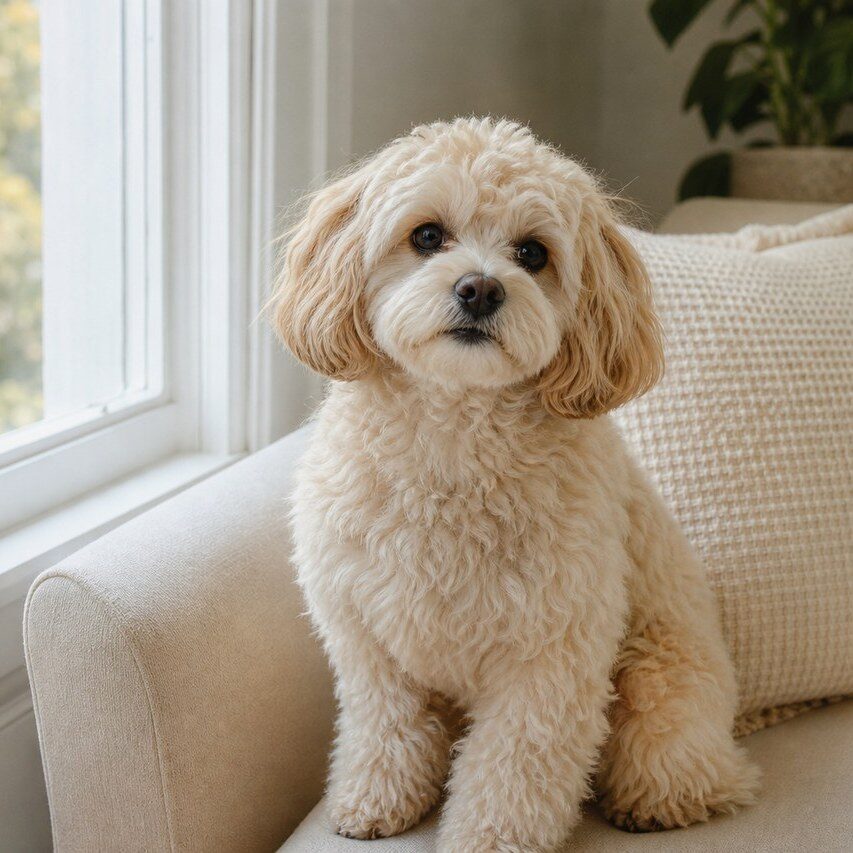
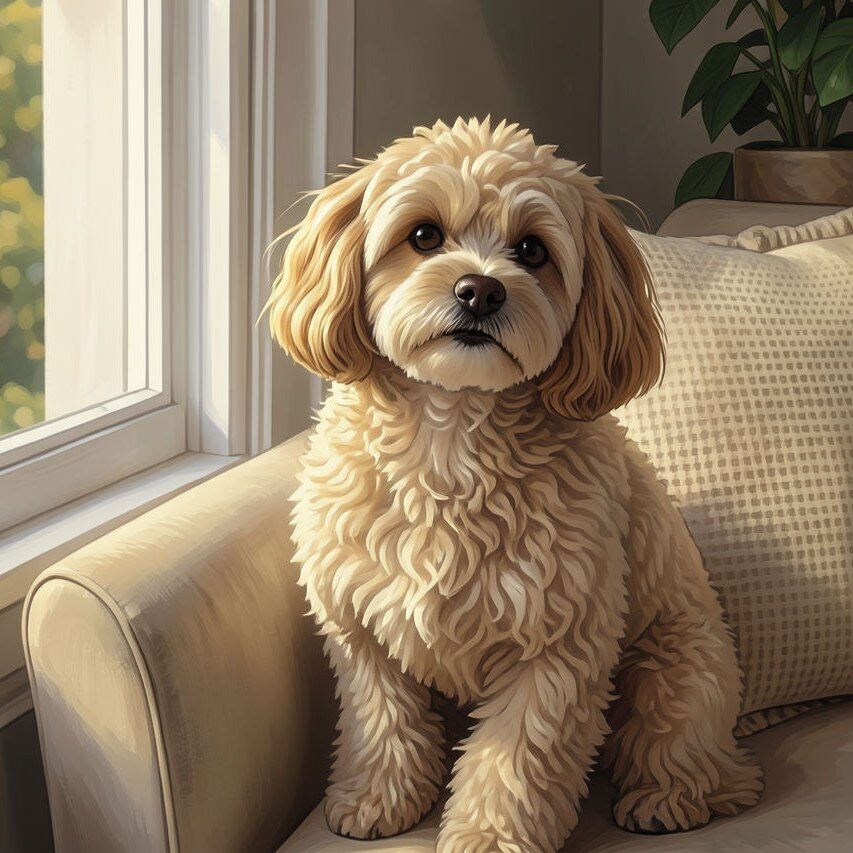
Pet
Photo workflow
How to get a cleaner digital art filter result
Parti da una foto nitida, ben illuminata e senza filtri intensi.
Apri il filtro arte digitale, carica la foto e controlla volti, mani, testo e inquadratura.
Rimuovi le distrazioni o ritaglia il risultato prima dell’esportazione.
Best source photos
- Ritratti e foto di animali, viaggi e lifestyle.
- Foto prodotto con allestimenti semplici.
- Immagini che richiedono una finitura artistica invece di un drastico cambio di genere.
Filter tips
- Un soggetto principale e uno sfondo semplice producono in genere risultati più puliti.
- Il filtro non può recuperare completamente una foto sfocata o poco illuminata.
- Per i prodotti, mantieni le etichette grandi nell’inquadratura e verificane l’accuratezza dopo il filtro.
Before upload checklist
- Use the largest clean version of the photo, not a compressed screenshot or reposted image.
- Crop loosely before filtering so the AI has enough room around the subject.
- Remove obvious distractions first if they sit directly on the face, product, or main subject.
- Check the result at the size where it will be used: profile image, feed post, story, thumbnail, or banner.
When this filter is a good fit
Choose the digital art filter when the original photo already has a clear subject and the goal is a recognizable stylized version, not a fully new generated scene. It is strongest for social, creator, profile, event, and campaign images where mood matters more than documentary accuracy.
Use a different workflow when the image needs exact product color, legal documentation, medical accuracy, or unmodified identity details. In those cases, use cleanup, crop, enhancement, or background tools instead of a heavy creative filter.
Free browser tools after filtering
FAQ
What should I upload?
Use a clear photo with one main subject. Strong lighting and simple backgrounds usually make the AI filter easier to control.
Can I keep editing after the filter?
Yes. After applying the filter, use Magic Eraser to crop, clean distractions, refine backgrounds, and export the final image.
Is this filter selected automatically?
The CTA opens AI Filter with the digital art style parameter, and the app falls back safely if the filter changes.