
AI Create style
Generatore di immagini low poly con IA
Crea immagini low poly da prompt testuali con facce poligonali, geometrie spigolose e campiture nette. Ideale per poster, personaggi, paesaggi e concept di prodotto; descrivi soggetto, densità dei poligoni, palette e luce.
Use case
Poster, copertine e visual social geometrici.
Use case
Concept stilizzati di personaggi, mascotte e ambienti.
Use case
Illustrazioni editoriali e di prodotto con campiture sfaccettate.

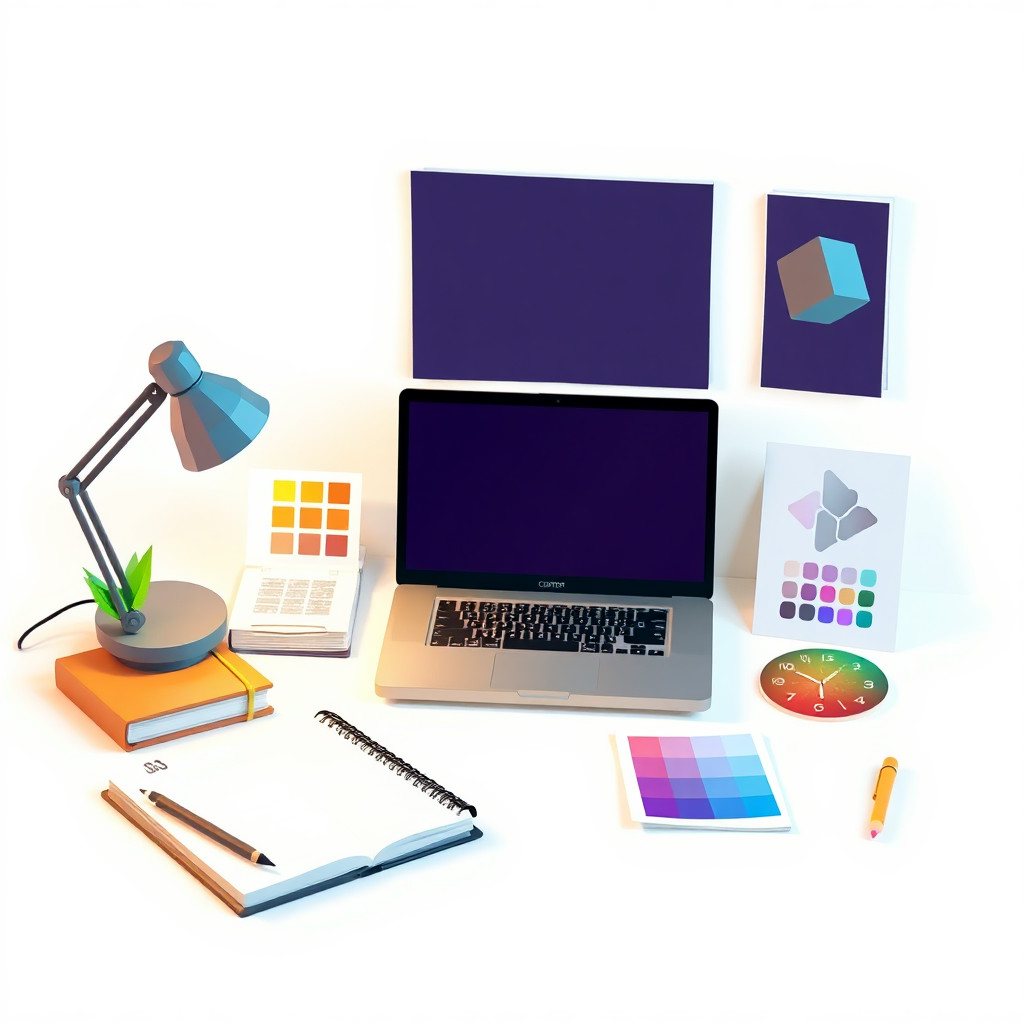
Visual direction preview
Use the style thumbnail as the creative target
The preview gives users a concrete reference for color, texture, edge detail, and mood before they open the generator. Pair it with the prompt starters below to keep the page useful instead of only decorative.
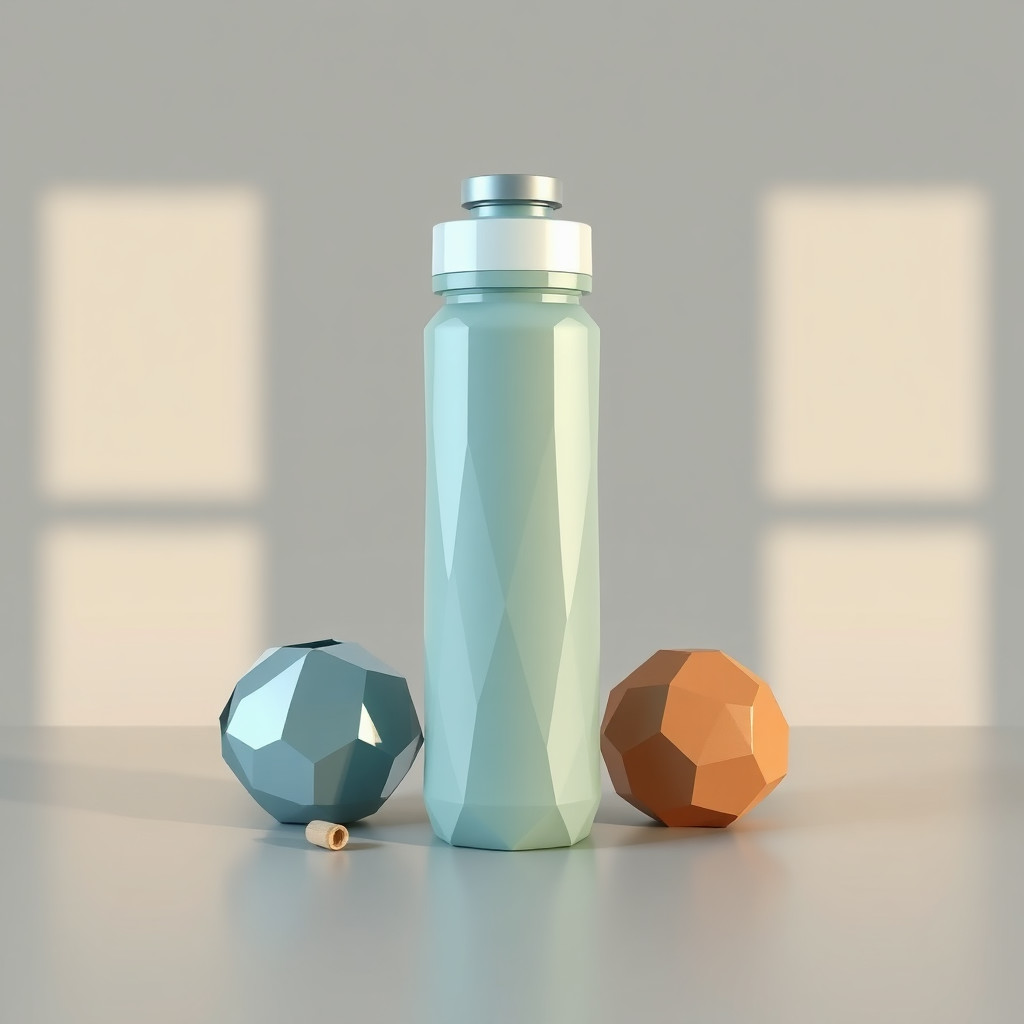
Generated examples
See the low poly style in real outputs
These examples were generated through the Magic Eraser AI Create API with the low poly style selected.
Prompt workflow
How to get a stronger low poly result
Descrivi un soggetto principale, il punto di vista e la composizione.
Aggiungi facce triangolari, livello di dettaglio, palette e direzione della luce.
Genera varianti, scegli la silhouette più chiara, quindi ritaglia e ripulisci.
Prompt starters
- “Cervo low poly su una montagna, grandi facce triangolari, blu e arancione, luce del tramonto”
- “Ritratto di robot low poly, geometria spigolosa, sfondo scuro, luce blu sul bordo”
- “Isola tropicale low poly vista dall’alto, acqua turchese, colori piatti vivaci”
Style tips
- Mantieni semplice lo sfondo per rendere leggibili i bordi dei poligoni.
- Usa meno facce per astrarre o più facce per mantenere i dettagli.
- Aggiungi testo e loghi esatti dopo la generazione.
Output planning checklist
- Decide the final placement before prompting: square post, vertical story, product insert, poster, thumbnail, or wide banner.
- Keep one primary subject and one visual mood so the low poly style has a clear job.
- Describe the background as simple, detailed, bright, dark, studio, outdoor, or textured instead of leaving it open-ended.
- Generate variations first, then edit the selected image for crop, cleanup, and export size.
When to choose this style
Choose low poly when the image needs a clear creative direction before production: an ad concept, a social visual, a character idea, a packaging mood, or a fast design draft. Choose another style if the final asset must look like a camera photo, preserve exact product color, or include precise typography.
For commercial work, treat the generated image as a starting point. Review details, remove distracting artifacts, add exact text separately, and export the final size from the editor.
FAQ
Can I edit the generated image?
Yes. Generate the image, then continue with cleanup, crop, background, and export tools in Magic Eraser.
Should I include exact text?
Use AI Create for the visual direction. Add exact text later with editable design tools for cleaner spelling and layout.
Is this style selected automatically?
The CTA opens AI Create with the low poly style parameter, and the app falls back safely if the option changes.