
Come ridimensionare una foto per i social media
Adatta le foto alle dimensioni esatte richieste da ciascuna piattaforma di social media, senza ritagliare contenuti importanti. Lo strumento AI Espandi di Magic Eraser estende la tela dell'immagine e genera contenuti di sfondo corrispondenti, convertendo una foto orizzontale in un post quadrato di Instagram o uno scatto verticale in una miniatura di YouTube mantenendo intatta l'intera composizione originale.
Last updated
Ridimensiona una foto adesso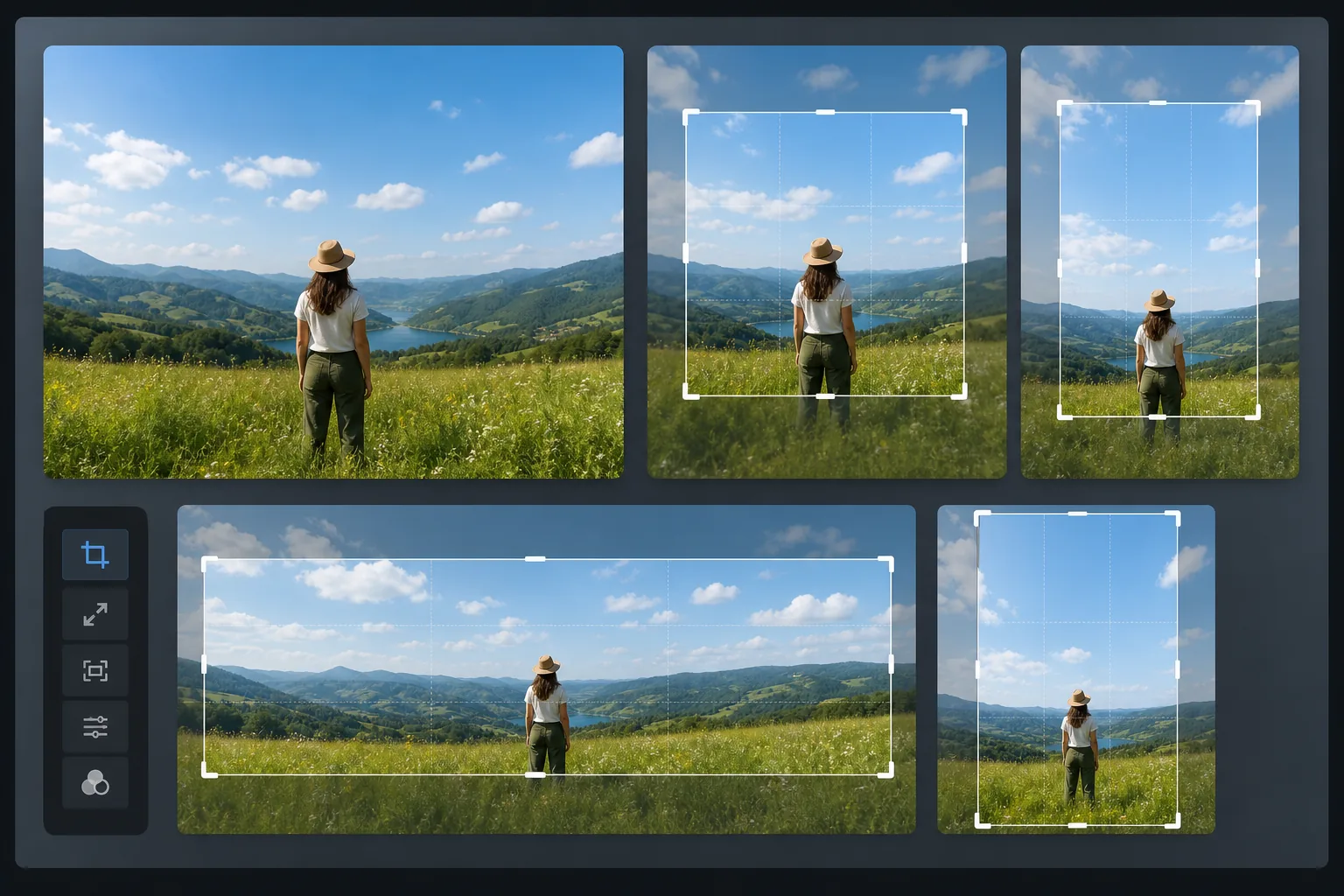
Come ridimensionare una foto per i social media
Per ridimensionare una foto per i social media, apri Magic Eraser sul web, su iOS o su Android, seleziona AI Expand, carica l'immagine, scegli il formato desiderato (1:1 per un post Instagram, 9:16 per le Storie, 16:9 per una miniatura YouTube) e lascia che l'AI estenda l'inquadratura per adattarla. È gratis, senza registrazione. Invece di tagliare i bordi per rendere quadrata una foto orizzontale, genera una scena coerente ai lati, continuando il cielo, il terreno o il muro, così l'intera composizione originale resta nell'inquadratura. Esporta alla risoluzione esatta di ogni piattaforma per evitare il ridimensionamento al momento del caricamento. Ogni piattaforma di social media ha dimensioni preferite: post dei feed di Instagram in 1:1 o 4:5, storie in 9:16, immagini condivise su Facebook in 1,91:1, post di LinkedIn in 1,2:1, pin di Pinterest in 2:3, immagini di Twitter in 16:9, copertine di TikTok in 9:16 e miniature di YouTube in 16:9. Quando la tua foto non corrisponde alle proporzioni target, l'approccio tradizionale è il ritaglio, ovvero il taglio dei bordi per adattarli. Ma il ritaglio rimuove il contenuto: un paesaggio ritagliato in formato quadrato perde i lati della scena, una foto di gruppo ritagliata in formato widescreen perde le persone ai bordi. L'espansione AI di Magic Eraser risolve questo problema estendendo l'immagine anziché tagliandola. L'intelligenza artificiale genera nuovi contenuti di sfondo sui bordi che corrispondono alla scena esistente (continuando il cielo, estendendo il piano del terreno, aggiungendo più superficie del muro o del tavolo) per adattarsi alle dimensioni target preservando l'intera composizione originale.
Before you start
Ridimensiona una foto per i social media in quattro passaggi
Start with carica la tua foto. The result preview above and tips below use this guide's existing content; no separate before-and-after proof is assumed.
- 1
Carica la tua foto
Apri Magic Eraser sul Web, iOS o Android e carica la foto che desideri ridimensionare. Inizia con la versione con la risoluzione più alta disponibile. Lo strumento accetta JPEG, PNG, HEIC e WebP.
- 2
Scegli le dimensioni di destinazione
Seleziona le proporzioni per la tua piattaforma di destinazione: 1:1 per il feed di Instagram, 4:5 per il ritratto di Instagram, 9:16 per Storie e Reels, 16:9 per YouTube e Twitter, 2:3 per Pinterest oppure inserisci dimensioni personalizzate. Lo strumento mostra un'anteprima di come apparirà la tela espansa attorno all'immagine originale.
- 3
Espanditi con l'intelligenza artificiale
L'intelligenza artificiale analizza il contenuto su ciascun bordo dell'immagine e genera contenuti di continuazione senza soluzione di continuità. Il cielo si estende con gradienti e motivi nuvolosi corrispondenti. Le superfici del terreno continuano con texture e prospettiva corrispondenti. Gli sfondi interni si estendono con colori e illuminazione delle pareti coerenti. Il contenuto dell'immagine originale rimane intatto al centro della tela espansa.
- 4
Revisione ed esportazione
Controlla i bordi espansi con uno zoom al 100% per verificare la perfetta fusione tra il contenuto originale e quello generato. Se un bordo sembra incoerente, esegui un secondo passaggio mirato su quel lato. Esporta alla risoluzione specifica della piattaforma: 1080×1080 per il feed Instagram, 1080×1920 per le Storie, 1200×628 per i collegamenti Facebook, 1280×720 per le miniature di YouTube. Salva più versioni per piattaforme diverse dalla stessa immagine espansa.
Meglio per
- Gestori di social media che hanno bisogno di pubblicare la stessa foto su piattaforme con dimensioni diverse
- Creatori di contenuti Instagram che convertono foto orizzontali in formato quadrato o verticale
- Creatori di YouTube che generano miniature 16:9 da foto orientate al ritratto
- Esperti di marketing di Pinterest che necessitano di pin alti 2:3 da foto orizzontali standard
- Agenti immobiliari che adattano le foto degli annunci per diverse piattaforme social
- Venditori di e-commerce che creano immagini di prodotto coerenti sul mercato e sui canali social
- Fotografi di eventi che offrono versioni specifiche della piattaforma da un singolo scatto
- Team di marketing che mantengono la coerenza visiva nelle campagne multipiattaforma
Suggerimenti per un ridimensionamento efficace dei social media
Inizia con l'immagine sorgente più ampia possibile: è più semplice estendere una piccola quantità su ciascun lato piuttosto che generare un'ampia area di nuovo contenuto. Mantieni il soggetto centrato nella composizione originale in modo che l'intelligenza artificiale debba generare solo lo sfondo, non il primo piano o il contenuto del soggetto. Per i ritratti e le foto di prodotti su sfondi uniformi, l'espansione dell'intelligenza artificiale produce risultati quasi perfetti perché il motivo dello sfondo è semplice e prevedibile. Per scene complesse (strade affollate, interni dettagliati, paesaggi con molti elementi distinti), controlla attentamente i bordi espansi ed esegui un secondo passaggio se necessario. Quando crei più versioni di piattaforma, lavora dalle proporzioni più grandi a quelle più piccole: espandi prima un paesaggio a 16:9, quindi espandi ulteriormente a 1:1, quindi a 9:16. Ogni espansione aggiunge un contesto che aiuta quella successiva. Salva ogni versione alla risoluzione consigliata dalla piattaforma per evitare artefatti di downscaling quando la piattaforma elabora il caricamento.
Domande frequenti
- È gratuito ridimensionare le foto per i social media?
- SÌ. Il livello gratuito di Magic Eraser include la funzionalità AI Espandi con limiti di utilizzo giornaliero. Premium ($ 29,99/anno) fornisce uso illimitato ed esportazioni ad alta risoluzione per flussi di lavoro di contenuti professionali.
- Allunga semplicemente l'immagine?
- No. AI Espandere genera contenuti veramente nuovi che continuano la scena esistente. A differenza dell'allungamento o del ridimensionamento, l'immagine originale mantiene la risoluzione e la nitidezza native. Solo i bordi appena aggiunti contengono contenuti generati dall'intelligenza artificiale.
- Quali sono le dimensioni consigliate per ciascuna piattaforma?
- Feed Instagram: 1080×1080 (1:1) o 1080×1350 (4:5). Storie e bobine: 1080×1920 (9:16). Facebook: 1200×630 (1,91:1). Twitter: 1600×900 (16:9). LinkedIn: 1200×627 (1,91:1). Pinterest: 1000×1500 (2:3). Miniatura YouTube: 1280×720 (16:9).
- Posso espandermi in una sola direzione?
- SÌ. Se la tua foto ha l'altezza giusta per le Storie ma è troppo stretta, puoi espandere solo i lati sinistro e destro. L'intelligenza artificiale genera contenuti corrispondenti sui lati espansi lasciando invariati la parte superiore e inferiore.
- Come ridimensiono una foto per i social media dal telefono?
- Apri Magic Eraser in qualsiasi browser mobile oppure nell'app iOS o Android, carica la foto dal rullino, seleziona AI Expand e scegli il formato della piattaforma: quadrato, 9:16 o 16:9. L'AI adatta l'inquadratura a quelle dimensioni direttamente sul telefono e salva la foto ridimensionata nel rullino, pronta da pubblicare. Funziona esattamente come la versione desktop e, se usi il browser, non devi installare nessuna app, così puoi riadattare uno scatto per le Storie o per il feed proprio prima di caricarlo.