
AI Filter style
Filtro de fotos pop art con IA
Convierte una foto en una imagen pop art con bloques de color intensos, contraste gráfico y puntos de semitono, manteniendo reconocible el sujeto. Funciona con retratos, mascotas y productos sencillos; revisa rostros, texto, etiquetas y colores antes de usarla.

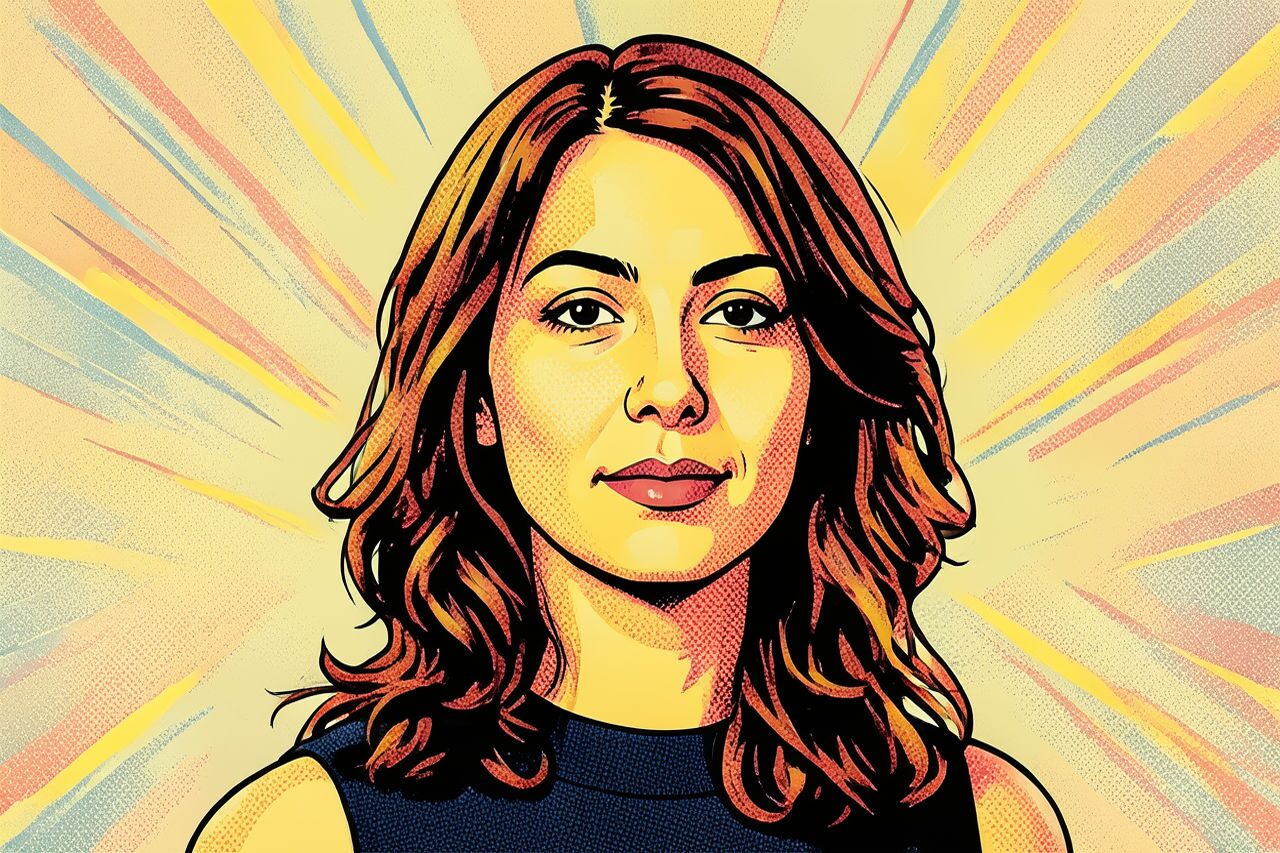
Use case
Retratos sociales y fotos de perfil llamativas.
Use case
Fotos de mascotas o lifestyle con aire de póster.
Use case
Conceptos de producto y campaña sin color exacto.
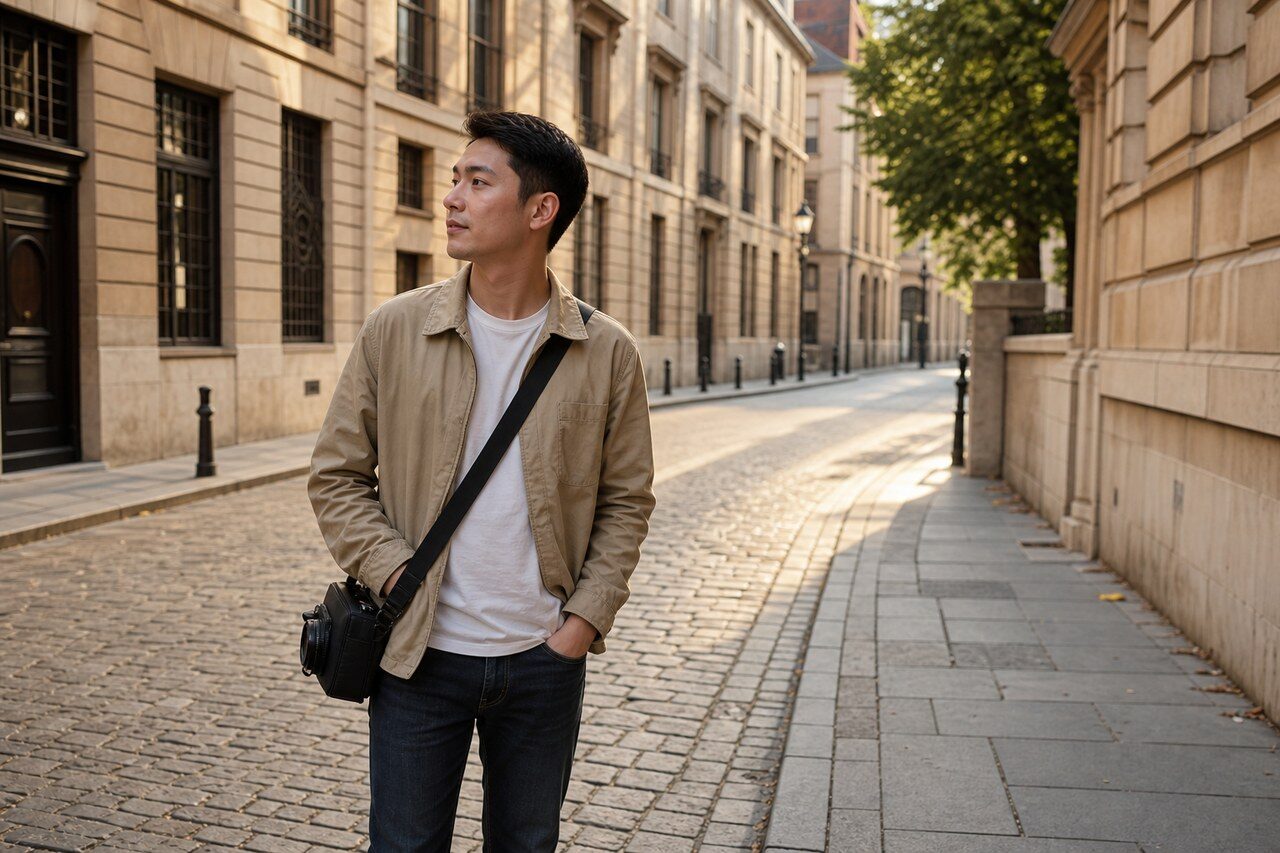
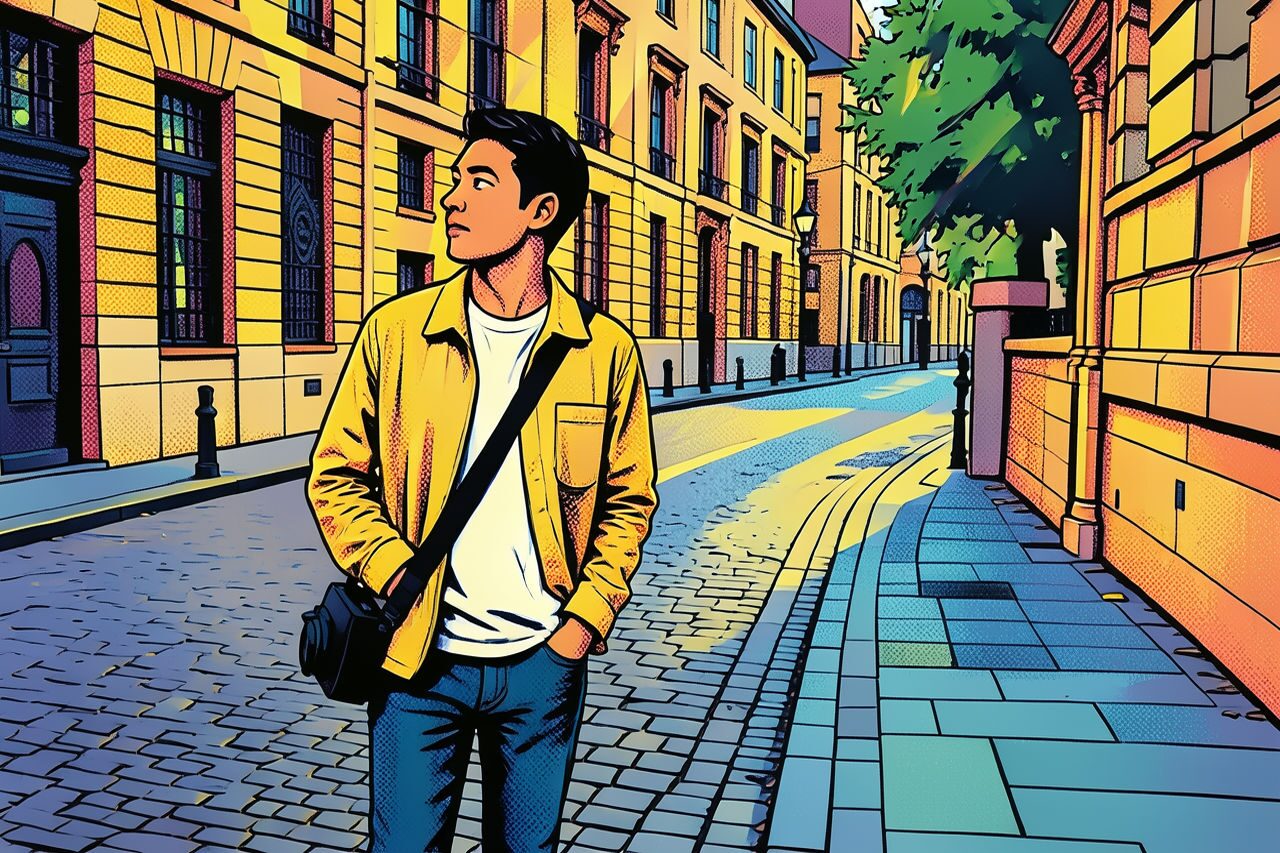
Filter preview
Compare the original photo with the pop art result
The example uses a generated source photo and the same filter API path as the app, so users can judge the visual treatment before uploading their own image.
More examples
Test the pop art filter on different photo types
Compare portrait, product, and pet examples before opening the filter. Each result uses the same filter API path as the Magic Eraser app.

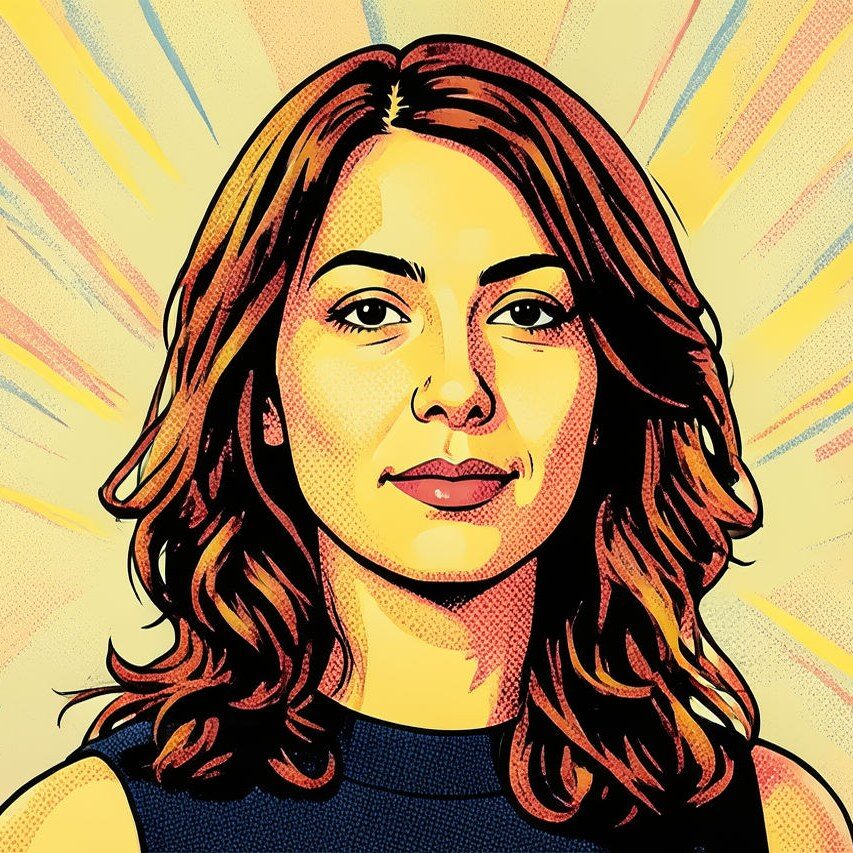
Portrait
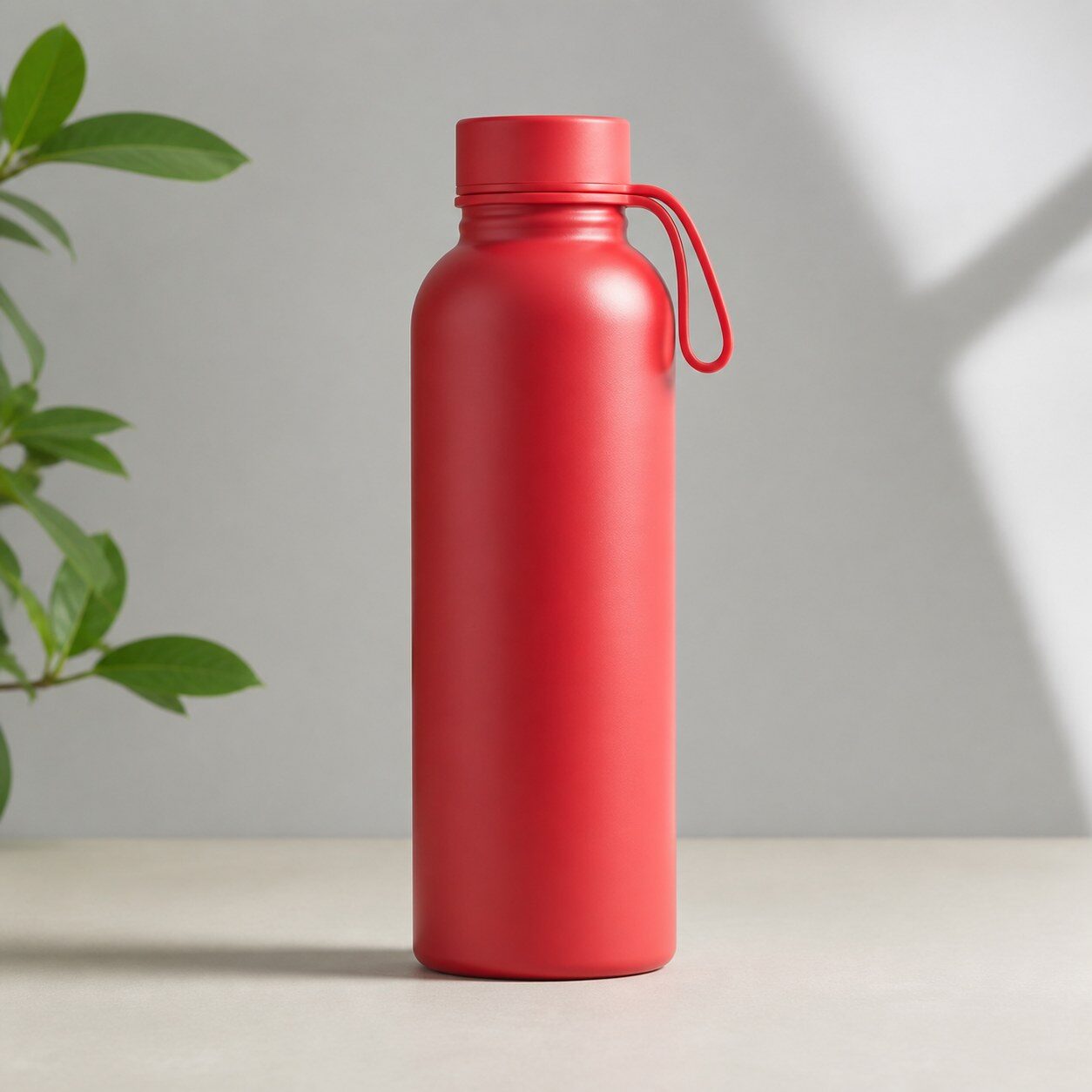
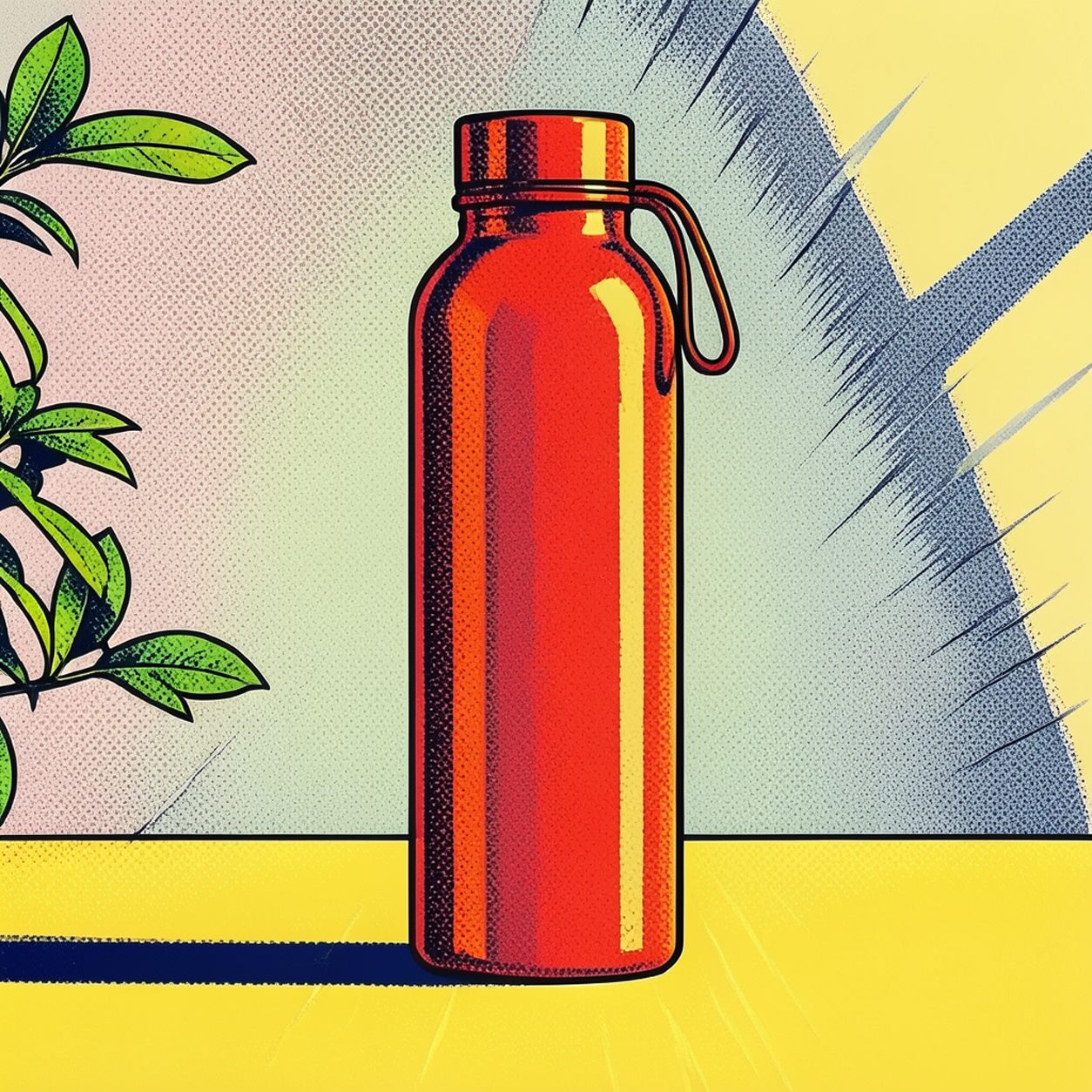
Product
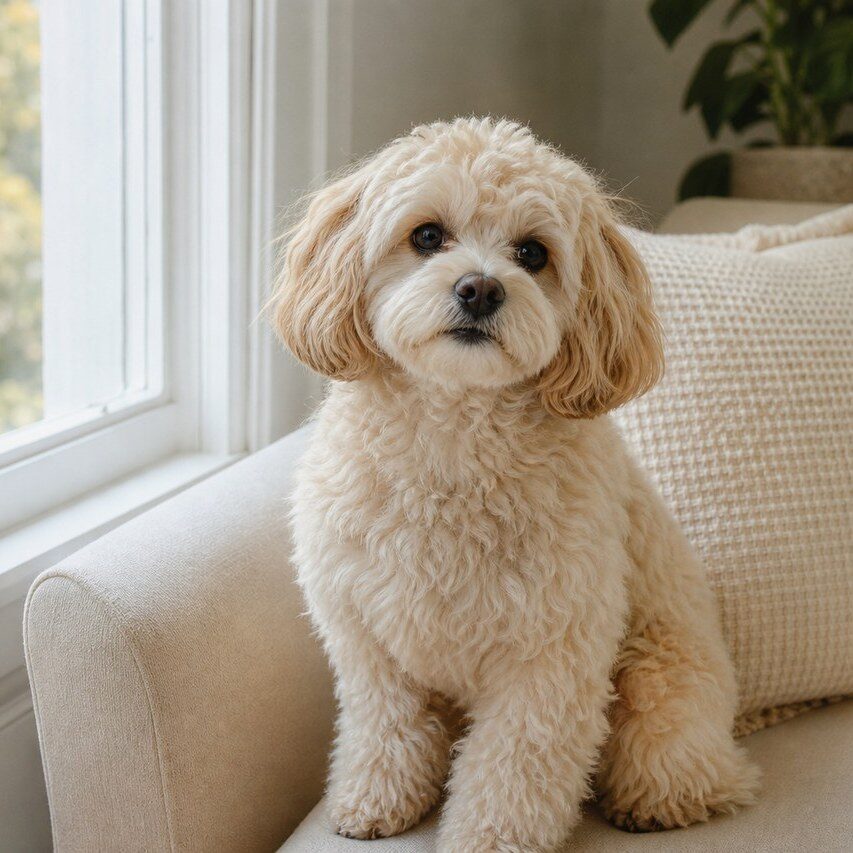
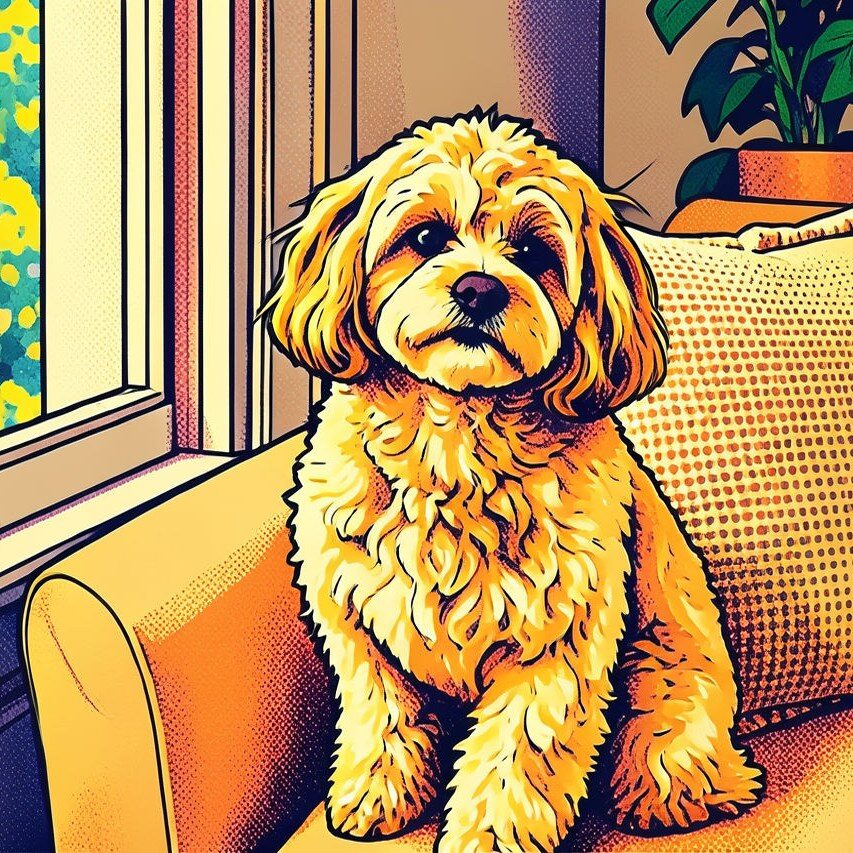
Pet
Photo workflow
How to get a cleaner pop art filter result
Elige una foto nítida, bien iluminada y con un sujeto principal.
Abre el filtro pop art, sube la foto y compara rostros, bordes y encuadre.
Recorta o elimina distracciones antes de exportar.
Best source photos
- Retratos y planos de medio cuerpo.
- Mascotas y lifestyle con fondos sencillos.
- Productos simples que no exijan color preciso.
Filter tips
- Un fondo sencillo suele crear bloques de color más limpios.
- El filtro no arregla por completo fotos borrosas u oscuras.
- Comprueba texto, logotipos, etiquetas y colores de producto.
Before upload checklist
- Use the largest clean version of the photo, not a compressed screenshot or reposted image.
- Crop loosely before filtering so the AI has enough room around the subject.
- Remove obvious distractions first if they sit directly on the face, product, or main subject.
- Check the result at the size where it will be used: profile image, feed post, story, thumbnail, or banner.
When this filter is a good fit
Choose the pop art filter when the original photo already has a clear subject and the goal is a recognizable stylized version, not a fully new generated scene. It is strongest for social, creator, profile, event, and campaign images where mood matters more than documentary accuracy.
Use a different workflow when the image needs exact product color, legal documentation, medical accuracy, or unmodified identity details. In those cases, use cleanup, crop, enhancement, or background tools instead of a heavy creative filter.
Free browser tools after filtering
FAQ
What should I upload?
Use a clear photo with one main subject. Strong lighting and simple backgrounds usually make the AI filter easier to control.
Can I keep editing after the filter?
Yes. After applying the filter, use Magic Eraser to crop, clean distractions, refine backgrounds, and export the final image.
Is this filter selected automatically?
The CTA opens AI Filter with the pop art style parameter, and the app falls back safely if the filter changes.