
AI Filter style
Filtro floral para fotos con IA
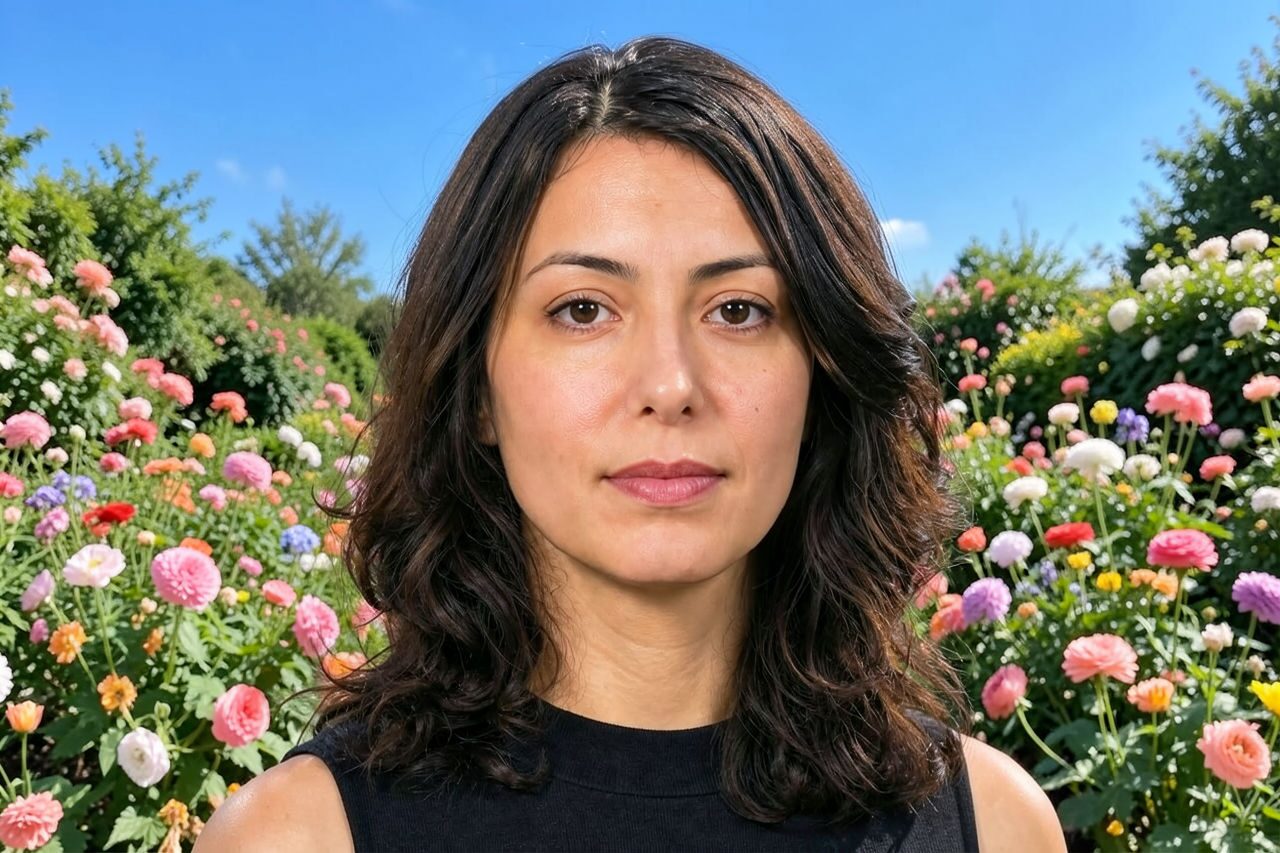
Transforma una foto en una escena de jardín florido con colores vivos, detalles botánicos suaves y un ambiente romántico. El filtro floral funciona con retratos, mascotas y fotos de estilo de vida; como el resultado es creativo, no lo uses para identificar plantas ni mostrar colores de producto con exactitud.

Use case
Retratos y fotos de pareja con ambiente de jardín florido.
Use case
Fotos de mascotas, viajes y estilo de vida con un entorno botánico.
Use case
Publicaciones sociales, tarjetas y conceptos de campaña estacionales.
Filter preview
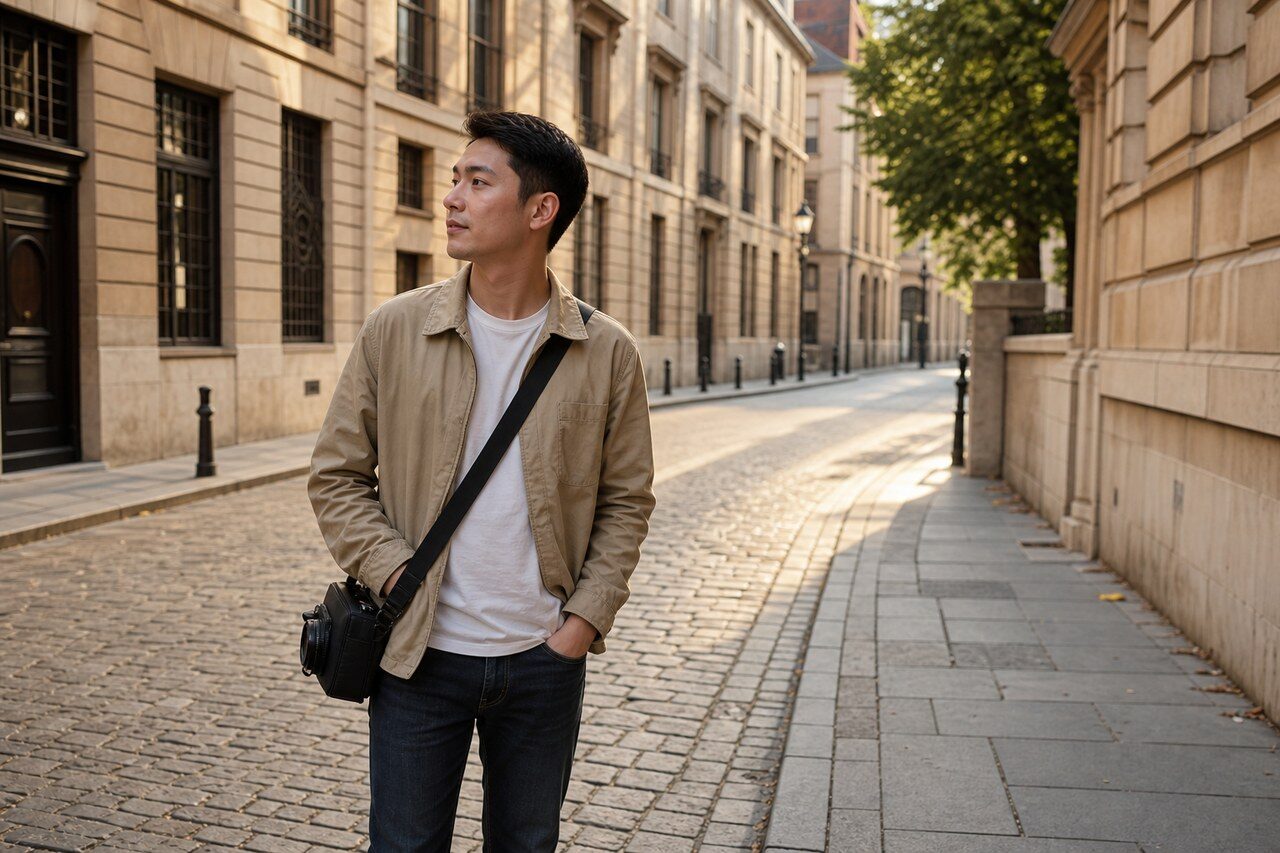
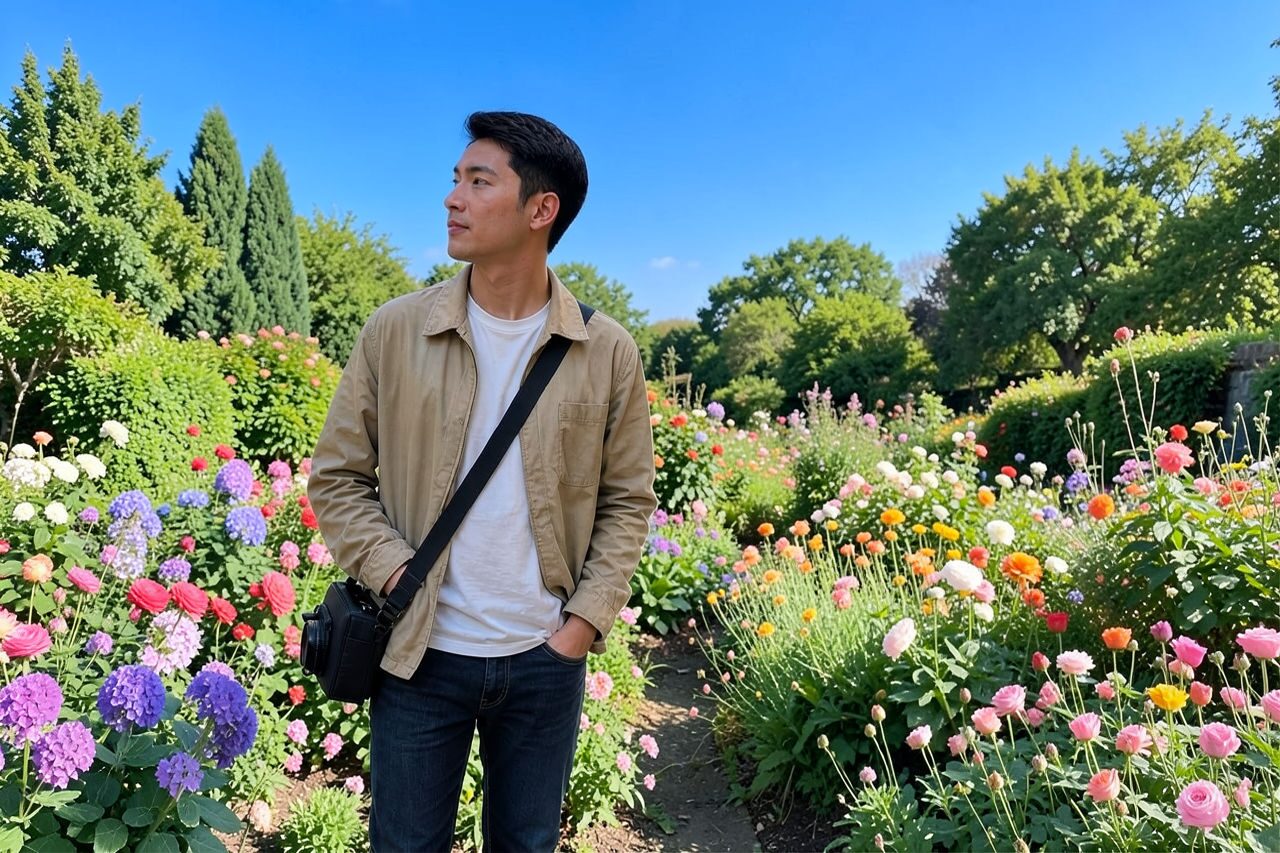
Compare the original photo with the garden result
The example uses a generated source photo and the same filter API path as the app, so users can judge the visual treatment before uploading their own image.
More examples
Test the garden filter on different photo types
Compare portrait, product, and pet examples before opening the filter. Each result uses the same filter API path as the Magic Eraser app.


Portrait
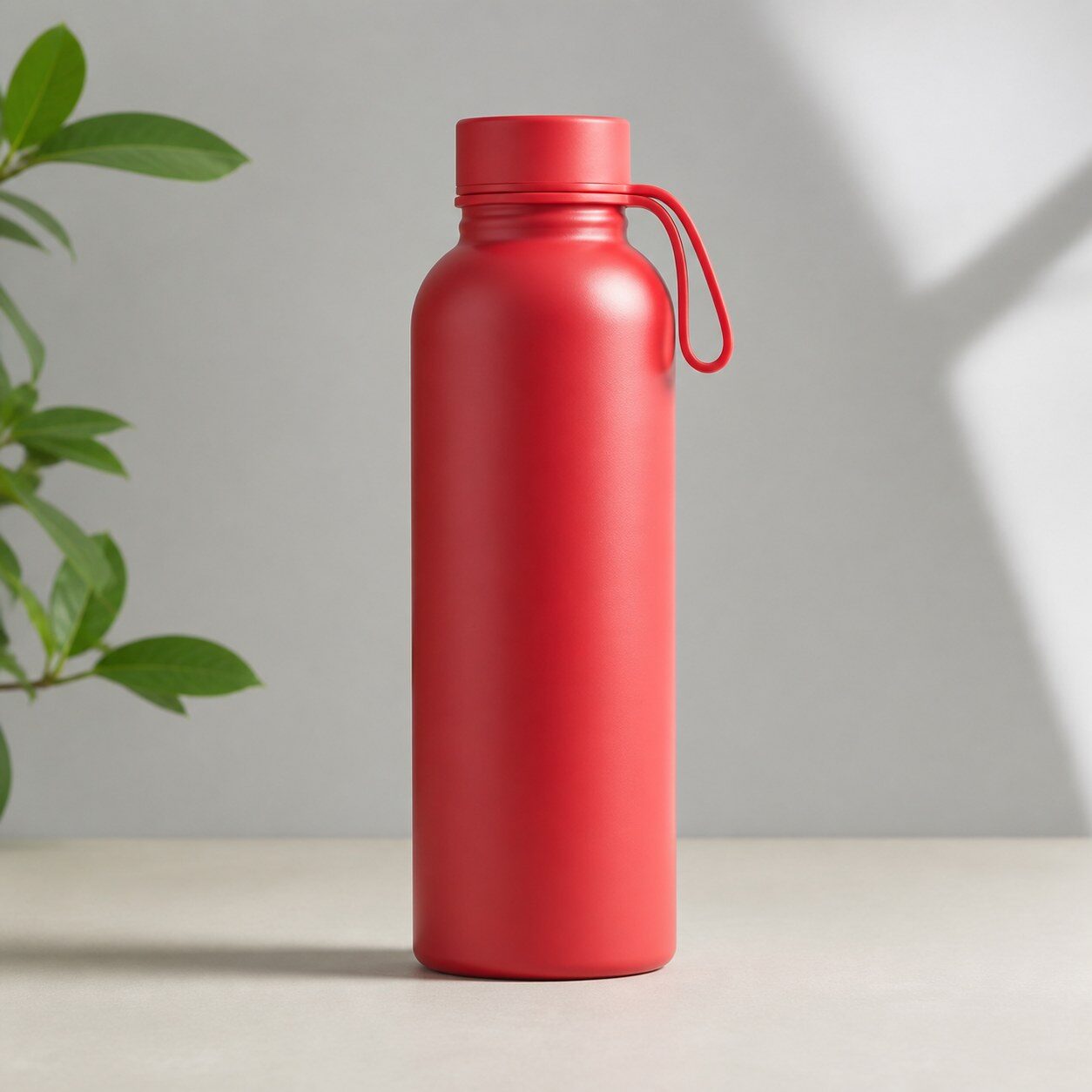
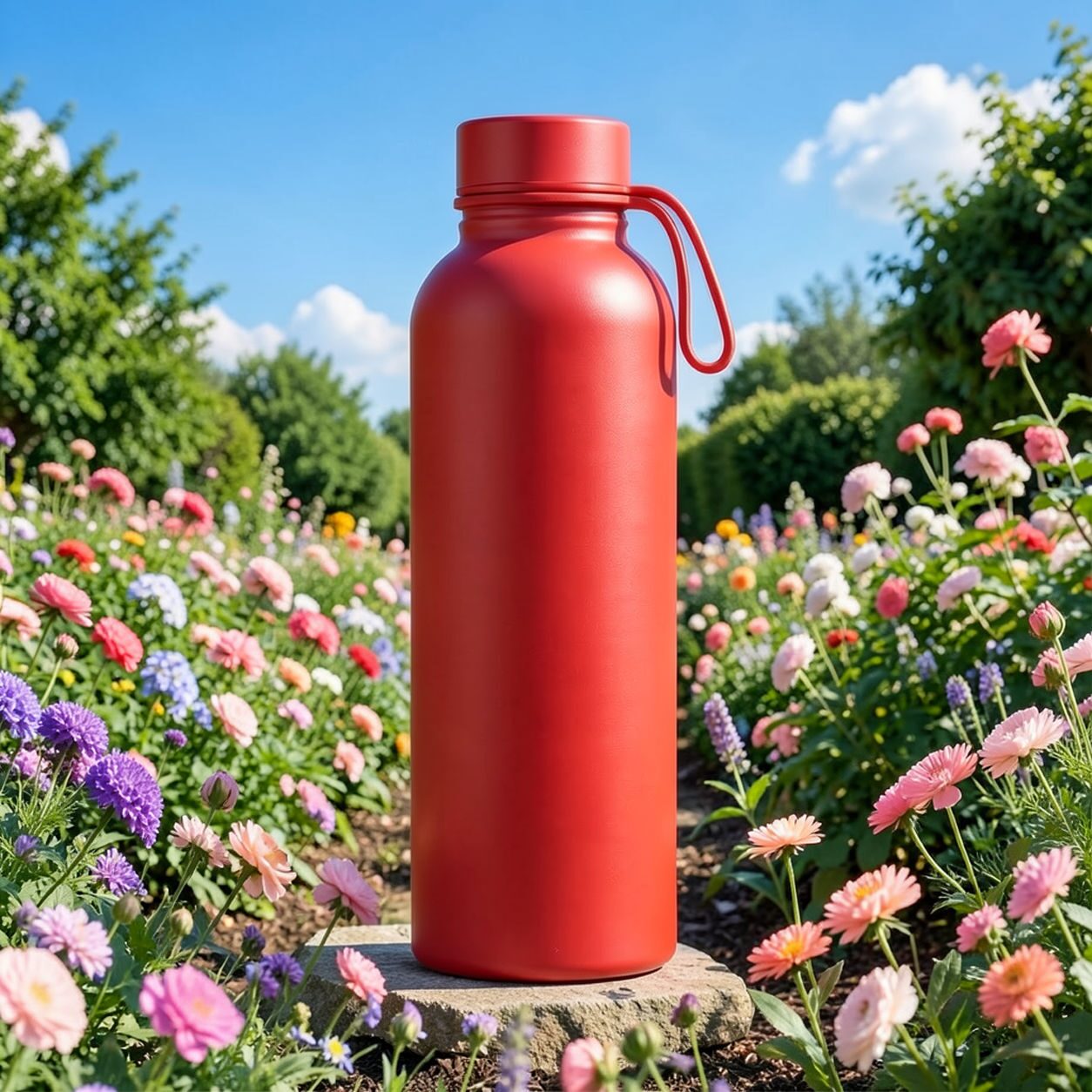
Product

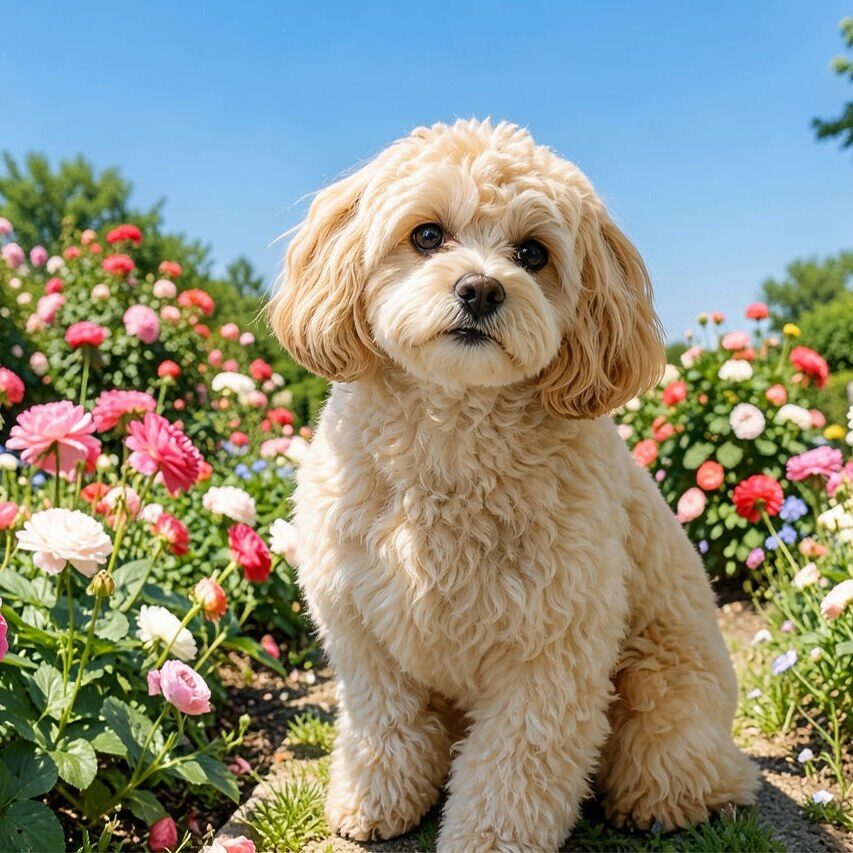
Pet
Photo workflow
How to get a cleaner garden filter result
Elige una foto nítida con un sujeto principal y espacio alrededor de su silueta.
Abre el filtro floral, sube la foto y revisa rostros, manos y bordes del sujeto.
Recorta y elimina pétalos o detalles de fondo que distraigan antes de exportar.
Best source photos
- Retratos, parejas y fotos de moda.
- Mascotas y escenas de estilo de vida al aire libre.
- Fotos con un sujeto claro y espacio para detalles florales.
Filter tips
- La luz natural y un fondo sencillo suelen dar resultados más limpios.
- Evita grupos grandes y sujetos ocultos por hojas.
- No uses el resultado para identificación botánica ni fidelidad de color de productos.
Before upload checklist
- Use the largest clean version of the photo, not a compressed screenshot or reposted image.
- Crop loosely before filtering so the AI has enough room around the subject.
- Remove obvious distractions first if they sit directly on the face, product, or main subject.
- Check the result at the size where it will be used: profile image, feed post, story, thumbnail, or banner.
When this filter is a good fit
Choose the garden filter when the original photo already has a clear subject and the goal is a recognizable stylized version, not a fully new generated scene. It is strongest for social, creator, profile, event, and campaign images where mood matters more than documentary accuracy.
Use a different workflow when the image needs exact product color, legal documentation, medical accuracy, or unmodified identity details. In those cases, use cleanup, crop, enhancement, or background tools instead of a heavy creative filter.
Free browser tools after filtering
FAQ
What should I upload?
Use a clear photo with one main subject. Strong lighting and simple backgrounds usually make the AI filter easier to control.
Can I keep editing after the filter?
Yes. After applying the filter, use Magic Eraser to crop, clean distractions, refine backgrounds, and export the final image.
Is this filter selected automatically?
The CTA opens AI Filter with the garden style parameter, and the app falls back safely if the filter changes.