
AI Create style
Generador de imágenes tipográficas con IA
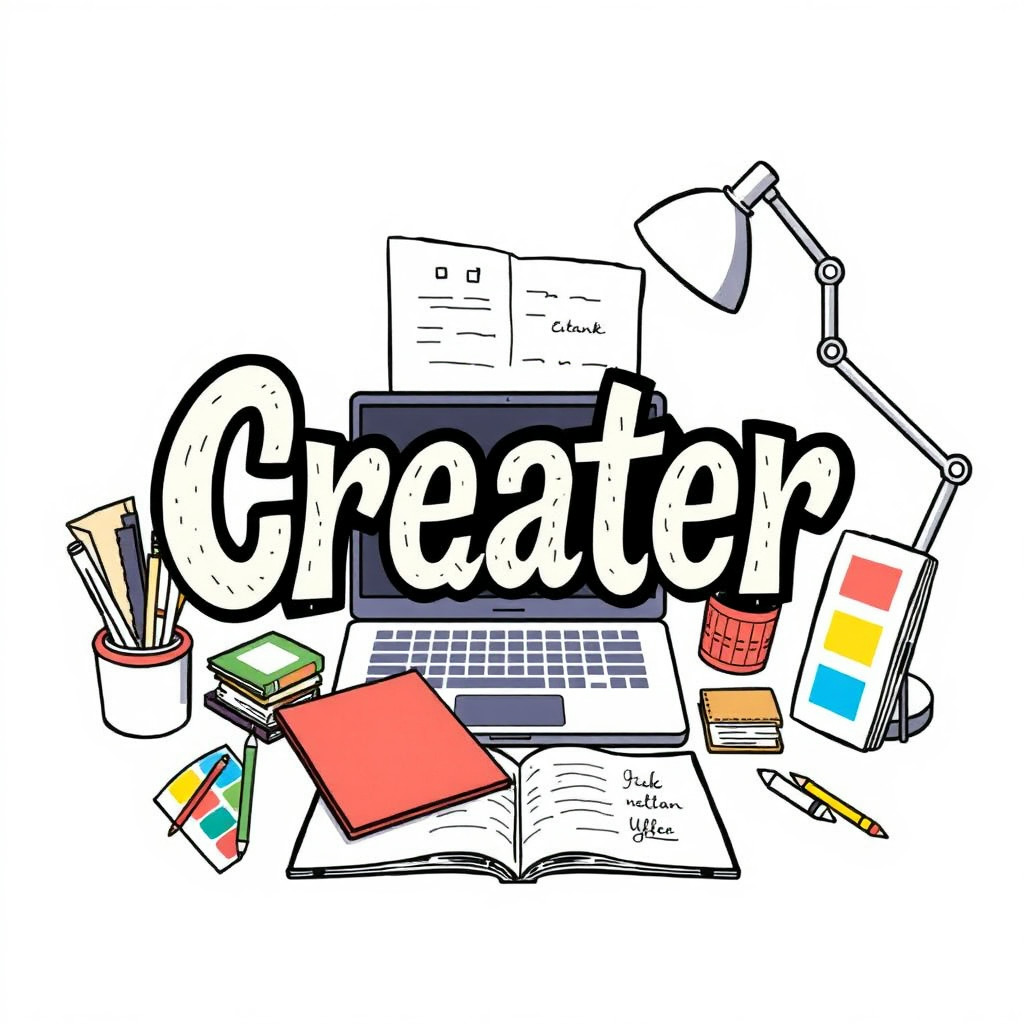
Crea conceptos visuales centrados en la tipografía, donde las formas de las letras, el ritmo del diseño y la composición gráfica dirigen la imagen. Úsalos para pósteres, citas, álbumes, merchandising y campañas, y añade el texto final exacto en el editor.
Use case
Conceptos de pósteres y portadas con las letras como elemento principal.
Use case
Gráficos de citas y publicaciones sociales con lettering expresivo.
Use case
Direcciones visuales para merchandising, eventos y campañas.
Visual direction preview
Use the style thumbnail as the creative target
The preview gives users a concrete reference for color, texture, edge detail, and mood before they open the generator. Pair it with the prompt starters below to keep the page useful instead of only decorative.
Generated examples
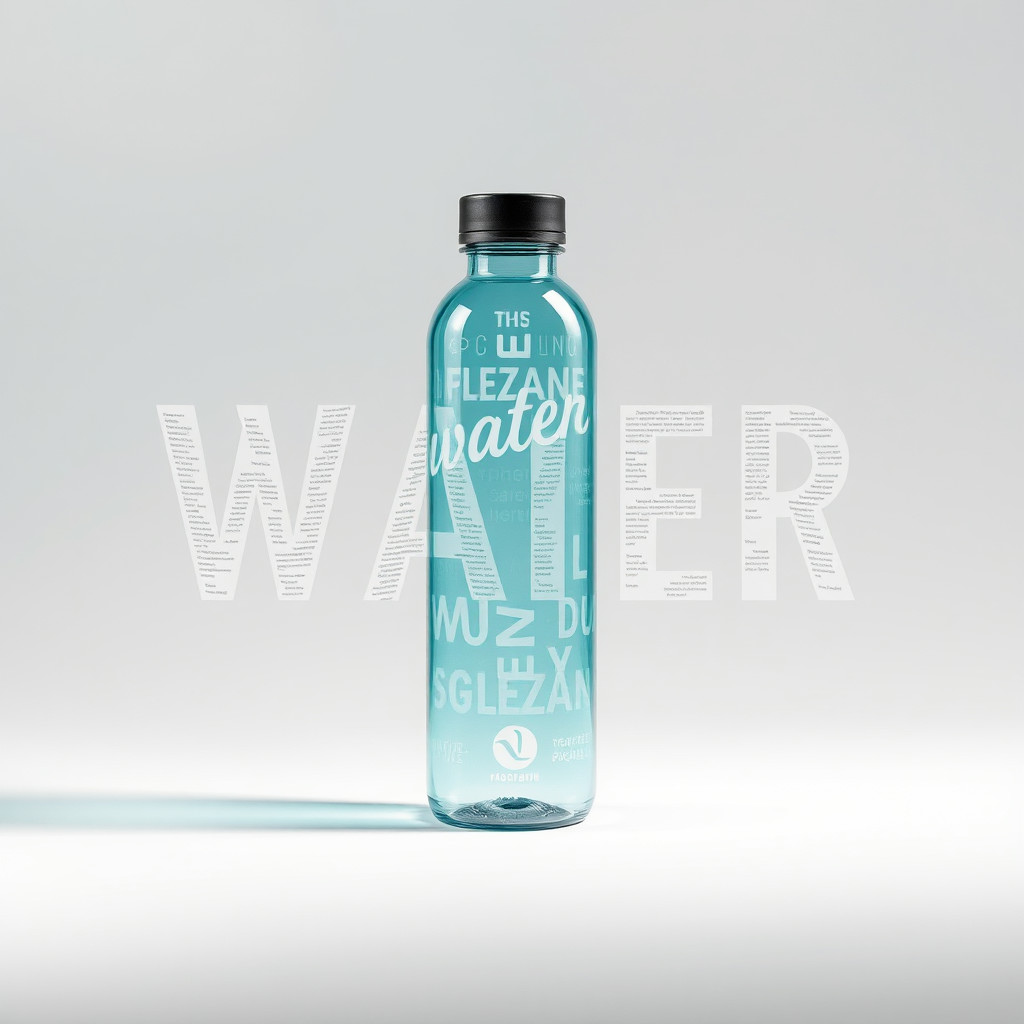
See the tipografía style in real outputs
These examples were generated through the Magic Eraser AI Create API with the tipografía style selected.
Prompt workflow
How to get a stronger tipografía result
Empieza con una palabra o mensaje breve y define el estilo de letra, la paleta, el fondo y la composición.
Genera variantes y compara formas, jerarquía visual, contraste y espacio negativo.
Elige la mejor composición y sustituye las letras generadas por texto exacto y editable antes de publicar.
Prompt starters
- “Concepto de póster tipográfico para la palabra FOCUS, letras sans serif rojas y gruesas, fondo blanco, sombra sutil”
- “Diseño tipográfico editorial sobre viajes de verano, letras de papel superpuestas, bloques de color vivos”
- “Concepto tipográfico cromado para un póster musical, fondo oscuro, letras reflectantes, luz dramática”
Style tips
- Trata las letras generadas como elementos visuales, no como texto final exacto.
- Usa palabras cortas y composiciones sencillas para mantener clara la dirección.
- Añade por separado nombres, fechas, precios y logotipos exactos después de generar.
Output planning checklist
- Decide the final placement before prompting: square post, vertical story, product insert, poster, thumbnail, or wide banner.
- Keep one primary subject and one visual mood so the tipografía style has a clear job.
- Describe the background as simple, detailed, bright, dark, studio, outdoor, or textured instead of leaving it open-ended.
- Generate variations first, then edit the selected image for crop, cleanup, and export size.
When to choose this style
Choose tipografía when the image needs a clear creative direction before production: an ad concept, a social visual, a character idea, a packaging mood, or a fast design draft. Choose another style if the final asset must look like a camera photo, preserve exact product color, or include precise typography.
For commercial work, treat the generated image as a starting point. Review details, remove distracting artifacts, add exact text separately, and export the final size from the editor.
FAQ
Can I edit the generated image?
Yes. Generate the image, then continue with cleanup, crop, background, and export tools in Magic Eraser.
Should I include exact text?
Use AI Create for the visual direction. Add exact text later with editable design tools for cleaner spelling and layout.
Is this style selected automatically?
The CTA opens AI Create with the tipografía style parameter, and the app falls back safely if the option changes.