
AI Create style
Generador de imágenes low poly con IA
Crea imágenes low poly a partir de texto con facetas poligonales, geometría angular y bloques de color definidos. Úsalo para carteles, personajes, paisajes y conceptos de producto; describe el sujeto, la densidad de polígonos, la paleta y la luz.
Use case
Carteles, portadas y contenido social de aspecto geométrico.
Use case
Conceptos estilizados de personajes, mascotas y escenarios.
Use case
Ilustraciones de producto y editoriales con facetas de color.

Visual direction preview
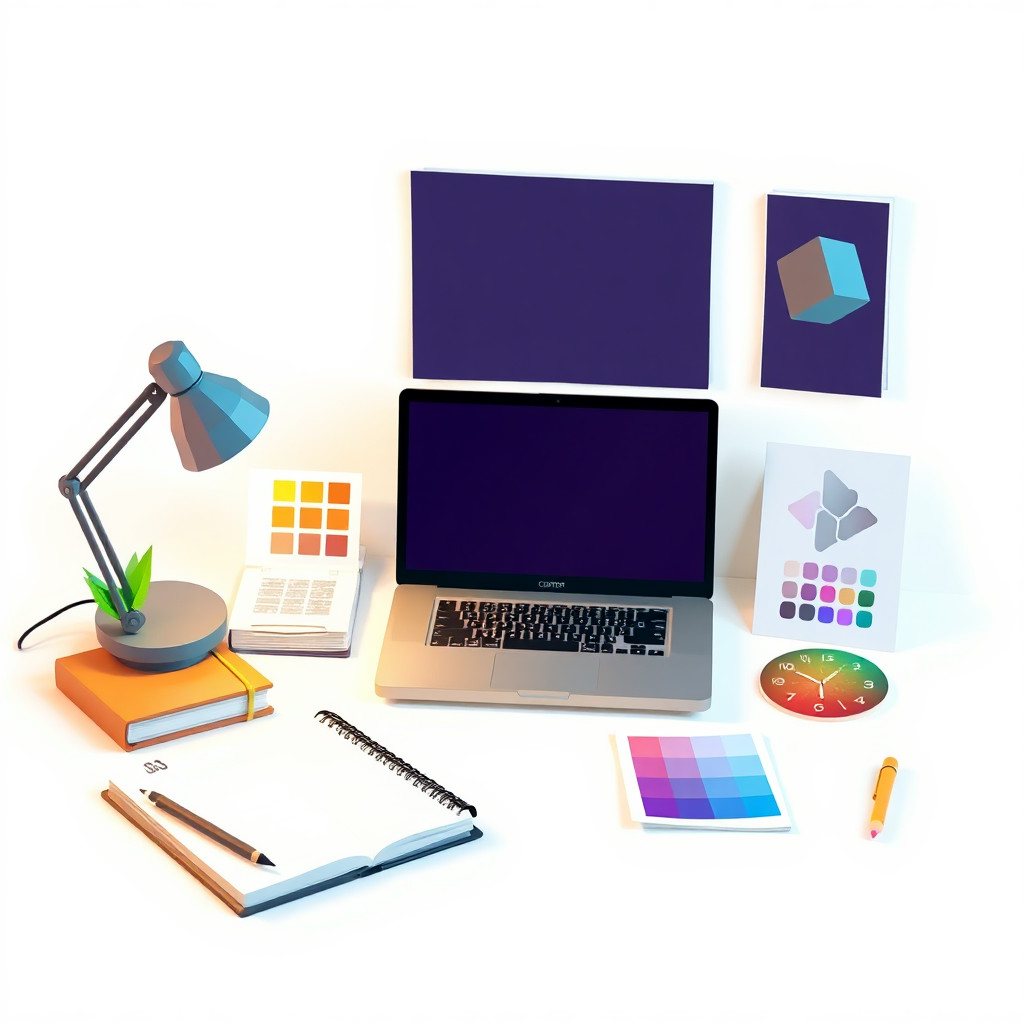
Use the style thumbnail as the creative target
The preview gives users a concrete reference for color, texture, edge detail, and mood before they open the generator. Pair it with the prompt starters below to keep the page useful instead of only decorative.
Generated examples
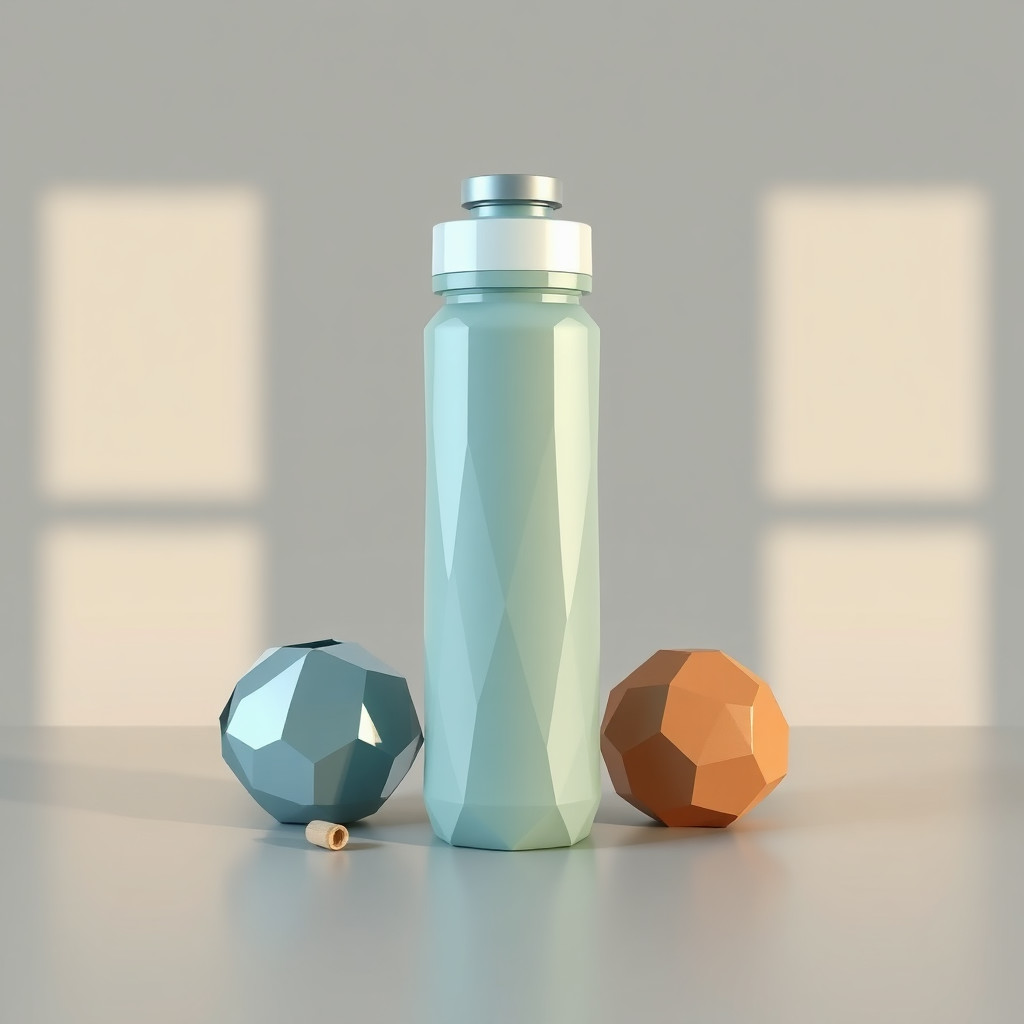
See the low poly style in real outputs
These examples were generated through the Magic Eraser AI Create API with the low poly style selected.
Prompt workflow
How to get a stronger low poly result
Describe un sujeto principal, el punto de vista y la composición.
Añade facetas triangulares, nivel de detalle, paleta y dirección de la luz.
Genera variantes, elige la silueta más clara y recorta los elementos sobrantes.
Prompt starters
- “Ciervo low poly en una montaña, grandes facetas triangulares, azul y naranja, luz del atardecer”
- “Retrato de robot low poly, geometría angular, fondo oscuro, luz de contorno azul”
- “Isla tropical low poly desde arriba, agua turquesa, colores planos definidos”
Style tips
- Mantén el fondo sencillo para que se lean los bordes poligonales.
- Usa menos facetas para abstraer o más para conservar detalles.
- Añade el texto y los logotipos exactos después.
Output planning checklist
- Decide the final placement before prompting: square post, vertical story, product insert, poster, thumbnail, or wide banner.
- Keep one primary subject and one visual mood so the low poly style has a clear job.
- Describe the background as simple, detailed, bright, dark, studio, outdoor, or textured instead of leaving it open-ended.
- Generate variations first, then edit the selected image for crop, cleanup, and export size.
When to choose this style
Choose low poly when the image needs a clear creative direction before production: an ad concept, a social visual, a character idea, a packaging mood, or a fast design draft. Choose another style if the final asset must look like a camera photo, preserve exact product color, or include precise typography.
For commercial work, treat the generated image as a starting point. Review details, remove distracting artifacts, add exact text separately, and export the final size from the editor.
FAQ
Can I edit the generated image?
Yes. Generate the image, then continue with cleanup, crop, background, and export tools in Magic Eraser.
Should I include exact text?
Use AI Create for the visual direction. Add exact text later with editable design tools for cleaner spelling and layout.
Is this style selected automatically?
The CTA opens AI Create with the low poly style parameter, and the app falls back safely if the option changes.