
Cómo hacer una imagen transparente
¿Necesita una imagen transparente para una presentación, sitio web o proyecto de diseño? Magic Eraser elimina el fondo y exporta un PNG con un canal alfa limpio; no se requieren capas de Photoshop.
Last updated
Hacer imagen transparente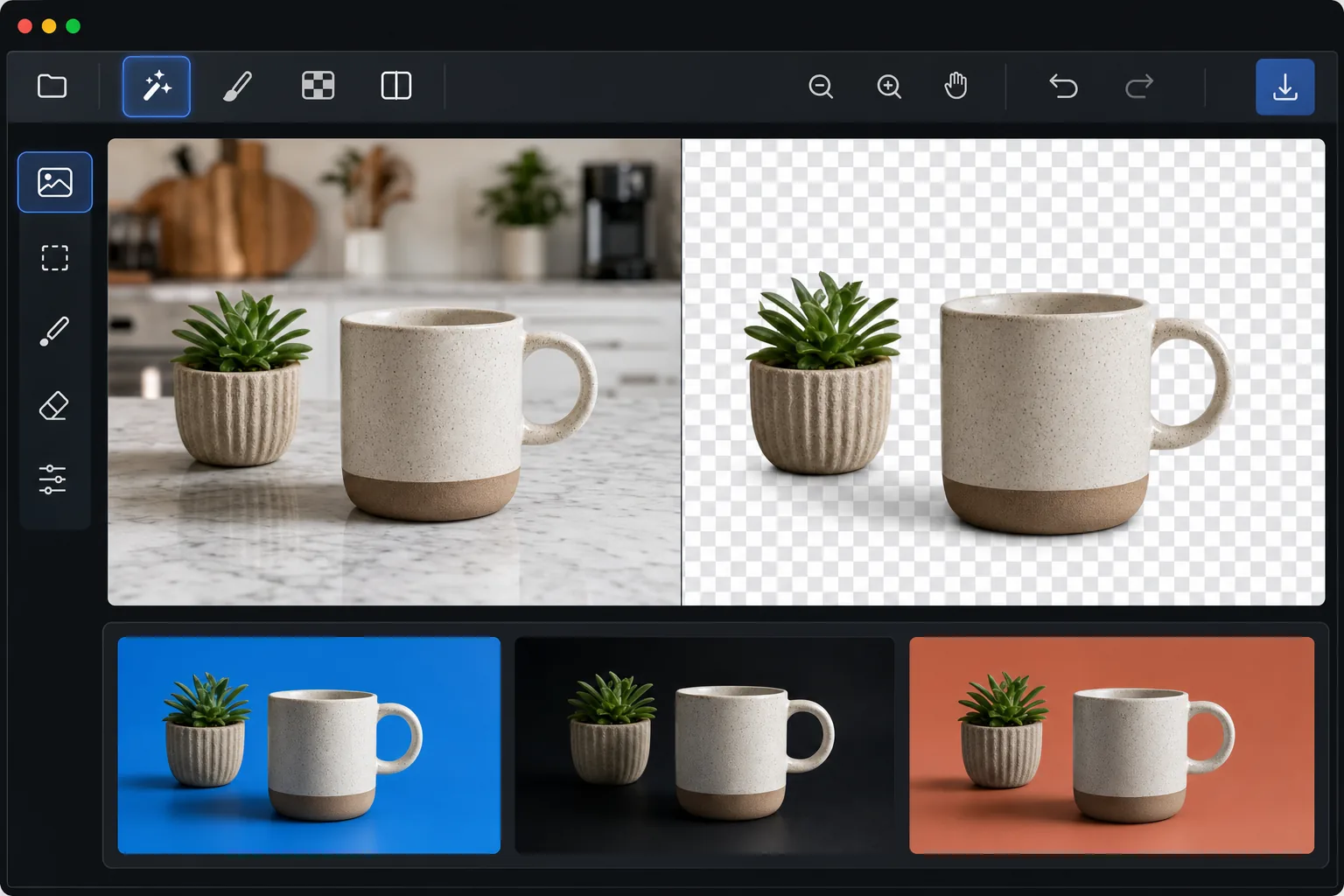
Cómo hacer transparente una imagen
Para hacer una imagen transparente, abre Magic Eraser en la web, iOS o Android, sube la imagen, deja que la IA elimine el fondo y expórtala como PNG: el sujeto conserva un fondo transparente en lugar de un rectángulo sólido. Es gratis y sin registro. La transparencia vive en el canal alfa, que un JPEG no puede almacenar, así que la exportación debe ser PNG (o WebP) para que se mantenga transparente. Una vez guardado, el recorte encaja perfectamente sobre cualquier color, diapositiva o diseño web. Las imágenes transparentes son esenciales para los diseños en capas: logotipos sobre fondos de colores, fotografías de productos en banners de sitios web, fotografías de rostros en diapositivas de presentaciones e íconos en interfaces de aplicaciones. Sin transparencia, las imágenes llevan un fondo rectangular que choca con cualquier superficie sobre la que se coloquen. La creación de imágenes transparentes tradicionalmente requiere habilidades de Photoshop: seleccionar el sujeto, refinar los bordes, eliminar el fondo y exportar manteniendo el canal alfa. La eliminación del fondo de IA maneja todo esto automáticamente. La clave es el canal alfa: un cuarto canal de color (más allá del rojo, verde y azul) que almacena información de transparencia para cada píxel, desde completamente opaco hasta completamente transparente con gradientes suaves para bordes suavizados.
Before you start
Haz una imagen transparente en tres pasos
Start with sube tu imagen. The result preview above and tips below use this guide's existing content; no separate before-and-after proof is assumed.
- 1
Sube tu imagen
Abra Magic Eraser en la web, iOS o Android y seleccione Background Eraser. Sube la imagen que quieras hacer transparente. Funciona con logotipos, fotografías de productos, retratos, objetos y cualquier otra cosa que deba separarse de su fondo.
- 2
Quitar el fondo
La IA identifica instantáneamente al sujeto y elimina el fondo, creando un recorte limpio y transparente. El patrón de tablero de ajedrez indica áreas transparentes. Acérquese para verificar los bordes: la IA maneja detalles finos como cabello, objetos translúcidos y formas intrincadas.
- 3
Exportar como PNG
Exporte como PNG para preservar el canal alfa (transparencia). JPEG no admite transparencia, así que elija siempre PNG o WebP para imágenes transparentes. Seleccione la resolución que desee: la herramienta admite hasta las dimensiones de la imagen original para obtener resultados con calidad de impresión.
Lo mejor para
- Diseñadores gráficos extrayendo elementos para diseños compuestos y materiales de marketing.
- Desarrolladores web que crean imágenes de productos transparentes para sitios de comercio electrónico
- Presentadores que agregan fotografías de rostros o logotipos a diapositivas sin fondos rectangulares
- Desarrolladores de aplicaciones preparando recursos de íconos con fondos transparentes
- Administradores de redes sociales que crean gráficos en capas para publicaciones e historias.
Consejos para obtener mejores resultados
Exporte siempre como PNG: JPEG no admite transparencia y rellenará las áreas transparentes con blanco. Para uso web, considere el formato WebP, que admite transparencia en tamaños de archivo más pequeños que PNG. Cuando el sujeto tiene áreas translúcidas (vidrio, velos, agua), la IA preserva la semitransparencia en el canal alfa en lugar de forzar un borde duro. Para logotipos con texto, asegúrese de que la resolución de la imagen sea lo suficientemente alta para que los bordes de las letras queden nítidos; los logotipos de baja resolución producen recortes transparentes irregulares. Si necesita un color de fondo específico más adelante, siempre es mejor comenzar con un PNG transparente y agregar el color en su herramienta de diseño en lugar de intentar eliminar y reemplazar un fondo de color.
Preguntas frecuentes
- ¿Por qué mi imagen transparente muestra un fondo blanco cuando la abro?
- Algunos visores de imágenes (como Fotos de Windows) muestran el canal alfa en blanco. La transparencia todavía está ahí en los datos del archivo. Ábralo en una herramienta de diseño, navegador web o arrástrelo a una presentación para ver que la transparencia funciona correctamente.
- ¿Puedo hacer que parte de una imagen sea transparente?
- Sí. Después de la eliminación automática del fondo, utilice el pincel borrador para eliminar manualmente áreas adicionales. Esto es útil para crear efectos de transparencia parcial o eliminar elementos específicos manteniendo otros.
- ¿Hacer imágenes transparentes es gratis?
- Sí. La eliminación de fondo con exportación PNG está disponible en el nivel gratuito con límites de uso diario. Premium elimina los límites y permite el procesamiento por lotes.
- ¿Cómo hago transparente una imagen o foto, no solo un logo?
- Los mismos pasos funcionan con cualquier imagen: la foto de un producto, un retrato, una captura de pantalla o un logo. Sube la imagen, deja que la IA separe el sujeto de su fondo y expórtala como PNG. En fotos con bordes suaves, como el pelo o el pelaje, haz zoom y revisa el recorte antes de exportar; la IA conserva los píxeles semitransparentes a lo largo de esos bordes para que el sujeto no parezca recortado con tijeras. Si solo quieres que una parte de la foto sea transparente, elimina primero el fondo y luego usa el pincel borrador en cualquier área adicional.
- ¿Puedo hacer una imagen transparente en mi teléfono?
- Sí. Abre Magic Eraser en cualquier navegador móvil o en la app de iOS o Android, carga la imagen desde tu galería, elimina el fondo y expórtala como PNG. El PNG transparente se guarda directamente en tus fotos y queda listo para colocarlo en una presentación, un sticker o la ficha de un producto. Funciona igual que la versión de escritorio y no requiere instalar ninguna app si usas el navegador.