
Cómo crear un collage de fotos
Una sola fotografía cuenta un momento; un collage cuenta una historia. Ya sea que esté resumiendo unas vacaciones, mostrando una línea de productos, creando una comparación de antes y después o creando un panel de estado de ánimo, los collages combinan varias imágenes en una sola imagen cohesiva. La herramienta de diseño de Magic Eraser proporciona diseños inteligentes, disposición de arrastrar y soltar y exportación instantánea.
Last updated
Crea un collage ahora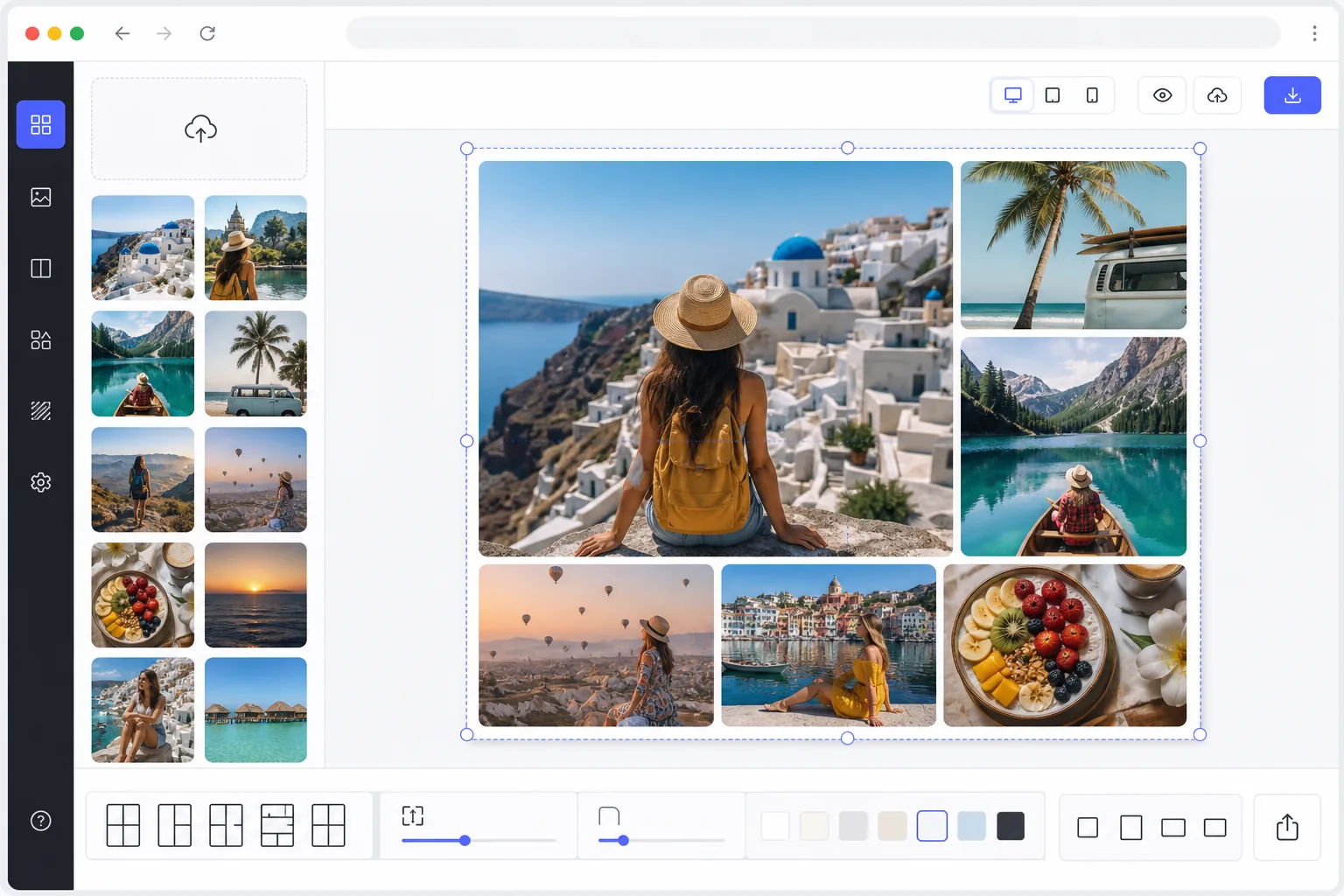
Cómo crear un collage de fotos
Para crear un collage de fotos, abre Magic Eraser en la web, iOS o Android, selecciona la herramienta de Diseño, sube de 2 a 20 fotos, elige una plantilla de composición, arrastra para reorganizar las celdas y exporta. Es gratis y sin registro. La herramienta recorta cada foto automáticamente para ajustarla a su celda manteniendo las caras centradas, y puedes ajustar el espaciado, el borde, el radio de las esquinas y la proporción según tu plataforma. Un collage coloca fotos enteras una junto a otra en una cuadrícula; si en cambio quieres recortar a los protagonistas y combinarlos en una sola escena compartida, eso es un fotomontaje. Colocar fotografías en una cuadrícula es fácil. Crear un collage que realmente se vea bien requiere equilibrar el peso visual en todo el diseño, mantener una temperatura de color y una exposición consistentes entre tomas, dimensionar las imágenes para que los sujetos más importantes destaquen, elegir espacios y bordes que unifiquen sin abarrotar y seleccionar una relación de aspecto que funcione para la plataforma deseada. La creación manual de collages en Photoshop significa cambiar el tamaño y colocar cada imagen individualmente, enmascarar superposiciones, combinar tonos de color y reconstruir el diseño desde cero cuando desee intercambiar una foto o cambiar la cuadrícula. La herramienta de diseño de Magic Eraser maneja la inteligencia del diseño automáticamente: usted elige fotos, elige una plantilla, arrastra para reorganizarla y exporta.
Before you start
Crea un collage en tres pasos
Start with sube tus fotos. The result preview above and tips below use this guide's existing content; no separate before-and-after proof is assumed.
- 1
Sube tus fotos
Abra Magic Eraser en la web, iOS o Android y seleccione la herramienta Diseño. Sube de 2 a 20 fotos para tu collage. Mezcle orientaciones libremente: todas las imágenes verticales, horizontales y cuadradas funcionan. La herramienta recorta automáticamente cada foto para que se ajuste a su celda mientras mantiene los rostros y los sujetos clave centrados mediante la detección de puntos focales basada en IA.
- 2
Elige el diseño y personalízalo
Explore plantillas de diseño organizadas por número de fotografías y estilo: cuadrículas limpias, diseños de revistas, arreglos dispersos de forma libre o franjas verticales en formato de historia. Arrastra fotos entre celdas para reorganizarlas. Ajuste el tamaño de las celdas arrastrando los bordes. Establezca el color de fondo, el espaciado de celdas, el radio de las esquinas y la relación de aspecto general. La herramienta muestra una vista previa en vivo a medida que ajusta cada parámetro.
- 3
Exportar el collage terminado
Obtenga una vista previa del collage final y realice los últimos ajustes en la ubicación de las fotografías o el estilo de diseño. Exporte con la resolución que necesite: alta resolución para impresión, optimizada para Instagram o Pinterest, o dimensiones personalizadas para presentaciones y sitios web. Elija JPEG para un tamaño de archivo más pequeño o PNG para obtener la máxima calidad. Comparte directamente o descarga.
Lo mejor para
- Resúmenes de viajes y vacaciones que combinan los aspectos más destacados de un viaje en una única imagen que se puede compartir
- Comparaciones de antes y después en fitness, renovación de viviendas o transformaciones de productos
- Exhibiciones de productos que muestran múltiples ángulos o combinaciones de colores en una imagen de marketing.
- Resúmenes de fotografía de eventos para bodas, fiestas y eventos corporativos.
- Creadores de contenido de redes sociales que crean publicaciones visualmente ricas que cuentan una historia.
Consejos para obtener mejores resultados
Limite su collage a entre 4 y 9 fotos para lograr el mayor impacto visual: demasiadas imágenes reducen cada una de ellas hasta el punto en que se pierden los detalles, especialmente en las pantallas de los móviles. Elija fotografías con paletas de colores e iluminación similares para lograr una apariencia coherente, o utilice la función de coincidencia de colores de IA para armonizar tomas que no coinciden. Coloque su imagen más fuerte y llamativa en la celda más grande para crear un punto focal claro. Para Instagram, utilice la relación de aspecto 1:1; para Pinterest, utilice 2:3 vertical; para fotos de portada de Facebook, utilice 16:9 horizontal. El espaciado constante entre celdas (de 2 a 4 píxeles para una apariencia moderna y ajustada, de 8 a 12 píxeles para una sensación de amplitud) marca una diferencia mayor de lo que cabría esperar. Los fondos blancos o gris claro funcionan de forma universal y mantienen el foco en las fotos.
Preguntas frecuentes
- ¿Cuántas fotos puedo incluir en un collage?
- La herramienta de diseño admite de 2 a 20 fotografías por collage. Los diseños se ajustan automáticamente para adaptarse a la cantidad de imágenes. Para obtener mejores resultados en las redes sociales, entre 4 y 9 fotos logran el equilibrio ideal entre contar historias y que cada imagen sea lo suficientemente grande como para apreciarla en la pantalla de un teléfono.
- ¿Puedo ajustar qué parte de cada foto es visible?
- Sí. Cada celda tiene un control de panorámica y zoom que le permite reposicionar y cambiar el tamaño de la foto dentro de su marco. La IA recorta automáticamente para mantener las caras y los sujetos clave centrados de forma predeterminada, pero puedes anular esto para enfocarte en cualquier parte de la imagen que prefieras.
- ¿Crear collages es gratis?
- Sí. La herramienta de diseño de Magic Eraser incluye la creación de collages en el nivel gratuito con límites de uso diario. Sube fotos, elige un diseño, personalízalas y exportalas. Premium elimina límites, desbloquea plantillas adicionales y permite exportaciones de alta resolución para impresión.
- ¿Cómo hago un collage de fotos en el móvil?
- Abre Magic Eraser en cualquier navegador móvil o en la app de iOS o Android, carga tus fotos desde el carrete y abre la herramienta de Diseño. Elige una composición, luego arrastra las fotos entre las celdas y pellizca para reubicar cada una dentro de su marco. Ajusta el espaciado y la proporción, y exporta: el collage terminado se guarda directamente en tu carrete, listo para publicar. Funciona igual que la versión de escritorio y no necesitas instalar ninguna app si usas el navegador.
- ¿Cuál es la diferencia entre un collage y un montaje?
- Un collage mantiene cada foto entera y las coloca una junto a otra en una cuadrícula o composición: sigues viendo imágenes con marcos distintos, como un resumen de vacaciones o un antes y después. Un montaje recorta a los protagonistas de sus fondos y los combina en una sola escena compartida, de modo que parecen fotografiados juntos. Usa un collage para mostrar varios momentos a la vez; usa la herramienta de montaje cuando quieras que las piezas se fundan en una sola imagen compuesta.