
Cómo difuminar el fondo de una foto
Los fotógrafos de retratos profesionales utilizan lentes de gran apertura para desenfocar los fondos y hacer que los sujetos destaquen. Si su teléfono o cámara no capturaron esa profundidad de campo, la IA de Magic Eraser agrega un fondo borroso de apariencia natural después del hecho.
Last updated
Fondo desenfocado ahora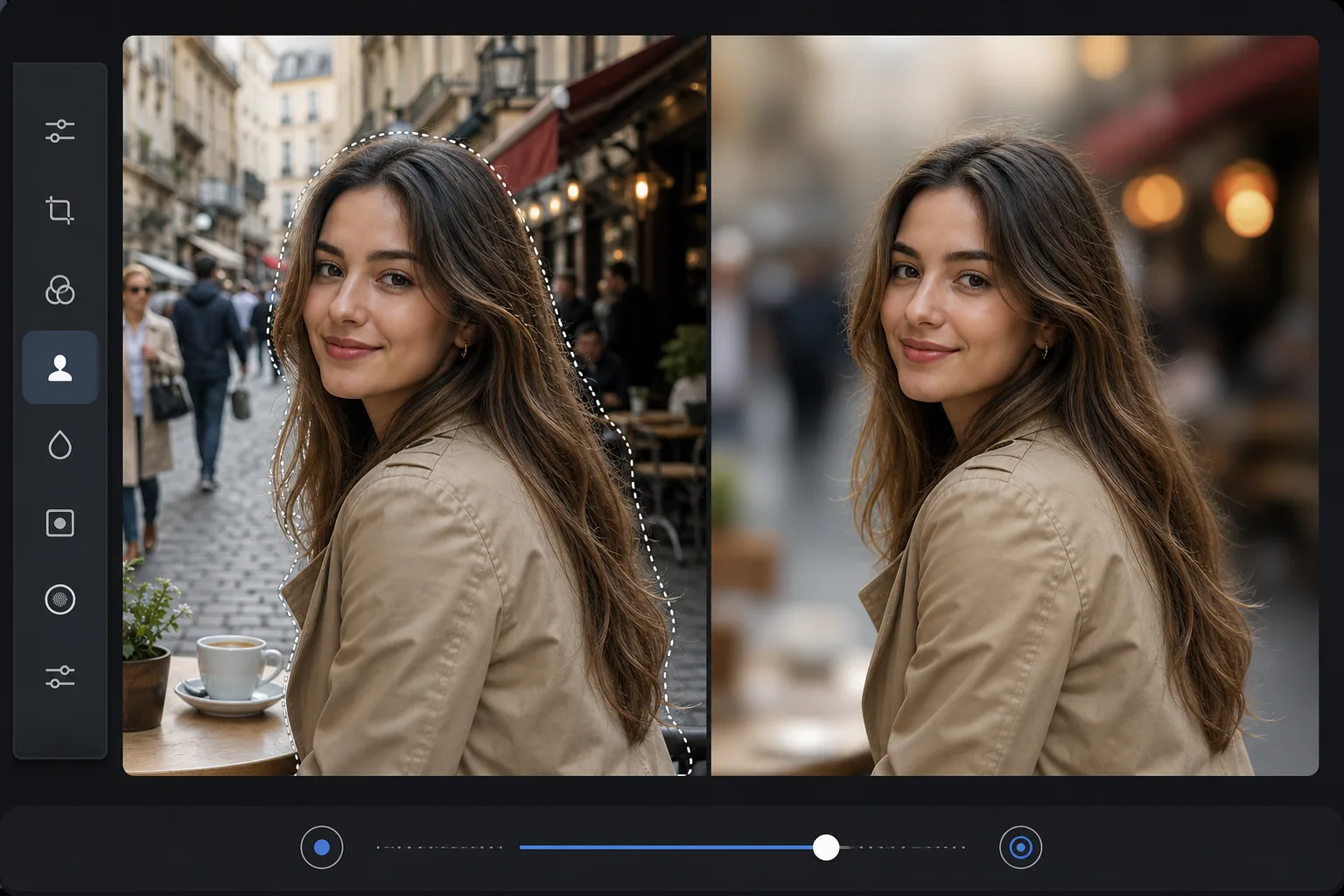
Por qué el desenfoque del fondo hace que las fotos parezcan profesionales
Para difuminar el fondo de una foto, abre Magic Eraser en la web, iOS o Android, sube tu imagen, deja que la IA separe el sujeto del fondo, ajusta la intensidad del desenfoque y descárgala. Es gratis y sin registro. La IA mantiene nítido el sujeto —incluso los bordes complicados del cabello— mientras suaviza todo lo que queda detrás, igual que lo haría un objetivo de gran apertura. Funciona con fotos que ya tomaste, así que puedes añadir un desenfoque de fondo estilo retrato aunque tu teléfono lo haya captado todo con gran profundidad de campo. Mantén un desenfoque moderado para un resultado natural; un desenfoque muy fuerte sobre una foto plana de teléfono puede empezar a verse artificial. El desenfoque del fondo (bokeh) separa al sujeto de los entornos que lo distraen al reducir los detalles del fondo y al mismo tiempo mantener al sujeto nítido. Las cámaras profesionales logran esto ópticamente con lentes de gran apertura (f/1.4 - f/2.8), pero las cámaras de los teléfonos y los sensores más pequeños producen un enfoque profundo donde todo es nítido, incluida la oficina abarrotada, la cocina desordenada o la calle concurrida detrás del sujeto. El desenfoque de fondo manual en Photoshop requiere crear una máscara precisa alrededor del sujeto (incluidos los bordes del cabello, que son notoriamente difíciles) y luego aplicar un filtro de desenfoque de lente solo al fondo, un proceso que demora entre 15 y 30 minutos por imagen. La IA de Magic Eraser detecta el sujeto automáticamente, crea una máscara precisa que incluye detalles finos del cabello y aplica un efecto gaussiano o desenfoque de lente de apariencia natural al fondo.
Before you start
Desenfoca el fondo en tres pasos
Start with sube la foto. The result preview above and tips below use this guide's existing content; no separate before-and-after proof is assumed.
- 1
Sube la foto
Abra Magic Eraser en la web, iOS o Android. Sube la foto en la que quieras desenfocar el fondo: un retrato, una foto del producto o cualquier imagen en la que el sujeto deba destacarse del entorno. Compatible con JPEG, PNG, HEIC y WebP.
- 2
Seleccionar desenfoque de fondo
Elija la herramienta de desenfoque de fondo. La IA detecta automáticamente el sujeto principal y lo separa del fondo. El sujeto permanece nítido mientras que el fondo se vuelve borroso de forma natural. Ajuste la intensidad del desenfoque: desenfoque ligero para una separación sutil, desenfoque intenso para un espectacular bokeh estilo retrato.
- 3
Revisar y exportar
Compruebe el resultado con el zoom al máximo, especialmente los bordes donde el sujeto se encuentra con el fondo borroso. El cabello, los bordes de la ropa y los contornos complejos deben pasar naturalmente de nítidos a borrosos. Si algún área del fondo se mantuvo nítida por error o algún área del sujeto quedó borrosa, refine la máscara. Exportar a máxima resolución.
Lo mejor para
- Fotografía de retratos con cámaras de teléfonos que no pueden producir un fondo borroso óptico
- LinkedIn y fotografías profesionales en las que un fondo limpio y borroso se ve pulido
- Fotografía de producto donde el fondo borroso llama la atención sobre el producto.
- Fotografía de interiores de bienes raíces donde el desenfoque selectivo resalta una característica clave o un elemento de la habitación
- Contenido de redes sociales donde los fondos borrosos crean una apariencia profesional e intencional.
Consejos para obtener mejores resultados
La IA produce el desenfoque más natural cuando hay una separación clara entre el sujeto y el fondo. Los sujetos que se encuentran alejados del fondo (no apoyados contra una pared) producen resultados más limpios porque la diferencia de profundidad es clara. Para los retratos, el desenfoque moderado (no el máximo) a menudo parece más natural; el desenfoque extremo en una foto de teléfono parece artificial porque no coincide con las características ópticas reales de la lente. El desenfoque debe aumentar gradualmente con la distancia del sujeto: los objetos justo detrás del sujeto deben verse ligeramente borrosos, mientras que el fondo distante debe estar muy borroso. La IA maneja este gradiente de profundidad automáticamente. Para las fotografías grupales, todas las personas se mantienen nítidas mientras que el entorno detrás de ellas se ve borroso.
Preguntas frecuentes
- ¿Parece un bokeh de cámara real?
- Sí. La IA aplica un gradiente de profundidad natural: un ligero desenfoque cerca del sujeto aumenta hasta un gran desenfoque en el fondo distante. El efecto coincide con el que produciría una lente de gran apertura, incluida la caída natural en los bordes.
- ¿Puede difuminar el fondo detrás del cabello?
- Sí. La IA maneja los bordes del cabello, una de las partes más difíciles de la separación del fondo. Los mechones de cabello individuales se mantienen nítidos mientras que el fondo visible entre los mechones se difumina de forma natural.
- ¿Funciona en fotos grupales?
- Sí. La IA detecta a todas las personas en el encuadre y las mantiene nítidas mientras difumina el fondo detrás del grupo. También maneja sujetos a diferentes profundidades.
- ¿El fondo no está borroso?
- Sí. El desenfoque de fondo está disponible en la capa gratuita con límites de uso diario. Premium elimina los límites y agrega opciones de mayor intensidad de desenfoque.
- ¿En qué se diferencia esto del modo Retrato de mi teléfono?
- El modo Retrato aplica el desenfoque en el momento de la captura, usando los sensores de profundidad del teléfono mientras disparas; por eso tienes que acordarte de activarlo y luego no puedes deshacerlo bien. Esta herramienta añade el mismo tipo de desenfoque de fondo después, a cualquier foto de tu galería, incluidas las más antiguas y las tomadas en modo normal. Además, es editable: tú eliges el sujeto y la intensidad del desenfoque en lugar de quedar atado a lo que decidió la cámara. Para una foto que ya tomaste, editar el desenfoque aquí te da más control que volver a disparar en modo Retrato.