
Editar fotos para álbumes de fotos y libros
Selecciona, edita y prepara colecciones de fotos para álbumes de fotos y libros impresos con calidad consistente y diseños profesionales.
Lesson context before the long read
Review the result preview above, then scan the learning objectives below before reading the full lesson. Updated 2026-05-17.
Example visual uses an existing public asset: /content-images/print-photo-book-editing-academy.webp.
Learning Objectives
- 1Seleccionar y secuenciar fotos para un flujo narrativo en el diseño de un álbum o libro de fotos
- 2Aplicar una gradación de color y un emparejamiento de exposición consistentes en todo un conjunto de fotos
- 3Optimizar la resolución y el recorte de la imagen para los tamaños y plantillas de página comunes de los álbumes de fotos
Seleccionar y editar fotos para diseños de libro
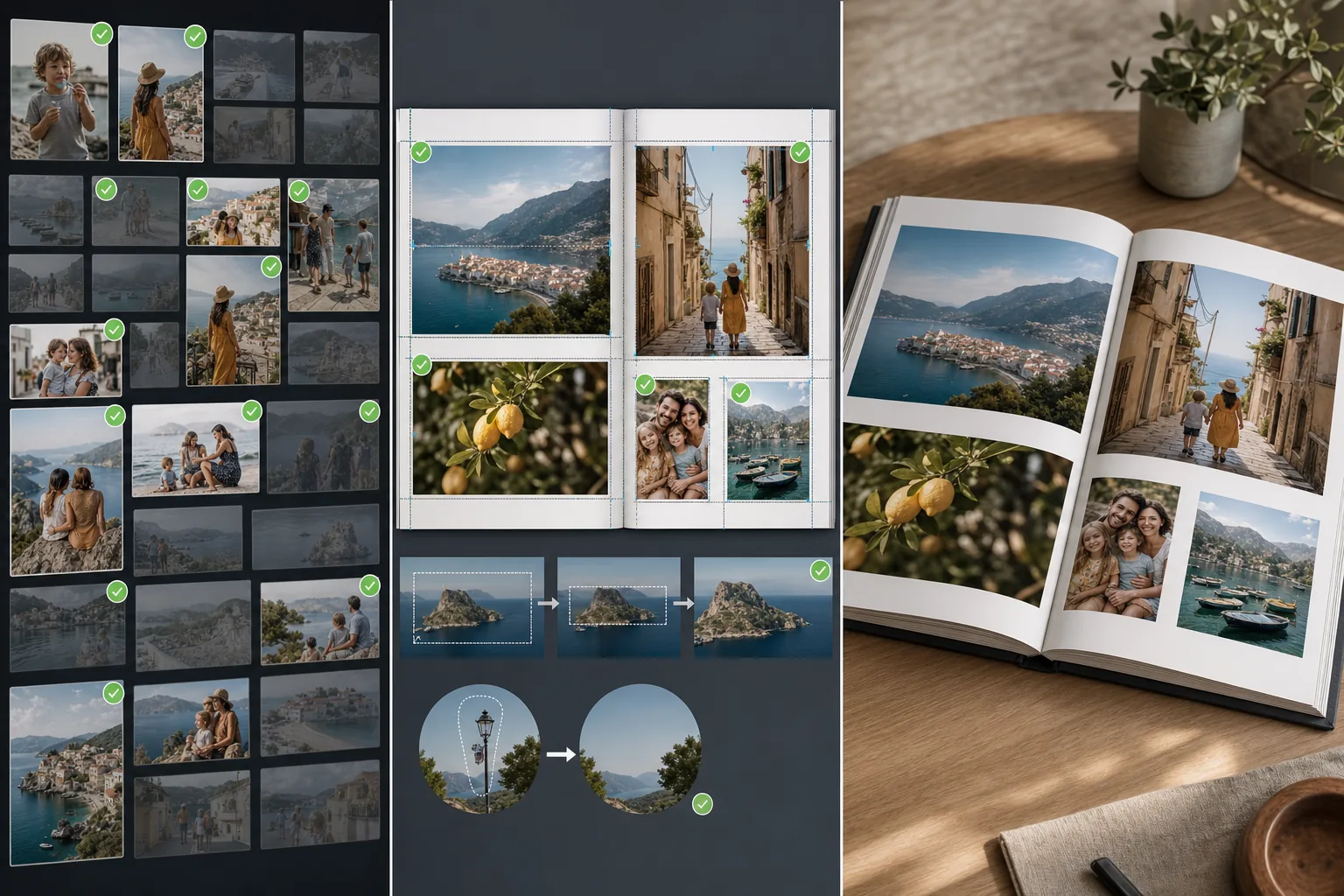
Crear un álbum de fotos atractivo comienza con la selección, no con la edición. La mayoría de las personas eligen demasiadas fotos, lo que lleva a páginas recargadas y a una falta de ritmo visual. Un álbum de fotos profesional suele usar entre 30-80 fotos para un libro estándar de 20-40 páginas, lo que significa elegir aproximadamente dos imágenes por doble página. Selecciona fotos que varíen en composición: combina tomas amplias de establecimiento con imágenes de detalle cercano, alterna entre orientaciones horizontales y verticales, e incluye momentos que cuenten una historia con un principio, un desarrollo y un final.
Consistencia entre páginas y dobles páginas
La consistencia es lo que hace que un álbum de fotos se sienta profesional. Las fotos tomadas a distintas horas del día, con distinta iluminación o con distintas cámaras pueden parecer discordantes cuando se colocan lado a lado. Usa la edición por lotes para aplicar una gradación de color consistente a todas las fotos seleccionadas, emparejando el balance de blancos y la exposición para que las imágenes adyacentes en una doble página no choquen. La mejora automática con IA puede llevar todas tus fotos a una base consistente antes de que apliques tu gradación de color creativa encima. Presta especial atención a las fotos que estarán en páginas enfrentadas; estas se ven juntas y cualquier inconsistencia en el tono o el brillo es inmediatamente evidente.
Trabajar con servicios de álbumes de fotos
La mayoría de los servicios de álbumes de fotos aceptan archivos JPEG a 300 DPI para el tamaño de impresión final. Antes de subir, comprueba que cada imagen tenga suficiente resolución para su ubicación en la página. Una imagen a sangre de página completa en un libro de 10x10 pulgadas necesita al menos 3000x3000 píxeles, mientras que una ubicación más pequeña de un cuarto de página solo requiere 1500x1500. Recorta las imágenes para que coincidan con la relación de aspecto de su espacio en la plantilla antes de subirlas para evitar recortes automáticos inesperados por parte del software del libro. Usa las herramientas de eliminación de fondo y limpieza de objetos de Magic Eraser para pulir imágenes individuales que tengan elementos que distraigan antes de colocarlas en tu diseño.
Key Takeaways
- ✓Selecciona sin piedad: busca dos imágenes potentes por doble página con variedad en composición y orientación
- ✓Aplica por lotes una gradación de color y un emparejamiento de exposición consistentes para que las páginas enfrentadas se vean cohesivas
- ✓Verifica que cada imagen cumpla el requisito de resolución para su tamaño de ubicación específico en el diseño