
Remove an Object From a Photo, Free and Online
Magic Eraser ile Remove an Object From a Photo, Free and Online yapmayı öğrenin. Ücretsiz AI aracıyla basit adım adım rehber. Web, iOS ve Android'de çalışır.
Last updated
Şimdi dene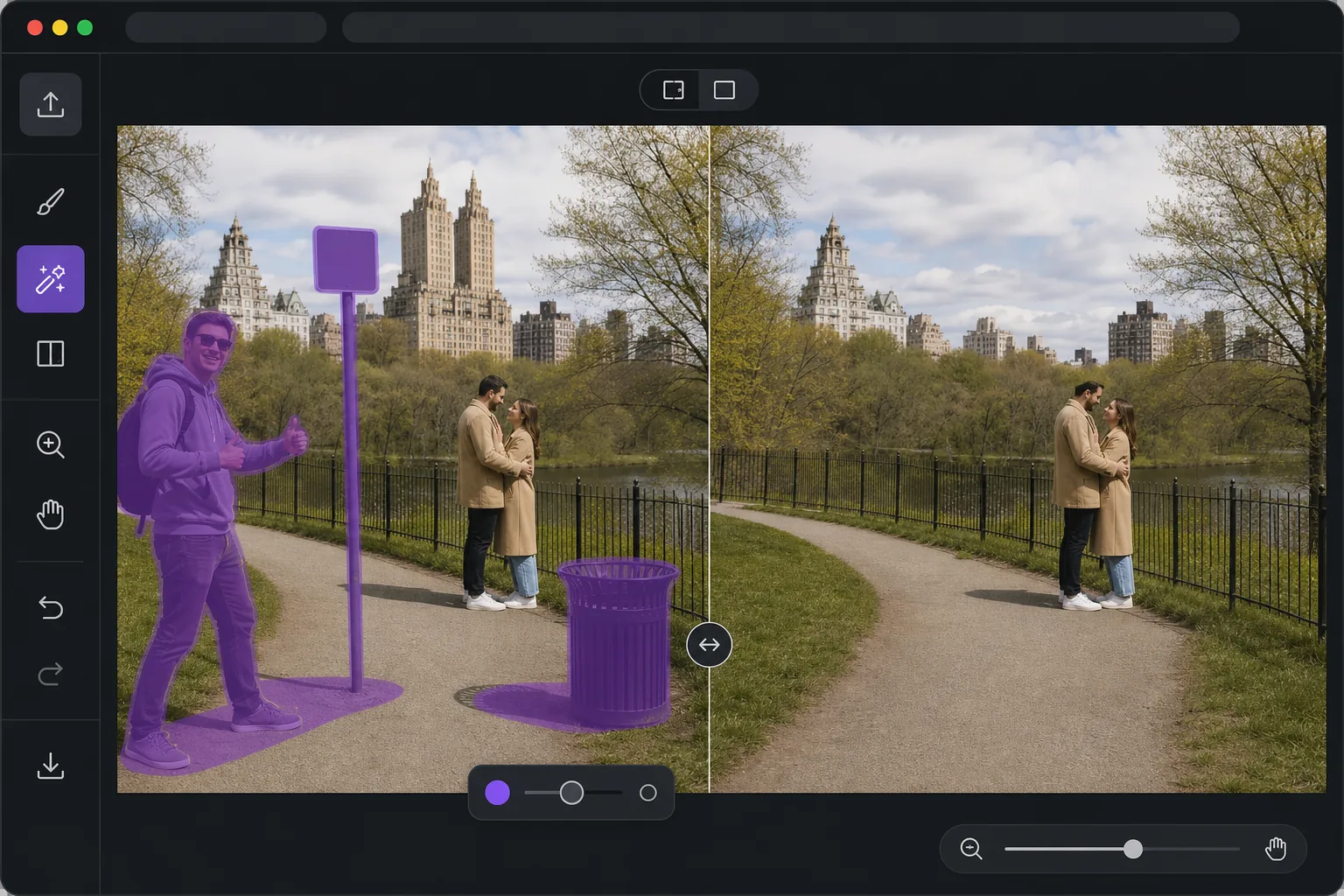
Open the editor, then remove it. — Magic Eraser
When you want one object gone from a photo, the last thing you need is desktop software, a complex editor, or a forced paid trial before you can see a result. Magic Eraser runs entirely in your browser, so there is nothing to install. Use your limited free edits, brush over the thing you want gone, and AI inpainting reconstructs a plausible background where it used to be — fences, sky, grass, walls — so the gap blends in instead of leaving a hole. Free exports are saved without a watermark, which means the photo you download is the photo you keep. The whole loop is built for speed: open the page, paint over the object, preview the fill, and save. No menus to learn and no layers to manage; limited free edits are available before you choose any paid plan. If you just need a clean shot fast, this is the shortest path from messy photo to finished image.
Before you start
Adım adım talimatlar
Start with fotoğrafı yükleyin. The result preview above and tips below use this guide's existing content; no separate before-and-after proof is assumed.
- 1
Fotoğrafı yükleyin
Web, iOS veya Android'de Magic Eraser'ı açın. JPEG, PNG, HEIC veya WebP fotoğrafınızı sürükleyip bırakın. Hesap gerekmez.
- 2
Aracı ve alanı seçin
Uygun aracı seçin ve işlenecek alanı işaretleyin. AI otomatik olarak analiz eder ve saniyeler içinde değişiklikleri uygular.
- 3
Sonucu indirin
Sonucu önizleyin ve düzenlenmiş fotoğrafı indirin. Yüksek kaliteli PNG veya JPEG olarak dışa aktarın.
En uygun
- Removing a photobomber or stranger before you post in the next minute
- Cleaning up a listing or product shot without opening desktop software
- Editing on a phone or borrowed computer where you can't install apps
- One-off fixes where installing software is not worth it
- Quick social posts that need a clean image with no watermark
En iyi sonuçlar için ipuçları
Brush slightly past the edges of the object so the AI has room to blend, rather than tracing it tightly. Objects sitting against simple, repeating backgrounds — sky, water, grass, plain walls — reconstruct most convincingly. For larger or more complex removals, work in passes: erase the main object first, then brush over any leftover shadow or reflection it left behind. If a fill looks off, undo and reselect with a slightly different brush area; small changes to your selection often produce a noticeably better blend.
Sıkça sorulan sorular
- Remove an Object From a Photo, Free and Online özelliği ücretsiz mi?
- Evet, Magic Eraser günlük ücretsiz limit dahilinde Remove an Object From a Photo, Free and Online yapmanıza olanak tanır. Sınırsız işleme ve yüksek çözünürlüklü dışa aktarma için Pro'ya yükseltin.
- Remove an Object From a Photo, Free and Online ne kadar sürer?
- Sadece birkaç saniye. Magic Eraser'ın AI'ı fotoğrafları hızla işler — çoğu sonuç yüklemeden hemen sonra hazırdır.
- Telefonda kullanabilir miyim?
- Evet, Magic Eraser iOS, Android ve tüm web tarayıcılarında çalışır. Cihazlar arasında özgürce geçiş yapabilirsiniz.
- Görüntü kalitesi düşer mi?
- Hayır, Magic Eraser orijinal fotoğraf kalitesini korur. AI, ayrıntıları ve netliği koruyarak akıllıca işler.