
Remova latas de lixo das fotos
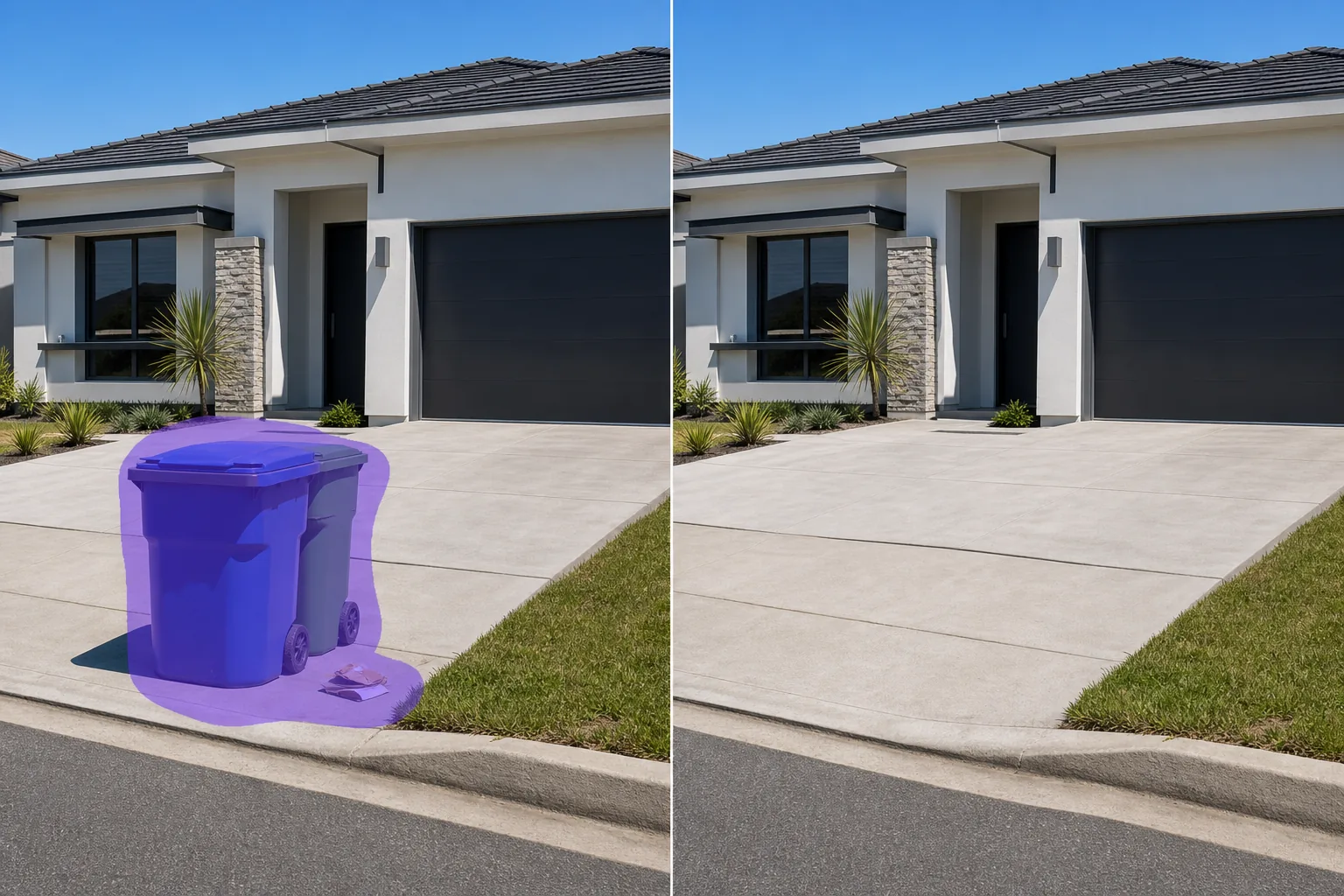
Apague latas de lixo, lixeiras, lixeiras e recipientes de lixo de fotos de listagens de imóveis, fotos de viagens, imagens arquitetônicas e fotografias de eventos. Magic Eraser remove a monstruosidade e reconstrói a entrada de automóveis, a calçada ou o quintal atrás dela - sem necessidade de clonagem manual ou seleção cuidadosa.
Última atualização
Por que as latas de lixo estragam imóveis e fotos de viagens
Uma lata de lixo na calçada é fácil de ignorar pessoalmente, mas impossível de perder em uma fotografia. Em listagens de imóveis, latas de lixo visíveis reduzem o valor percebido da propriedade – os compradores formam impressões nos primeiros 3 segundos ao visualizar a foto de uma listagem, e uma lixeira na entrada sinaliza negligência, mesmo que a propriedade esteja imaculada. Na fotografia de viagens, as latas de lixo quebram a estética de uma pitoresca cena de rua ou ponto de referência. Magic Eraser remove essas monstruosidades em segundos. A IA identifica a lixeira, sua sombra e quaisquer detritos associados e, em seguida, reconstrói a entrada de automóveis, a calçada, a grama ou o pavimento atrás dela com textura e perspectiva correspondentes. Para agentes imobiliários que processam de 20 a 40 fotos de listagem por propriedade, isso economiza um tempo significativo de edição por sessão.
Remova latas de lixo em três etapas
- 1
Envie sua foto
Abra Magic Eraser na web, iOS ou Android e carregue o exterior do imóvel, a foto da viagem ou a foto arquitetônica contendo a lata de lixo. Os formatos JPEG, PNG, HEIC e WebP são aceitos em qualquer resolução.
- 2
Pincele a lata de lixo
Pinte toda a lata de lixo, incluindo a tampa, as rodas, a sombra no chão e quaisquer detritos visíveis nas proximidades. Para lixeiras, inclua todo o recinto e a sombra que ele projeta. Estenda o pincel um pouco além do objeto para fornecer o contexto de IA para a superfície de fundo.
- 3
Apagar e verificar
Toque em Apagar e a IA remove a lata de lixo enquanto reconstrói a superfície atrás dela – concreto da entrada de automóveis, gramado, pavimentação de tijolos ou calçada. Verifique se a superfície reconstruída corresponde à área circundante em textura e perspectiva. Execute uma segunda passagem se a área sombreada precisar de refinamento. Exporte para listagem MLS, site de propriedade ou portfólio.
Melhor para
- Fotos de listagens de imóveis onde lixeiras na calçada prejudicam o apelo da propriedade
- Fotos do Airbnb e de aluguel por temporada que precisam de um exterior limpo e acolhedor
- Fotografia arquitetônica onde lixeiras ou áreas de resíduos quebram a estética
- Fotografia de viagens e ruas com lixeiras municipais feias
- Fotos do local do casamento e do espaço para eventos onde as áreas de serviço são visíveis
- Fotos de marketing de hotéis e hospitalidade mostrando áreas externas ou de piscina
- Fotografia de paisagem urbana onde lixeiras bagunçam uma composição que de outra forma seria limpa
- Apresentações de planejamento e desenvolvimento urbano que precisam de paisagens urbanas idealizadas
Dicas para remover latas de lixo de forma limpa
As latas de lixo estão entre os objetos mais fáceis de remover porque normalmente ficam em superfícies uniformes (calçadas, calçadas, gramados) que a IA reconstrói bem. Duas situações necessitam de cuidados extras. Primeiro: quando a lata de lixo obscurece parcialmente algo importante (uma caixa de correio, um canteiro de jardim, um carro estacionado), a IA reconstrói com base no contexto circundante e pode não recriar com precisão o objeto oculto – inspecione o resultado e potencialmente execute uma segunda passagem mais direcionada. Segundo: grandes lixeiras em fotos de imóveis comerciais ou multifamiliares lançam sombras significativas. Inclua a sombra completa na seleção do pincel; deixar uma sombra para trás após remover o objeto é a indicação mais comum de uma edição de remoção. Para agentes imobiliários que usam Magic Eraser regularmente, desenvolva um fluxo de trabalho consistente: remova as latas de lixo, depois as caixas de utilidades e, em seguida, qualquer outra bagunça na calçada, processando todas as fotos externas em sequência.
Perguntas frequentes
- É gratuito remover latas de lixo das fotos dos anúncios?
- Sim. O nível gratuito de Magic Eraser lida com a remoção de latas de lixo com limites diários. Corretores imobiliários que processam listagens múltiplas se beneficiam do Premium (US$ 29,99/ano), que remove limites de uso e fornece exportações de alta resolução para fotos com qualidade MLS.
- Remove a sombra também?
- Inclua a sombra na seleção do pincel e Magic Eraser remove a lata de lixo e sua sombra, reconstruindo a superfície abaixo. Se você esquecer a sombra, poderá executar uma segunda passagem apenas na área da sombra.
- Posso remover várias caixas de uma foto?
- Sim. Passe o pincel sobre cada caixa individualmente ou selecione todas as caixas de uma só vez, se estiverem agrupadas. A IA lida com cada remoção de forma independente, reconstruindo a superfície apropriada atrás de cada uma.
- E quanto a lixeiras e carrinhos de compostagem?
- Qualquer tipo de recipiente de lixo funciona – latas de lixo padrão, lixeiras para reciclagem, carrinhos de compostagem, lixeiras grandes e recipientes para resíduos comerciais. A IA trata todos eles como objetos a serem removidos e reconstrói o plano de fundo por trás de cada um.