
Como remover rugas de uma foto
O retoque profissional de retratos reduz as rugas sem criar aquela aparência artificial e plástica. A IA de Magic Eraser suaviza as rugas enquanto preserva a textura natural da pele, os poros e a aparência autêntica do sujeito.
Last updated
Suavize rugas agora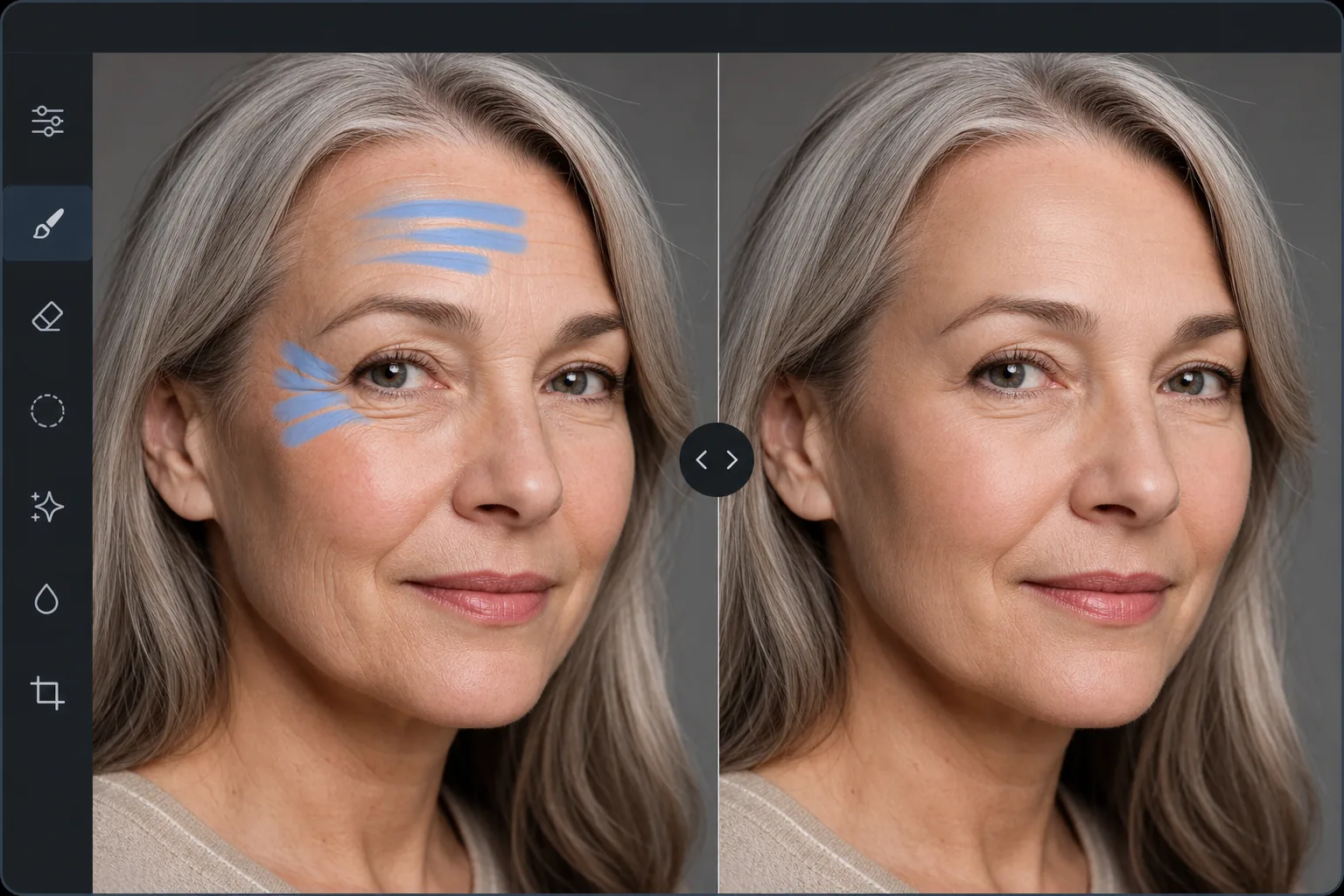
Por que a redução natural das rugas é difícil de fazer manualmente
Para remover rugas de uma foto, abra o Magic Eraser na web, no iOS ou no Android, carregue o retrato, pinte sobre as linhas específicas que quer suavizar e toque em Erase — a IA reduz a profundidade de cada ruga mantendo os poros, a textura e a variação de cor da pele, para que o rosto fique naturalmente mais liso, sem aquele aspeto retocado em excesso. É grátis, sem precisar de registo. Vá com calma: tratar as 3 a 4 dobras mais marcadas e deixar as linhas de expressão, como as de sorriso, deixa o resultado caprichado, mas ainda claramente você. (Para alisar vincos ou dobras físicas numa impressão antiga digitalizada, é o mesmo pincel — ele reconstrói a área danificada a partir da imagem em redor.) O desafio da remoção de rugas é que a suavização agressiva cria o estranho efeito de 'pele plástica' - um rosto perfeitamente liso não parece natural porque a pele real tem poros, textura fina e variações sutis de cores, mesmo na juventude. Os retocadores profissionais gastam de 15 a 30 minutos por retrato no Photoshop usando separação de frequência – uma técnica que separa a textura da pele do tom da pele, permitindo a redução de rugas na camada de tom enquanto preserva a textura em uma camada separada. Isso produz resultados naturais, mas requer habilidade e tempo significativos. A IA do Magic Eraser cuida disso automaticamente – reduzindo a profundidade e a proeminência das rugas, enquanto mantém a textura natural da pele, a estrutura dos poros e o caráter reconhecível do sujeito.
Before you start
Suavize rugas em três passos
Start with carregar o retrato. The result preview above and tips below use this guide's existing content; no separate before-and-after proof is assumed.
- 1
Carregar o retrato
Abra Magic Eraser na web, iOS ou Android. Carregue o retrato ou foto com rugas que deseja reduzir. Suporta JPEG, PNG, HEIC e WebP. Uma resolução mais alta produz resultados mais naturais porque a IA tem mais dados de textura da pele para trabalhar.
- 2
Pincele sobre as áreas enrugadas
Pinte sobre as rugas específicas que você deseja reduzir – linhas da testa, pés de galinha ao redor dos olhos, dobras nasolabiais, linhas de expressão entre as sobrancelhas. Pincele cada área das rugas individualmente, em vez de pintar o rosto inteiro. Esta abordagem preserva as linhas de expressão naturais do modelo, ao mesmo tempo que visa os vincos mais profundos.
- 3
Toque em Apagar e revisar
A IA reduz a profundidade das rugas enquanto preserva a textura da pele circundante. O resultado parece uma pele natural com menos linhas proeminentes – sem retoque ou plástico. Verifique com zoom máximo para confirmar se a textura da pele permanece natural e refine áreas individuais com passagens adicionais, se necessário. Exporte em resolução máxima.
Melhor para
- Retoque profissional de headshot onde os assuntos desejam uma aparência elegante, mas autêntica
- Fotografia de retratos corporativos para sites de empresas e perfis do LinkedIn
- Fotografia de casamento em que os membros da família desejam uma redução suave das rugas em retratos formais
- Fotos de atores e modelos que exigem retoque de pele padrão da indústria
- Fotos pessoais em que o sujeito deseja suavizar rugas específicas sem alterar sua aparência geral
Dicas para melhores resultados
Menos é mais com redução de rugas. Escove rugas profundas específicas em vez de todo o rosto – reduzir as 3-4 rugas mais proeminentes cria uma melhoria significativa, ao mesmo tempo que mantém o rosto natural e reconhecível. Deixe algumas linhas de expressão intactas, principalmente as linhas do sorriso e as linhas sutis da testa que transmitem personalidade. Para rugas sob os olhos, escove suavemente e verifique o resultado – a pele sob os olhos é fina e delicada, e o alisamento excessivo cria uma aparência plana e não natural. Para obter melhores resultados em fotos profissionais, combine a redução de rugas com a ferramenta AI Enhancement para melhoria geral da pele e correção de iluminação.
Perguntas frequentes
- Parecerá artificial?
- A IA reduz a profundidade das rugas enquanto preserva a textura natural da pele, os poros e a variação de cor. O resultado parece uma pele naturalmente mais lisa, sem retoque ou plástico. O segredo é escovar rugas específicas, em vez de escovar todo o rosto.
- Posso controlar a quantidade de suavização aplicada?
- Sim. Escove apenas as rugas que deseja reduzir. Para um alisamento mais leve, use um pincel menor apenas na parte mais profunda de cada ruga. Para uma redução mais agressiva, escove as rugas e a área circundante. Várias passagens aumentam o efeito.
- Funciona tanto em homens quanto em mulheres?
- Sim. A IA se adapta a diferentes tipos de pele, texturas e padrões de rugas. A pele masculina normalmente tem poros maiores e textura diferente da pele feminina – a IA preserva a textura apropriada para cada uma.
- A remoção de rugas é gratuita?
- Sim. O nível gratuito do Magic Eraser inclui a ferramenta pincel para redução de rugas com limites de uso diário. Premium elimina limites para fluxos de trabalho de retoque profissional.
- Como removo rugas de uma foto no Android ou no iPhone?
- Abra o Magic Eraser em qualquer navegador móvel ou na app de iOS ou Android, carregue o retrato a partir da sua galeria e use os dedos para ampliar o rosto. Use um pincel pequeno para traçar as linhas específicas que quer suavizar e toque em Erase. A IA reduz as rugas ali mesmo no seu telemóvel e guarda o resultado de volta na galeria. Funciona igual à versão de computador, sem precisar de instalar nenhuma app se usar o navegador — e, tal como no computador, tratar apenas algumas rugas mais marcadas fica mais natural do que suavizar o rosto inteiro.