
How to remove dark circles from a photo
Aprenda como How to remove dark circles from a photo com Magic Eraser. Guia simples passo a passo com ferramenta de IA gratuita. Funciona na web, iOS e Android.
Last updated
Experimentar agora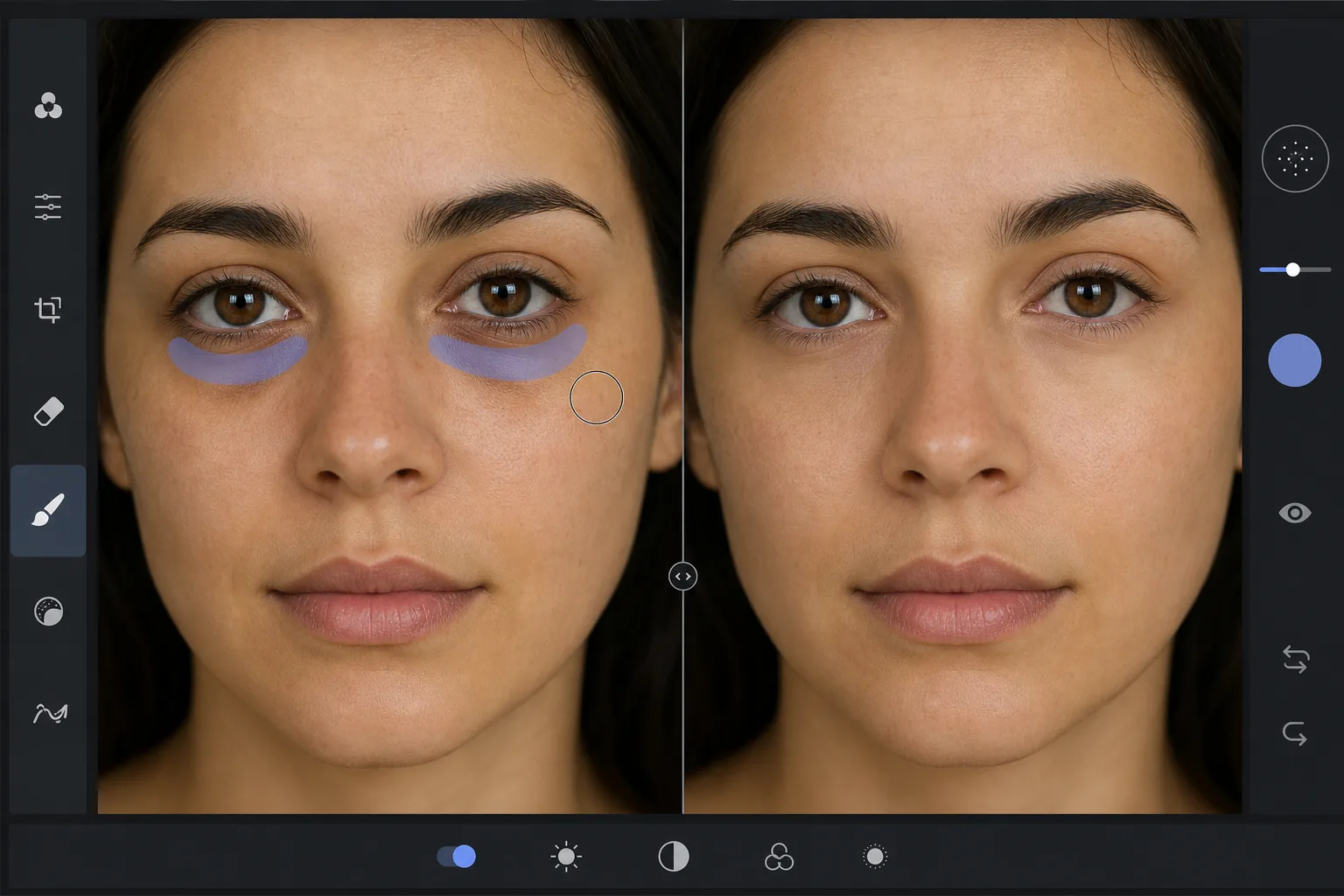
Why dark circles are tricky to retouch com Magic Eraser
Under-eye dark circles are not a single object you can cut out — they are a gradient of shadow and discoloration that blends into the surrounding skin. Heavy-handed editing (a brightness brush, a clone stamp) erases the natural shading that gives the face dimension, leaving a flat, obviously-retouched patch under the eye. The goal is to reduce the darkness while preserving skin texture, pores, and the subtle highlight-to-shadow transition that reads as real. Magic Eraser's AI treats the under-eye region as skin to reconstruct rather than a color to paint over: it lightens the area and rebuilds matching texture from the surrounding cheek and lower-lid skin, so the result looks like a well-rested version of the same face, not an airbrushed mask. This makes it useful for headshots, dating-profile photos, family portraits, and any shot where the subject looks more tired than they felt.
Before you start
Instruções passo a passo
Start with carregue a foto. The result preview above and tips below use this guide's existing content; no separate before-and-after proof is assumed.
- 1
Carregue a foto
Abra o Magic Eraser na web, iOS ou Android. Arraste e solte sua foto JPEG, PNG, HEIC ou WebP. Sem necessidade de conta.
- 2
Selecione a ferramenta e a área
Escolha a ferramenta adequada e marque a área a processar. A IA analisa e aplica as alterações automaticamente em segundos.
- 3
Baixe o resultado
Visualize o resultado e baixe a foto editada. Exporte em PNG ou JPEG de alta qualidade.
Ideal para
- Professional headshots where the subject looks tired despite good lighting
- Dating-profile and social photos that need a fresher, well-rested look
- Family and event portraits taken late in the day
- Quick retouching without learning frequency separation or dodge-and-burn
- Batch-cleaning a set of portraits to a consistent look
Dicas para melhores resultados
Reduce, don't erase. Real faces have some shadow under the eye — removing it completely reads as fake. Aim to lighten dark circles to the point they no longer draw attention, not to a uniform flat tone. Brush each eye separately so the AI references the skin closest to each one. If the subject has both dark circles and under-eye bags, the discoloration and the puffiness-shadow are two issues: lighten the discoloration first, then assess whether the remaining shadow still needs a light pass. For a related cleanup, pair this with removing blemishes or skin shine in the same edit. And as always, the most natural result keeps pores and skin texture intact — Magic Eraser preserves them automatically, so avoid over-brushing into clear skin.
Perguntas frequentes
- A função How to remove dark circles from a photo é gratuita?
- Sim, o Magic Eraser permite How to remove dark circles from a photo gratuitamente com limites diários. Faça upgrade para o Pro para processamento ilimitado e exportações em alta resolução.
- Quanto tempo leva para How to remove dark circles from a photo?
- Apenas alguns segundos. A IA do Magic Eraser processa fotos rapidamente — a maioria dos resultados fica disponível imediatamente.
- Posso usar no celular?
- Sim, o Magic Eraser funciona no iOS, Android e em todos os navegadores. Você pode alternar entre dispositivos livremente.
- A qualidade da imagem é afetada?
- Não, o Magic Eraser preserva a qualidade original da foto. A IA processa de forma inteligente para manter detalhes e nitidez.