
AI Filter style
AI 디지털 아트 사진 필터
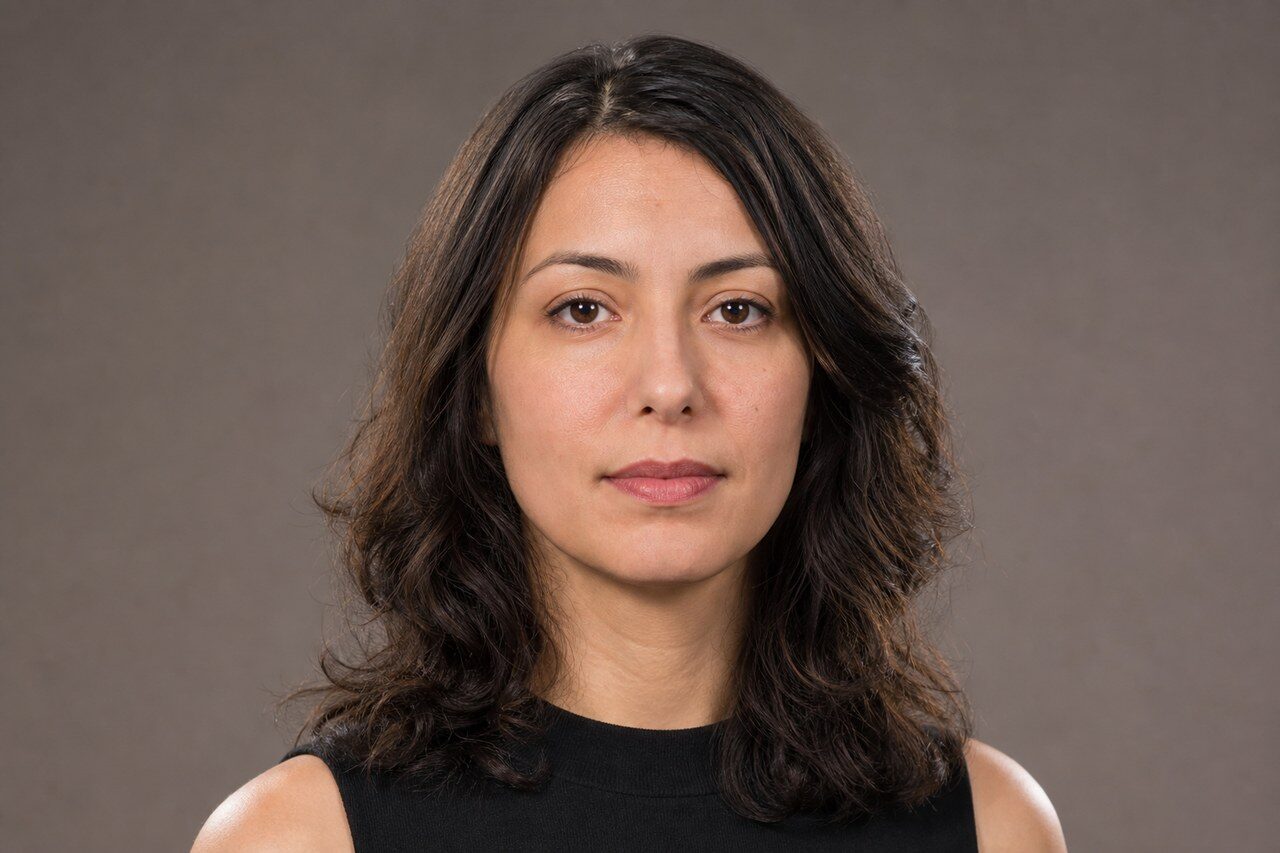
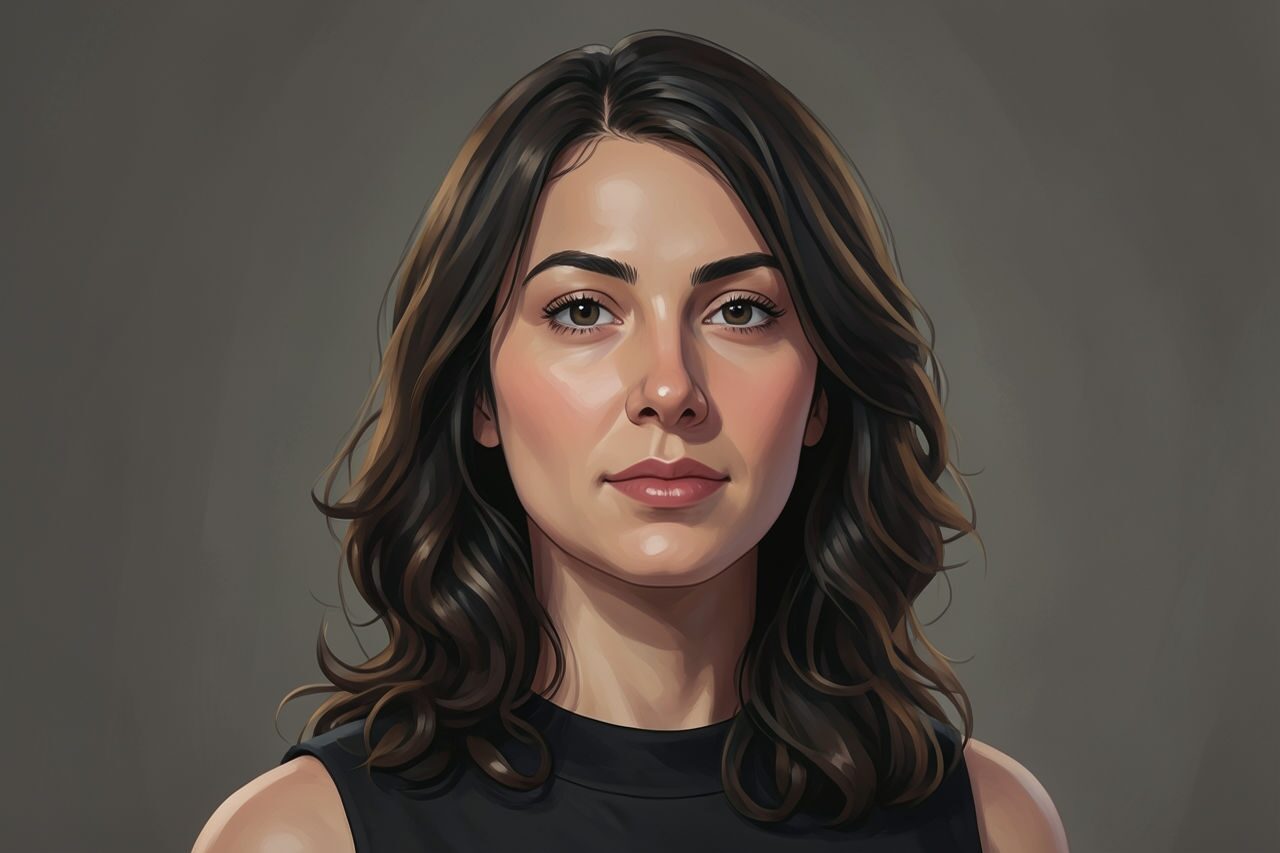
사진을 더 풍부한 색과 매끄러운 질감의 완성도 높은 디지털 일러스트로 바꾸면서 피사체는 알아보기 쉽게 유지하세요. 인물, 반려동물, 여행, 라이프스타일과 캠페인 시안에 적합하며, 사용 전 글자와 라벨, 작은 세부 요소를 확인해야 합니다.
Use case
크리에이터 인물 사진, 프로필 이미지와 소셜 배너.
Use case
완성도 높은 일러스트 분위기가 필요한 반려동물, 여행과 일상 사진.
Use case
원본 피사체를 알아볼 수 있어야 하는 캠페인 시안.
Filter preview
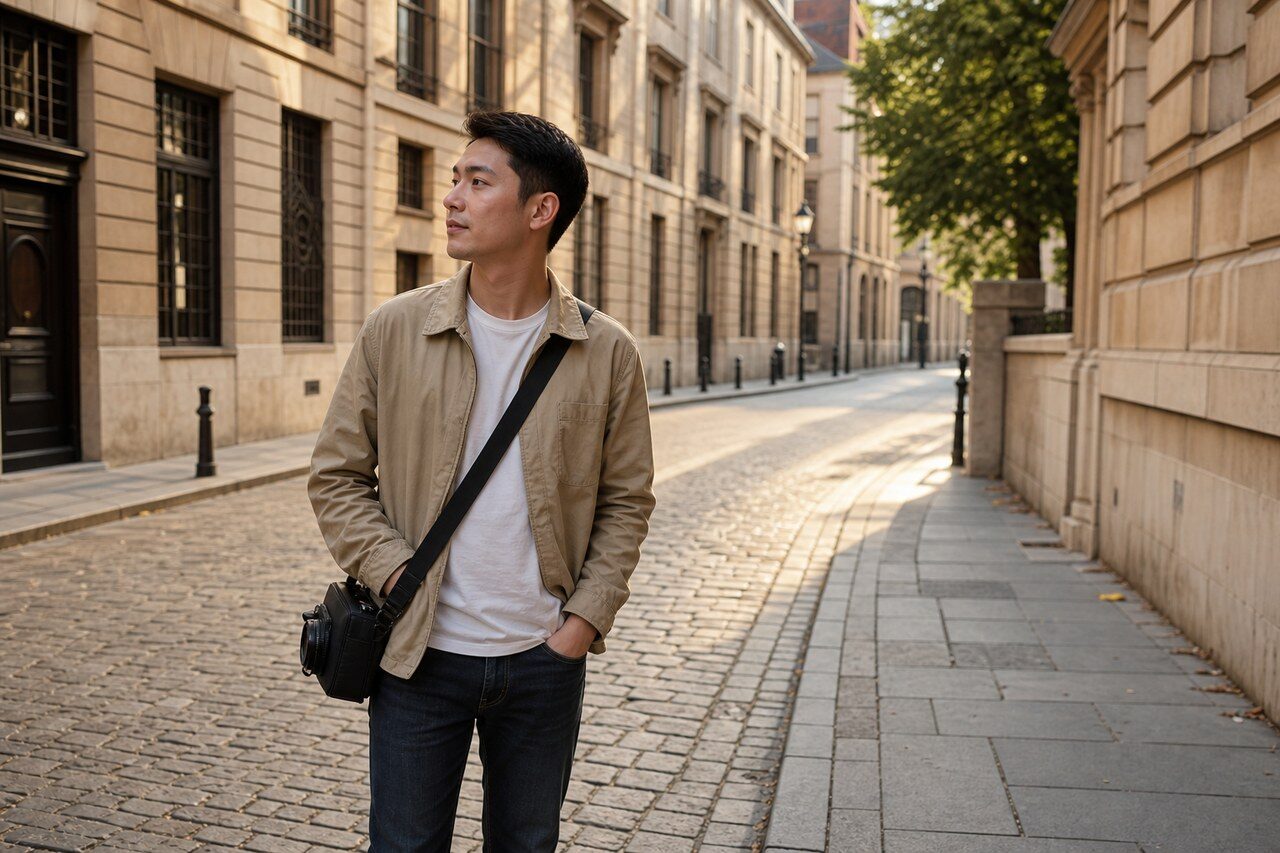
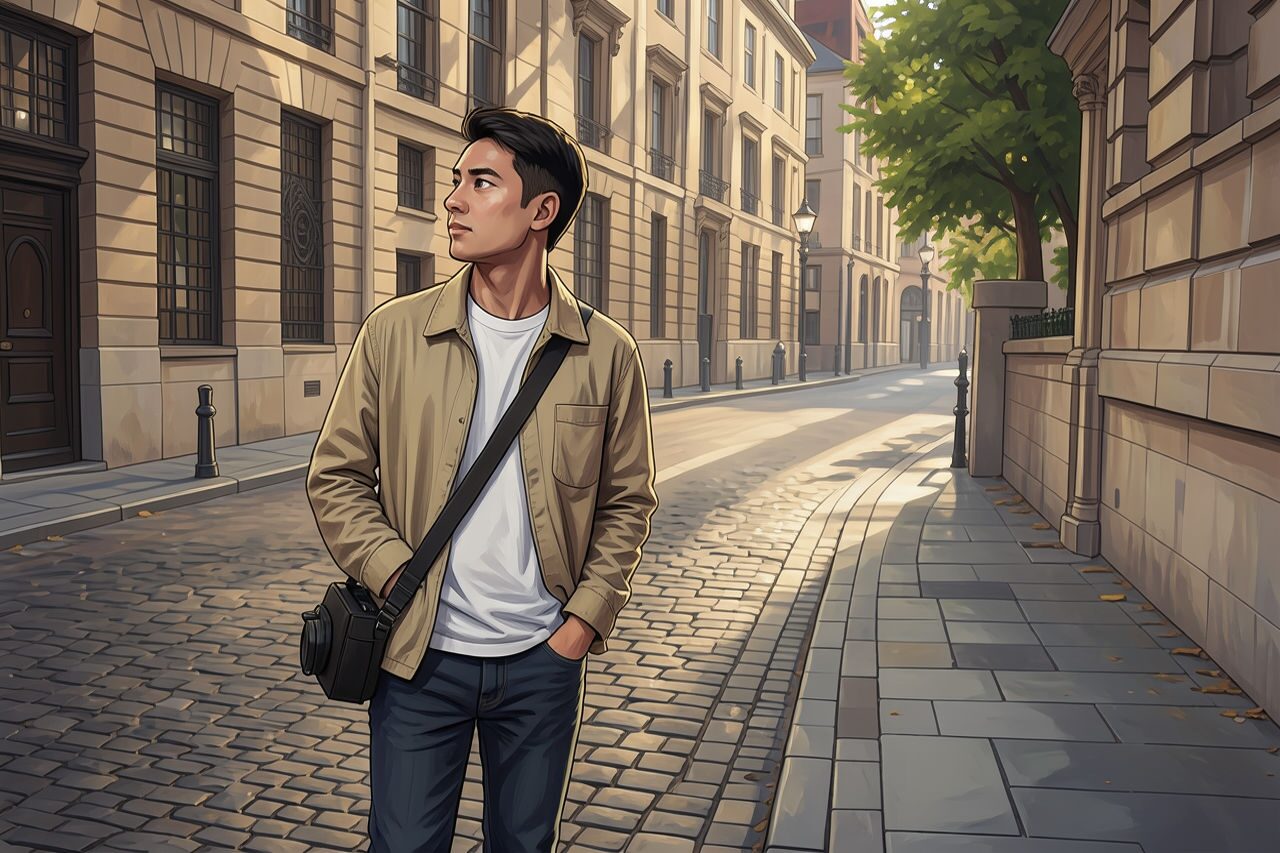
Compare the original photo with the digital art result
The example uses a generated source photo and the same filter API path as the app, so users can judge the visual treatment before uploading their own image.
More examples
Test the digital art filter on different photo types
Compare portrait, product, and pet examples before opening the filter. Each result uses the same filter API path as the Magic Eraser app.

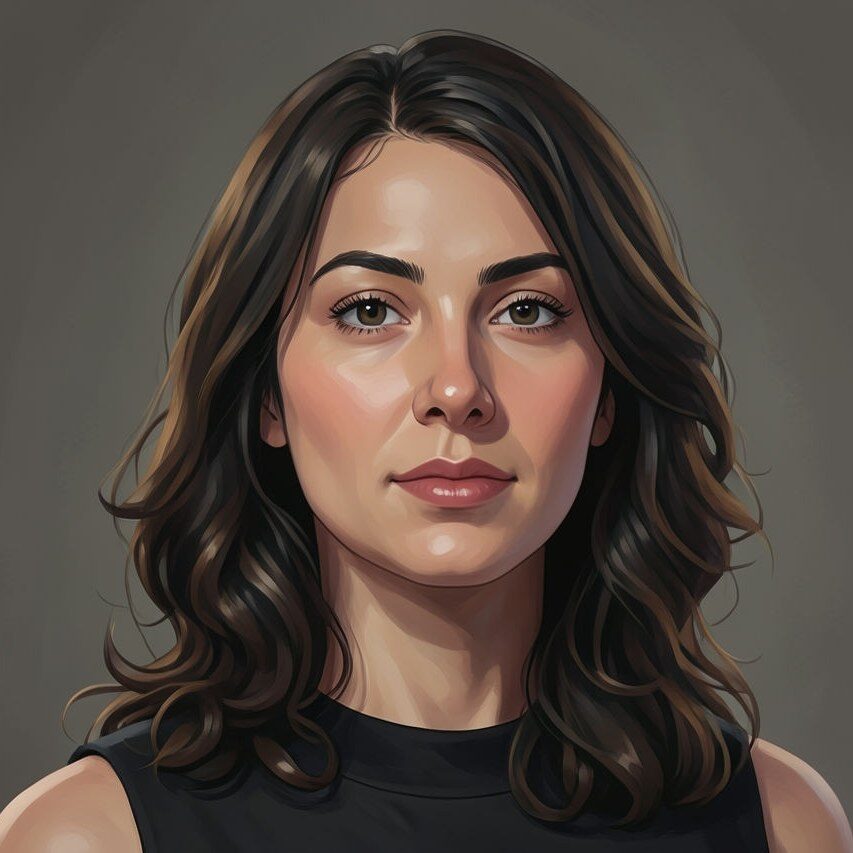
Portrait
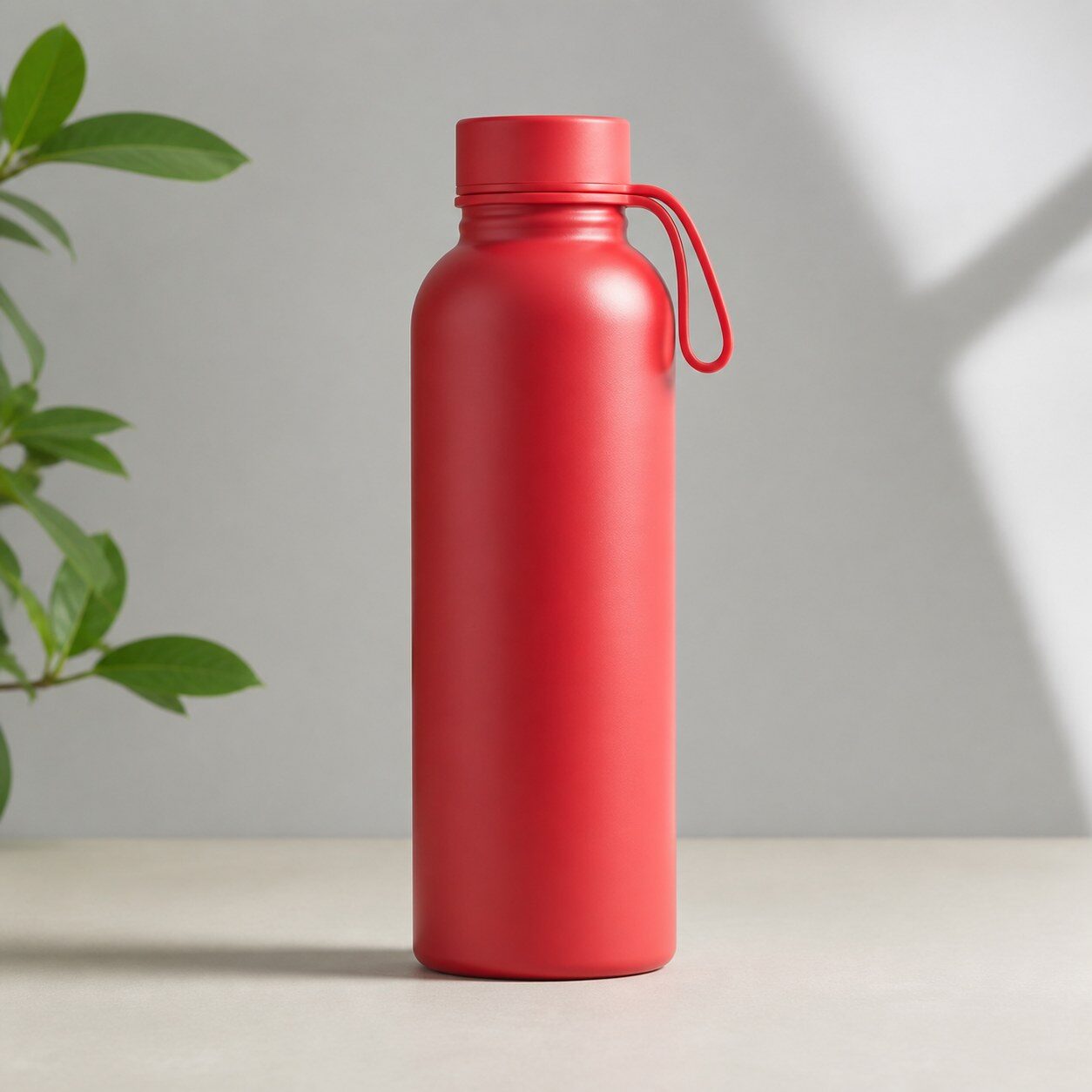
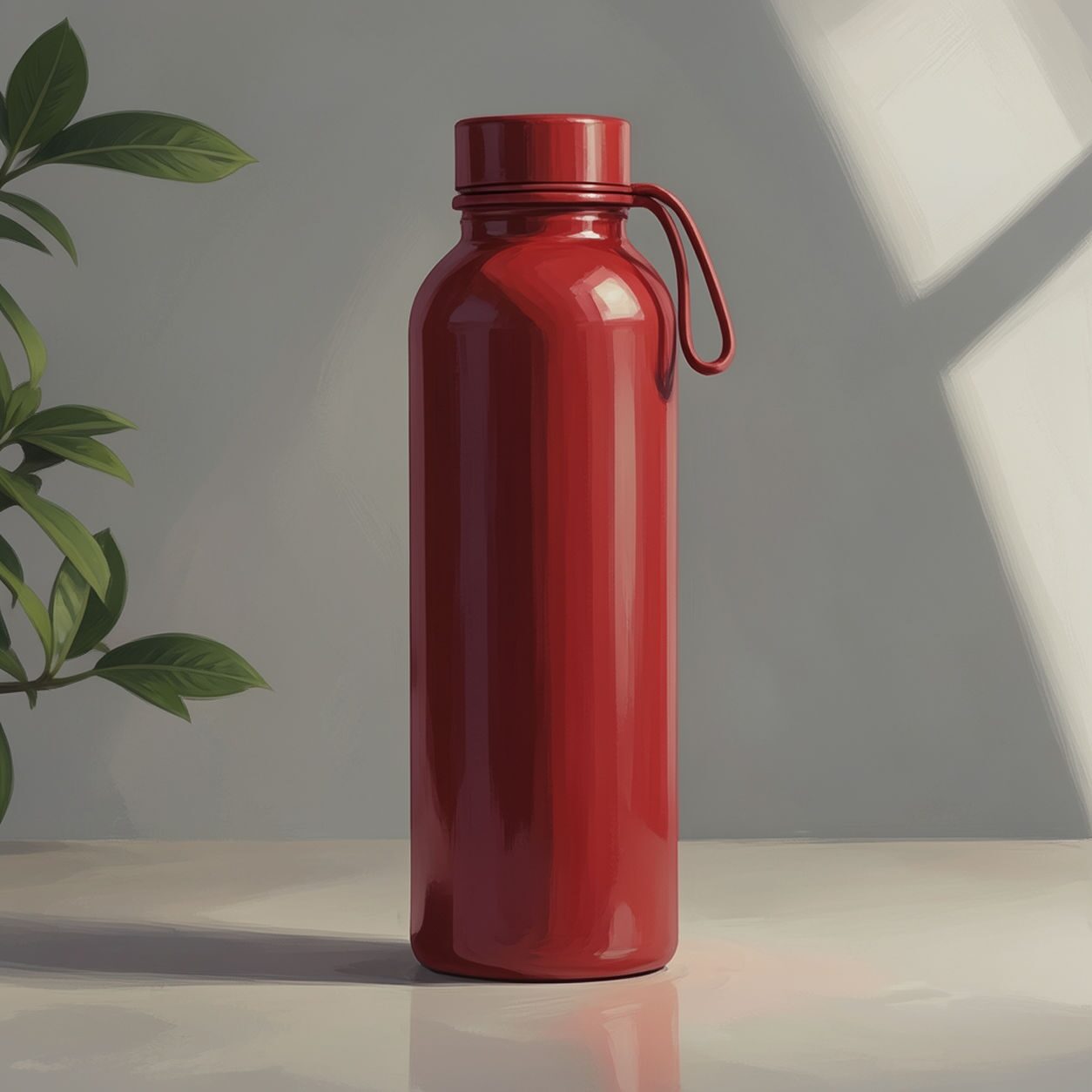
Product

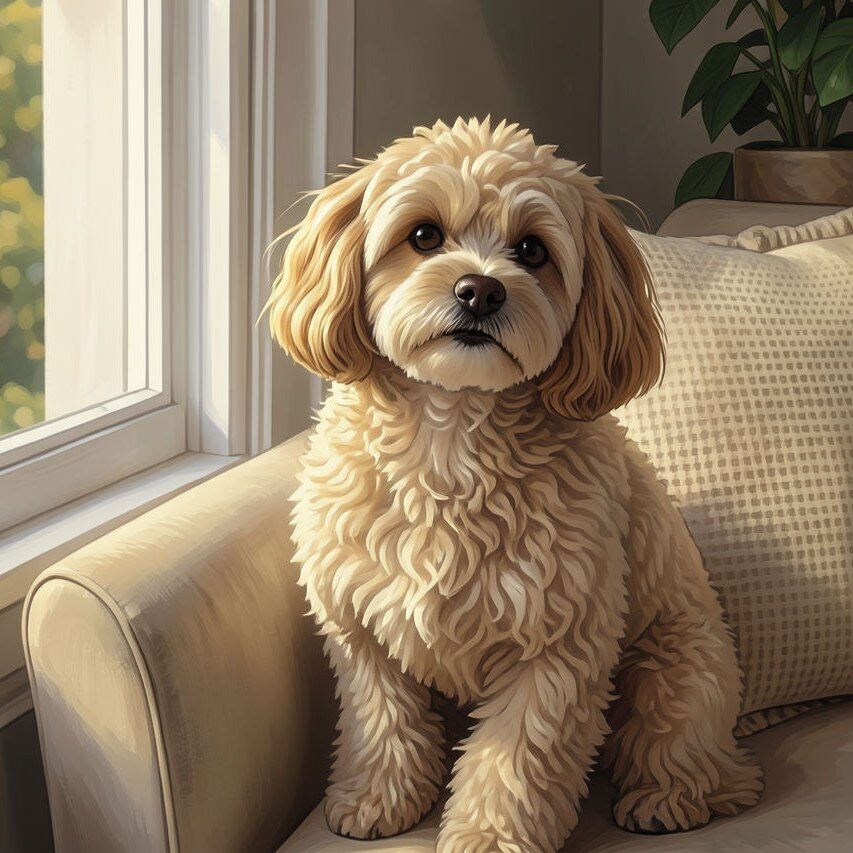
Pet
Photo workflow
How to get a cleaner digital art filter result
선명하고 조명이 좋으며 강한 필터를 쓰지 않은 사진으로 시작하세요.
디지털 아트 필터를 열고 사진을 업로드한 뒤 얼굴, 손, 글자와 구도를 확인하세요.
내보내기 전에 지우기 또는 자르기 도구로 결과를 정리하세요.
Best source photos
- 인물, 반려동물, 여행과 라이프스타일 사진.
- 단순하게 연출한 제품 사진.
- 큰 장르 변화보다 예술적인 마무리가 필요한 이미지.
Filter tips
- 주요 피사체 하나와 단순한 배경이 대체로 더 깔끔한 결과를 만듭니다.
- 흐리거나 조명이 나쁜 사진을 필터만으로 완전히 복구할 수는 없습니다.
- 제품 이미지에서는 라벨을 크게 유지하고 필터 적용 후 정확성을 확인하세요.
Before upload checklist
- Use the largest clean version of the photo, not a compressed screenshot or reposted image.
- Crop loosely before filtering so the AI has enough room around the subject.
- Remove obvious distractions first if they sit directly on the face, product, or main subject.
- Check the result at the size where it will be used: profile image, feed post, story, thumbnail, or banner.
When this filter is a good fit
Choose the digital art filter when the original photo already has a clear subject and the goal is a recognizable stylized version, not a fully new generated scene. It is strongest for social, creator, profile, event, and campaign images where mood matters more than documentary accuracy.
Use a different workflow when the image needs exact product color, legal documentation, medical accuracy, or unmodified identity details. In those cases, use cleanup, crop, enhancement, or background tools instead of a heavy creative filter.
Free browser tools after filtering
FAQ
What should I upload?
Use a clear photo with one main subject. Strong lighting and simple backgrounds usually make the AI filter easier to control.
Can I keep editing after the filter?
Yes. After applying the filter, use Magic Eraser to crop, clean distractions, refine backgrounds, and export the final image.
Is this filter selected automatically?
The CTA opens AI Filter with the digital art style parameter, and the app falls back safely if the filter changes.