
AI Create style
AI 라인 아트 이미지 생성기
텍스트 프롬프트로 아이콘, 타투 콘셉트, 컬러링 페이지, 패키지 장식과 편집 일러스트용 라인 아트를 만드세요. 선 굵기와 세부 수준, 미니멀·장식·기술 도면·손그림 방향을 지정할 수 있습니다.
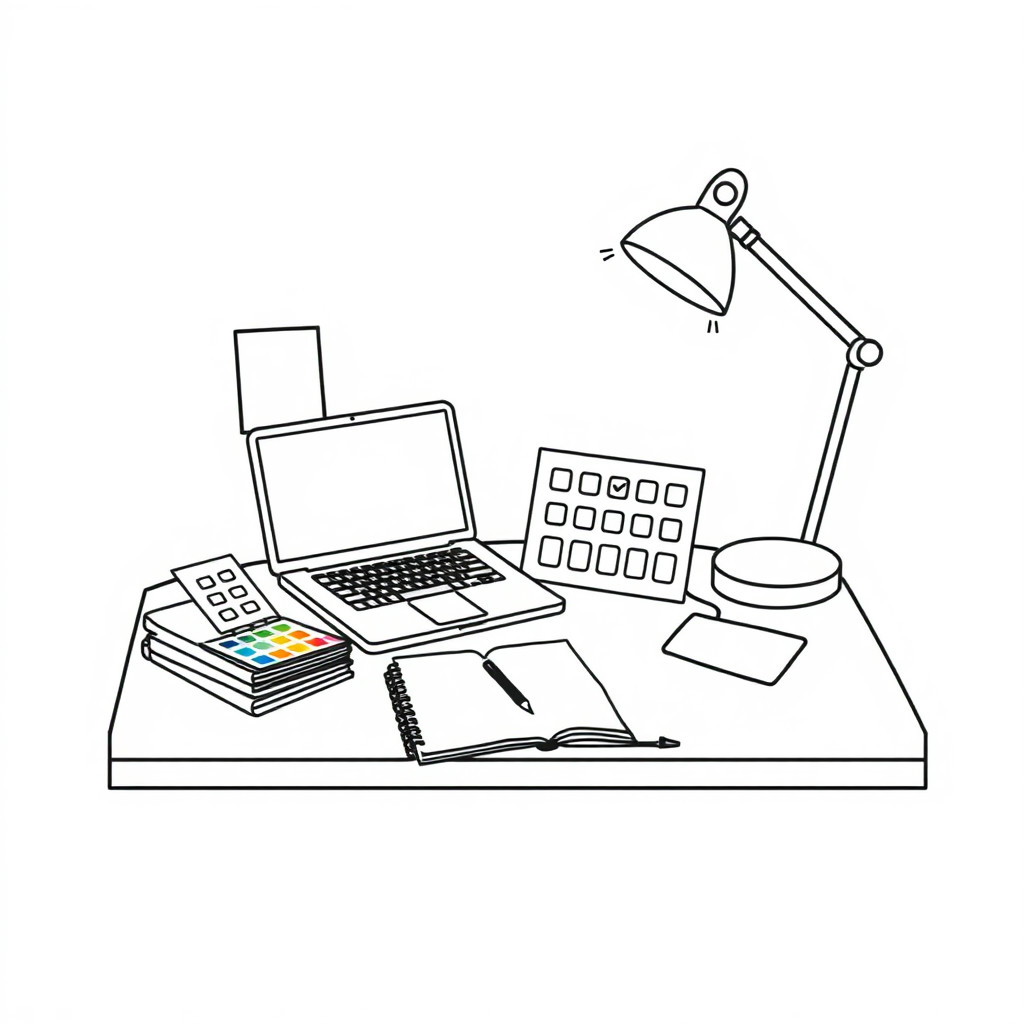
Use case
브랜드 일러스트, 안내 그래픽, 아이콘과 패키지 장식.
Use case
타투 참고안, 컬러링 도안과 인쇄용 윤곽 그림.
Use case
형태와 여백을 강조하는 편집 비주얼.
Visual direction preview
Use the style thumbnail as the creative target
The preview gives users a concrete reference for color, texture, edge detail, and mood before they open the generator. Pair it with the prompt starters below to keep the page useful instead of only decorative.
Generated examples
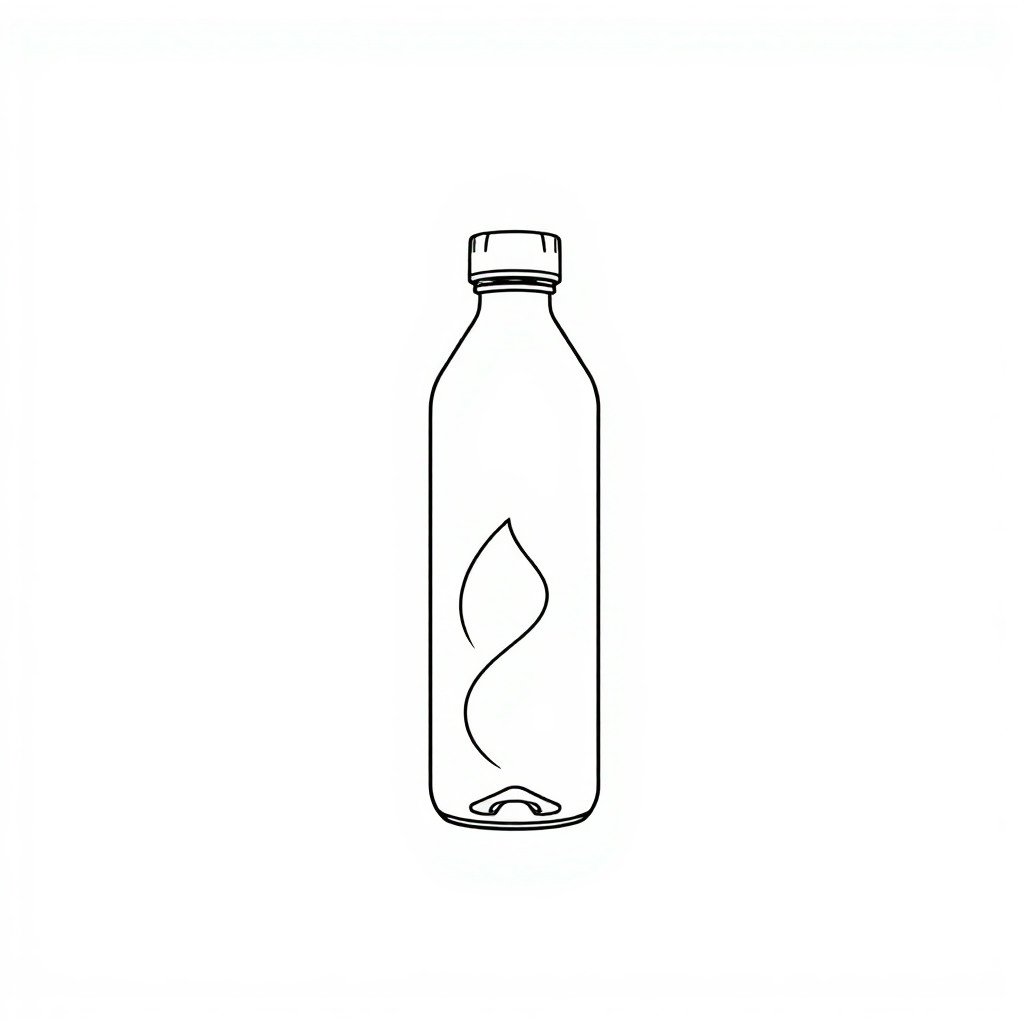
See the 라인 아트 style in real outputs
These examples were generated through the Magic Eraser AI Create API with the 라인 아트 style selected.
Prompt workflow
How to get a stronger 라인 아트 result
주제를 설명하고 가는 선, 굵은 선, 한 줄, 기하학, 유기적 또는 스케치 선을 고르세요.
여러 버전을 만들어 균형, 대칭과 여백을 비교하세요.
선택한 이미지를 정리하고 자른 뒤 색이나 글자는 필요할 때 나중에 추가하세요.
Prompt starters
- “꽃을 든 손의 미니멀 라인 아트, 한 줄 드로잉, 단색 배경”
- “로즈메리와 타임의 정교한 식물 라인 아트, 인쇄용 검정 잉크”
- “기하학적 산 라인 아트 배지, 대칭, 글자 없음, 깔끔한 벡터 느낌”
Style tips
- 주제 수를 줄이면 선이 더 깔끔해집니다.
- 재사용하기 쉽도록 단색 배경을 지정하세요.
- 인쇄용이라면 높은 대비와 선명한 가장자리를 요청하세요.
Output planning checklist
- Decide the final placement before prompting: square post, vertical story, product insert, poster, thumbnail, or wide banner.
- Keep one primary subject and one visual mood so the 라인 아트 style has a clear job.
- Describe the background as simple, detailed, bright, dark, studio, outdoor, or textured instead of leaving it open-ended.
- Generate variations first, then edit the selected image for crop, cleanup, and export size.
When to choose this style
Choose 라인 아트 when the image needs a clear creative direction before production: an ad concept, a social visual, a character idea, a packaging mood, or a fast design draft. Choose another style if the final asset must look like a camera photo, preserve exact product color, or include precise typography.
For commercial work, treat the generated image as a starting point. Review details, remove distracting artifacts, add exact text separately, and export the final size from the editor.
FAQ
Can I edit the generated image?
Yes. Generate the image, then continue with cleanup, crop, background, and export tools in Magic Eraser.
Should I include exact text?
Use AI Create for the visual direction. Add exact text later with editable design tools for cleaner spelling and layout.
Is this style selected automatically?
The CTA opens AI Create with the 라인 아트 style parameter, and the app falls back safely if the option changes.