
AI Create style
AI 코믹 이미지 생성기
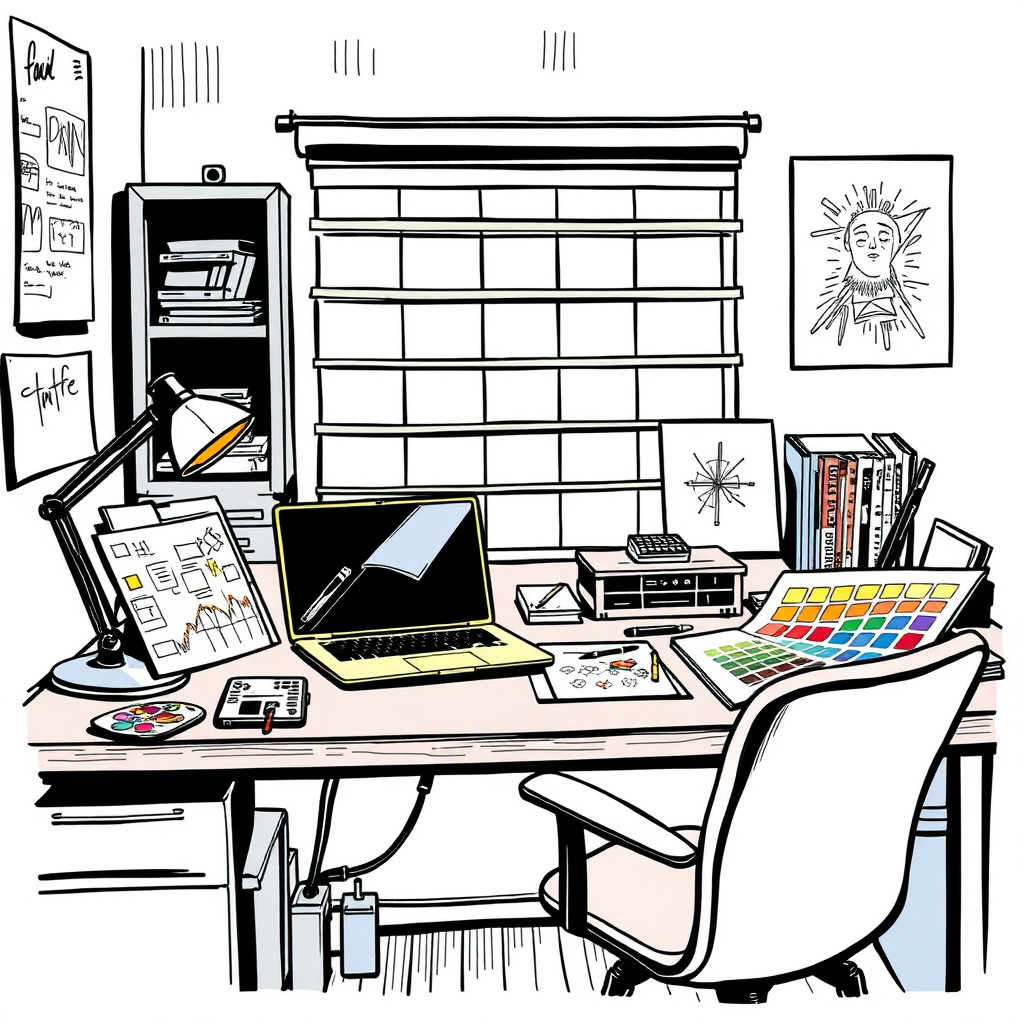
굵은 윤곽선, 선명한 색상, 명확한 자세와 읽기 쉬운 이야기로 코믹 스타일 이미지를 만드세요. 사실적인 사진 느낌이 필요하지 않은 캠페인 아이디어, 소셜 게시물, 썸네일, 캐릭터 콘셉트와 재미있는 제품 장면에 적합합니다.
Use case
초점이 뚜렷한 유튜브 썸네일, 소셜 광고와 출시 이미지.
Use case
브랜드나 크리에이터 프로젝트용 오리지널 캐릭터, 마스코트와 이야기 장면.
Use case
평범한 카탈로그 대신 재미있는 일러스트가 필요한 제품 장면.
Visual direction preview
Use the style thumbnail as the creative target
The preview gives users a concrete reference for color, texture, edge detail, and mood before they open the generator. Pair it with the prompt starters below to keep the page useful instead of only decorative.
Generated examples
See the 코믹 style in real outputs
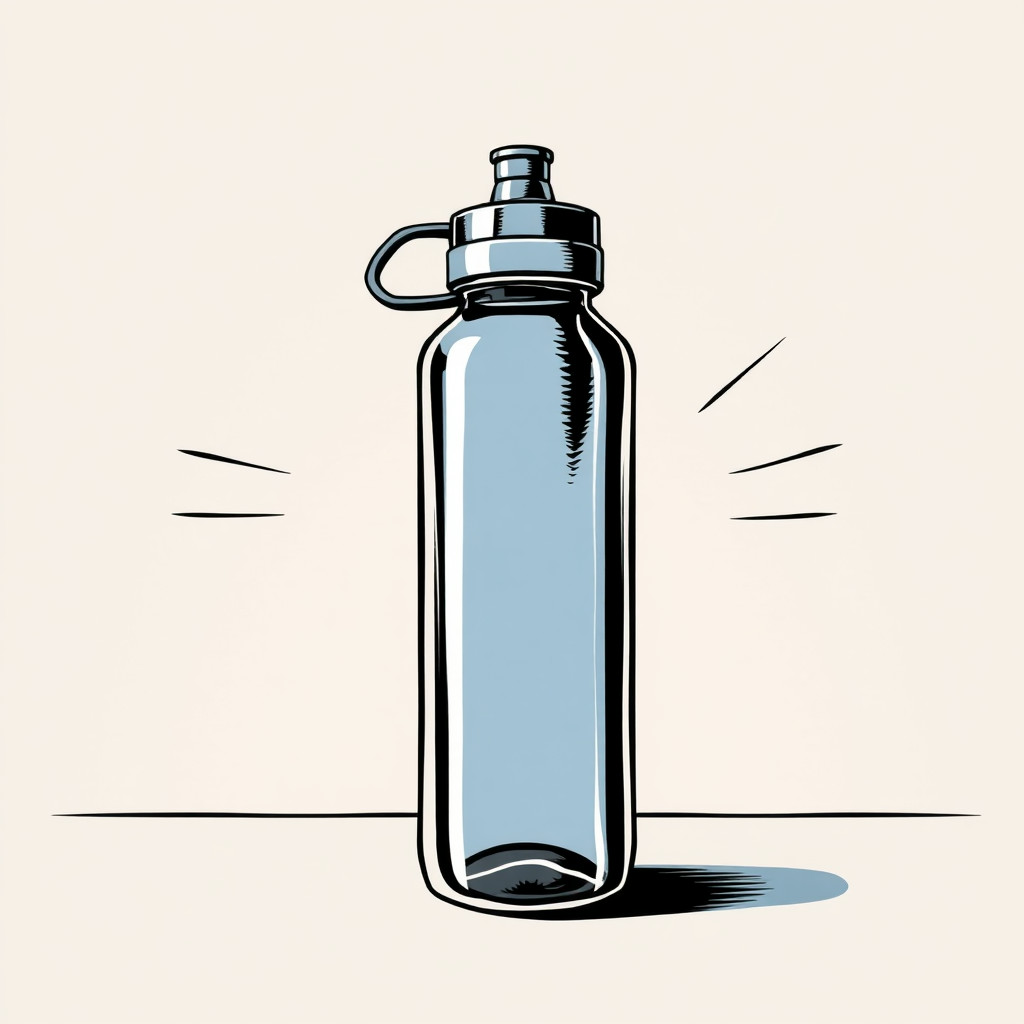
These examples were generated through the Magic Eraser AI Create API with the 코믹 style selected.
Prompt workflow
How to get a stronger 코믹 result
주제, 동작, 배경, 감정과 색 분위기를 만화 한 컷처럼 작성하세요.
여러 구도를 생성하고 실루엣과 표정이 가장 선명한 결과를 고르세요.
편집기에서 자르고 문구를 따로 추가하며 시선을 분산하는 세부 요소를 지우세요.
Prompt starters
- “오리지널 배달 마스코트가 네온 도시를 질주하는 만화책 표지, 굵은 윤곽선, 하프톤 질감”
- “책상 위 커피잔 슈퍼히어로의 재미있는 만화 패널, 밝은 색상, 생동감 있는 자세”
- “운동화가 종이를 뚫고 나오는 복고풍 코믹 제품 출시 장면, 깔끔한 구도”
Style tips
- 깔끔한 결과를 위해 문구는 생성 후 추가하세요.
- 굵은 윤곽선, 평면 색상, 하프톤, 극적인 패널, 깔끔한 표지 같은 표현을 사용하세요.
- 영웅적, 유머러스, 복고풍 또는 현대적 분위기를 지정하세요.
Output planning checklist
- Decide the final placement before prompting: square post, vertical story, product insert, poster, thumbnail, or wide banner.
- Keep one primary subject and one visual mood so the 코믹 style has a clear job.
- Describe the background as simple, detailed, bright, dark, studio, outdoor, or textured instead of leaving it open-ended.
- Generate variations first, then edit the selected image for crop, cleanup, and export size.
When to choose this style
Choose 코믹 when the image needs a clear creative direction before production: an ad concept, a social visual, a character idea, a packaging mood, or a fast design draft. Choose another style if the final asset must look like a camera photo, preserve exact product color, or include precise typography.
For commercial work, treat the generated image as a starting point. Review details, remove distracting artifacts, add exact text separately, and export the final size from the editor.
FAQ
Can I edit the generated image?
Yes. Generate the image, then continue with cleanup, crop, background, and export tools in Magic Eraser.
Should I include exact text?
Use AI Create for the visual direction. Add exact text later with editable design tools for cleaner spelling and layout.
Is this style selected automatically?
The CTA opens AI Create with the 코믹 style parameter, and the app falls back safely if the option changes.