
품질 저하 없이 이미지를 압축하는 방법
대용량 이미지 파일은 웹사이트 속도를 저하시키고, 이메일 첨부 파일 제한에 실패하며, 업로드하는 데 시간이 오래 걸립니다. Magic Eraser은 시각적으로 동일하게 유지하면서 사진을 원본 크기의 일부로 압축합니다. 즉, 파일은 더 작지만 사진은 동일하게 보입니다.
Last updated
지금 이미지 압축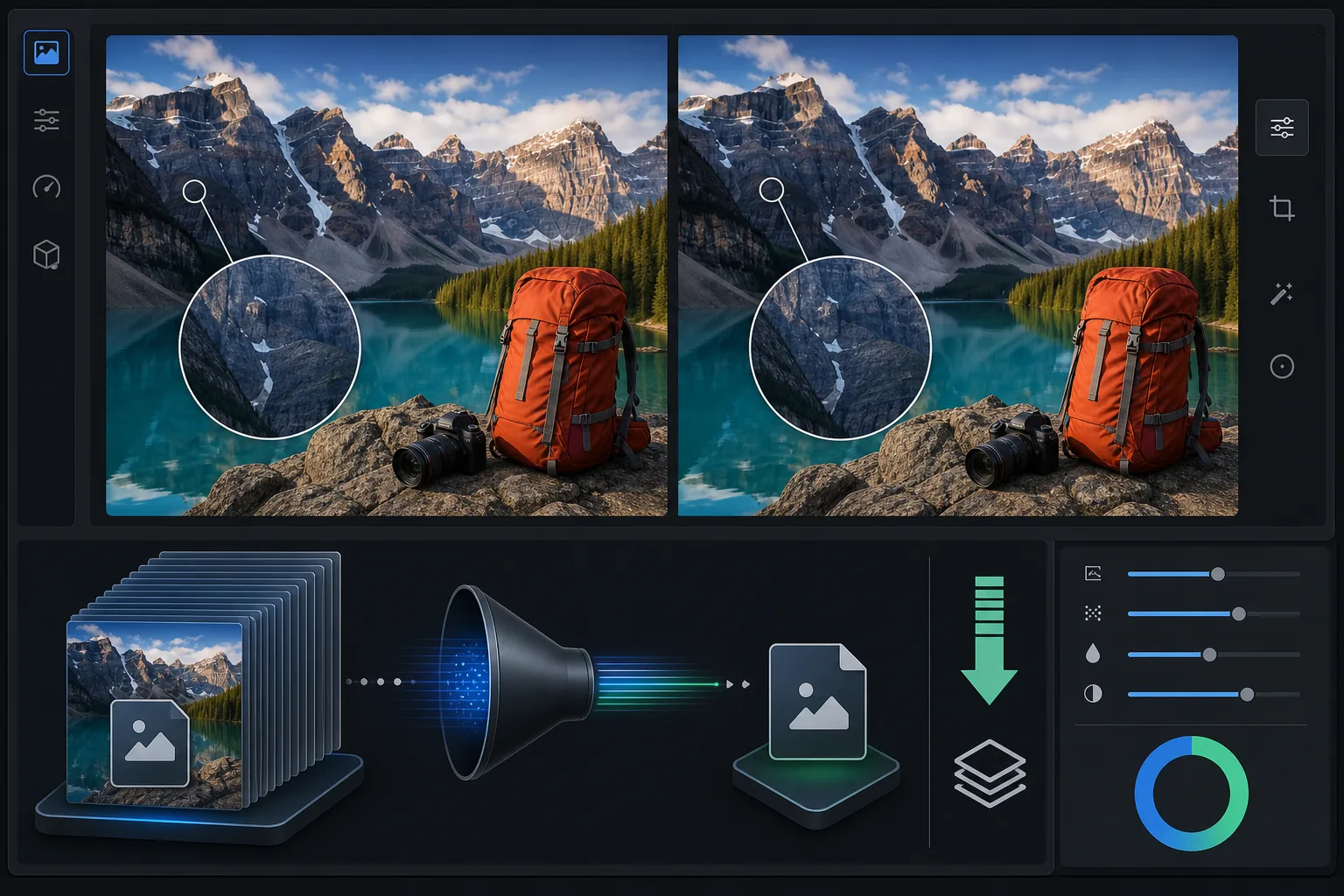
웹 성능에 이미지 압축이 중요한 이유
눈에 띄는 화질 저하 없이 이미지를 압축하려면 웹, iOS, Android에서 Magic Eraser를 열고 JPEG, PNG, WebP 파일을 업로드한 뒤 균형 잡힌 압축 수준을 선택하고 더 작아진 파일을 다운로드하세요. 무료이며 회원가입도 필요 없습니다. 여기서 말하는 "화질 손실 없음"은 시각적으로 무손실(visually lossless)이라는 뜻입니다. 눈으로는 구분할 수 없는 데이터를 덜어내 파일 용량을 크게 줄이기 때문에, 원본과 완전히 똑같은 바이트 단위 복사본은 아니지만 일반적인 보기 크기에서는 사진이 동일하게 보입니다. 가장 작은 웹용 파일을 원한다면 WebP를, 가장 폭넓은 호환성이 필요하다면 JPEG를 그대로 사용하세요. 나중에 다시 편집할 가능성이 있다면 원본도 함께 보관해 두는 것이 좋습니다. 이미지는 대부분의 웹 페이지에서 가장 무거운 콘텐츠입니다. 최적화되지 않은 단일 사진은 5~10MB일 수 있지만, 동일한 이미지를 200~500KB로 잘 압축한 버전은 사람의 눈에 동일하게 보입니다. Google의 핵심 웹 바이탈에는 주요 콘텐츠가 얼마나 빨리 로드되는지 측정하는 LCP(Largest Contentful Paint)가 포함되어 있습니다. 압축되지 않은 대용량 이미지는 LCP 점수와 검색 순위에 직접적인 영향을 미칩니다. 이메일 서비스는 첨부 파일을 20~25MB로 제한하고 소셜 미디어 플랫폼은 업로드된 이미지를 공격적으로 다시 압축합니다. 사전에 최적화된 이미지를 업로드하면 플랫폼 성능이 저하되는 일이 줄어듭니다. 스마트 압축은 중요한 가시적 품질을 유지하면서 인간의 눈으로 인식할 수 없는 데이터(인식 임계값보다 낮은 고주파 세부 정보, 중복 색상 데이터)를 제거합니다.
Before you start
3단계로 이미지 압축
Start with 이미지 업로드. The result preview above and tips below use this guide's existing content; no separate before-and-after proof is assumed.
- 1
이미지 업로드
웹, iOS 또는 Android에서 Magic Eraser을(를) 엽니다. 웹사이트용 사진, 이메일 첨부 파일, 소셜 미디어용 이미지 세트 등 압축해야 하는 이미지를 업로드하세요. JPEG, PNG, WebP가 지원됩니다. 이 도구는 원본 파일 크기를 표시합니다.
- 2
압축 수준 선택
대상을 선택하십시오: 웹 최적화(최소 파일, 약간의 품질 저하), 균형(눈에 띄는 품질 손실이 없는 양호한 압축) 또는 최소(소규모 감소, 최대 품질 보존). 대부분의 웹 사용에서 균형을 맞추면 크기 대비 품질 비율이 가장 좋습니다.
- 3
압축된 이미지 다운로드
압축 버전을 다운로드하세요. 이 도구는 새 파일 크기와 감소 비율을 표시합니다. 일반적인 사진은 균형 잡힌 압축을 사용하면 3~5MB에서 200~500KB로 줄어듭니다. 즉, 일반 보기 크기에서 눈에 띄는 품질 차이 없이 80~90% 크기가 줄어듭니다.
다음에 가장 적합
- 좋은 핵심 웹 바이탈 점수 및 SEO를 위해 빠르게 로드해야 하는 웹사이트 이미지
- 여러 장의 사진을 보낼 때 20-25MB 제한에 맞춰야 하는 이메일 첨부 파일
- 사전 압축으로 공격적인 플랫폼 재압축을 방지하는 소셜 미디어 업로드
- 고품질이어야 하지만 빠른 로딩이 필요한 전자상거래 제품 이미지
- 페이지 속도가 독자 참여 및 검색 순위에 영향을 미치는 블로그 및 기사 이미지
최상의 결과를 위한 팁
웹 이미지의 경우 히어로 이미지의 경우 200~500KB를, 썸네일 및 지원 이미지의 경우 50~150KB를 타겟팅하세요. WebP 형식은 동등한 시각적 품질로 JPEG보다 25~35% 더 작은 파일을 생성합니다. 웹 사이트에서 지원하는 경우 WebP를 사용하세요. 작은 크기(썸네일, 소셜 미디어 피드)로 표시되는 이미지의 경우 작은 디스플레이 크기로 인해 아티팩트가 숨겨지므로 공격적인 압축이 적합합니다. 전체 화면으로 보거나 인쇄할 이미지의 경우 균형 압축 또는 최소 압축을 사용하십시오. 다른 모든 편집이 완료된 후 압축합니다. 먼저 압축한 다음 편집하면 압축 아티팩트가 증폭될 수 있습니다. 일괄 압축의 경우 전체 이미지 세트를 업로드하고 세트 전체에서 일관된 파일 크기를 위해 동일한 압축 수준을 적용합니다.
자주 묻는 질문
- 압축된 이미지가 더 나빠보일까요?
- 균형 잡힌 압축에서는 일반적인 시청 거리에서 사람의 눈에는 그 차이가 보이지 않습니다. 극도로 확대하거나 픽셀을 들여다보는 경우에만 미묘한 차이를 감지할 수 있습니다. 웹 및 소셜 미디어 사용의 경우 눈에 띄는 품질 차이가 없습니다.
- 파일은 얼마나 작아질까요?
- 일반적으로 70-90% 더 작습니다. 5MB 사진은 균형 압축 시 300-500KB가 됩니다. 정확한 축소는 이미지 내용에 따라 다릅니다. 상세한 사진은 단순한 이미지보다 압축률이 낮습니다.
- JPEG 또는 WebP를 사용해야 합니까?
- WebP는 동일한 품질로 더 작은 파일을 생성합니다. 웹사이트에 WebP를 사용하세요(모든 최신 브라우저에서 지원됨). 이메일 첨부 및 공유에는 JPEG를 사용합니다(범용 호환성).
- 압축은 무료인가요?
- 예. 일일 사용량 제한이 있는 무료 등급에서 이미지 압축을 사용할 수 있습니다. 프리미엄은 대규모 이미지 세트의 일괄 압축에 대한 제한을 제거합니다.
- 이건 진짜 무손실인가요, 아니면 시각적으로만 무손실인가요?
- 용량을 크게 줄이는 경우에는 수학적으로 완전한 무손실이 아니라 시각적으로 무손실입니다. 진정한 무손실 압축(PNG나 무손실 WebP 등)은 모든 픽셀을 그대로 유지하지만 파일 용량은 조금밖에 줄지 않습니다. 5MB짜리 사진을 수백 KB 수준으로 줄이려면, 눈으로 인지할 수 없는 수준 이하의 데이터를 덜어내야 합니다. 그 결과는 일반적인 보기 환경에서는 동일하게 보이지만 비트 단위로 일치하는 복사본은 아닙니다. 정확한 보관용 사본(예: 계속 다시 편집할 마스터 파일)이 필요하다면 원본은 그대로 보관하고, 압축본은 공유, 웹, 이메일 용도로만 사용하세요.