
AI Filter style
Filtre photo d’art numérique par IA
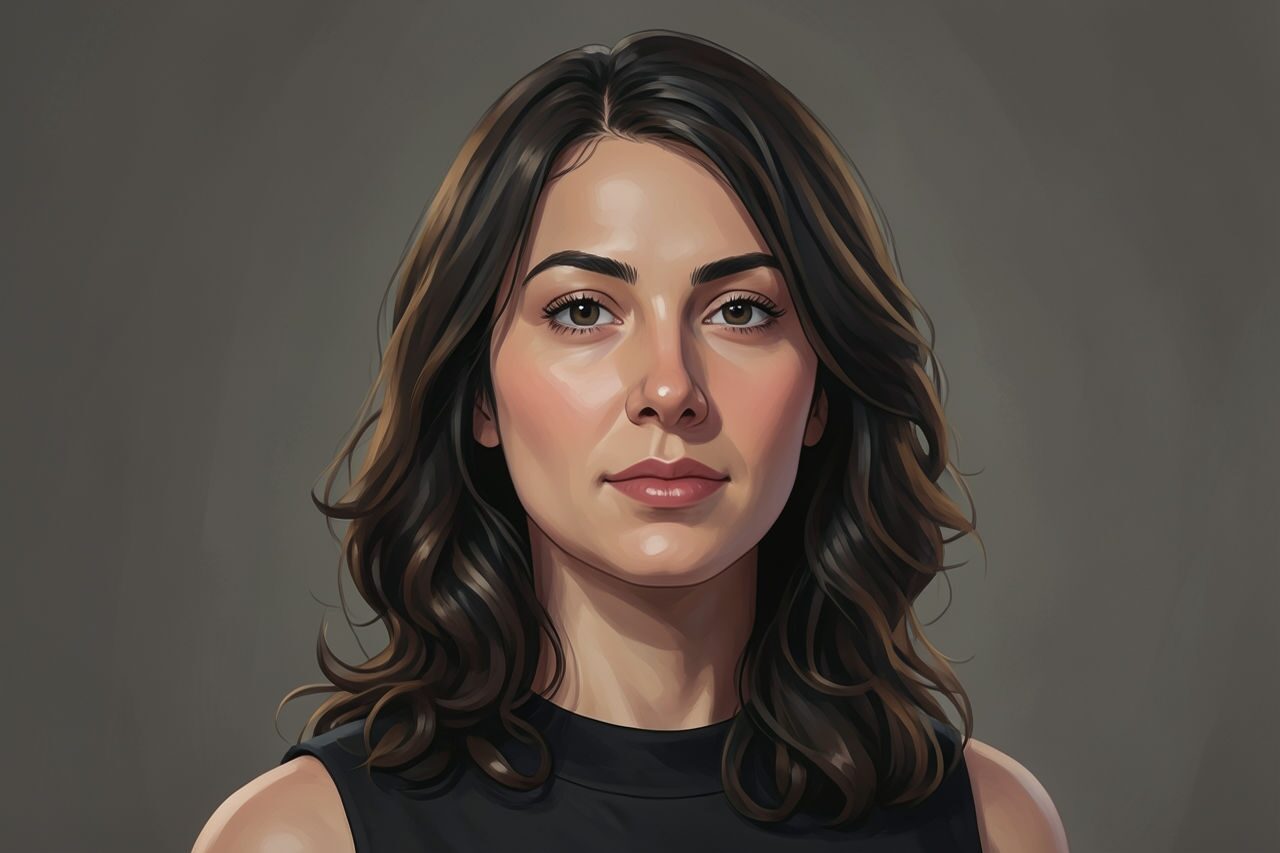
Transformez une photo en illustration numérique soignée, aux couleurs plus riches et au rendu lisse, tout en gardant le sujet reconnaissable. Le filtre convient aux portraits, animaux, voyages, scènes lifestyle et concepts de campagne ; vérifiez les textes, étiquettes et petits détails avant utilisation.

Use case
Portraits de créateurs, photos de profil et bannières sociales.
Use case
Photos d’animaux, de voyage et lifestyle qui demandent une finition illustrée.
Use case
Concepts de campagne où le sujet d’origine doit rester reconnaissable.
Filter preview
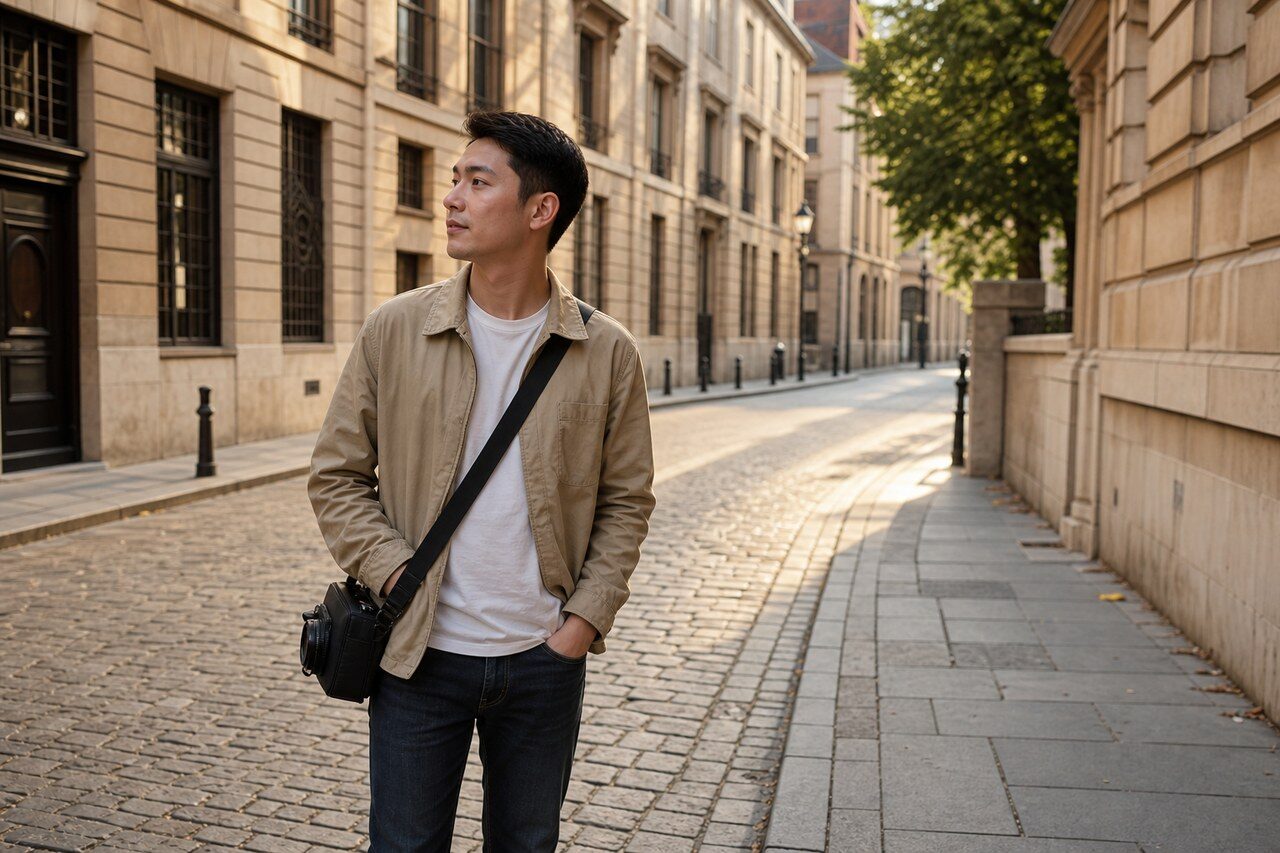
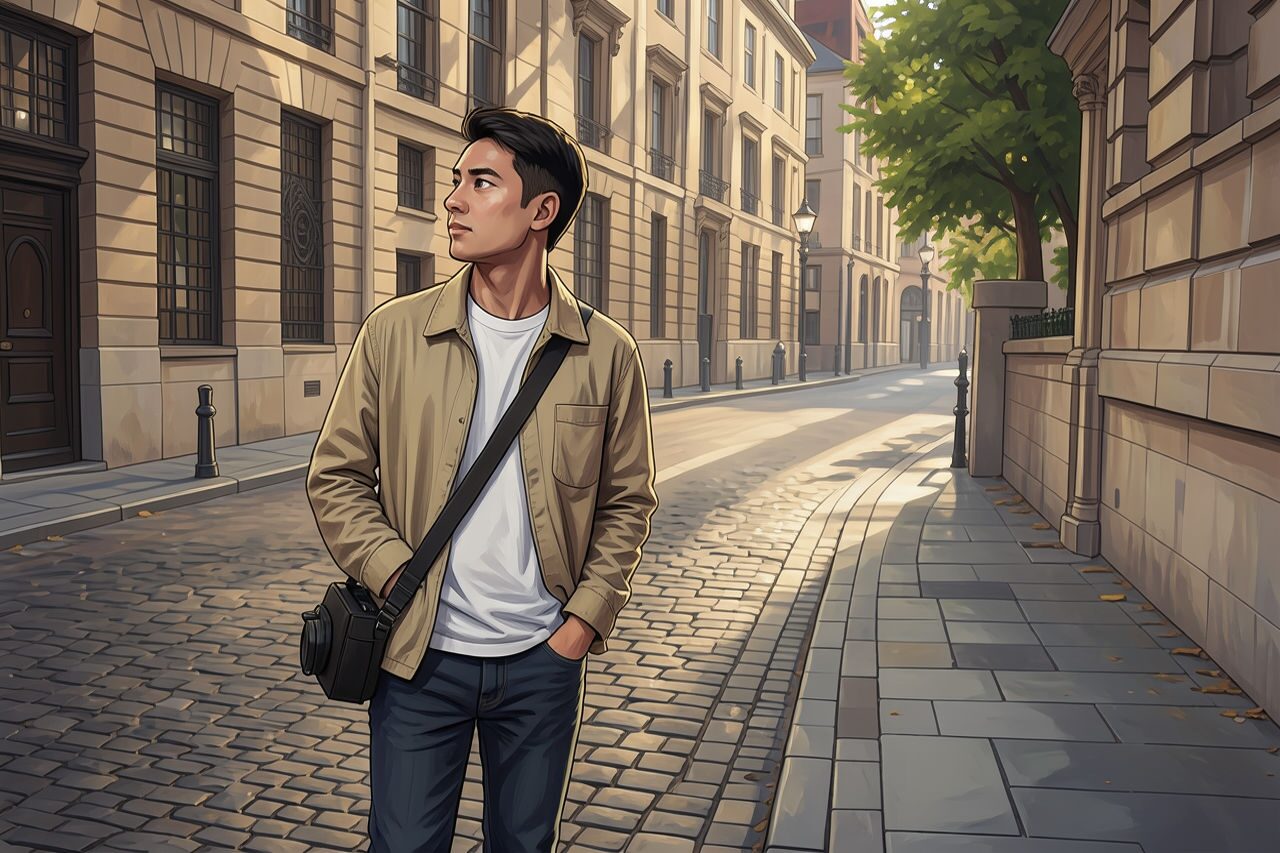
Compare the original photo with the digital art result
The example uses a generated source photo and the same filter API path as the app, so users can judge the visual treatment before uploading their own image.
More examples
Test the digital art filter on different photo types
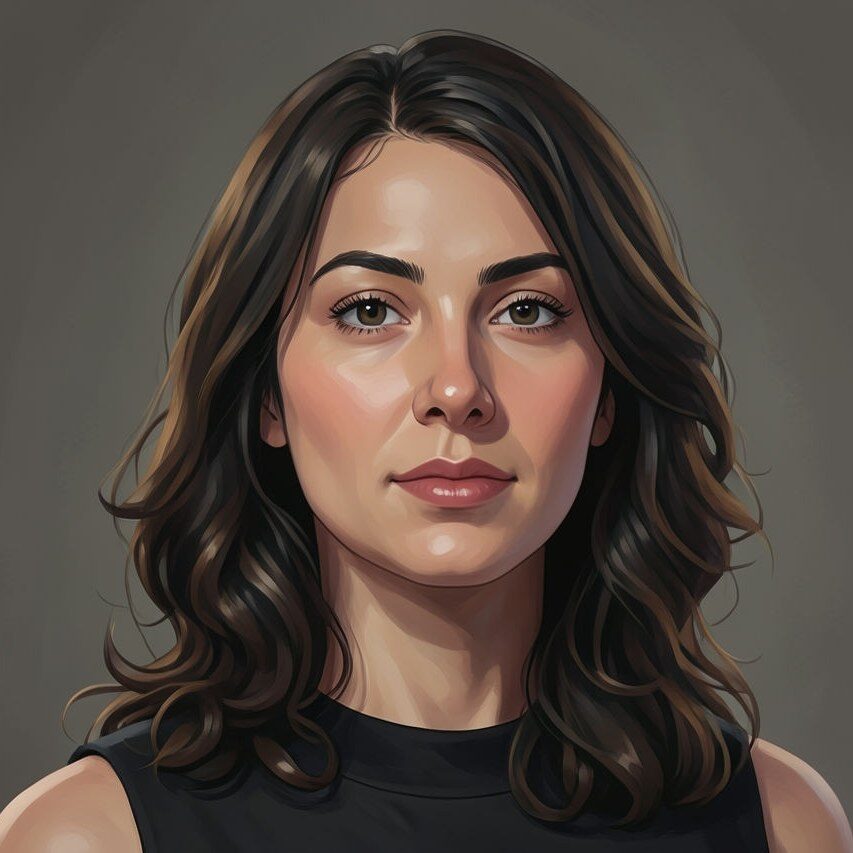
Compare portrait, product, and pet examples before opening the filter. Each result uses the same filter API path as the Magic Eraser app.

Portrait
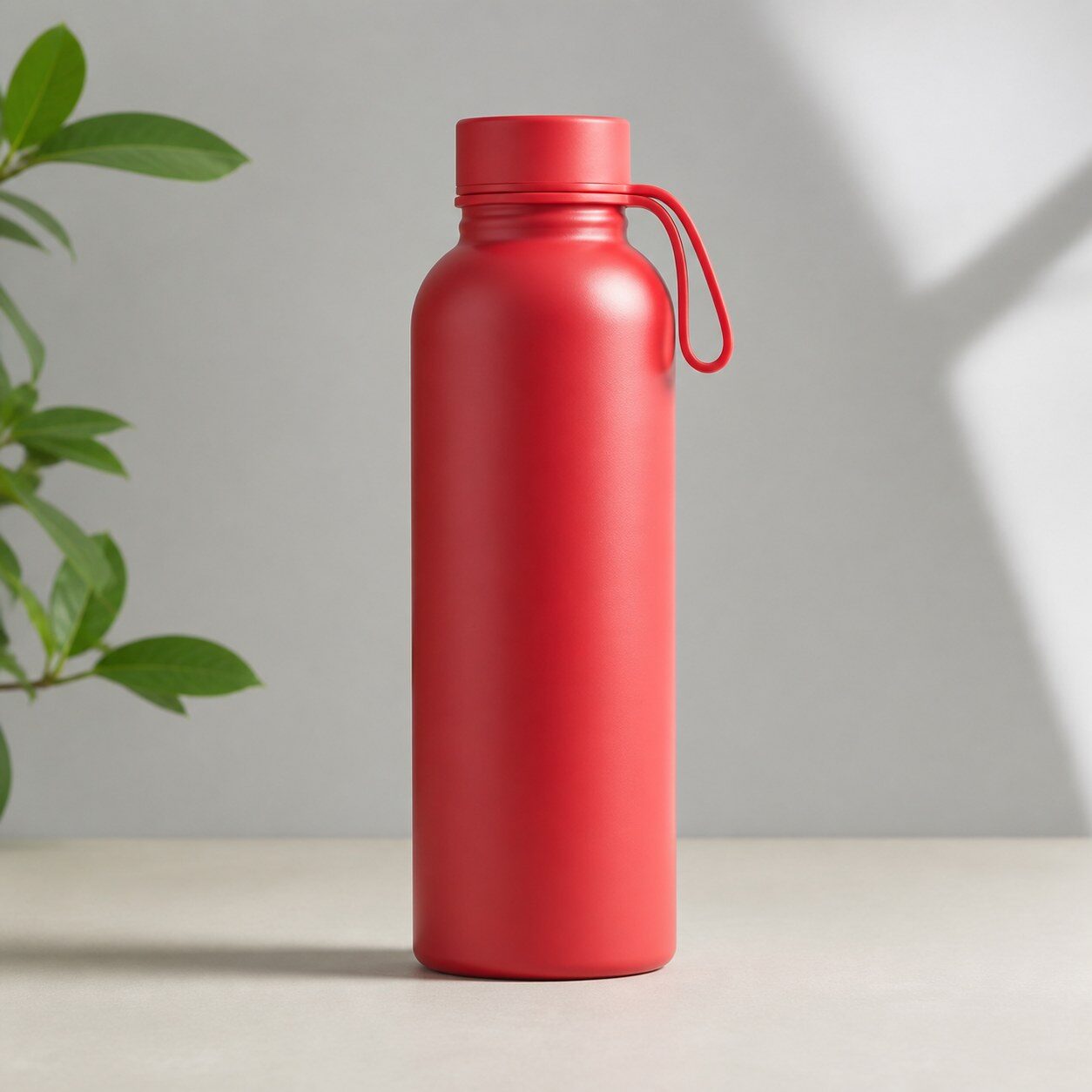
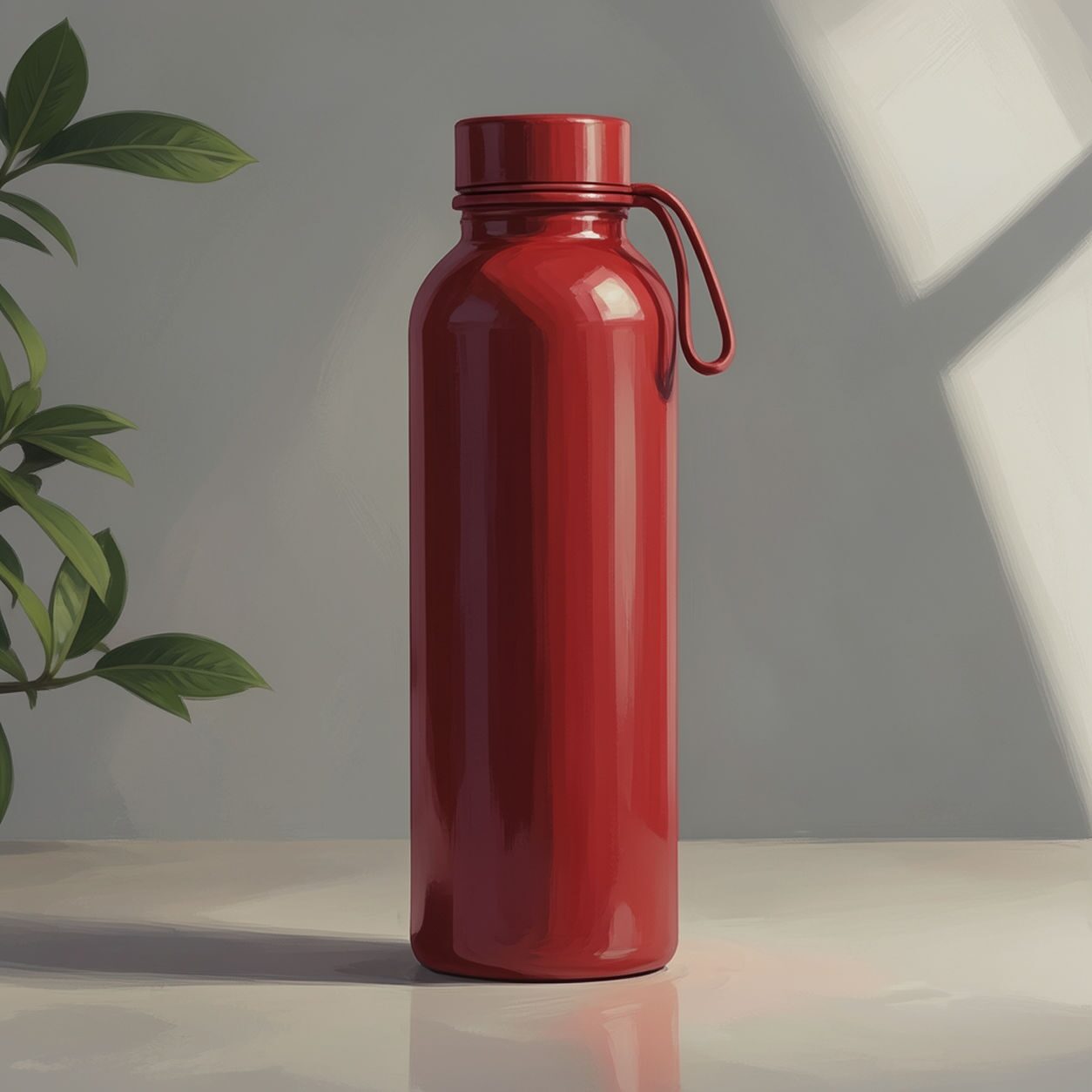
Product
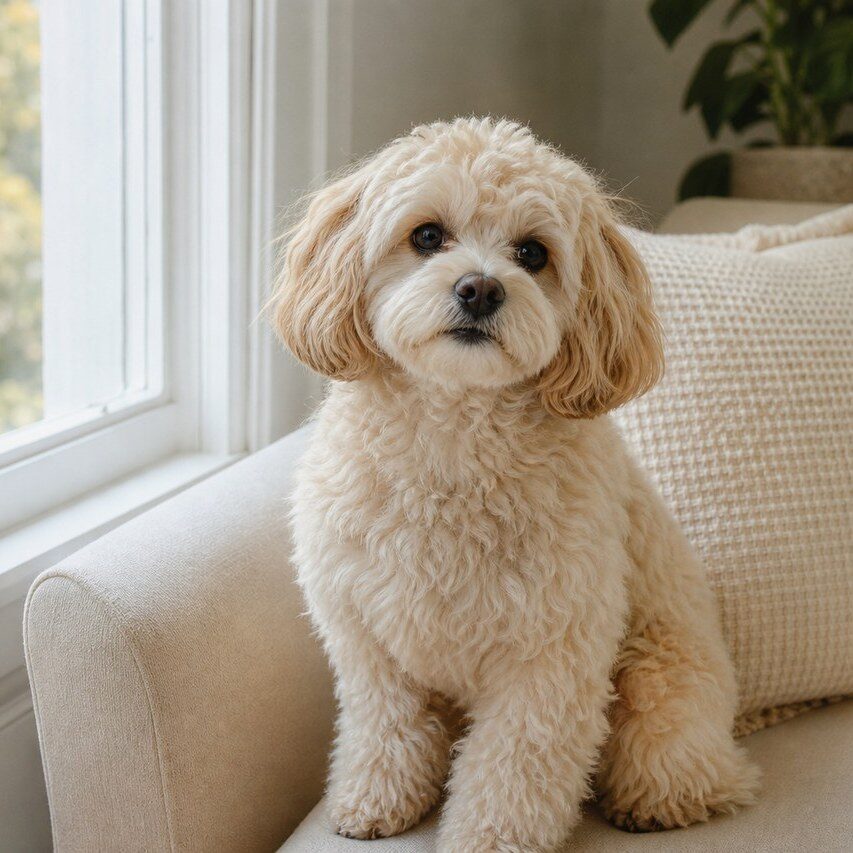
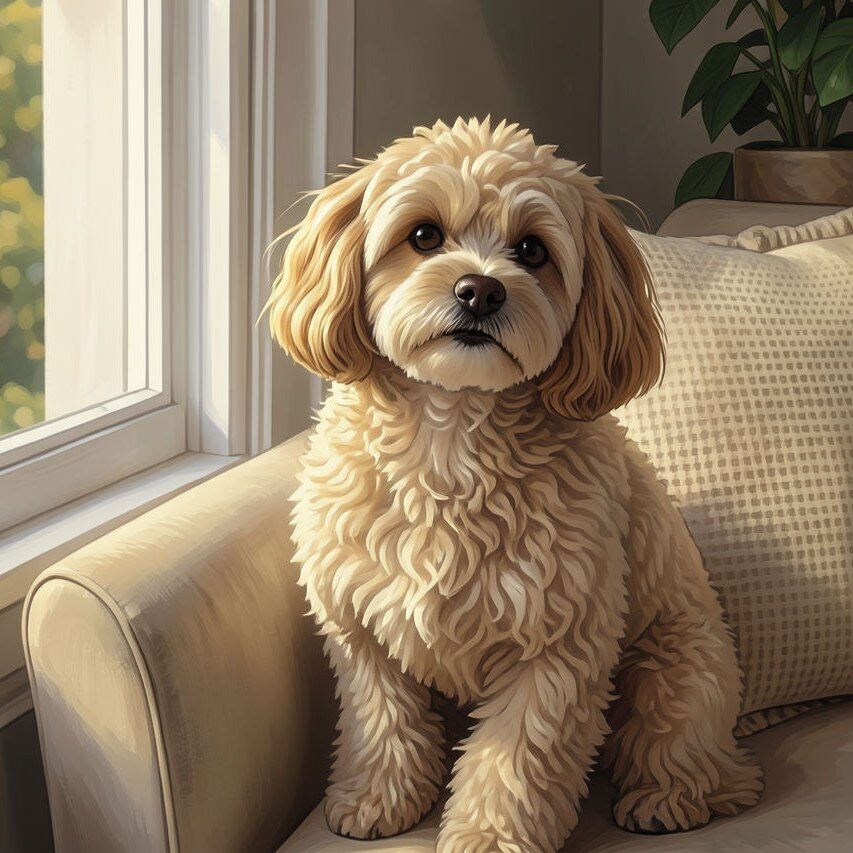
Pet
Photo workflow
How to get a cleaner digital art filter result
Partez d’une photo nette, bien éclairée et sans filtre prononcé.
Ouvrez le filtre d’art numérique, importez la photo et contrôlez visages, mains, texte et cadrage.
Supprimez les distractions ou recadrez avant l’export final.
Best source photos
- Portraits, animaux, voyages et scènes lifestyle.
- Photos de produit à la mise en scène simple.
- Images qui demandent une finition artistique plutôt qu’un changement de genre radical.
Filter tips
- Un sujet principal et un fond simple donnent généralement un résultat plus propre.
- Le filtre ne peut pas corriger totalement une photo floue ou mal éclairée.
- Pour un produit, gardez les étiquettes grandes dans l’image et vérifiez leur exactitude après filtrage.
Before upload checklist
- Use the largest clean version of the photo, not a compressed screenshot or reposted image.
- Crop loosely before filtering so the AI has enough room around the subject.
- Remove obvious distractions first if they sit directly on the face, product, or main subject.
- Check the result at the size where it will be used: profile image, feed post, story, thumbnail, or banner.
When this filter is a good fit
Choose the digital art filter when the original photo already has a clear subject and the goal is a recognizable stylized version, not a fully new generated scene. It is strongest for social, creator, profile, event, and campaign images where mood matters more than documentary accuracy.
Use a different workflow when the image needs exact product color, legal documentation, medical accuracy, or unmodified identity details. In those cases, use cleanup, crop, enhancement, or background tools instead of a heavy creative filter.
Free browser tools after filtering
FAQ
What should I upload?
Use a clear photo with one main subject. Strong lighting and simple backgrounds usually make the AI filter easier to control.
Can I keep editing after the filter?
Yes. After applying the filter, use Magic Eraser to crop, clean distractions, refine backgrounds, and export the final image.
Is this filter selected automatically?
The CTA opens AI Filter with the digital art style parameter, and the app falls back safely if the filter changes.