
AI Create style
Générateur d’images de paper quilling par IA
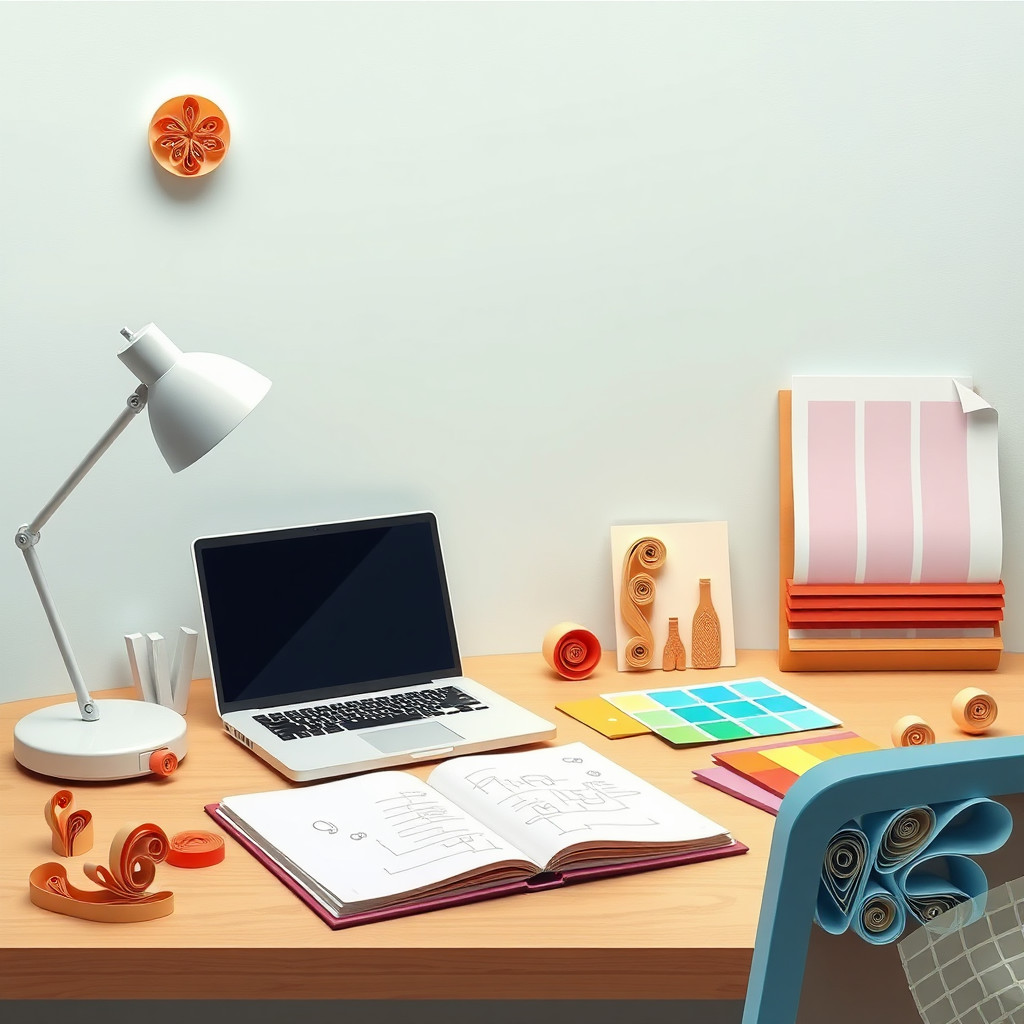
Créez des images façon paper quilling avec des bandelettes enroulées, des contours en relief et des ombres artisanales. Ce style convient aux cartes, affiches, lettres décoratives et concepts créatifs ; précisez le sujet, les couleurs du papier, les formes et la composition.
Use case
Cartes, invitations et décorations murales en papier enroulé.
Use case
Fleurs, lettres et motifs ornementaux avec un relief artisanal.
Use case
Concepts d’emballage, d’affiche et de visuel social.
Visual direction preview
Use the style thumbnail as the creative target
The preview gives users a concrete reference for color, texture, edge detail, and mood before they open the generator. Pair it with the prompt starters below to keep the page useful instead of only decorative.
Generated examples
See the paper quilling style in real outputs
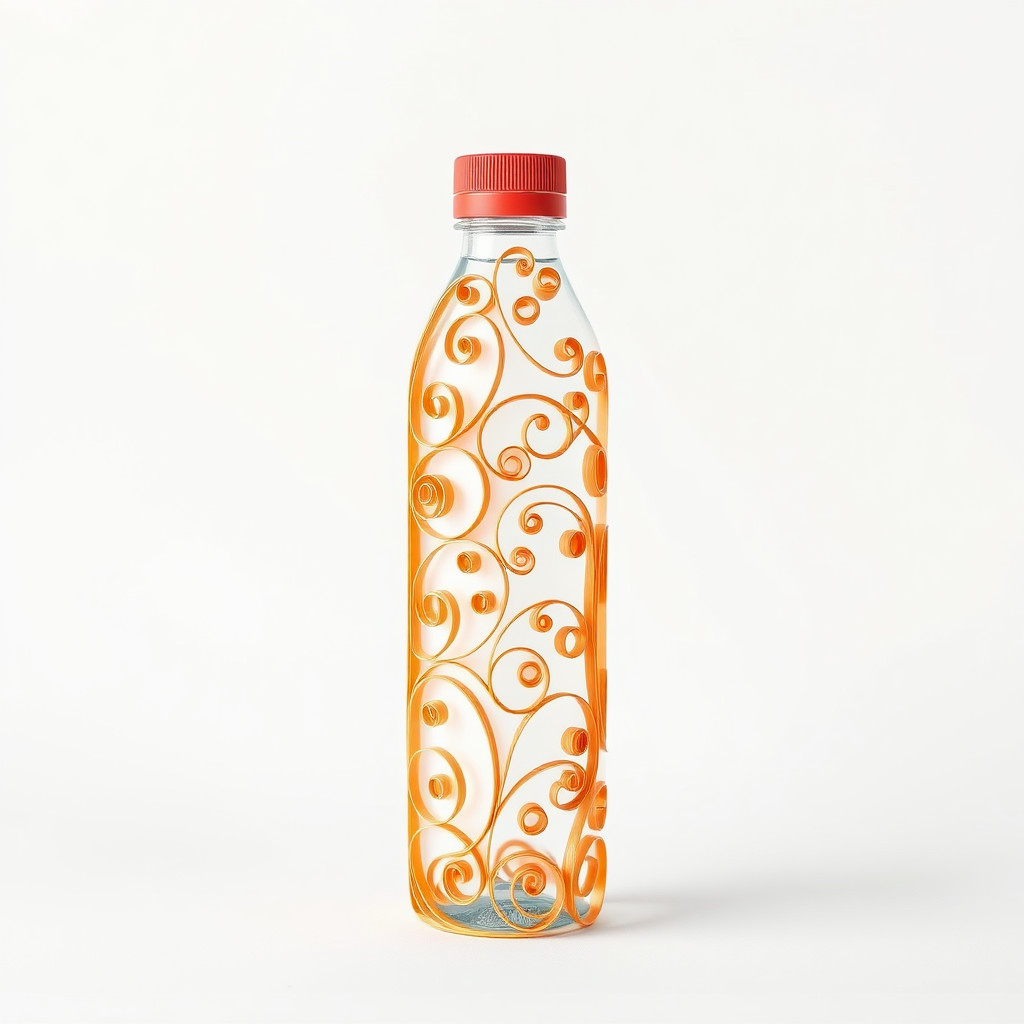
These examples were generated through the Magic Eraser AI Create API with the paper quilling style selected.
Prompt workflow
How to get a stronger paper quilling result
Choisissez un sujet principal et une composition simple.
Précisez les couleurs, la largeur des bandes, les formes enroulées et la lumière.
Générez des variantes, retenez les contours les plus lisibles, puis recadrez et nettoyez.
Prompt starters
- “Bouquet en paper quilling, bandes bleues et jaunes, fond crème, ombres douces”
- “Paon en quilling bleu et vert, composition d’affiche symétrique”
- “Lettre M ornée de fleurs en quilling roses et blanches, fond épuré”
Style tips
- Limitez la palette pour distinguer les rouleaux de papier.
- Préférez de grandes formes à une multitude de petits détails.
- Ajoutez le texte et les logos exacts après génération.
Output planning checklist
- Decide the final placement before prompting: square post, vertical story, product insert, poster, thumbnail, or wide banner.
- Keep one primary subject and one visual mood so the paper quilling style has a clear job.
- Describe the background as simple, detailed, bright, dark, studio, outdoor, or textured instead of leaving it open-ended.
- Generate variations first, then edit the selected image for crop, cleanup, and export size.
When to choose this style
Choose paper quilling when the image needs a clear creative direction before production: an ad concept, a social visual, a character idea, a packaging mood, or a fast design draft. Choose another style if the final asset must look like a camera photo, preserve exact product color, or include precise typography.
For commercial work, treat the generated image as a starting point. Review details, remove distracting artifacts, add exact text separately, and export the final size from the editor.
FAQ
Can I edit the generated image?
Yes. Generate the image, then continue with cleanup, crop, background, and export tools in Magic Eraser.
Should I include exact text?
Use AI Create for the visual direction. Add exact text later with editable design tools for cleaner spelling and layout.
Is this style selected automatically?
The CTA opens AI Create with the paper quilling style parameter, and the app falls back safely if the option changes.