
Comment supprimer la brume d'une photo
La brume, le brouillard et la pollution atmosphérique effacent les couleurs et atténuent le contraste des photos en extérieur. L'IA de Magic Eraser coupe la brume pour révéler la scène vivante que vos yeux ont réellement vue.
Last updated
Supprimez la brume maintenant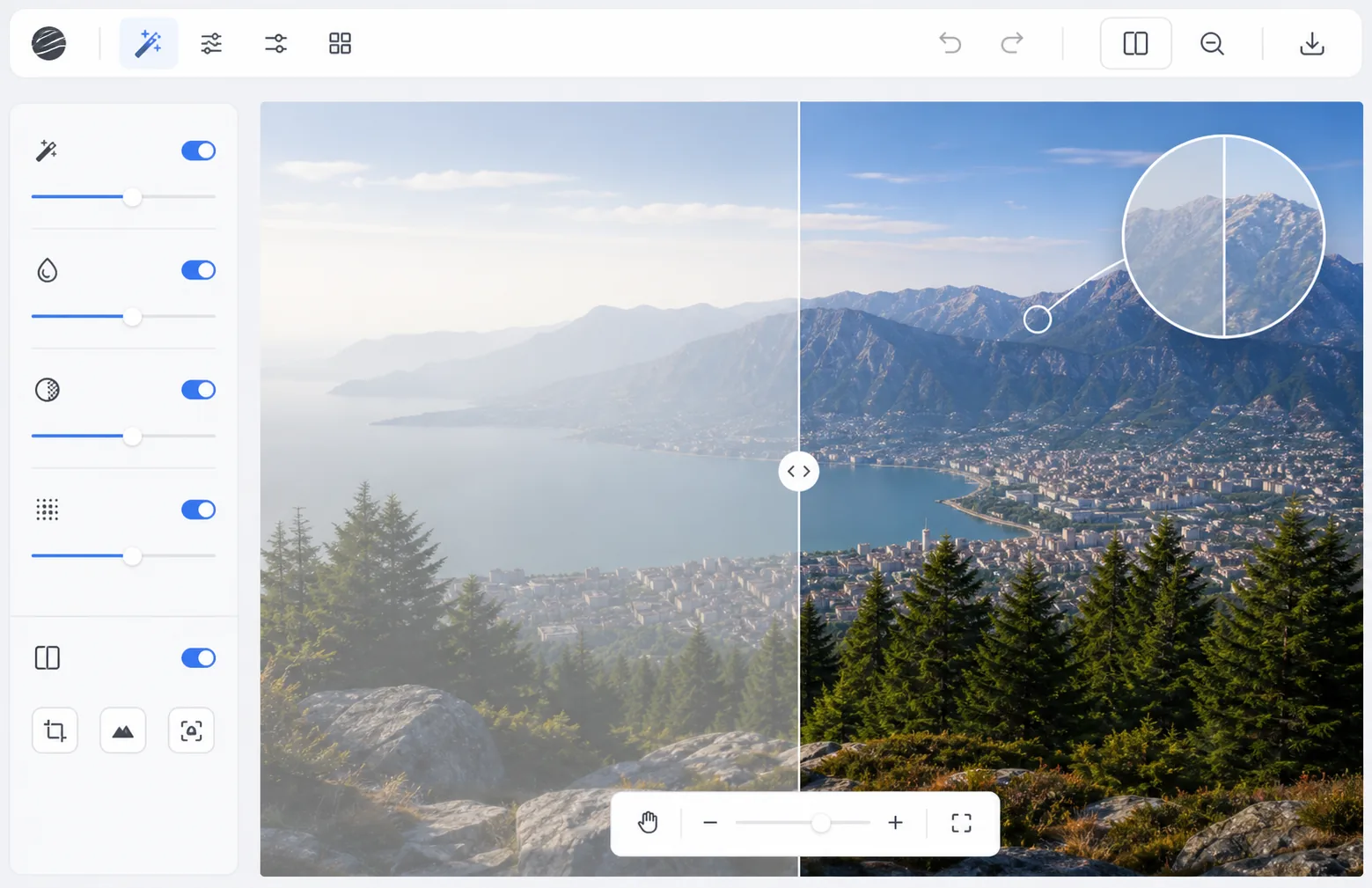
Comment la brume atmosphérique dégrade les photos
Pour supprimer la brume d'une photo, ouvrez Magic Eraser sur le Web, iOS ou Android, importez l'image brumeuse et appliquez l'AI Enhance (correction de brume) : l'outil restaure le contraste et la profondeur des couleurs plan par plan, en corrigeant plus fortement les zones brumeuses lointaines que le premier plan, déjà net. C'est gratuit, sans inscription. Cette méthode récupère les détails que la brume a estompés sans pour autant les effacer : une brume modérée et le smog atmosphérique se nettoient bien, tandis qu'un brouillard dense qui masquait complètement les objets lointains ne laisse presque rien à récupérer. Si le résultat semble surcorrigé, réduisez l'intensité pour une finition naturelle. La brume est causée par l'humidité, la poussière, la pollution ou les inversions de température qui diffusent la lumière entre l'appareil photo et le sujet. Il réduit le contraste, atténue les couleurs et ajoute une superposition laiteuse qui s'aggrave avec la distance : les objets proches semblent fins tandis que les montagnes, les bâtiments et les horizons lointains se fondent dans un gris-bleu plat. Les réglages de contraste traditionnels (courbes, niveaux) ne peuvent pas corriger correctement le flou car ils affectent l'ensemble de l'image de manière uniforme, faisant ressortir les hautes lumières dans les zones claires tout en touchant à peine les arrière-plans flous. Le déhazing IA utilise un traitement sensible à la profondeur : il estime la distance entre chaque pixel et la caméra et applique une correction plus forte aux zones éloignées et plus floues tout en laissant les éléments de premier plan naturels. Le résultat restaure les vraies couleurs et le contraste de la scène à chaque profondeur.
Before you start
Éliminez la brume en trois étapes
Start with téléchargez la photo floue. The result preview above and tips below use this guide's existing content; no separate before-and-after proof is assumed.
- 1
Téléchargez la photo floue
Ouvrez Magic Eraser sur le Web, iOS ou Android et sélectionnez AI Enhance. Téléchargez la photo avec de la brume, du brouillard ou de la pollution atmosphérique visible. L’IA fonctionne avec n’importe quel degré de brume, du léger adoucissement atmosphérique au brouillard dense.
- 2
Appliquer le désembuage de l'IA
L'IA analyse la structure de profondeur de l'image et applique un dévoilage progressif : une correction plus forte pour les zones floues éloignées, une correction plus légère pour un premier plan clair. Les couleurs émergent à mesure que la lumière diffusée est supprimée par calcul. Le contraste est restauré sans l’aspect éclaté créé par les réglages manuels.
- 3
Ajuster et exporter
Ajustez l’intensité du dévoilage si nécessaire – parfois, une touche de brume atmosphérique ajoute de la profondeur et de l’ambiance. Comparez avant et après pour vérifier que les couleurs semblent naturelles et non sursaturées. Exportez la photo claire.
Idéal pour
- Photographes paysagistes photographiant dans des conditions humides ou brumeuses
- Photographes par drone capturant des vues aériennes à travers la brume atmosphérique
- Photographes de voyage sauvant des clichés de villes polluées ou brumeuses
- Photographes immobiliers photographiant des vues extérieures par temps brumeux
- Photographes de nature photographiant à travers la brume matinale ou la fumée d'un incendie de forêt
Conseils pour de meilleurs résultats
L’IA produit les meilleurs résultats lorsque la brume est uniforme sur l’image : un brouillard épars ou localisé peut nécessiter un traitement sélectif. Pour les photos prises dans un brouillard important, le débruitage peut révéler un bruit masqué par l'effet de lissage du voile. Appliquez un débruitage après le débruitage si nécessaire. Le brouillard et la brume intentionnels sur les photos atmosphériques peuvent être un choix artistique : ne supprimez pas automatiquement chaque photo brumeuse. Un peu de brume ajoute une perception de profondeur et une ambiance. Pour la photographie par drone, la suppression du voile combinée à l’amélioration du contraste peut améliorer considérablement les photos de paysages aériens.
Questions fréquemment posées
- Est-ce que ça marche avec un brouillard épais ?
- Cela fonctionne mieux avec une brume et un brouillard modérés. Un brouillard dense là où les objets sont à peine visibles contient moins d'informations récupérables. L’IA peut améliorer la visibilité à travers un épais brouillard, mais ne peut pas restaurer complètement les détails distants qui étaient complètement obscurcis.
- Les couleurs paraîtront-elles naturelles après le dévoilage ?
- Oui. L’IA rétablit l’équilibre naturel des couleurs plutôt que de Boosting artificiellement la saturation. Le résultat montre les couleurs telles qu’elles apparaîtraient par temps clair. Vous pouvez ajuster l’intensité si la correction vous semble trop forte.
- Le déhainage est-il gratuit ?
- Oui. AI Enhance, y compris le désembuage, est disponible dans le niveau gratuit avec des limites d'utilisation quotidienne. Premium supprime les limites du traitement par lots des ensembles de photos de paysage.
- Quelle est la différence entre la brume et une photo floue ou peu nette ?
- La brume est une perte de contraste et de couleur — un voile laiteux sur la scène — alors que les détails en dessous restent généralement nets. Le flou, lui, est une perte de netteté, où les contours eux-mêmes sont indistincts. La correction de brume supprime le voile et redonne du contraste et de la couleur, mais elle ne peut pas rendre net une photo réellement floue ou affectée par un flou de mouvement. Si votre image est à la fois brumeuse et floue, corrigez d'abord la brume, puis effectuez un passage séparé de netteté ou d'amélioration pour la mise au point.
- Puis-je corriger la brume d'une photo sur mon iPhone ou mon téléphone Android ?
- Oui. Magic Eraser fonctionne dans le navigateur mobile et sous forme d'application sur iOS et Android : vous pouvez donc corriger la brume directement depuis votre pellicule, sans ordinateur. Importez la photo, appliquez l'AI Enhance, ajustez l'intensité et enregistrez la version nettoyée sur votre téléphone. Partir de la copie de la meilleure qualité (et non d'une capture d'écran réenregistrée) donne à l'AI le maximum de matière à travailler.