
Comment créer de l'art IA à partir de texte
Décrivez ce que vous voulez voir et l'IA le génère : un coucher de soleil sur les montagnes dans un style aquarelle, une maquette de produit sur une surface en marbre, un motif abstrait pour un fond d'écran de téléphone, une illustration de personnage pour un article de blog. AI Create de Magic Eraser transforme les descriptions textuelles en images, donnant à chacun la possibilité de produire des visuels personnalisés sans compétences en photographie ou en illustration.
Last updated
Créer de l'art IA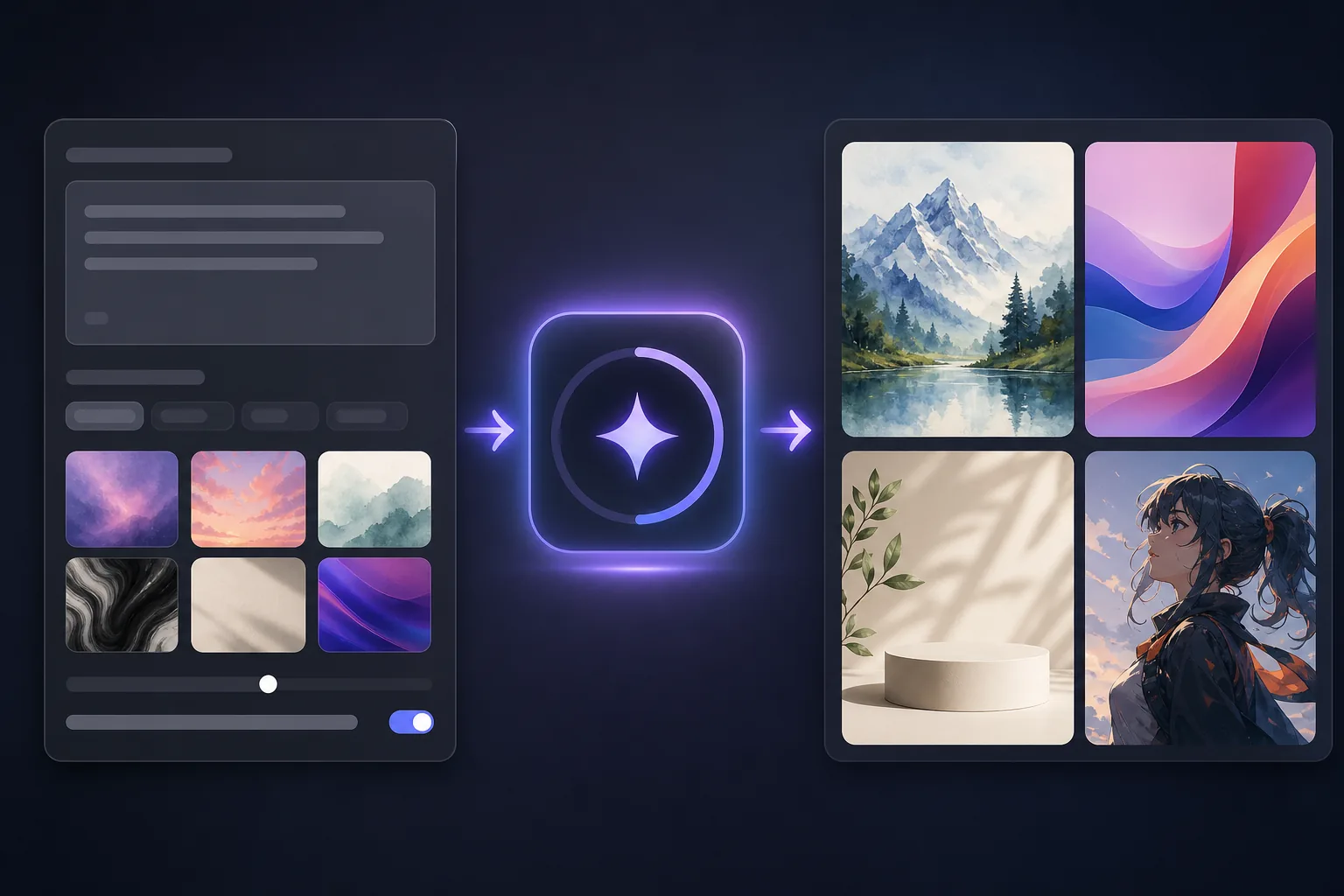
Ce que produit réellement la génération d’images IA et où elle excelle
La génération d'images IA crée des images à partir de descriptions textuelles en s'appuyant sur des modèles appris à partir de millions d'images existantes au cours de la formation. La technologie excelle dans la production d'ambiance, d'atmosphère et de style : une invite pour « forêt brumeuse à l'aube, style de peinture à l'huile » génère une image qui capture de manière convaincante la sensation visuelle de cette scène dans ce médium. Il gère des concepts abstraits, des compositions créatives et des références stylistiques qu'il faudrait des heures ou des jours à un illustrateur humain pour produire à partir de zéro. Là où la génération d'IA fonctionne le mieux : arrière-plans et textures personnalisés (motifs abstraits, scènes environnementales, compositions en dégradés), art conceptuel et tableaux d'ambiance (visualisation des idées avant de s'engager dans la photographie ou l'illustration), graphiques de médias sociaux (contenu visuel unique pour les articles, les histoires et les en-têtes), illustrations de blogs et d'articles (images pertinentes pour le contenu qui n'a pas de photographie personnalisée), arrière-plans de maquette de produit (paramètres de style de vie pour la composition de produits) et exploration créative (expérimenter rapidement des idées visuelles sans les frais généraux de la production traditionnelle). Là où il a des limites : rendu précis du texte (l'IA a encore du mal à orthographier correctement le texte généré), reproduction exacte d'objets ou de personnes spécifiques du monde réel (elle génère des variations sur des concepts, pas des photographies de choses spécifiques) et des illustrations techniques avec des proportions précises (plans architecturaux, diagrammes techniques, infographies détaillées). Dans ces cas, les outils traditionnels de photographie, d’illustration ou de conception restent plus fiables.
Before you start
Créez de l'art IA en trois étapes
Start with écrivez une invite descriptive. The result preview above and tips below use this guide's existing content; no separate before-and-after proof is assumed.
- 1
Écrivez une invite descriptive
Ouvrez Magic Eraser sur le Web, iOS ou Android et sélectionnez AI Create. Écrivez une invite textuelle décrivant ce que vous souhaitez que l'IA génère. Soyez précis sur le sujet, le style, l'ambiance et la composition. « Coucher de soleil sur les montagnes » produit un résultat générique ; « Coucher de soleil doré sur les montagnes enneigées, nuages spectaculaires, paysage panoramique, tons chauds orange et violet, style de peinture numérique » produit une image beaucoup plus ciblée. Incluez des références de style (aquarelle, peinture à l'huile, illustration à plat, rendu 3D, style photographique), d'ambiance (dramatique, sereine, vibrante, maussade, minimale) et de composition (gros plan, panoramique, vue aérienne, sujet centré).
- 2
Générer et itérer
Appuyez sur générer. L'IA produit une image basée sur votre invite : vérifiez-la pour vérifier la précision de votre vision. Si le résultat reflète la bonne ambiance mais nécessite des ajustements (mauvaise palette de couleurs, trop chargée, mauvaise perspective), affinez l'invite et régénérez-la. Le raffinement rapide est itératif : chaque génération vous apprend quels termes descriptifs produisent quels résultats visuels. L'ajout de « un espace minimal, propre, avec beaucoup d'espace négatif » simplifie un résultat chargé ; l'ajout de « détaillé, complexe, texturé » ajoute de la complexité à un projet clairsemé.
- 3
Sélectionner et exporter
Lorsque vous obtenez un résultat qui correspond à votre vision, exportez en pleine résolution. Pour une utilisation sur les réseaux sociaux, l'image générée est prête à être publiée. Pour les travaux de conception (Canva, Figma, présentations), exportez et importez dans votre outil de conception pour la superposition de texte, le recadrage et la composition. Pour les arrière-plans et les textures, l’image devra peut-être être recadrée selon votre rapport hauteur/largeur cible. Pour les illustrations de blog, l’image fonctionne comme une image de héros ou un visuel en ligne associé au contenu de l’article.
Idéal pour
- Contenu de médias sociaux où des visuels uniques et propres à la marque sont régulièrement nécessaires sans photographie personnalisée pour chaque publication
- Illustrations de blogs et d'articles où des images pertinentes ajoutent un intérêt visuel, mais la photographie personnalisée n'est pas pratique pour chaque pièce
- Arrière-plans et textures pour les projets de conception où des images abstraites ou environnementales sont nécessaires à des proportions spécifiques
- Art conceptuel et tableaux d'ambiance où les idées nécessitent une représentation visuelle rapide avant de s'engager dans la production complète
- Arrière-plans de maquette de produit où des paramètres de style de vie (surfaces en marbre, tables en bois, scènes extérieures) sont nécessaires pour la composition
- Exploration créative où les idées visuelles peuvent être testées rapidement sans les frais généraux liés à la photographie, à l'illustration ou au rendu 3D
Conseils pour de meilleures invites
La spécificité est le moteur de la qualité. Une invite contenant 5 à 15 termes descriptifs produit des résultats plus ciblés qu'une invite de 2 à 3 mots. Structurez votre invite en couches : le sujet (ce qu'il y a dans l'image), le style (le support visuel ou l'esthétique), l'ambiance (le ton émotionnel), la composition (la manière dont la scène est cadrée) et les détails techniques (éclairage, palette de couleurs, niveau de détail). Les références de style sont puissantes : « dans le style du Studio Ghibli », « illustration vectorielle plate », « photographie cinématographique avec une faible profondeur de champ », « dessin au trait minimaliste » produisent chacune des résultats radicalement différents à partir de la même description du sujet. Les descriptions négatives sont également utiles : « pas de texte », « pas de personnes », « arrière-plan simple », « pas de bordure » éloignent l'IA des éléments indésirables. Pour une image de marque visuelle cohérente sur plusieurs images générées (une série d'en-têtes de blog, un ensemble de modèles de réseaux sociaux), gardez les termes de style et d'ambiance constants tout en changeant de sujet : « style aquarelle doux, tons pastel, minimal » + différents sujets produisent un ensemble visuellement cohérent. Pour les images sur lesquelles du texte sera superposé dans un outil de conception, incluez « beaucoup d'espace négatif » ou « zone propre sur le côté gauche/droit » dans l'invite pour laisser de la place au calque de texte.
Questions fréquemment posées
- La génération d’images IA est-elle gratuite ?
- AI Create est disponible sur le plan Premium de Magic Eraser (29,99 $/an), qui inclut la génération illimitée ainsi que tous les autres outils d'IA.
- L’IA peut-elle générer du texte à l’intérieur de l’image ?
- La génération d'images par l'IA gère des textes simples et courts (1 à 3 mots) avec une précision raisonnable, mais les textes plus longs et les orthographes spécifiques ne sont pas fiables : l'IA peut produire des caractères mal orthographiés ou tronqués. Pour les images qui nécessitent un texte précis, générez l'image sans texte et ajoutez le calque de texte dans un outil de conception (Canva, Figma, Photoshop) où vous contrôlez exactement la police, la taille et l'orthographe.
- Puis-je utiliser commercialement des images générées par l’IA ?
- Les images générées via AI Create de Magic Eraser peuvent être utilisées à des fins personnelles et commerciales, notamment pour les réseaux sociaux, le contenu de blog, les supports marketing et les produits imprimés. Les images sont des générations originales et non des copies d'œuvres existantes. Consultez les conditions d'utilisation de Magic Eraser pour connaître la politique d'utilisation commerciale complète.
- Comment obtenir un style cohérent sur plusieurs images ?
- Gardez le style, l'ambiance et les termes techniques identiques dans toutes les invites tout en variant le sujet. Par exemple, un blog utilisant « aquarelle douce, tons pastel, composition minimale » comme style cohérent peut générer des en-têtes pour différents articles en modifiant uniquement la description du sujet. Cela produit un ensemble visuellement cohérent qui fonctionne comme une série de marque.
- Puis-je modifier une image générée par l’IA après l’avoir créée ?
- Oui. Après avoir généré une image, vous pouvez utiliser n'importe lequel des autres outils de Magic Eraser : supprimez les éléments indésirables avec le pinceau gomme, agrandissez le canevas avec AI Expand, améliorez les détails avec AI Enhance ou supprimez l'arrière-plan pour la composition. L'image générée est traitée comme une photo ordinaire par tous les autres outils.