
Comment convertir HEIC en JPG
Les photos iPhone au format HEIC ne sont pas compatibles avec toutes les plateformes. Magic Eraser convertit instantanément HEIC en JPG tout en préservant la qualité de l'image, les données EXIF et la précision des couleurs — aucun téléchargement ni installation n'est requis.
Last updated
Convertir HEIC en JPG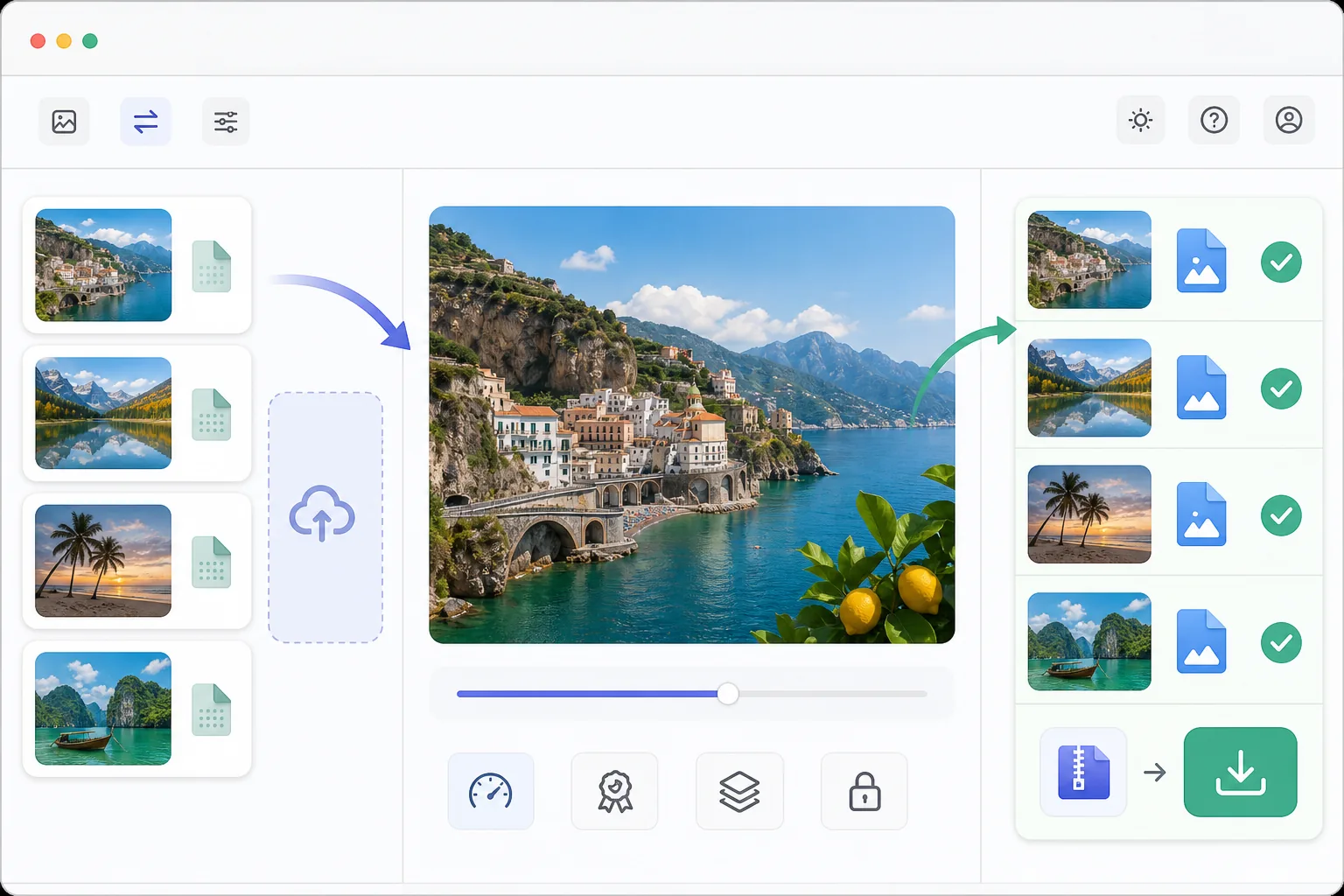
Comment convertir un fichier HEIC en JPG
Pour convertir un HEIC en JPG, ouvrez Magic Eraser sur le web, iOS ou Android, importez le fichier HEIC (ou HEIF) depuis votre iPhone ou n'importe quel appareil, puis exportez-le en JPG — la photo est décodée et réenregistrée au format JPEG, compatible avec absolument tout, en conservant sa résolution, ses couleurs et ses données EXIF. C'est gratuit, sans inscription. La conversion s'effectue dans votre navigateur : vos photos ne quittent donc jamais votre appareil, et vous pouvez déposer plusieurs fichiers d'un coup pour une conversion par lots. Le résultat s'ouvre partout — Windows, Android, e-mails, services d'impression et formulaires d'envoi qui refusent le HEIC. Apple a adopté HEIC (High Efficiency Image Container) comme format photo par défaut sur les iPhones, car il produit des fichiers 40 à 50 % plus petits que JPEG avec la même qualité. Mais HEIC n'est pas universellement pris en charge : les anciennes versions de Windows, de nombreuses plates-formes Web, clients de messagerie, services d'impression et formulaires de téléchargement sur les réseaux sociaux rejettent les fichiers HEIC. Cela crée des frictions lors du partage de photos iPhone. La conversion au format JPEG/JPG garantit la compatibilité avec pratiquement tous les appareils, plates-formes et services. La conversion implique de décoder les données d'image compressées HEVC et de les réencoder au format JPEG avec une perte de qualité minimale lorsqu'elle est effectuée avec des paramètres de qualité élevés (90+). Magic Eraser gère cette conversion dans le navigateur, afin que vos photos ne quittent jamais votre appareil.
Before you start
Convertissez HEIC en JPG en trois étapes
Start with téléchargez votre fichier heic. The result preview above and tips below use this guide's existing content; no separate before-and-after proof is assumed.
- 1
Téléchargez votre fichier HEIC
Ouvrez Magic Eraser sur le Web, iOS ou Android. Téléchargez le fichier HEIC ou HEIF depuis votre iPhone, iPad ou tout autre appareil. Vous pouvez télécharger plusieurs fichiers pour une conversion par lots. L'outil accepte les fichiers de n'importe quelle taille.
- 2
Prévisualiser et ajuster les paramètres
L'image est décodée et affichée en pleine qualité. Ajustez éventuellement la qualité JPG (recommandé : 92 pour le meilleur équilibre entre qualité et taille de fichier). Les données EXIF (date, lieu, paramètres de l'appareil photo) sont conservées par défaut. Vous pouvez également améliorer la photo avec des outils d'IA avant la conversion.
- 3
Exporter au format JPG
Téléchargez le fichier JPG converti. La sortie conserve la résolution et le profil de couleur d’origine. Pour les conversions par lots, tous les fichiers sont téléchargés sous la forme d'une seule archive zip. Les fichiers convertis sont compatibles avec toutes les plateformes acceptant les images.
Idéal pour
- Utilisateurs d'iPhone partageant des photos avec des utilisateurs Windows ou Android qui ne peuvent pas ouvrir HEIC
- Téléchargement de photos sur des sites Web et des formulaires qui n'acceptent que JPG/JPEG
- Préparation de photos pour les services d'impression qui ne prennent pas en charge le format HEIC
- Pièces jointes aux e-mails dont les destinataires peuvent ne pas disposer d'un logiciel compatible HEIC
- Archivage des photos dans un format universellement compatible pour un stockage à long terme
Conseils pour de meilleurs résultats
Utilisez la qualité JPG 92 pour le meilleur équilibre : à ce niveau, la différence de qualité par rapport au HEIC d'origine est imperceptible à l'œil humain tout en gardant une taille de fichier raisonnable. Aller au-dessus de 95 augmente considérablement la taille du fichier avec un avantage visuel négligeable. Si vous convertissez des photos pour une utilisation sur le Web, envisagez WebP au lieu de JPG pour obtenir des rapports qualité/taille encore meilleurs avec la prise en charge des navigateurs modernes. Pour éviter complètement les tracas de conversion, vous pouvez modifier les paramètres de l'appareil photo de votre iPhone pour capturer au format JPEG au lieu de HEIC : Paramètres → Appareil photo → Formats → Les plus compatibles.
Questions fréquemment posées
- Y a-t-il une perte de qualité lors de la conversion de HEIC en JPG ?
- Minimal. En qualité 90+, la différence est imperceptible. HEIC utilise une compression plus efficace, de sorte que le fichier JPG sera légèrement plus gros à qualité visuelle équivalente. Pour des raisons pratiques – partage, impression, téléchargement – la qualité est identique.
- Les données EXIF sont-elles conservées lors de la conversion ?
- Oui. La date de prise, la localisation GPS, les paramètres de l'appareil photo et d'autres métadonnées sont conservés par défaut dans la sortie JPG. Vous pouvez éventuellement supprimer les données EXIF pour des raisons de confidentialité lors du partage public de photos.
- La conversion HEIC en JPG est-elle gratuite ?
- Oui. La conversion de format est disponible dans l'offre gratuite sans limite quotidienne pour la conversion de base. Premium ajoute le traitement par lots et l'exportation multiformat simultanée.
- Comment convertir un HEIC en JPG sur mon iPhone ou Android ?
- Ouvrez Magic Eraser dans n'importe quel navigateur mobile ou dans l'application iOS ou Android, chargez la photo HEIC depuis votre pellicule, puis exportez-la en JPG — le fichier converti revient directement dans vos photos, prêt à être partagé ou importé partout. Aucune installation d'application n'est nécessaire si vous passez par le navigateur. Sur iPhone, vous pouvez aussi éviter complètement la conversion en capturant directement en JPEG : Réglages → Appareil photo → Formats → Plus compatible.
- Puis-je convertir plusieurs fichiers HEIC en JPG en une seule fois ?
- Oui. Importez plusieurs fichiers HEIC ou HEIF d'un coup : ils sont convertis ensemble, puis téléchargés sous forme d'une seule archive zip — pratique pour vider toute une pellicule ou tout un shooting de photos iPhone avant de les envoyer à quelqu'un sous Windows ou Android. Chaque fichier conserve sa résolution et son profil colorimétrique d'origine. La conversion par lots fait partie de l'offre Premium ; la conversion d'un seul fichier est gratuite, sans limite quotidienne.