
Edicoes de fotos para o Dia dos Pais: 7 edicoes prontas para presente em 60 segundos cada
Sete edicoes rapidas de fotos com IA para transformar fotos do celular em impressoes, telas, canecas e albuns prontos para o Dia dos Pais. Cada uma leva cerca de um minuto.

Growth Marketing
Índice
- 1. Remover distracoes do fundo (45 segundos)
- 2. Apagar photobombers de forma limpa (60 segundos)
- 3. Trocar o fundo por uma tela de qualidade de impressao (90 segundos)
- 4. Corrigir iluminacao interna escura (30 segundos)
- 5. Restaurar uma foto mais antiga como peca central do presente (60 segundos)
- 6. Criar uma colagem de varias fotos na ferramenta de design (90 segundos)
- 7. Exportar para impressao, nao apenas para compartilhar (15 segundos)
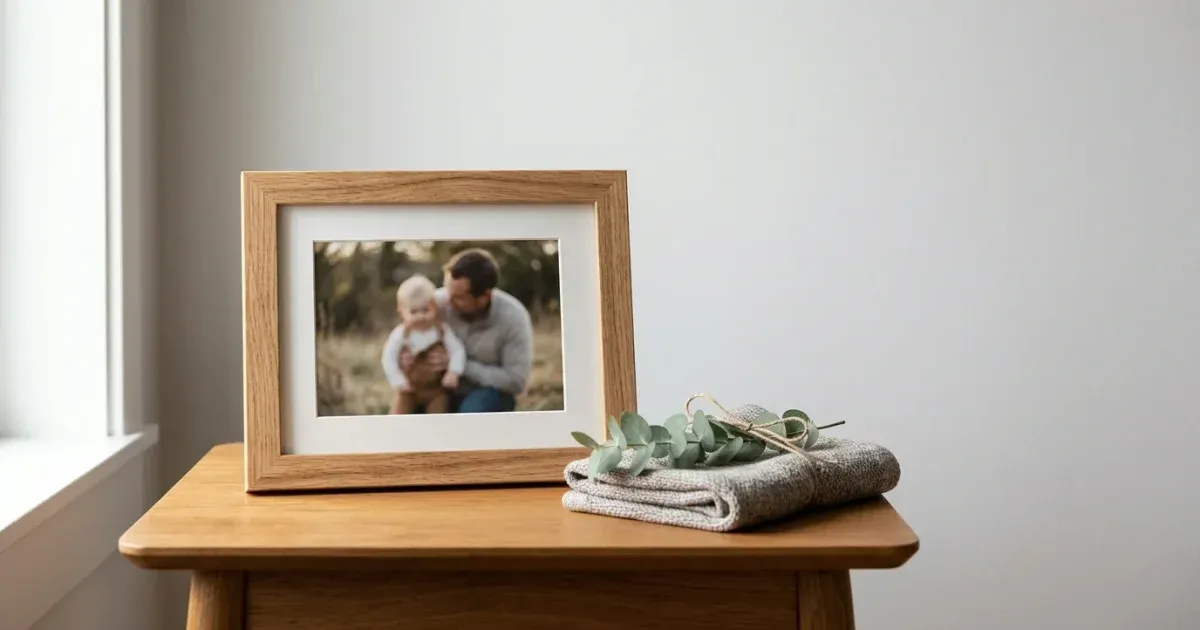
A maioria dos presentes de Dia dos Pais que envolvem uma foto — telas, albuns de fotos, canecas personalizadas, fotos emolduradas — falha da mesma forma: a foto em si esta boa, mas tem um fundo desorganizado, alguem se intrometendo, pouca luz ou a qualidade de um instantaneo de celular que nao corresponde a importancia de ser impressa em 16x20 e pendurada na parede. A solucao nao e um fotografo melhor nem uma sessao de estudio para a qual voce nao tem tempo. Sao cerca de 60 segundos de edicao com IA por foto.
Este guia aborda sete edicoes especificas que transformam instantaneos do celular em presentes prontos para dar: remover fundos indesejados, limpar intrusos, corrigir a pouca luz interna, restaurar fotos antigas e produzir exportacoes com qualidade de impressao. Cada uma e rapida — menos de um minuto com as ferramentas certas — e cada uma e a diferenca entre um presente fotografico que emociona e um que parece de ultima hora.
O Dia dos Pais de 2026 cai no domingo, 21 de junho. A maioria dos servicos de impressao sob demanda de telas e albuns precisa de 7 a 10 dias para producao e envio. O prazo real para editar e fazer o pedido e cerca de duas semanas antes. A boa noticia: edicoes de 60 segundos multiplicadas pelas poucas fotos que voce realmente precisa presentear somam bem menos de uma hora de trabalho.
- Ordene primeiro pela expressao e depois corrija todo o resto com IA.
- Distracoes de fundo, intrusos e pouca luz sao todos corrigiveis em menos de 60 segundos cada.
- Fotos antigas restauradas vencem sempre como presente em relacao as novas — o peso emocional supera a qualidade tecnica.
- As exportacoes para impressao precisam de resolucao completa (3000+ px) e qualidade JPEG de 90 %, nao o mesmo arquivo que voce compartilha por mensagem.
- Peca os presentes de tela/album no maximo no inicio de junho para chegar no Dia dos Pais.
1. Remover distracoes do fundo (45 segundos)
O motivo numero um de uma foto de celular parecer pouco profissional e o que esta atras do sujeito, nao o sujeito em si. Uma otima foto de voce e seu pai em um churrasco de familia tem pratos pela metade, uma lixeira de reciclagem, o cotovelo de alguem ao fundo do enquadramento. Nada disso pertence a uma impressao em tela.
Envie a foto para o Magic Eraser. Pincele sobre as distracoes — a lata de lixo, o ombro do intruso, a placa qualquer no canto. A IA preenche a cena ao redor usando o contexto. Os sujeitos permanecem nitidos; o ruido desaparece. Para a maioria das fotos casuais, essa unica edicao e o minuto mais rentavel que voce pode investir.
- Pincele sobre lixeiras de reciclagem, pratos pela metade, carros estacionados e estranhos de passagem.
- Mantenha os sujeitos intactos — pincele apenas sobre as distracoes do fundo.
- Funciona com qualquer iluminacao; a IA combina automaticamente com o tom da cena ao redor.
2. Apagar photobombers de forma limpa (60 segundos)
Fotos de familia em restaurantes, parques e pontos turisticos quase sempre tem alguem caminhando pelo fundo: um garcom, um corredor, uma crianca passando correndo. A clonagem antiquada no Photoshop levava 10 minutos por intruso. O AI Fill faz isso em segundos: pincele sobre a pessoa e a IA reconstroi o fundo atras dela tao limpo que voce nunca saberia que ela esteve ali.
Para grupos de intrusos (uma praia lotada, um festival cheio), pincele sobre o grupo inteiro como uma unica regiao em vez de pessoa por pessoa. A IA lida melhor com um fundo continuo do que com edicoes fragmentadas.
- Use o AI Fill para remover intrusos — a qualidade de reconstrucao e muito maior que a do apagamento basico.
- Trate grupos de intrusos como uma unica regiao de pincel para resultados mais limpos.
- Funciona igualmente bem em fundos texturizados (areia, folhagem) e em planos (paredes, ceu).
3. Trocar o fundo por uma tela de qualidade de impressao (90 segundos)
Para uma impressao em tela ou um presente emoldurado, substitua o fundo por completo em vez de apenas limpa-lo. Execute a remocao de fundo na foto do seu pai, exporte o recorte como PNG transparente e coloque-o sobre um degrade suave ou uma cor solida quente. O resultado parece intencional — como um retrato, nao um instantaneo.
Evite fundos branco puro ou preto puro para retratos — eles imprimem de forma dura e destoam da maioria da decoracao. Cinzas quentes suaves, azuis suavizados e brancos quebrados quentes imprimem lindamente e combinam com as molduras que as pessoas realmente compram. Se seu pai tem um comodo especifico onde voce sabe que a impressao sera pendurada, combine o fundo com a cor da parede desse comodo.
- A remocao de fundo lida nativamente com cabelo, oculos e bordas de roupas.
- Escolha uma cor de fundo que combine com o comodo onde a impressao vai ficar.
- Cinzas quentes suaves e tons suavizados imprimem melhor do que branco puro ou preto.
4. Corrigir iluminacao interna escura (30 segundos)
Jantares, reunioes de feriado e fotos de aniversario tiradas em ambientes internos quase sempre estao escuras demais, com luz mista que deixa os tons de pele estranhos. O AI boost equilibra a exposicao em toda a foto e corrige o balanco de branco para que os rostos parecam naturais em vez de alaranjados ou esverdeados.
Uma passagem de boost costuma bastar. Se a foto estiver tao escura que os olhos do sujeito se percam na sombra, voce pode precisar de uma segunda passagem — mas raramente mais que isso. Fotos editadas em excesso parecem claramente filtradas, o que vai contra o tom sentimental e de presente que voce quer para o Dia dos Pais.
- Uma passagem de aprimoramento para pouca luz normal; duas para fotos muito escuras.
- Pare antes que a foto pareca claramente filtrada.
- Luz mista (janela + lampada interna) e a mais dificil de corrigir — fotografe em direcao a janela se puder.
5. Restaurar uma foto mais antiga como peca central do presente (60 segundos)
Se voce tem uma copia antiga de voce e seu pai de uma, duas ou tres decadas atras, restaura-la geralmente supera qualquer foto nova como presente. O peso emocional de uma foto dos anos 1990 trazida de volta a cores vivas e nitidez supera um novo instantaneo nitido para o tipo de presente que se emoldura e se guarda.
Digitalize a copia a no minimo 600 DPI. Envie para o Magic Eraser e execute o AI boost para corrigir o desbotamento, dar nitidez ao desfoque e equilibrar a cor. Para danos fisicos — vincos, rasgos, manchas de agua — use o AI Fill para reconstruir as areas afetadas. Uma foto de 30 anos pode sair parecendo que foi tirada na semana passada. E exatamente o fator surpresa que faz o presente emocionar.
- Digitalize a no minimo 600 DPI para a restauracao.
- O AI Enhance corrige desbotamento, desfoque e desvio de cor; o AI Fill repara danos fisicos.
- Fotos antigas restauradas superam consistentemente as novas como presentes de Dia dos Pais.
6. Criar uma colagem de varias fotos na ferramenta de design (90 segundos)
Uma unica otima foto e boa. Uma grade de nove momentos dispostos como uma unica impressao e melhor. Use a ferramenta de design para dispor 4, 6 ou 9 fotos editadas em uma grade limpa. Mesma proporcao, mesma largura de borda, mesma cor de fundo. Imprima como uma unica peca emoldurada de 11x14 ou 16x20.
Escolha fotos de anos diferentes ou cenarios diferentes para que a colagem conte uma pequena historia em vez de repetir o mesmo momento. O formato em grade faz o presente parecer caprichado em vez de improvisado.
- 4, 6 ou 9 fotos em uma grade — mesma largura de borda, mesmo fundo.
- Misture anos e cenarios para que a colagem conte uma historia.
- Imprima como uma unica peca, nao como molduras separadas.
7. Exportar para impressao, nao apenas para compartilhar (15 segundos)
O maior erro que as pessoas cometem na etapa de exportacao e usar o mesmo arquivo tanto para o pedido de impressao quanto para a previa por mensagem. A impressao precisa de resolucao completa — pelo menos 3000 pixels no lado maior para um 11x14, mais para tamanhos maiores — e compressao minima (qualidade JPEG 90 % ou PNG). Exportacoes prontas para mensagem comprimem muito e ficam otimas em um celular, mas pixelam feio quando impressas.
Salve duas versoes: um master de impressao em resolucao completa e uma versao web/compartilhamento de 1200 a 1600 px de largura. Peca a partir do master de impressao; envie a versao web para os grupos de conversa da familia. Confundi-las e como seu pai acaba com uma tela 16x20 borrada pela qual voce pagou o preco cheio.
- Impressao: lado maior de 3000+ px, JPEG 90 % ou PNG.
- Compartilhamento: 1200 a 1600 px de largura, JPEG 70 a 80 %.
- Duas exportacoes separadas — nao reutilize o arquivo de compartilhamento para o pedido de impressao.
How to do it
- 1
Pick the photo with the best expression, not the cleanest background
Sort through camera roll candidates by expression first. Backgrounds, distractions, and lighting can all be fixed in AI — a frozen-in-time genuine smile cannot.
- 2
Remove distracting background clutter
Upload to Magic Eraser and brush over background distractions: parked cars, restaurant signage, photobombers in the back, lawn clutter. The AI reconstructs the surrounding scene cleanly.
- 3
Replace the background entirely for a gift print
For canvas prints and framed photos, run background removal and drop the cutout on a soft solid or gradient background. Cleaner backgrounds print better and feel more intentional as a gift.
- 4
Enhance lighting and detail
Run one pass of AI enhancement to balance exposure, sharpen the eyes, and recover detail in dim indoor shots. Don't over-process — Dad should look like Dad.
- 5
Restore an older photo as the gift centerpiece
Scan an old print of you and Dad. Run AI restoration to fix fading, sharpen blur, and correct color. Restored old photos consistently land better as gifts than new ones.
- 6
Build a small photo collage
Use the design tool to lay out 4-9 edited photos in a grid. Print as a single 8x10 or 11x14 frame for a multi-moment gift that beats any single shot.
- 7
Export for print, not just screen
Export at full resolution (3000+ px on the long edge) for prints. JPEG 90% quality. Web exports for sharing should be a separate, smaller file.