
AI Filter style
Akçaağaç AI fotoğraf filtresi
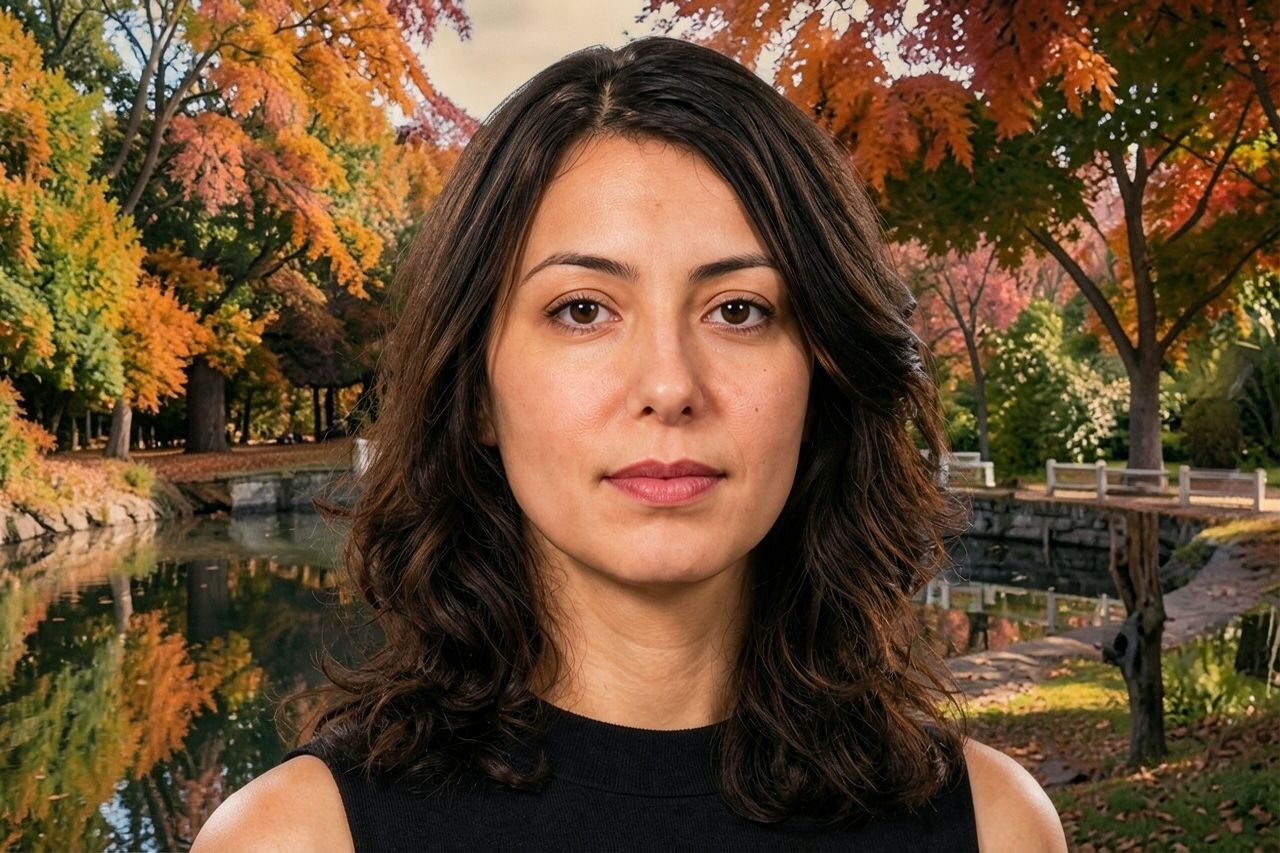
Portre, evcil hayvan, ürün ve seyahat fotoğraflarına kehribar, kırmızı ve altın tonlarında sıcak, sonbahardan ilham alan bir görünüm vermek için Akçaağaç AI fotoğraf filtresini uygulayın. Dönüşümü önizleyin, önemli ayrıntıları kontrol edin; dışa aktarmadan önce kırpın veya görüntüyü temizleyin.

Use case
Mevsimlik portreler, profil görselleri ve sıcak aile fotoğrafları.
Use case
Sonbahar temalı ürün, yemek, seyahat ve yaşam tarzı görselleri.
Use case
Samimi kırmızı-altın palet isteyen sosyal paylaşımlar ve kampanya taslakları.

Filter preview
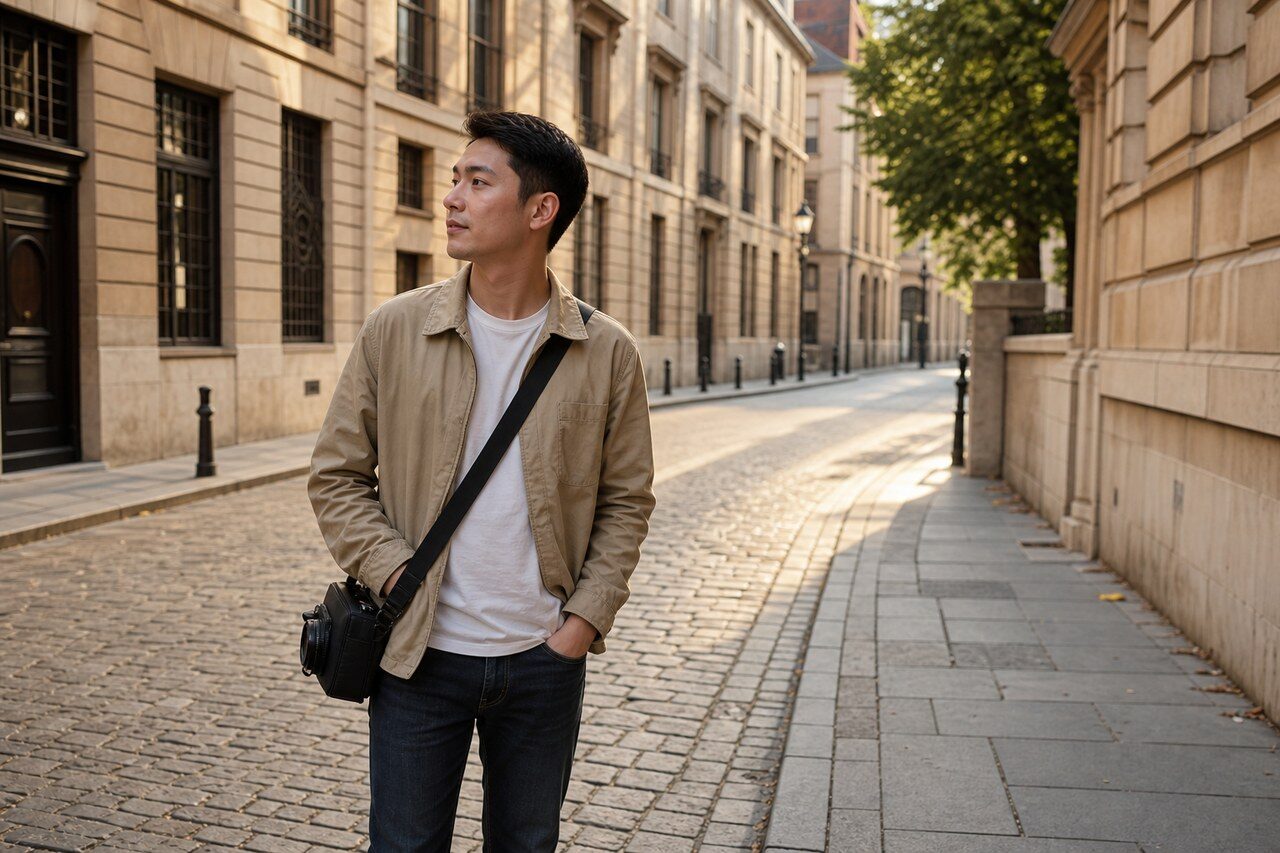
Compare the original photo with the maple result
The example uses a generated source photo and the same filter API path as the app, so users can judge the visual treatment before uploading their own image.
More examples
Test the maple filter on different photo types
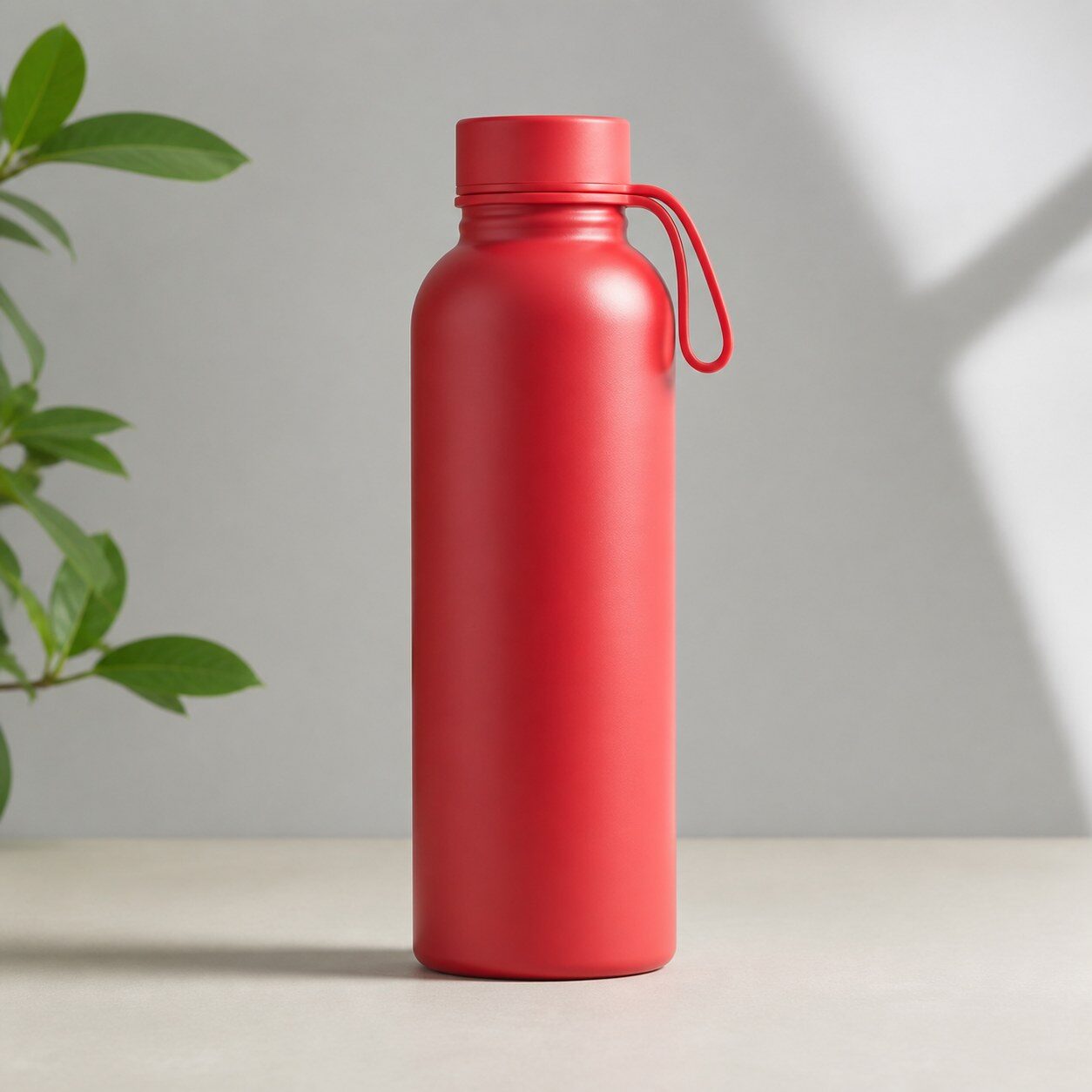
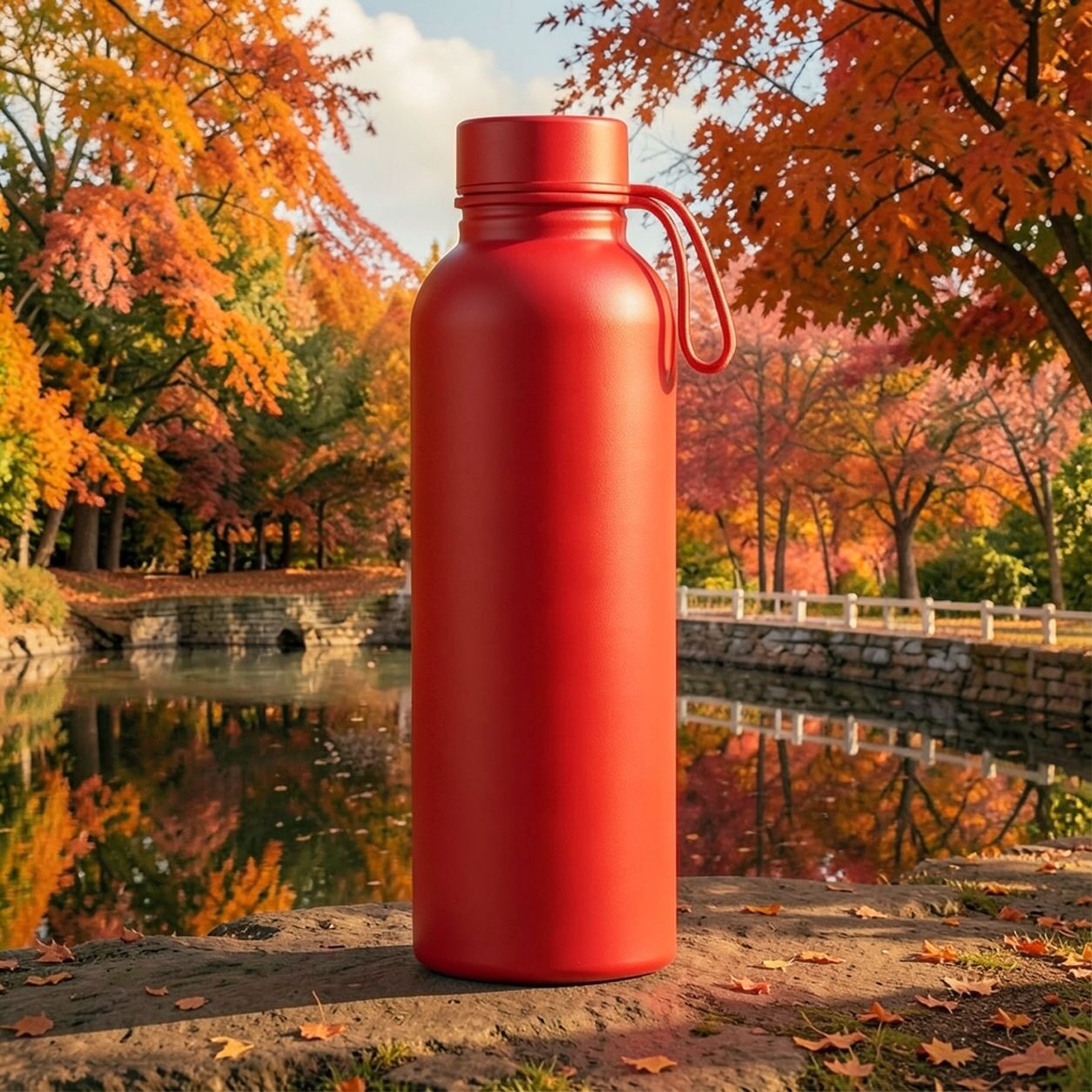
Compare portrait, product, and pet examples before opening the filter. Each result uses the same filter API path as the Magic Eraser app.


Portrait
Product


Pet
Photo workflow
How to get a cleaner maple filter result
İyi aydınlatılmış, tek ve net konulu, kenar ayrıntıları görünen bir fotoğraf seçin.
Akçaağaç filtresini açın, fotoğrafı yükleyin ve önizlemeyi orijinalle karşılaştırın.
Yüzleri, etiketleri ve renge duyarlı ayrıntıları kontrol edin; ardından kırpın veya dikkat dağıtan öğeleri kaldırın.
Best source photos
- Portreler, çiftler, evcil hayvanlar ve aile fotoğrafları.
- Yemek, ürün, seyahat ve dış mekân yaşam tarzı fotoğrafları.
- Sonbahardan ilham alan sıcak renk havasına uygun görseller.
Filter tips
- Nötr veya dış mekân fotoğrafları sıcak renk işlemi için daha fazla alan bırakır.
- Kesin ürün rengi ya da belgesel renk doğruluğu gerektiğinde sonucu kullanmayın.
- Sade arka planlar güçlü kehribar ve kırmızı tonlardan sonra konuyu okunaklı tutar.
Before upload checklist
- Use the largest clean version of the photo, not a compressed screenshot or reposted image.
- Crop loosely before filtering so the AI has enough room around the subject.
- Remove obvious distractions first if they sit directly on the face, product, or main subject.
- Check the result at the size where it will be used: profile image, feed post, story, thumbnail, or banner.
When this filter is a good fit
Choose the maple filter when the original photo already has a clear subject and the goal is a recognizable stylized version, not a fully new generated scene. It is strongest for social, creator, profile, event, and campaign images where mood matters more than documentary accuracy.
Use a different workflow when the image needs exact product color, legal documentation, medical accuracy, or unmodified identity details. In those cases, use cleanup, crop, enhancement, or background tools instead of a heavy creative filter.
Free browser tools after filtering
FAQ
What should I upload?
Use a clear photo with one main subject. Strong lighting and simple backgrounds usually make the AI filter easier to control.
Can I keep editing after the filter?
Yes. After applying the filter, use Magic Eraser to crop, clean distractions, refine backgrounds, and export the final image.
Is this filter selected automatically?
The CTA opens AI Filter with the maple style parameter, and the app falls back safely if the filter changes.