
AI Create style
Yapay zekâ suluboya görsel oluşturucu
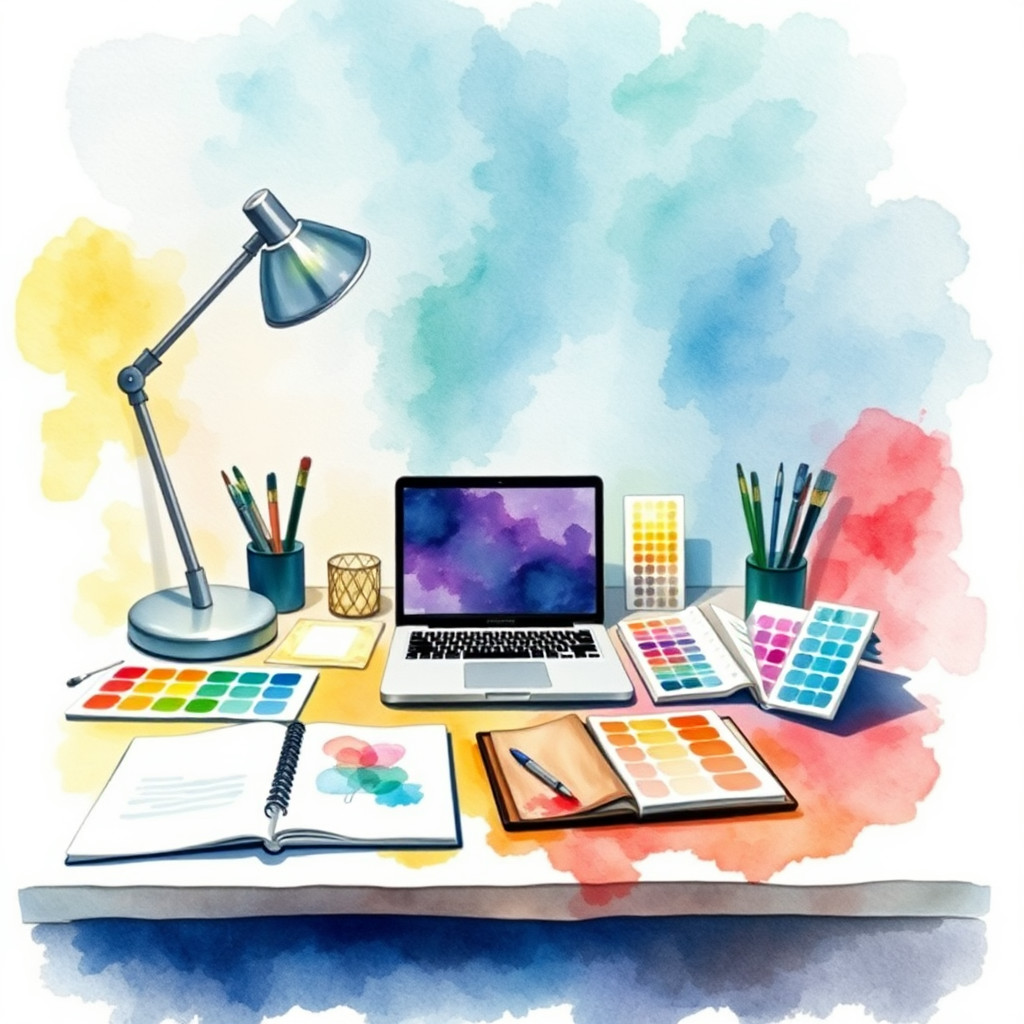
Posterler, davetiyeler, ambalaj taslakları ve editoryal illüstrasyonlar için metin komutlarından yumuşak suluboya görselleri oluşturun. Dokulu kâğıt, saydam renk geçişleri, doğal ışık ve net bir ana konu tanımlayın.
Use case
Botanik posterler ve zarif davetiyeler.
Use case
El yapımı ürünler için ambalaj fikirleri.
Use case
Seyahat kartpostalları ve sakin sosyal medya görselleri.
Visual direction preview
Use the style thumbnail as the creative target
The preview gives users a concrete reference for color, texture, edge detail, and mood before they open the generator. Pair it with the prompt starters below to keep the page useful instead of only decorative.
Generated examples
See the suluboya style in real outputs
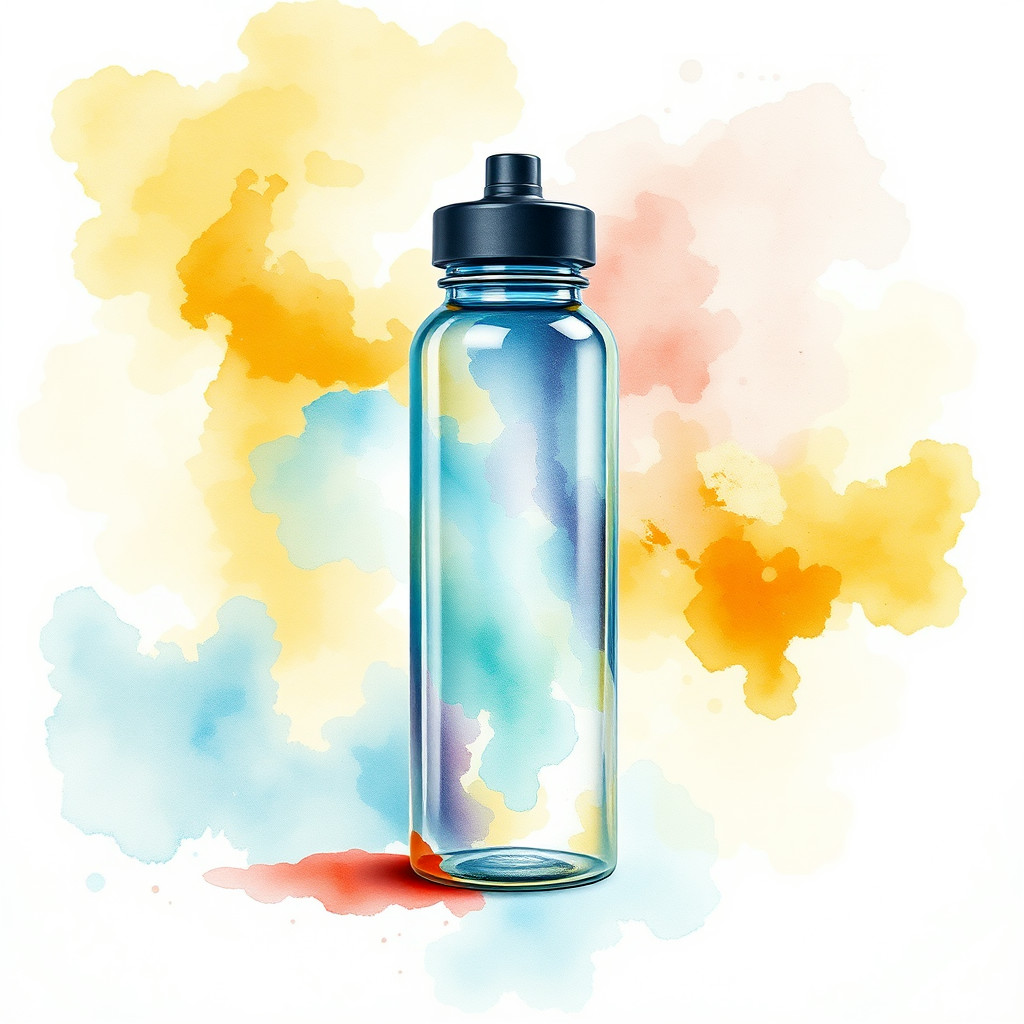
These examples were generated through the Magic Eraser AI Create API with the suluboya style selected.
Prompt workflow
How to get a stronger suluboya result
Konuyu ve sahneyi belirleyip saydam geçişler, yumuşak kenarlar ve dokulu kâğıt ekleyin.
Birden fazla seçenek oluşturup paleti veya boş alanı ayarlayın.
En iyi sonucu seçin, kırpın ve dikkat dağıtan ayrıntıları temizleyin.
Prompt starters
- “Dokulu kâğıtta lavantalı suluboya botanik posteri, yumuşak mor ve yeşil”
- “El yapımı sabun için suluboya ambalaj konsepti, doğal ışık”
- “Gün doğumunda sakin sahil köyü suluboya kartpostalı, ince mürekkep çizgisi”
Style tips
- Tek bir odak noktası kullanın.
- Son çıktı biçimini belirtin.
- Renk sözcüklerini bilinçli seçin.
Output planning checklist
- Decide the final placement before prompting: square post, vertical story, product insert, poster, thumbnail, or wide banner.
- Keep one primary subject and one visual mood so the suluboya style has a clear job.
- Describe the background as simple, detailed, bright, dark, studio, outdoor, or textured instead of leaving it open-ended.
- Generate variations first, then edit the selected image for crop, cleanup, and export size.
When to choose this style
Choose suluboya when the image needs a clear creative direction before production: an ad concept, a social visual, a character idea, a packaging mood, or a fast design draft. Choose another style if the final asset must look like a camera photo, preserve exact product color, or include precise typography.
For commercial work, treat the generated image as a starting point. Review details, remove distracting artifacts, add exact text separately, and export the final size from the editor.
FAQ
Can I edit the generated image?
Yes. Generate the image, then continue with cleanup, crop, background, and export tools in Magic Eraser.
Should I include exact text?
Use AI Create for the visual direction. Add exact text later with editable design tools for cleaner spelling and layout.
Is this style selected automatically?
The CTA opens AI Create with the suluboya style parameter, and the app falls back safely if the option changes.