
AI Create style
Yapay zekâ vitray görsel oluşturucu
Metin istemlerinden yarı saydam renk panelleri, koyu birleşim çizgileri ve içinden geçen parlak ışıkla vitray tarzı görseller oluşturun. Poster, davetiye, illüstrasyon ve dekor fikirleri için uygundur; konuyu, paleti ve ayrıntı düzeyini açıkça belirtin.
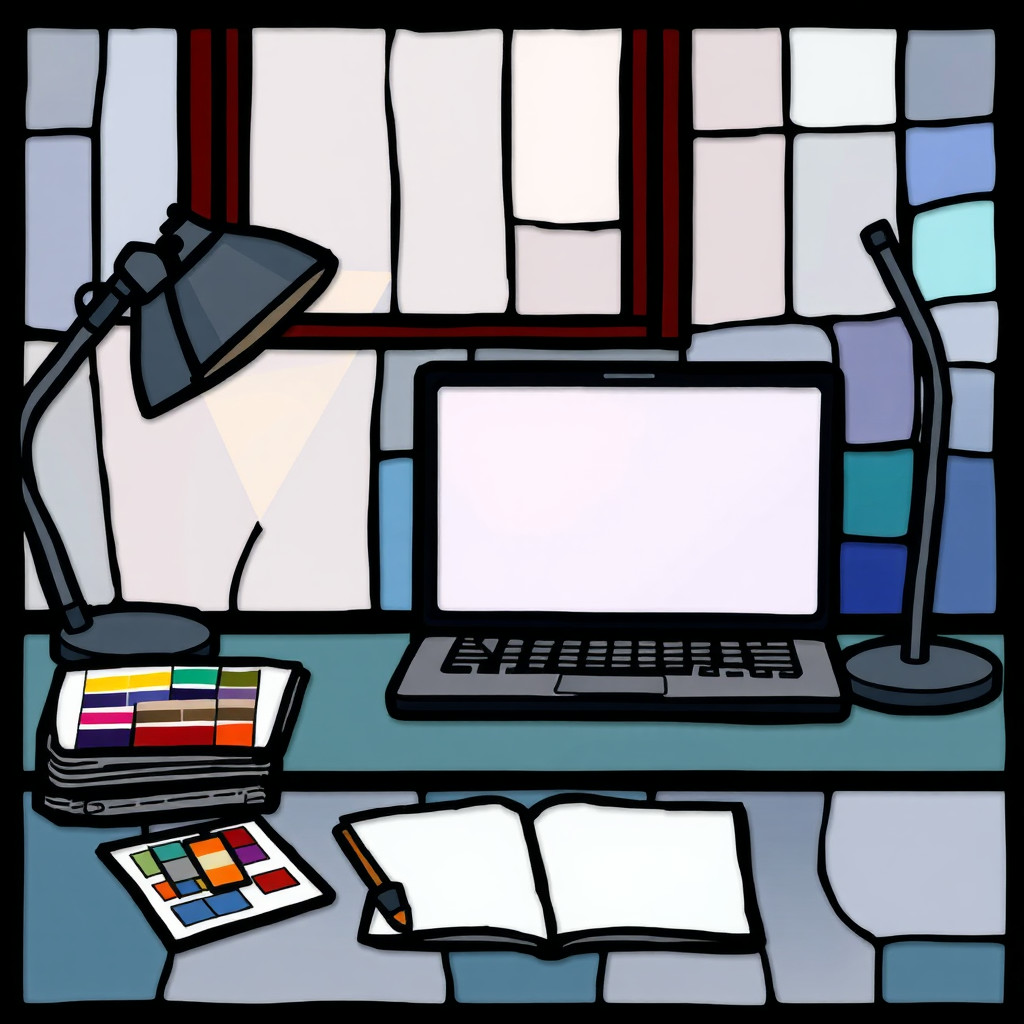
Use case
Renkli cam ışıltılı poster, davetiye ve kapaklar.
Use case
Vitray pencerelerden esinlenen illüstrasyon, desen ve dekor fikirleri.
Use case
Güçlü renk alanları gerektiren sosyal medya veya ürün görselleri.
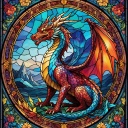
Visual direction preview
Use the style thumbnail as the creative target
The preview gives users a concrete reference for color, texture, edge detail, and mood before they open the generator. Pair it with the prompt starters below to keep the page useful instead of only decorative.
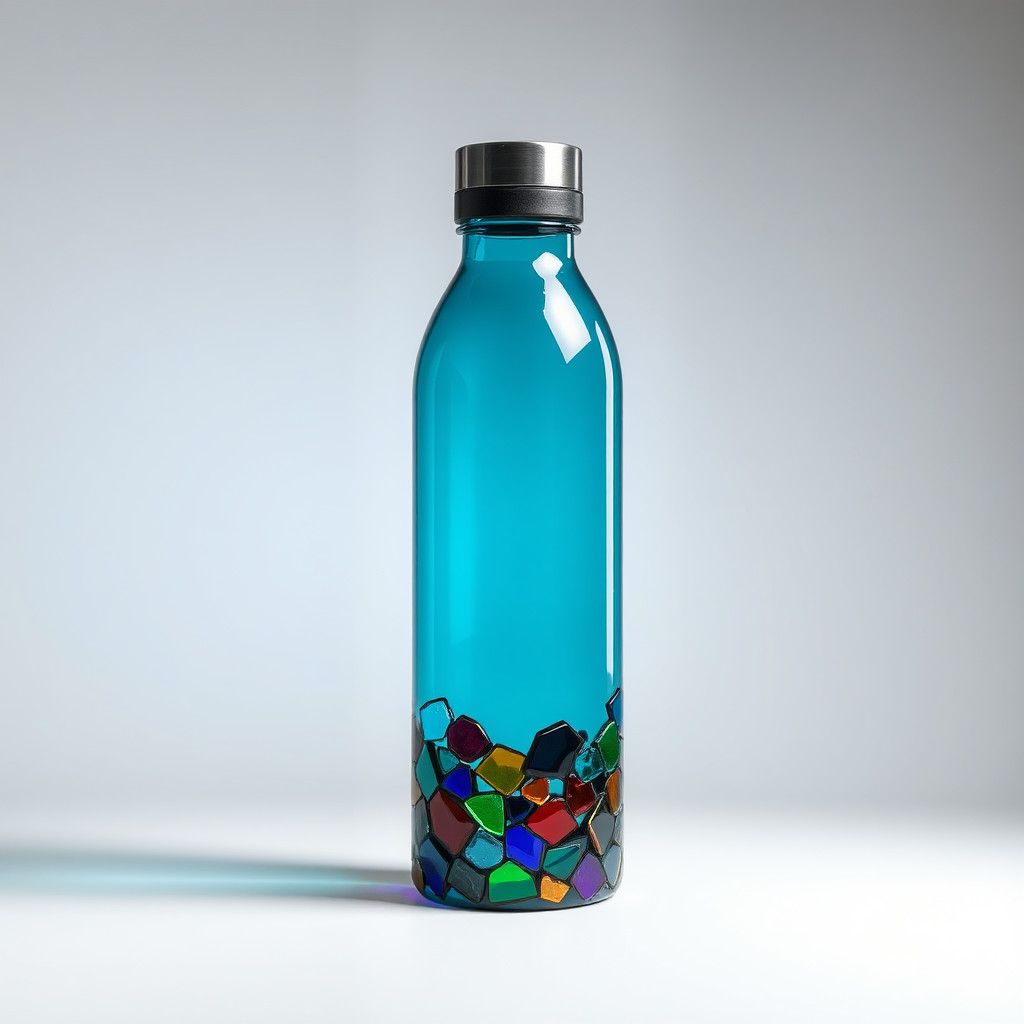
Generated examples
See the vitray style in real outputs
These examples were generated through the Magic Eraser AI Create API with the vitray style selected.
Prompt workflow
How to get a stronger vitray result
Tek bir ana konu, kompozisyon ve renk paleti açıklayın.
Yarı saydam cam parçaları, koyu kurşun çizgiler ve geçen ışık ekleyin.
Birkaç varyasyon üretin, en net kompozisyonu seçip kırpın ve temizleyin.
Prompt starters
- “Okyanus altında vitray balina, mavi ve turkuaz cam parçaları, koyu kurşun çizgiler, geçen ışık”
- “Vitray tarzında ayçiçeği posteri, kehribar ve yeşil, dengeli kompozisyon”
- “Vitray pencere yanında kedi, gökkuşağı ışığı, sade arka plan”
Style tips
- Cam bölümleri okunaklı tutmak için basit şekiller kullanın.
- Işık kaynağını ve ana renkleri belirtin.
- Kesin metin ve logoları üretimden sonra ekleyin.
Output planning checklist
- Decide the final placement before prompting: square post, vertical story, product insert, poster, thumbnail, or wide banner.
- Keep one primary subject and one visual mood so the vitray style has a clear job.
- Describe the background as simple, detailed, bright, dark, studio, outdoor, or textured instead of leaving it open-ended.
- Generate variations first, then edit the selected image for crop, cleanup, and export size.
When to choose this style
Choose vitray when the image needs a clear creative direction before production: an ad concept, a social visual, a character idea, a packaging mood, or a fast design draft. Choose another style if the final asset must look like a camera photo, preserve exact product color, or include precise typography.
For commercial work, treat the generated image as a starting point. Review details, remove distracting artifacts, add exact text separately, and export the final size from the editor.
FAQ
Can I edit the generated image?
Yes. Generate the image, then continue with cleanup, crop, background, and export tools in Magic Eraser.
Should I include exact text?
Use AI Create for the visual direction. Add exact text later with editable design tools for cleaner spelling and layout.
Is this style selected automatically?
The CTA opens AI Create with the vitray style parameter, and the app falls back safely if the option changes.