
Fotoğraftaki dişler nasıl beyazlatılır
Parlak, doğal bir gülümseme, bir portreyi iyiden mükemmele dönüştürebilir. Magic Eraser'nin AI Enhance aracı dişleri gerçekçi bir şekilde beyazlatır - manuel maskeleme yok, doğal olmayan neon beyazı sonuçlar yok - sadece saniyeler içinde temiz, kendinden emin bir gülümseme.
Last updated
Dişlerinizi hemen beyazlatın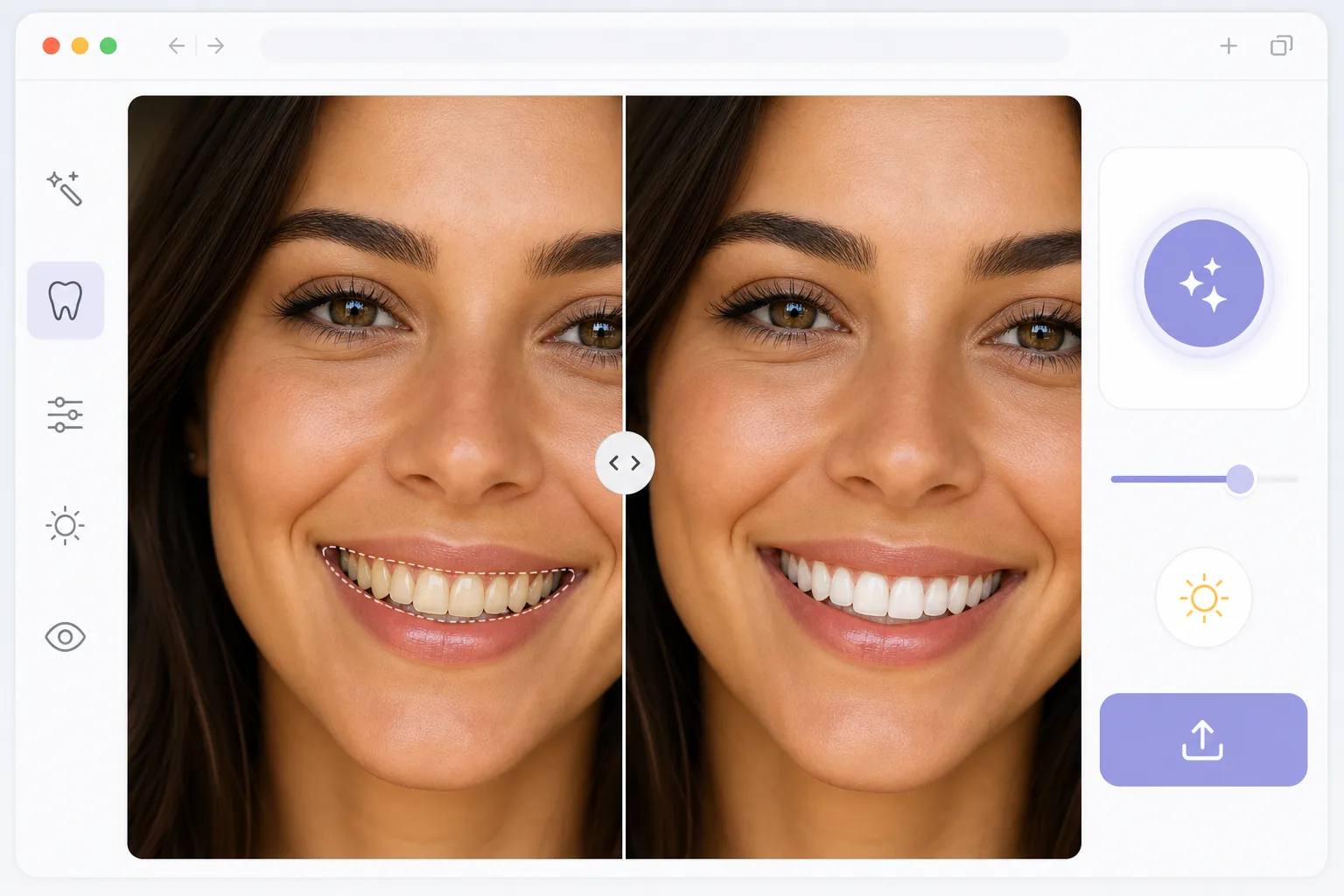
Yapay zekayla diş beyazlatma neden manuel düzenlemeyi geride bırakıyor?
Bir fotoğraftaki dişleri beyazlatmak için Magic Eraser'ı web'de, iOS'ta ya da Android'de açın, AI Enhance'i seçin, kişinin gülümsediği bir fotoğraf yükleyin ve yapay zekânın dişleri parlatmasına izin verin — diş sınırlarını algılar ve tonu sahnedeki ışığa uyacak şekilde açar, böylece gülümseme üzerine boyanmış gibi değil, doğal beyazlıkta görünür. Üyelik gerektirmeden, ücretsizdir. Beyazlatma bilinçli olarak ölçülü kalır: dişler arasındaki gölgeler ve sıcak ışık korunur — manuel düzenlemenin sıkça ortaya çıkardığı neon beyazı görünümden inandırıcı bir sonucu ayıran şey de tam olarak budur. Photoshop'ta geleneksel diş beyazlatma, dişlerin bir kement aracıyla seçilmesini, sarıların doygunluğunu gidermeyi, parlaklığı Boosting ve kenarları dikkatlice yumuşatmayı gerektirir; bu, fotoğraf başına 5-10 dakika süren ve çoğu zaman yapay görünen bir işlemdir. Kahve lekeleri, eşit olmayan ışık ve dişlerin arasındaki gölgeler tutarlı sonuçları zorlaştırır. Yapay zeka destekli beyazlatma, görüntüyü bütünsel olarak analiz eder: diş sınırlarını tanımlar, aydınlatma koşullarını anlar ve sahnenin renk sıcaklığına uygun beyazlatma uygular. Sonuç, kişinin dişlerinin aslında beyaz olduğu gibi görünüyor, sonradan işlem sırasında üzerlerine boyanmış biri gibi değil.
Before you start
Üç adımda dişlerinizi beyazlatın
Start with portreyi yükle. The result preview above and tips below use this guide's existing content; no separate before-and-after proof is assumed.
- 1
Portreyi yükle
Web, iOS veya Android'de Magic Eraser'yi açın ve AI Enhance'ü seçin. Konunun gülümsediği bir fotoğraf yükleyin. Yakın çekim portreler en iyi sonucu verir, ancak yapay zeka grup fotoğraflarında ve tam vücut çekimlerinde de dişleri tespit edebilir. JPEG, PNG, HEIC ve WebP'nin tümü desteklenir.
- 2
Diş beyazlatma uygulayın
Yapay zeka, görüntüdeki dişleri otomatik olarak algılar ve doğal beyazlatma uygular. Geliştirme, fotoğrafın mevcut renk sıcaklığına saygı gösterir; sıcak altın saat ışığı doğal sıcaklığı korurken stüdyo aydınlatması daha parlak beyazlar üretir. Derinliği ve gerçekçiliği korumak için dişler arasındaki gölgeler korunur.
- 3
Geliştirilmiş portrenizi dışa aktarın
Öncesini ve sonrasını önizleyin, ardından tercih ettiğiniz formatta ve çözünürlükte dışa aktarın. Orijinal fotoğrafa dokunulmaz; istediğiniz zaman yeniden düzenleyebilir veya ayarlayabilirsiniz. Cihazınıza kaydedin veya doğrudan sosyal medyada paylaşın.
Şunun için en iyisi:
- Parlak gülümsemelerle müşteriye hazır fotoğraflar sunan portre fotoğrafçıları
- Profil resimlerinin doğal görünmesini isteyen sosyal medya kullanıcıları
- Yüzlerce resepsiyon fotoğrafında gülümsemeleri aydınlatan düğün fotoğrafçıları
- Emlakçılar ilanlar ve pazarlama materyalleri için vesikalık fotoğrafları cilalıyor
- Kendinden emin bir gülümsemenin güçlü bir ilk izlenim bıraktığı flört uygulaması profilleri
En iyi sonuçlar için ipuçları
Dişlerin açıkça görülebildiği, iyi aydınlatılmış bir fotoğrafla başlayın; yapay zekanın temiz sonuçlar üretebilmesi için diş sınırlarını görmesi gerekir. Grup fotoğrafları için araç, görünen tüm gülümsemeleri aynı anda işler. Yapay zekanın varsayılan ayarına sadık kalarak aşırı beyazlatmayı önleyin; yapay zeka, doğal sonuçlar için kalibre edilmiştir. Deneğin gözle görülür diş işleri (diş telleri, kaplamalar) varsa yapay zeka, metal veya seramik malzemeleri aşırı parlatmadan bunları zarif bir şekilde ele alır. Bir fotoğraf serisinde tutarlılık sağlamak için aynı oturumdaki tüm görüntüleri birlikte işleyin.
Sık sorulan sorular
- Diş beyazlatma doğal görünecek mi?
- Evet. Yapay zeka, beyazlatmayı fotoğrafın ışık koşullarına uyacak şekilde kalibre eder. Altın saat ışığında beyazlatılan dişler sıcaklığı korurken, stüdyo ışığında çekilen fotoğraflar daha parlak sonuçlar verir. Araç, manuel düzenlemenin sıklıkla oluşturduğu neon beyazı görünümü ortadan kaldırır.
- Grup fotoğraflarında dişleri beyazlatabilir miyim?
- Evet. Yapay zeka, fotoğrafta gülümseyen her kişinin dişlerini tespit edip beyazlatıyor. Her yüz bağımsız olarak işlenir, böylece sonuçlar her kişinin aydınlatma açısına ve diş rengine göre uyarlanır.
- Diş beyazlatma bedava mı?
- Evet. AI Enhance diş beyazlatma dahil özellikler, günlük kullanım limitleriyle ücretsiz kullanımda mevcuttur. Premium, sınırları kaldırır ve büyük fotoğraf setleri için toplu işleme olanak tanır.
- Android veya iPhone'da bir fotoğraftaki dişleri nasıl beyazlatırım?
- Magic Eraser'ı herhangi bir mobil tarayıcıda ya da iOS veya Android uygulamasında açın, fotoğrafı galerinizden yükleyin ve AI Enhance'i seçin. Yapay zekâ dişleri algılar ve doğal beyazlatmayı doğrudan telefonunuzda uygular — bilgisayara gerek yok. Düzenlenen fotoğraf doğrudan galerinize kaydedilir, paylaşmaya veya yayınlamaya hazırdır. Masaüstü sürümüyle aynı şekilde çalışır ve tarayıcıyı kullanırsanız uygulama kurmanız gerekmez.
- Beyazlatılan gülümseme yine de bana benzeyecek mi?
- Evet — dişleri sadece beyaza boyamak yerine ışığa uyarlamanın amacı tam olarak bu. Yapay zekâ doğal ton farklılıklarını ve dişler arasındaki gölgeleri korur, böylece sonuç sahte değil, temiz ve iyi aydınlatılmış bir gülümseme gibi görünür. Dışa aktarmadan önce öncesi-sonrası karşılaştırmasını önizleyin; belirli bir fotoğraf için fazla güçlü görünürse orijinal dokunulmadan kaldığı için yeniden düzenleyebilirsiniz. En inandırıcı sonuç için dişlerin net şekilde göründüğü, iyi aydınlatılmış bir fotoğrafla başlayın.