
Şeffaf bir görüntü nasıl oluşturulur
Şeffaf görüntüler (arka planı olmayan PNG'ler) tasarım çalışmaları için gereklidir: e-ticaret için ürün kesitleri, marka kitleri için logo dosyaları, çıkartma tasarımları, sunumlar için kaplama grafikleri ve kompozit fotoğrafçılık için konu izolasyonları. Magic Eraser'nin Background Eraser özelliği arka planı kaldırır ve her türlü tasarım aracına hazır, alfa şeffaflığına sahip temiz bir PNG'yi dışa aktarır.
Last updated
Resmi şeffaf yap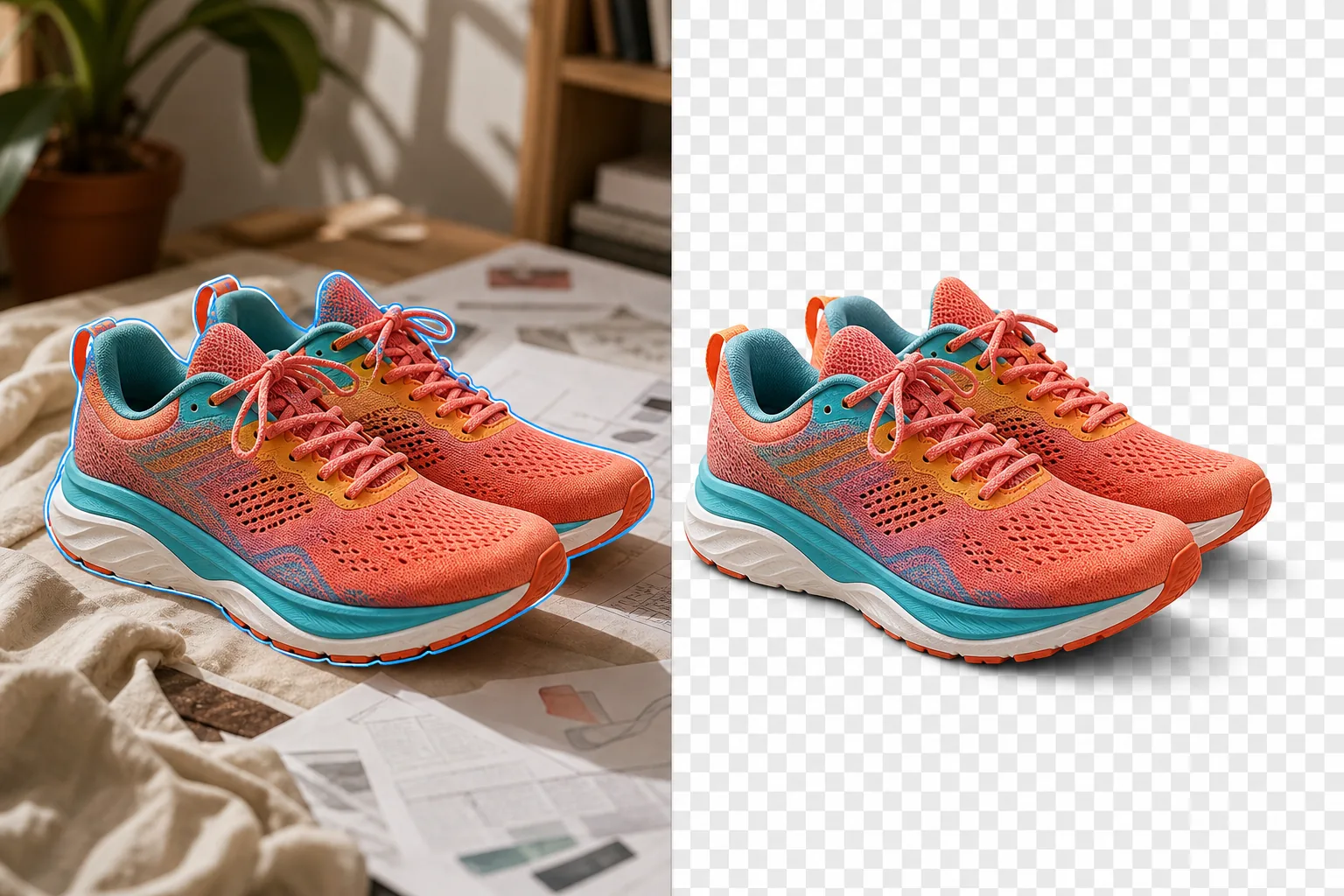
Şeffaf görsellerin kullanıldığı yerler ve neden önemli oldukları
Şeffaf bir görüntü (alfa kanallı bir PNG dosyası), konunun herhangi bir arka planın üzerinde yüzmesini sağlar - beyaz bir e-ticaret listesine yerleştirilen bir ürün resmi, bir web sitesi başlığı üzerine yerleştirilmiş bir logo, farklı bir sahnede birleştirilen bir kişi, şeffaf vinil üzerine basılmış bir çıkartma tasarımı. Şeffaflık olmadığında görüntüler dikdörtgen arka planlarını yerleştirildikleri her bağlama taşır ve görüntünün arka planının hedefin arka planıyla buluştuğu yerde görünür kenarlar oluşturur. E-ticaret ürün görselleri, ürünün pazar standartlarında beyaz arka planlara, yaşam tarzı maketlerine ve tanıtım afişlerine, çekim yüzeyini taşımadan yerleştirilebilmesi için şeffaflığa ihtiyaç duyar. Marka logolarının şeffaflığa ihtiyacı vardır, böylece logo herhangi bir arka plan renginde (koyu, açık, desenli veya fotoğrafik) çalışır. Sunum grafikleri ve sosyal medya kaplamaları şeffaflığa ihtiyaç duyar, böylece eklenen öğeler slayt veya gönderi arka planıyla uyum sağlar. Talep üzerine baskı yapılan ürünler (çıkartmalar, tişörtler, kupalar, telefon kılıfları), tasarımın ürün yüzeyinde görünür bir dikdörtgen kenarlık olmadan görünmesi için şeffaf kaynak dosyalarına ihtiyaç duyar. Saydamlık oluşturmaya yönelik geleneksel iş akışı, Photoshop'un kalem aracını (manuel seçim yolu) veya Sihirli Değnek/Hızlı Seçimi (yarı otomatik seçim), ardından arka planı silmeyi ve ardından PNG Olarak Kaydetmeyi içerir. Temiz kenarlı basit şekiller için bu işlem 5-10 dakika sürer. Karmaşık silüetler (saç, kürk, yarı saydam malzemeler, düzensiz hatlar) için 30 dakikadan fazla dikkatli yol düzenleme işlemi gerekir. Magic Eraser, karmaşık kenarları (tek tek saç telleri, ince kürk, yarı şeffaf kumaş) saniyeler içinde işleyerek nesne algılamayı ve kenar maskelemeyi otomatikleştirir.
Before you start
Üç adımda şeffaf bir görüntü oluşturun
Start with resmi yükle. The result preview above and tips below use this guide's existing content; no separate before-and-after proof is assumed.
- 1
Resmi yükle
Magic Eraser web, iOS veya Android'de açın. Ürün fotoğrafını, logosunu, portresini, çıkartma tasarımını veya nesnenin şeffaf bir arka plan üzerinde izole edilmesini istediğiniz herhangi bir görseli ekleyin. JPEG, PNG, HEIC ve WebP'nin tümü kabul edilir; kaynak bir JPEG olsa bile (saydamlığı desteklemez), çıktı alfa kanallı bir PNG olacaktır.
- 2
Arka planı kaldır
Background Eraser'a dokunun. Yapay zeka, birincil konuyu algılar ve diğer her şeyi kaldırarak dama tahtası deseni olarak gösterilen şeffaf bir arka plan oluşturur. Dahili şeffaf alanlara (O harfinin içindeki boşluk, tasarım öğeleri arasındaki boşluklar) sahip logolar ve tasarımlar için yapay zeka bunları da algılar ve kaldırır. Karmaşık kenarlarda herhangi bir arka plan kalıntısı kalırsa (ince saç telleri, karmaşık kesik şekilleri), bunları temizlemek için inceltme fırçasını kullanın.
- 3
PNG olarak dışa aktar
Şeffaflığı korumak için sonucu PNG olarak dışa aktarın. JPEG alfa kanallarını desteklemez ve şeffaf alanı beyazla doldurur. Canva, Figma, Photoshop veya Illustrator'daki tasarım çalışmaları için PNG, şeffaflığı bozulmadan doğrudan içe aktarılır. Web kullanımı için (bir web sayfasının arka planına yerleştirerek), PNG, arkasındaki sayfa arka planını gösteren şeffaf alanlarla birlikte görüntülenir. Talep üzerine baskı için satıcının çözünürlük gereksinimlerini kontrol edin; çoğu baskı boyutunda 300 DPI gerektirir.
Şunun için en iyisi:
- Pazar yeri listeleri, yaşam tarzı maketleri ve ürünün herhangi bir arka planda görünmesi gereken promosyon malzemeleri için e-ticaret ürün kesitleri
- Logo dosyasının açık, koyu, desenli ve fotoğrafik arka planlar üzerinde çalışması gereken logo ve marka varlıklarının hazırlanması
- Ürünlere temiz baskı için sanat eserinin şeffaf kenarlara ihtiyaç duyduğu çıkartma ve isteğe bağlı baskı tasarımları
- Eklenen grafiklerin slayt veya gönderi arka planıyla harmanlanması gereken sunum ve sosyal medya katmanları
- Nesnelerin izole edildiği ve yeni sahnelere veya grup kompozisyonlarına yerleştirildiği kompozit fotoğrafçılık
- Kullanıcı arayüzü öğelerinin, simgelerin ve illüstrasyonların katmanlama için şeffaf arka planlara ihtiyaç duyduğu uygulama ve web tasarımı
En iyi sonuçlar için ipuçları
En temiz şeffaflık için, kaynak görüntüde konu, renk kontrastı (açık yüzey üzerinde koyu ürün) veya uzamsal ayrım (nesne odakta, arka plan hafif bulanık) yoluyla arka plandan açıkça ayrılmış olmalıdır. Kaynaktaki temiz kenarlar, şeffaf çıktıda temiz kenarlar üretir. Çekim yüzeyinde yansımaları olan ürünler için (yansıtıcı bir masa üzerindeki cam şişeler, aynalı bir tepsi üzerindeki mücevherler), Background Eraser yansımayı arka planla birlikte kaldırır; yansımayı korumak istiyorsanız, onu dahil etmek için düzeltme fırçasını kullanın. Logolar için: logo beyaz bir arka plan üzerindeyse (JPEG olarak dağıtılan marka dosyaları için yaygındır), Background Eraser bunu temiz bir şekilde halleder; beyaz üzerine beyaz kenar tespiti yüksek kontrastlı durumlardan daha zordur, bu nedenle beyaz logo öğelerinin kenarlarını dama tahtasına göre doğrulayın. Kasıtlı olarak beyaz kenarlıklara sahip çıkartma tasarımları için: Yapay zeka, beyaz kenarlığı arka plan olarak kaldırabilir; tasarımın bir parçasıysa beyaz kenarlık alanını dahil etmek için hassaslaştırma fırçasını kullanın. Dosya boyutunu dışa aktar: alfa kanalı veri eklediğinden ve PNG kayıpsız sıkıştırma kullandığından şeffaf PNG'ler JPEG'lerden daha büyüktür. Dosya boyutunun önemli olduğu web kullanımı için PNG'yi dışa aktarmadan sonra TinyPNG gibi bir optimize edici aracılığıyla çalıştırmayı düşünün.
Sık sorulan sorular
- Şeffaf görseller oluşturmak ücretsiz mi?
- Evet. Magic Eraser'nin ücretsiz kullanımı, günlük kullanım limitleriyle birlikte Background Eraser'yi içerir. Premium (29,99 ABD Doları/yıl) sınırları kaldırır ve yüksek çözünürlüklü PNG dışa aktarımına olanak tanır.
- Hangi dosya formatı şeffaflığı destekler?
- PNG, şeffaf görüntüler için standart formattır. Hangi piksellerin opak, yarı şeffaf veya tamamen şeffaf olduğunu tanımlayan bir alfa kanalını destekler. JPEG şeffaflığı desteklemez; JPEG olarak dışa aktarma, şeffaf alanları düz bir renkle (genellikle beyaz) doldurur. Web kullanımı için daha küçük dosya boyutlarına ihtiyacınız varsa WebP ayrıca şeffaflığı da destekler.
- Bir logoyu JPEG dosyasından şeffaf hale getirebilir miyim?
- Evet. JPEG logosunu (düz bir arka plana sahip) yükleyin, arka planı kaldırmak için Background Eraser komutunu çalıştırın ve PNG olarak dışa aktarın. Sonuç, kaynak bir JPEG olmasına rağmen şeffaf arka planlı bir logo dosyasıdır. Bu, en yaygın kullanımlardan biridir; beyaz arka plana sahip logo JPEG'lerini tasarım çalışmaları için şeffaf PNG'lere dönüştürmek.
- Cam veya şeffaf kumaş gibi yarı şeffaf öğeleri işleyebilir mi?
- Evet. Yapay zeka, yarı şeffaf bölgeleri tespit eder ve bunların alfa kanalındaki kısmi opaklığını korur. Bir cam şişenin gövdesi çıktıda yarı şeffaf olarak işlenecek ve dama tahtasını (veya herhangi bir yeni arka planı) katı opak bir kesim olarak görünmek yerine doğru opaklık seviyesinde gösterecektir.
- Birden fazla görüntüyü toplu olarak şeffaf hale getirebilir miyim?
- Her görüntüyü Background Eraser aracılığıyla ayrı ayrı işleyin — görüntü başına işleme hızlıdır (görüntü başına saniye), dolayısıyla 30 görüntülü bir ürün kataloğunun şeffaf versiyonlarını oluşturmak 15 dakikadan az sürer. Her görüntü kendi konu algılamasını alır, böylece karışık içerik (farklı şekillerdeki ürünler, insanlar, logolar) tümü doğru şekilde işlenir.