
AI Filter style
ฟิลเตอร์ภาพลายเส้น AI
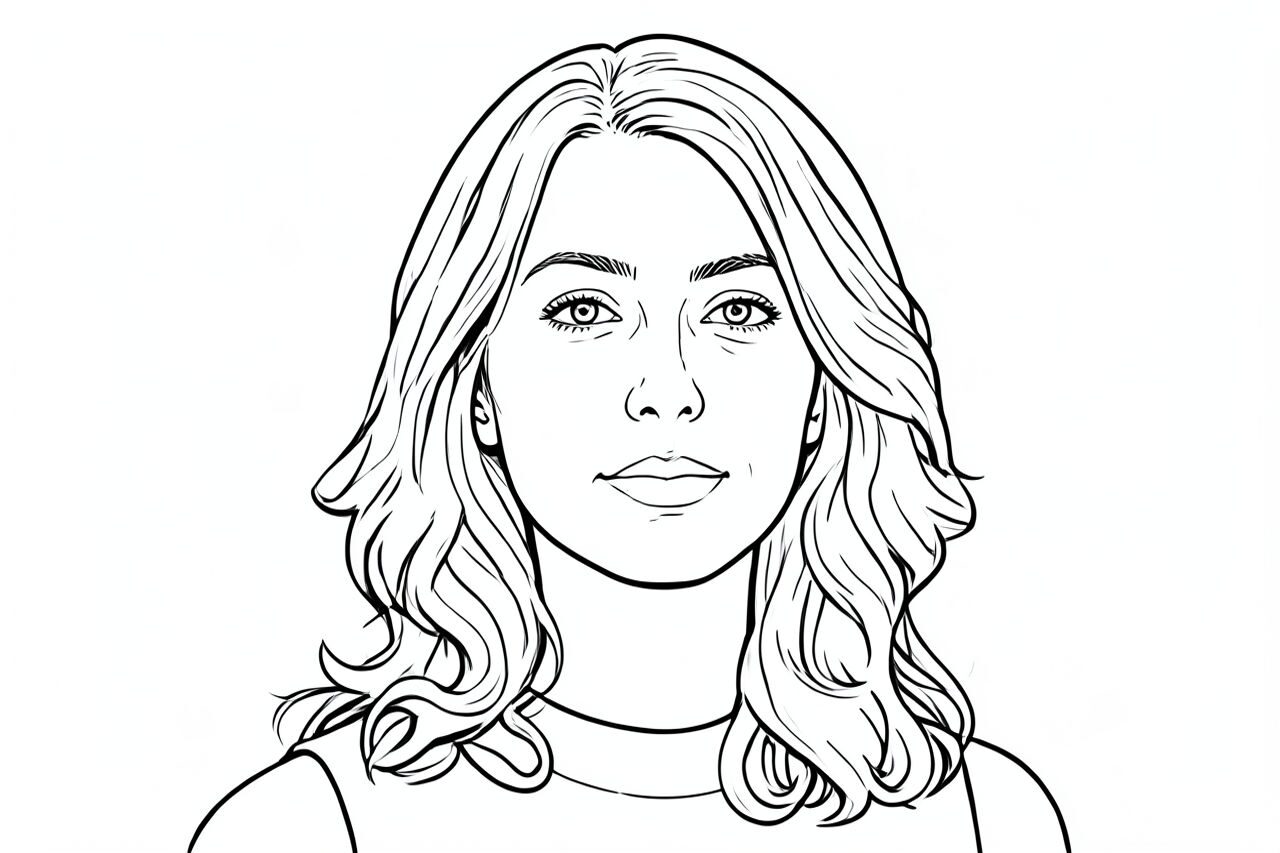
เปลี่ยนภาพถ่ายเป็นภาพประกอบที่เน้นเส้นขอบด้วยฟิลเตอร์ภาพลายเส้น AI เหมาะกับภาพบุคคลแบบมินิมอล ไอเดียหน้าระบายสี และภาพอ้างอิงงานออกแบบ โดยภาพที่มีตัวแบบชัด คอนทราสต์ดี และพื้นหลังเรียบมักให้เส้นที่สะอาดกว่า

Use case
ภาพบุคคลแบบเส้นขอบ ไอเดียระบายสี และกราฟิกมินิมอล
Use case
ภาพอ้างอิงสินค้าหรือวัตถุที่รูปทรงสำคัญกว่าสี
Use case
ภาพประกอบคำแนะนำหรือบทบรรณาธิการที่เหมาะกับเส้นเรียบง่าย
Filter preview
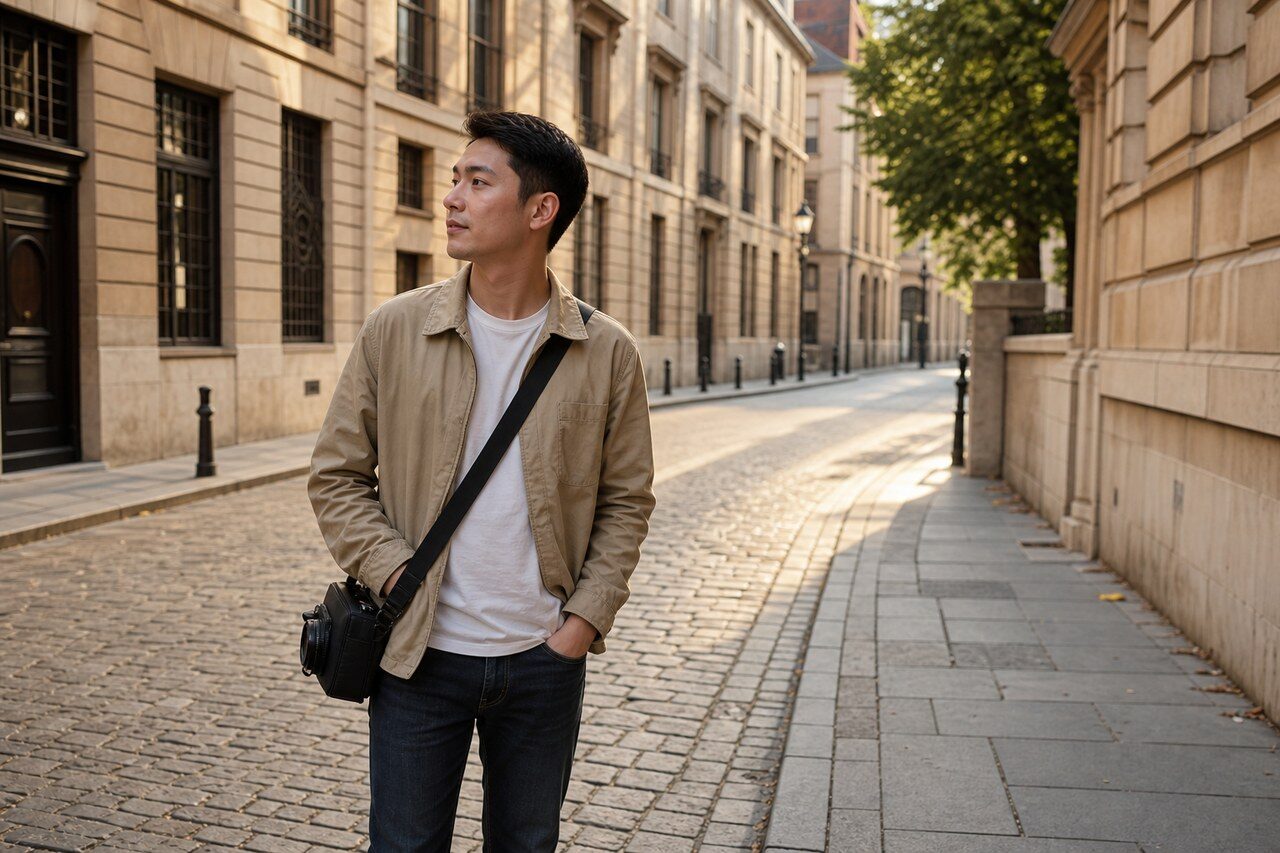
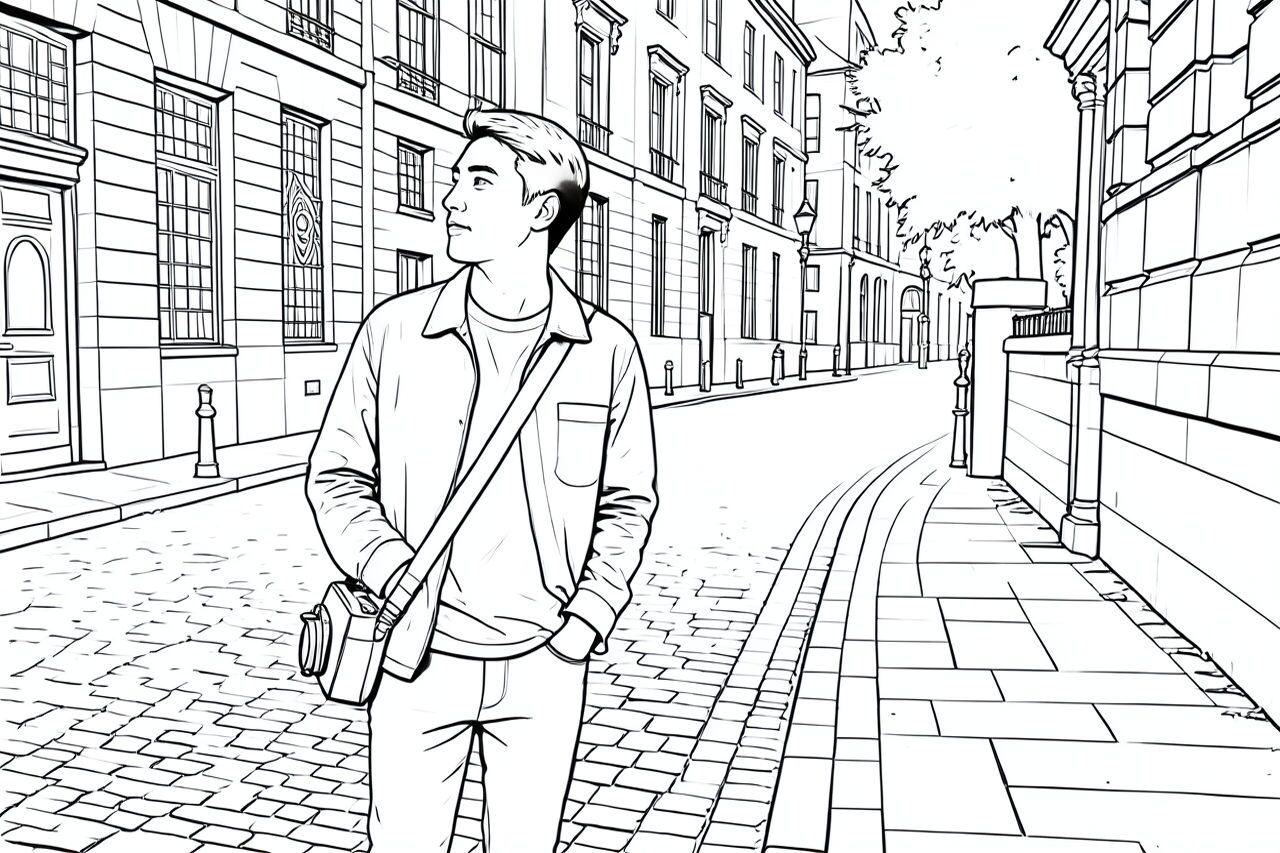
Compare the original photo with the line art result
The example uses a generated source photo and the same filter API path as the app, so users can judge the visual treatment before uploading their own image.
More examples
Test the line art filter on different photo types
Compare portrait, product, and pet examples before opening the filter. Each result uses the same filter API path as the Magic Eraser app.

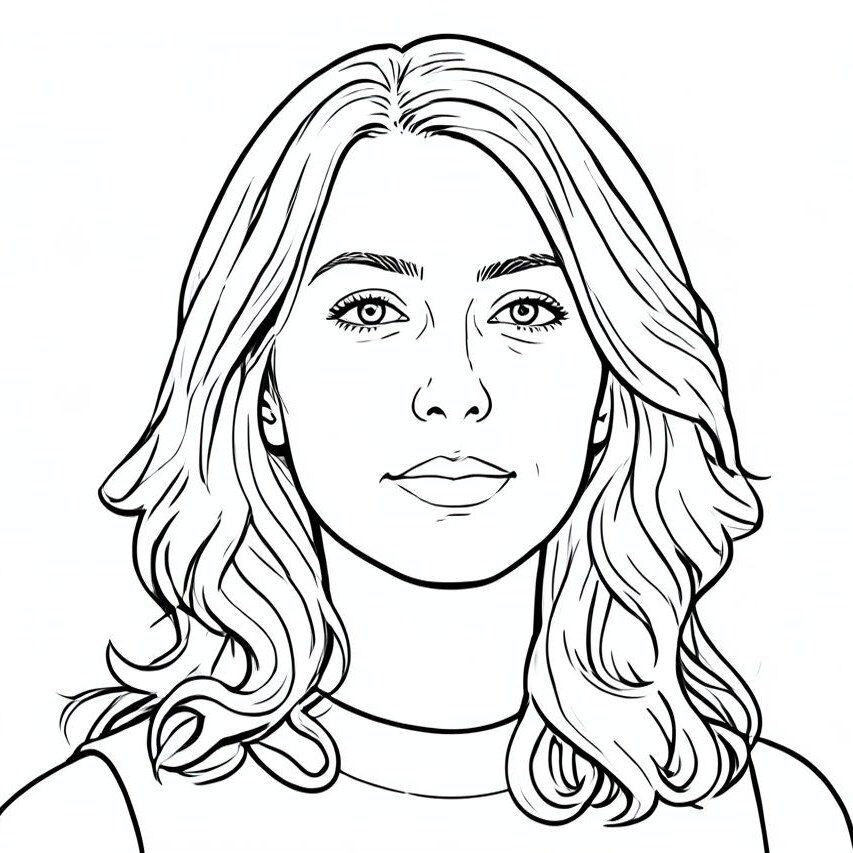
Portrait
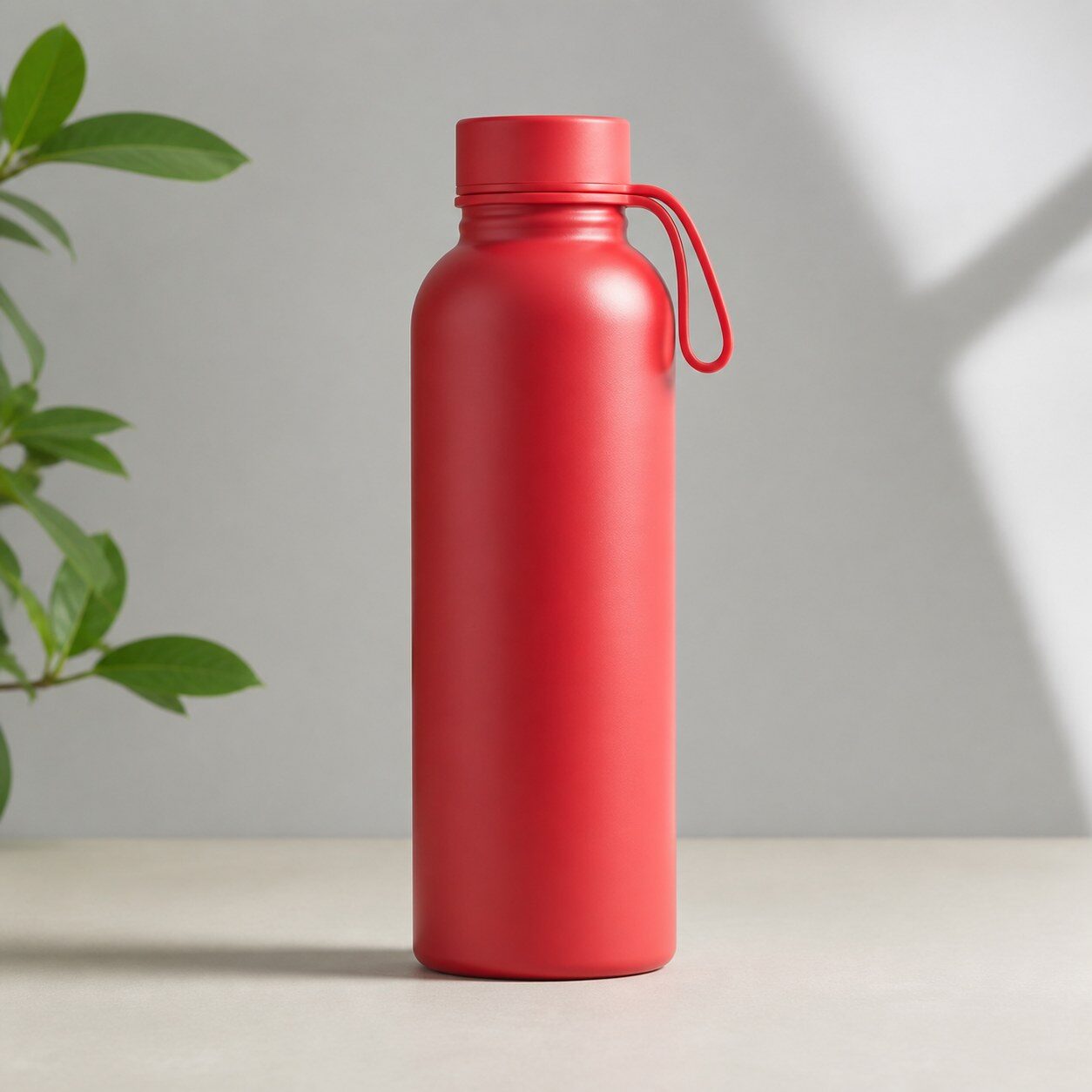
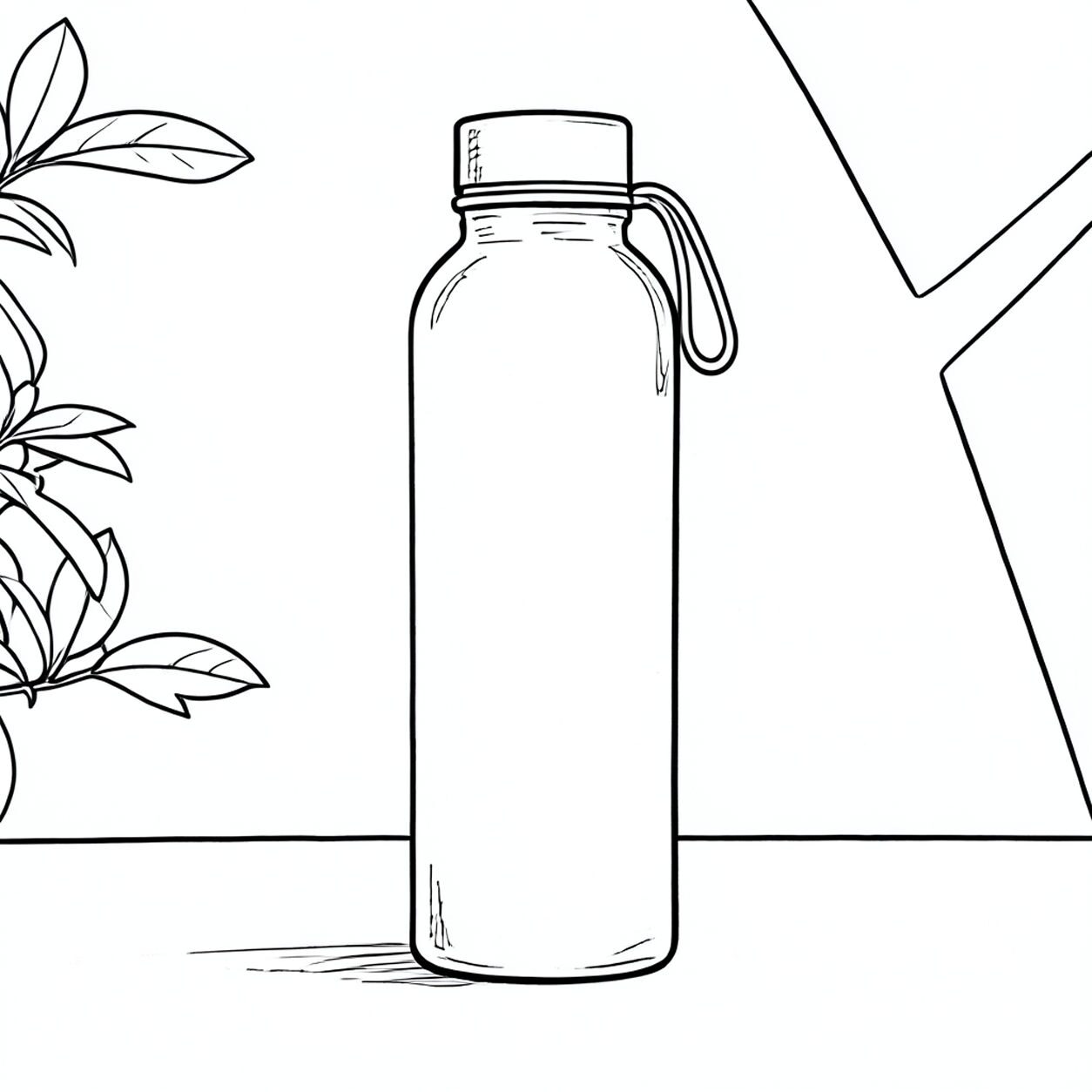
Product

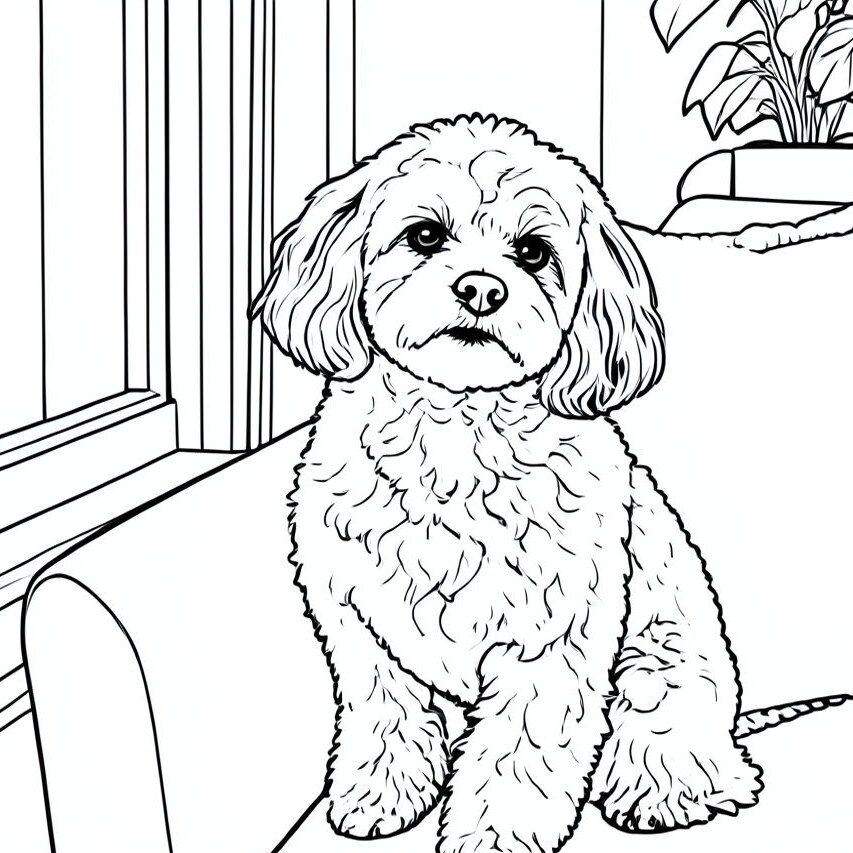
Pet
Photo workflow
How to get a cleaner line art filter result
อัปโหลดภาพคอนทราสต์สูงที่ตัวแบบแยกจากพื้นหลัง
ใช้ฟิลเตอร์แล้วตรวจว่าเส้นขอบสำคัญยังชัดเจน
ลบรอยหรือเส้นพื้นหลังส่วนเกินก่อนส่งออก
Best source photos
- ภาพบุคคล มือ ดอกไม้ สัตว์เลี้ยง และสิ่งของ
- ภาพคอนทราสต์สูงที่มีขอบชัด
- ฉากเรียบง่ายที่ยังเข้าใจได้เมื่อตัดสีออก
Filter tips
- พื้นหลังสีเรียบช่วยให้เส้นขอบสะอาดขึ้น
- หลีกเลี่ยงภาพความละเอียดต่ำที่ขอบมีนอยส์
- ถ่ายวัตถุจากด้านหน้าตรงเมื่อทำได้
Before upload checklist
- Use the largest clean version of the photo, not a compressed screenshot or reposted image.
- Crop loosely before filtering so the AI has enough room around the subject.
- Remove obvious distractions first if they sit directly on the face, product, or main subject.
- Check the result at the size where it will be used: profile image, feed post, story, thumbnail, or banner.
When this filter is a good fit
Choose the line art filter when the original photo already has a clear subject and the goal is a recognizable stylized version, not a fully new generated scene. It is strongest for social, creator, profile, event, and campaign images where mood matters more than documentary accuracy.
Use a different workflow when the image needs exact product color, legal documentation, medical accuracy, or unmodified identity details. In those cases, use cleanup, crop, enhancement, or background tools instead of a heavy creative filter.
Free browser tools after filtering
FAQ
What should I upload?
Use a clear photo with one main subject. Strong lighting and simple backgrounds usually make the AI filter easier to control.
Can I keep editing after the filter?
Yes. After applying the filter, use Magic Eraser to crop, clean distractions, refine backgrounds, and export the final image.
Is this filter selected automatically?
The CTA opens AI Filter with the line art style parameter, and the app falls back safely if the filter changes.