
AI Filter style
ฟิลเตอร์ภาพถ่าย AI ห้องสมุด
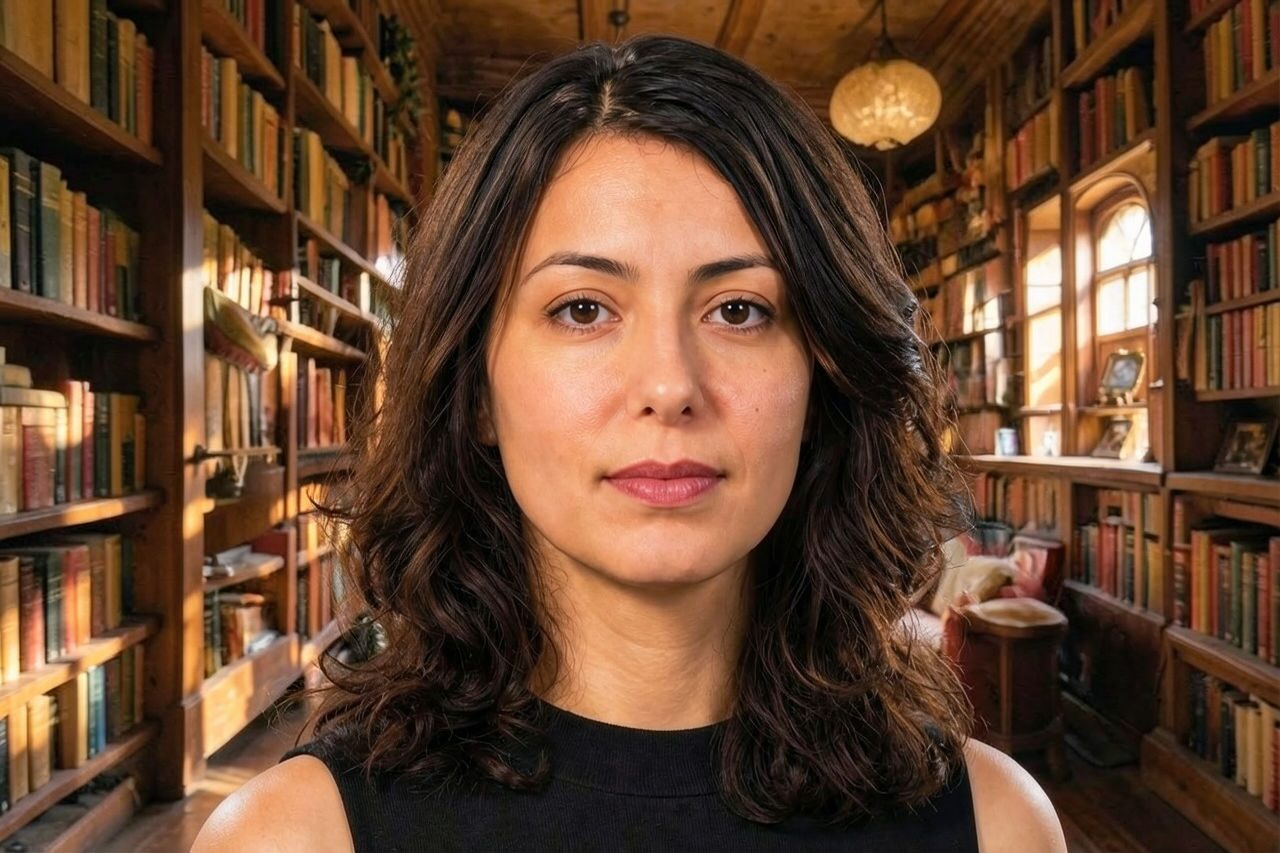
เปลี่ยนภาพบุคคล สัตว์เลี้ยง หรือไลฟ์สไตล์ให้เป็นฉากที่ได้แรงบันดาลใจจากห้องสมุด พร้อมชั้นหนังสือ แสงอบอุ่น และบรรยากาศชวนเรียนรู้ ดูตัวอย่างการตีความเชิงสร้างสรรค์ ตรวจสอบใบหน้าและรายละเอียดหนังสือ แล้วครอปหรือเก็บงานก่อนส่งออก

Use case
ภาพบุคคลและโปรไฟล์ในบรรยากาศเชิงวิชาการหรือวรรณกรรม
Use case
ภาพสัตว์เลี้ยงและไลฟ์สไตล์ในมุมอ่านหนังสือแสนสบาย
Use case
โพสต์ชมรมหนังสือ บัตรเชิญ และแนวคิดงานบรรณาธิการ

Filter preview
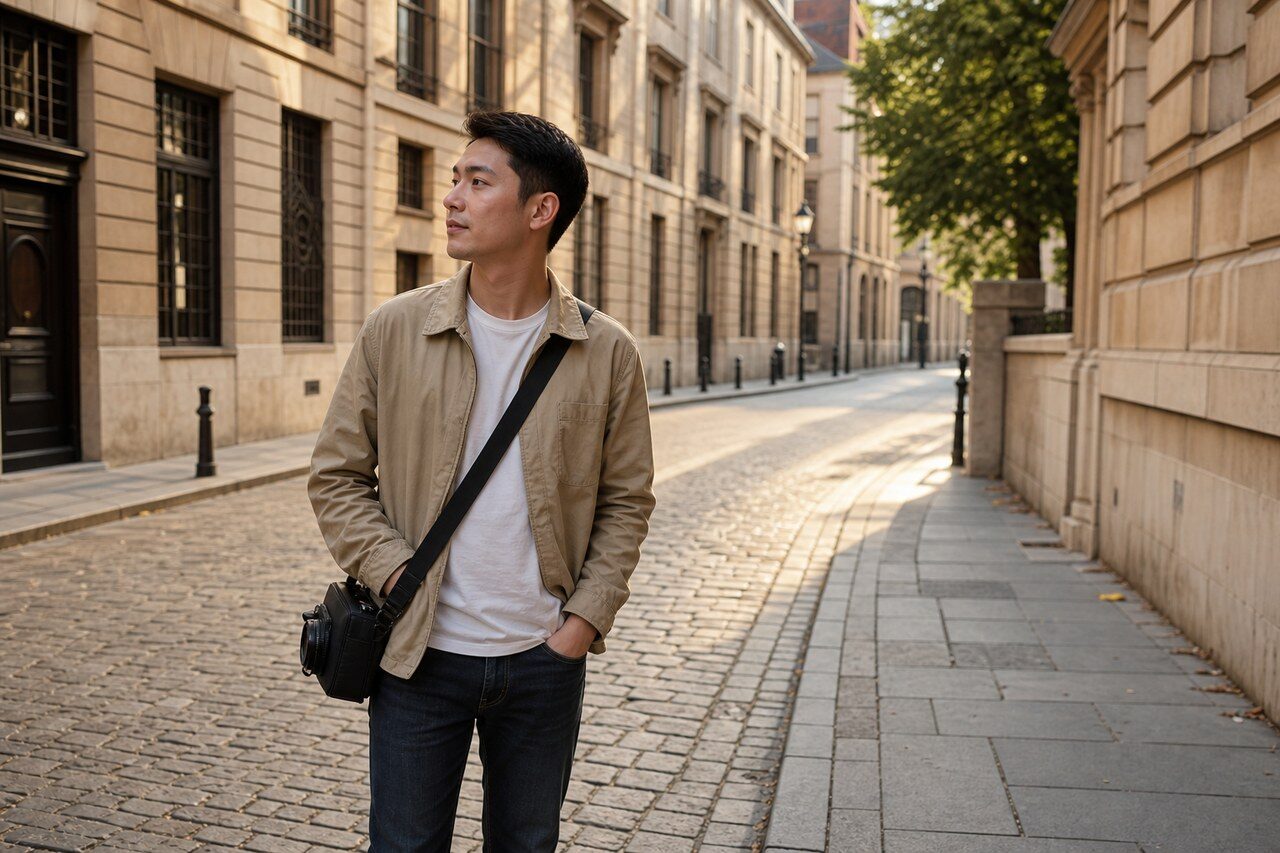
Compare the original photo with the library result
The example uses a generated source photo and the same filter API path as the app, so users can judge the visual treatment before uploading their own image.
More examples
Test the library filter on different photo types
Compare portrait, product, and pet examples before opening the filter. Each result uses the same filter API path as the Magic Eraser app.


Portrait
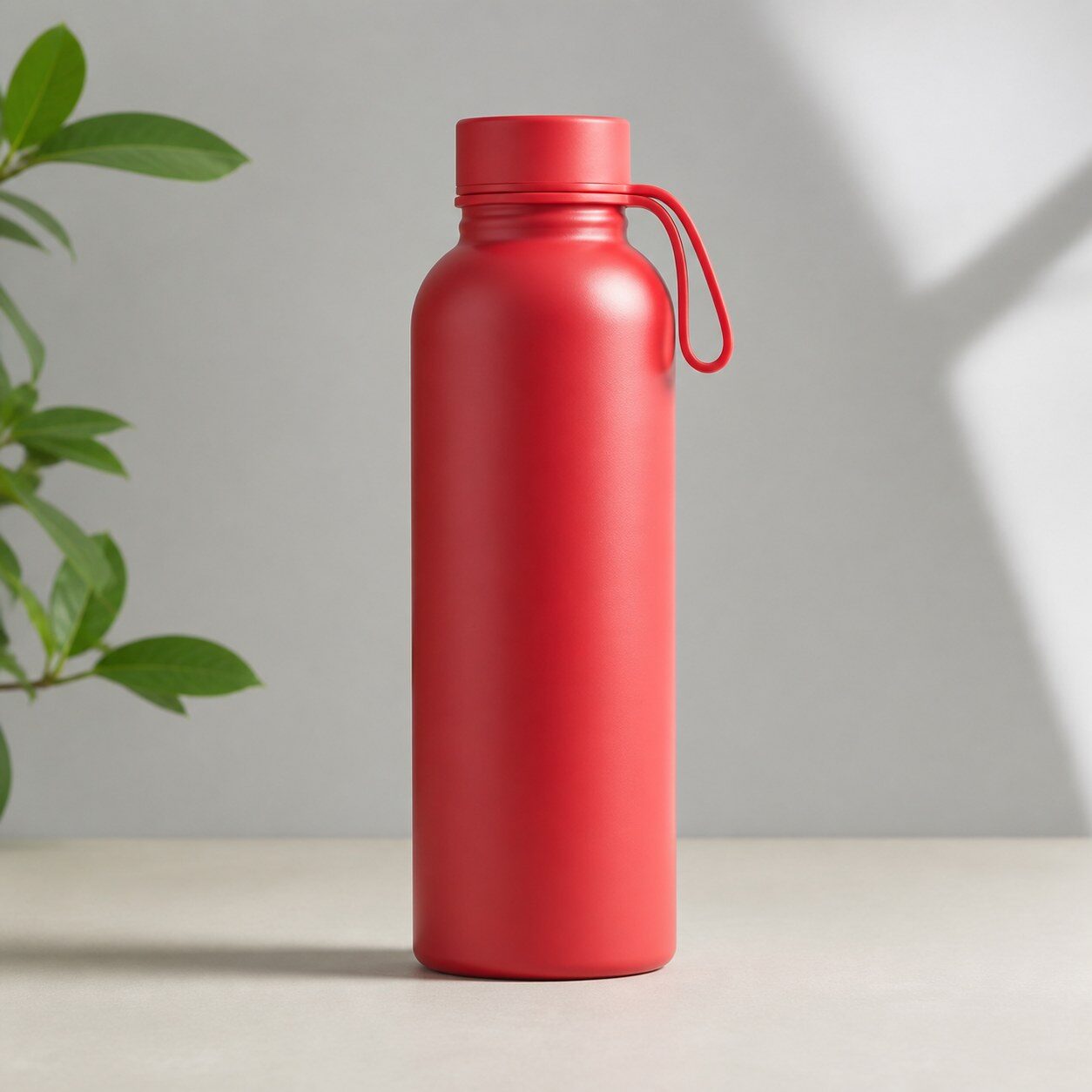
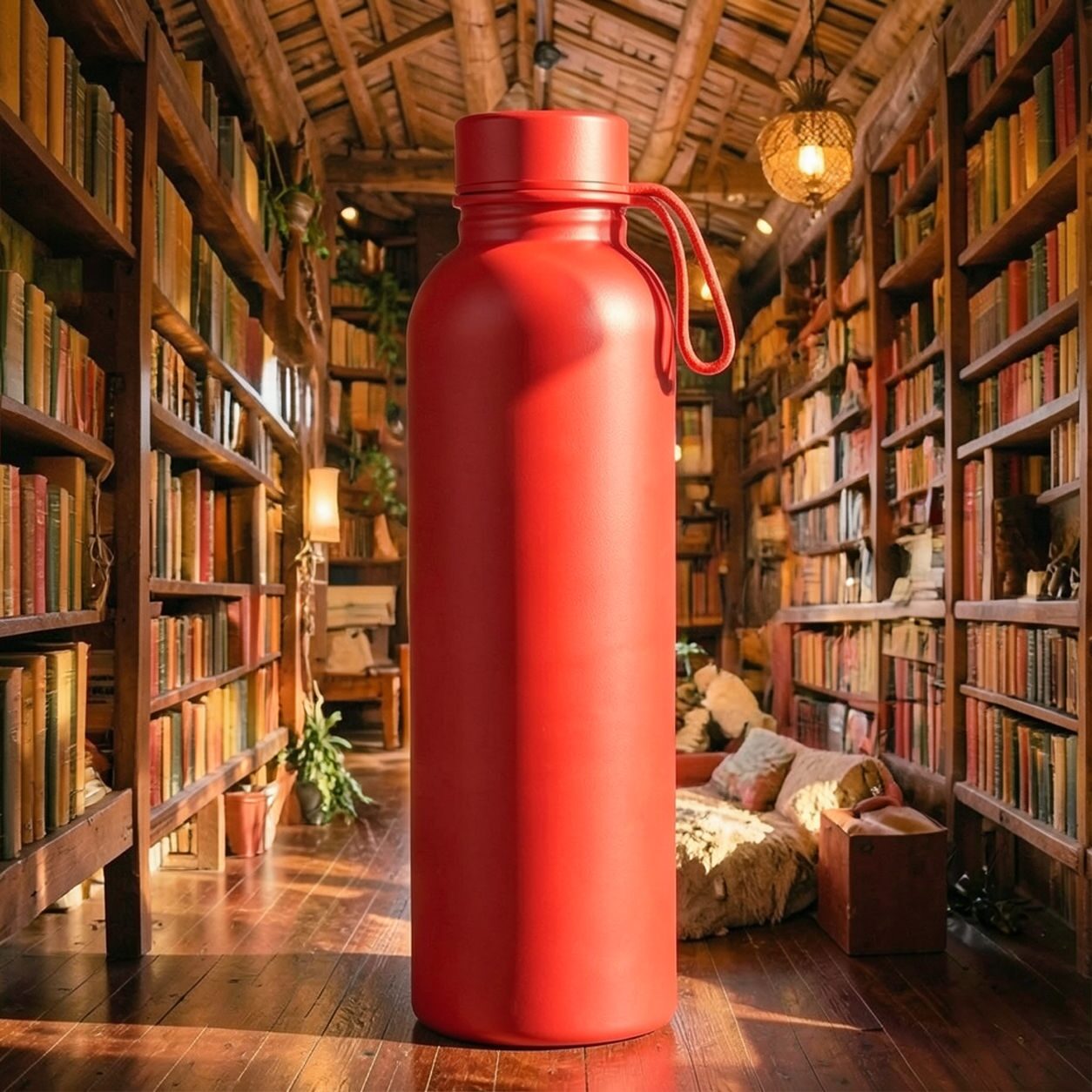
Product


Pet
Photo workflow
How to get a cleaner library filter result
เลือกภาพคมชัด แสงดี และมีตัวแบบหลักหนึ่งจุด
เปิดฟิลเตอร์ห้องสมุด อัปโหลดภาพ และเปรียบเทียบตัวอย่างกับต้นฉบับ
ตรวจสอบใบหน้า มือ ขอบชั้นหนังสือ และตัวอักษรที่สร้างขึ้นก่อนส่งออก
Best source photos
- ภาพบุคคลเดี่ยวและภาพโปรไฟล์
- ภาพสัตว์เลี้ยงและไลฟ์สไตล์สบาย ๆ
- ภาพที่มีตัวแบบชัดและพื้นที่รอบตัวแบบ
Filter tips
- พื้นหลังเรียบช่วยเว้นพื้นที่ให้รายละเอียดห้องสมุด
- ชื่อหนังสือที่สร้างขึ้นอาจไม่ถูกต้อง ควรเพิ่มข้อความที่จำเป็นแยกต่างหาก
- ใช้ผลลัพธ์เป็นฉากสร้างสรรค์ ไม่ใช่หลักฐานของสถานที่หรือคอลเล็กชันจริง
Before upload checklist
- Use the largest clean version of the photo, not a compressed screenshot or reposted image.
- Crop loosely before filtering so the AI has enough room around the subject.
- Remove obvious distractions first if they sit directly on the face, product, or main subject.
- Check the result at the size where it will be used: profile image, feed post, story, thumbnail, or banner.
When this filter is a good fit
Choose the library filter when the original photo already has a clear subject and the goal is a recognizable stylized version, not a fully new generated scene. It is strongest for social, creator, profile, event, and campaign images where mood matters more than documentary accuracy.
Use a different workflow when the image needs exact product color, legal documentation, medical accuracy, or unmodified identity details. In those cases, use cleanup, crop, enhancement, or background tools instead of a heavy creative filter.
Free browser tools after filtering
FAQ
What should I upload?
Use a clear photo with one main subject. Strong lighting and simple backgrounds usually make the AI filter easier to control.
Can I keep editing after the filter?
Yes. After applying the filter, use Magic Eraser to crop, clean distractions, refine backgrounds, and export the final image.
Is this filter selected automatically?
The CTA opens AI Filter with the library style parameter, and the app falls back safely if the filter changes.