
AI Create style
เครื่องสร้างภาพลายเส้นด้วย AI
สร้างภาพลายเส้นจากข้อความสำหรับไอคอน แนวคิดรอยสัก หน้าระบายสี ลวดลายบรรจุภัณฑ์ และภาพประกอบ โดยระบุความหนาของเส้น ระดับรายละเอียด และรูปแบบมินิมอล ตกแต่ง เชิงเทคนิค หรือวาดมือ
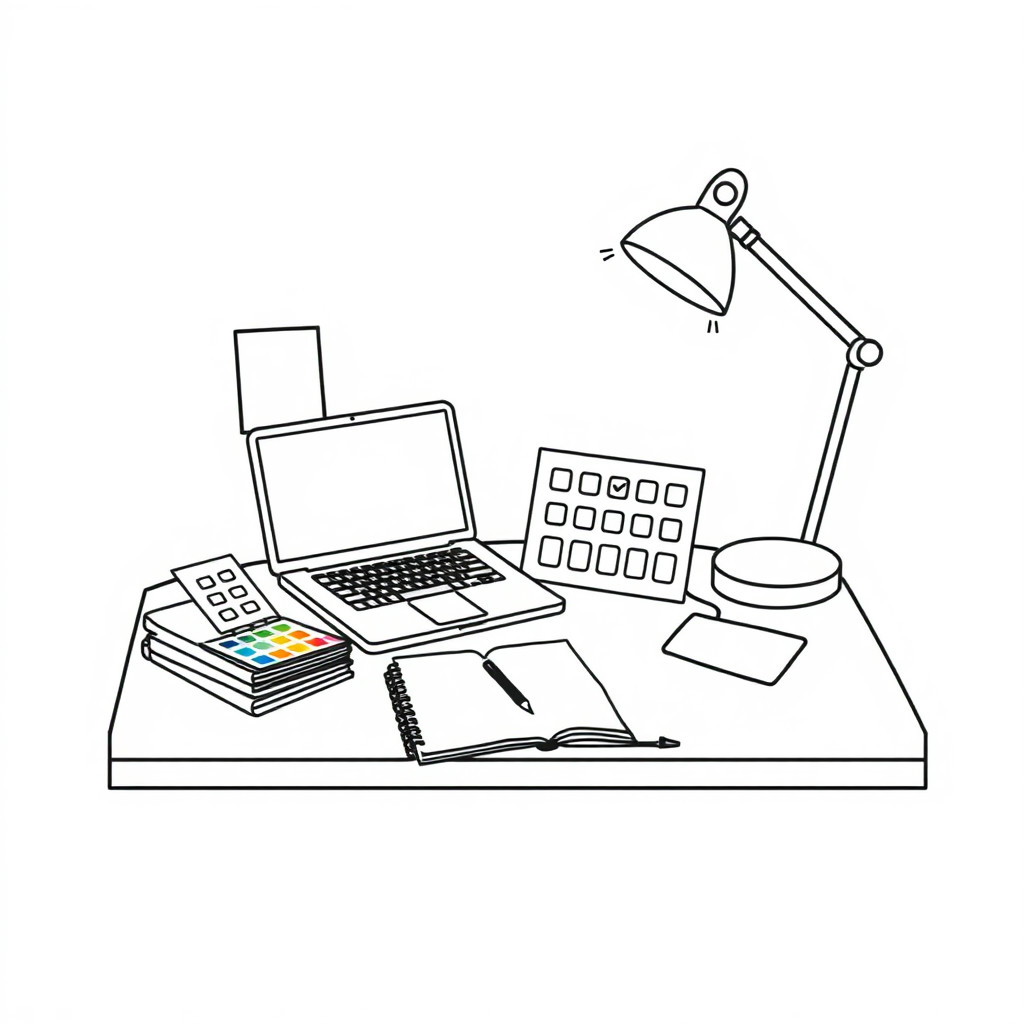
Use case
ภาพประกอบแบรนด์ กราฟิกคำแนะนำ ไอคอน และลวดลายบรรจุภัณฑ์
Use case
แบบอ้างอิงรอยสัก ไอเดียหน้าระบายสี และภาพโครงร่างสำหรับพิมพ์
Use case
ภาพประกอบที่เน้นรูปทรงและพื้นที่ว่าง
Visual direction preview
Use the style thumbnail as the creative target
The preview gives users a concrete reference for color, texture, edge detail, and mood before they open the generator. Pair it with the prompt starters below to keep the page useful instead of only decorative.
Generated examples
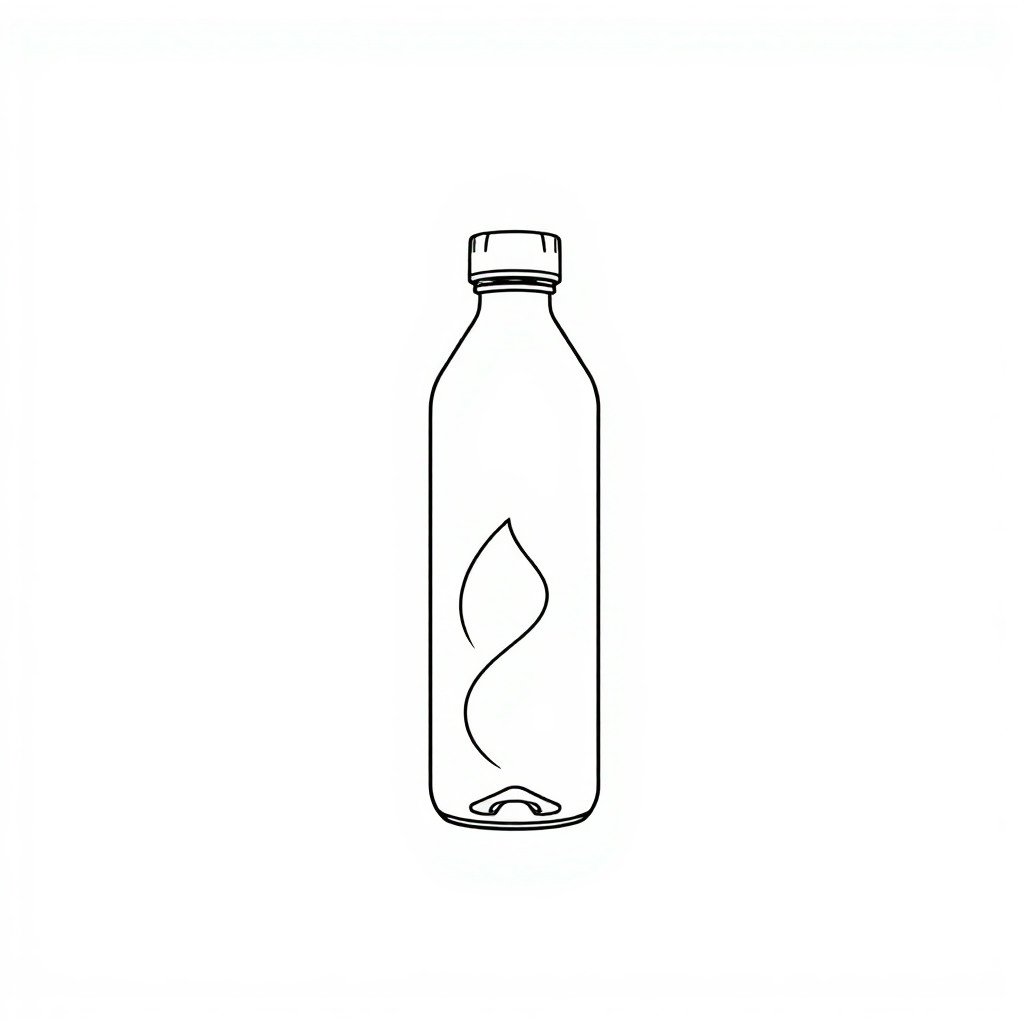
See the ลายเส้น style in real outputs
These examples were generated through the Magic Eraser AI Create API with the ลายเส้น style selected.
Prompt workflow
How to get a stronger ลายเส้น result
อธิบายตัวแบบและเลือกเส้นบาง หนา ต่อเนื่อง เรขาคณิต ออร์แกนิก หรือแบบสเก็ตช์
สร้างหลายแบบเพื่อเทียบสมดุล ความสมมาตร และพื้นที่ว่าง
เก็บรายละเอียดและครอปภาพ แล้วเพิ่มสีหรือข้อความภายหลังเมื่อต้องการควบคุมเลย์เอาต์
Prompt starters
- “ภาพลายเส้นมินิมอลของมือที่ถือดอกไม้ เส้นต่อเนื่อง พื้นหลังเรียบ”
- “ภาพลายเส้นพฤกษศาสตร์ของโรสแมรีและไทม์ หมึกดำสำหรับพิมพ์”
- “ตราภูเขาลายเส้นเรขาคณิต สมมาตร ไม่มีข้อความ แบบเวกเตอร์สะอาด”
Style tips
- ใช้ตัวแบบน้อยชิ้นเพื่อให้เส้นสะอาด
- ระบุพื้นหลังเรียบเพื่อให้นำกลับมาใช้ได้ง่าย
- สำหรับงานพิมพ์ ให้ขอความต่างชัดสูงและขอบคมชัด
Output planning checklist
- Decide the final placement before prompting: square post, vertical story, product insert, poster, thumbnail, or wide banner.
- Keep one primary subject and one visual mood so the ลายเส้น style has a clear job.
- Describe the background as simple, detailed, bright, dark, studio, outdoor, or textured instead of leaving it open-ended.
- Generate variations first, then edit the selected image for crop, cleanup, and export size.
When to choose this style
Choose ลายเส้น when the image needs a clear creative direction before production: an ad concept, a social visual, a character idea, a packaging mood, or a fast design draft. Choose another style if the final asset must look like a camera photo, preserve exact product color, or include precise typography.
For commercial work, treat the generated image as a starting point. Review details, remove distracting artifacts, add exact text separately, and export the final size from the editor.
FAQ
Can I edit the generated image?
Yes. Generate the image, then continue with cleanup, crop, background, and export tools in Magic Eraser.
Should I include exact text?
Use AI Create for the visual direction. Add exact text later with editable design tools for cleaner spelling and layout.
Is this style selected automatically?
The CTA opens AI Create with the ลายเส้น style parameter, and the app falls back safely if the option changes.