
วิธีปรับขนาดภาพถ่ายสำหรับโซเชียลมีเดีย
ปรับรูปภาพให้มีขนาดที่แน่นอนซึ่งแต่ละแพลตฟอร์มโซเชียลมีเดียต้องการ โดยไม่ต้องครอบตัดเนื้อหาที่สำคัญ เครื่องมือขยาย AI ของ Magic Eraser ขยายผืนผ้าใบรูปภาพของคุณและสร้างเนื้อหาพื้นหลังที่ตรงกัน แปลงภาพถ่ายแนวนอนเป็นโพสต์ Instagram สี่เหลี่ยมจัตุรัส หรือถ่ายภาพบุคคลเป็นภาพขนาดย่อของ YouTube ในขณะที่ยังคงองค์ประกอบดั้งเดิมทั้งหมดไว้ครบถ้วน
Last updated
ปรับขนาดรูปภาพตอนนี้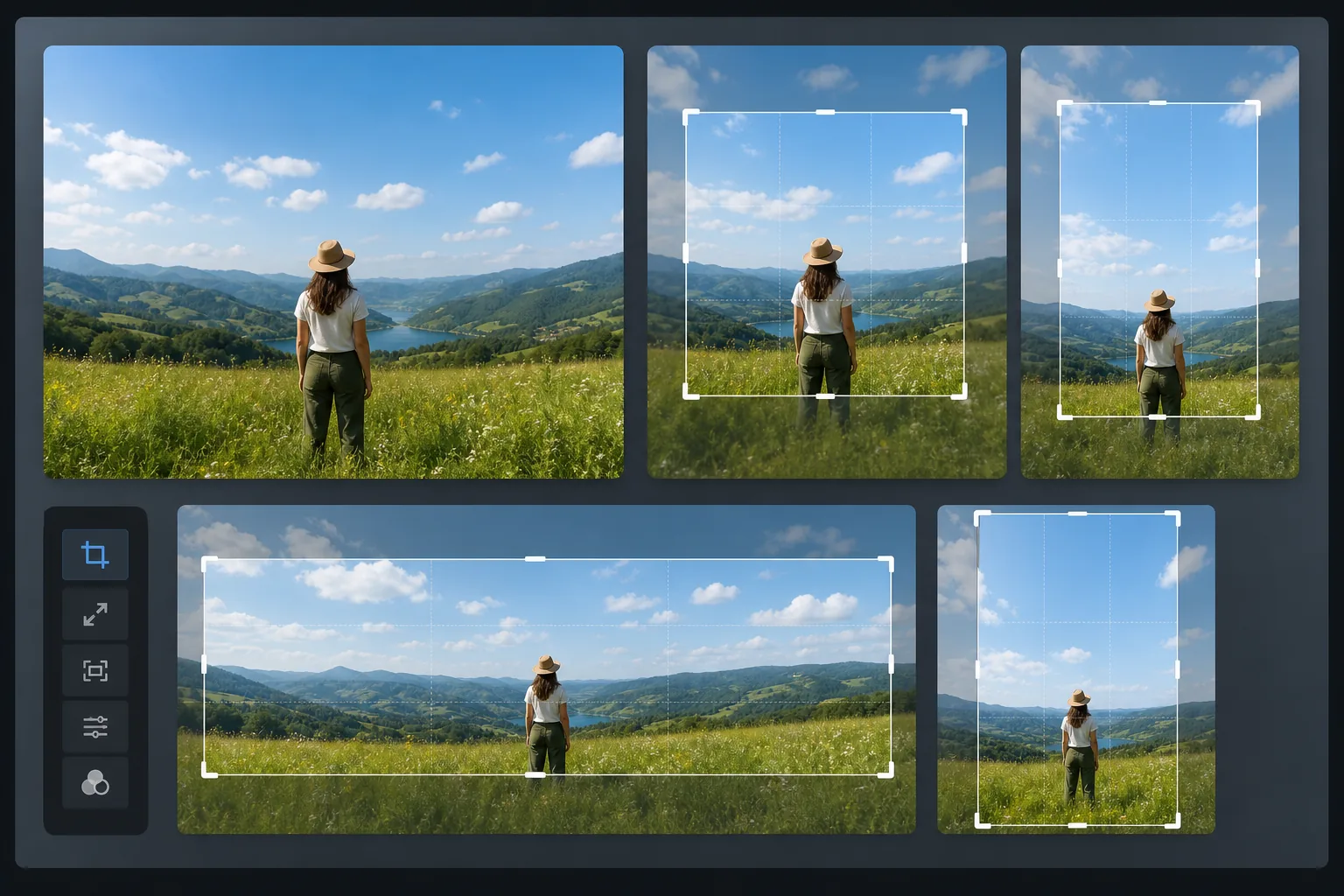
วิธีปรับขนาดรูปภาพสำหรับโซเชียลมีเดีย
วิธีปรับขนาดรูปสำหรับโซเชียลมีเดีย ให้เปิด Magic Eraser บนเว็บ iOS หรือ Android เลือก AI Expand อัปโหลดรูป เลือกสัดส่วนที่ต้องการ (1:1 สำหรับโพสต์ Instagram, 9:16 สำหรับ Stories, 16:9 สำหรับ thumbnail บน YouTube) แล้วปล่อยให้ AI ขยายผืนภาพให้พอดี ใช้งานฟรี ไม่ต้องสมัครสมาชิก แทนที่จะครอปขอบรูปแนวนอนทิ้งเพื่อให้กลายเป็นสี่เหลี่ยมจัตุรัส AI จะสร้างฉากที่กลมกลืนเพิ่มขึ้นมาด้านข้าง ทั้งต่อท้องฟ้า พื้น หรือผนัง ให้องค์ประกอบเดิมทั้งหมดยังอยู่ครบในเฟรม เอ็กซ์พอร์ตที่ความละเอียดตรงตามแต่ละแพลตฟอร์ม เพื่อเลี่ยงการถูกลดขนาดตอนอัปโหลด ทุกแพลตฟอร์มโซเชียลมีเดียมีขนาดที่ต้องการ: โพสต์ฟีด Instagram ที่ 1:1 หรือ 4:5, เรื่องราวที่ 9:16, รูปภาพที่แชร์บน Facebook ที่ 1.91:1, โพสต์ใน LinkedIn ที่ 1.2:1, ปักหมุด Pinterest ที่ 2:3, รูปภาพ Twitter ที่ 16:9, TikTok ครอบคลุมที่ 9:16 และภาพขนาดย่อของ YouTube ที่ 16:9 เมื่อภาพถ่ายของคุณไม่ตรงกับอัตราส่วนเป้าหมาย วิธีการดั้งเดิมคือการครอบตัด โดยตัดขอบออกให้พอดี แต่การครอบตัดจะลบเนื้อหาออกไป: ภูมิทัศน์ที่ครอบตัดเป็นสี่เหลี่ยมจะสูญเสียด้านข้างของฉาก ภาพถ่ายกลุ่มที่ครอบตัดเป็นจอไวด์สกรีนจะสูญเสียบุคคลที่อยู่บริเวณขอบ AI Expand ของ Magic Eraser แก้ปัญหานี้ด้วยการขยายภาพแทนที่จะตัดออก AI สร้างเนื้อหาพื้นหลังใหม่บนขอบที่ตรงกับฉากที่มีอยู่ — ต่อท้องฟ้า ขยายระนาบกราวด์ เพิ่มผนังหรือพื้นผิวโต๊ะ — เพื่อให้พอดีกับขนาดเป้าหมายในขณะที่ยังคงองค์ประกอบดั้งเดิมทั้งหมดไว้
Before you start
ปรับขนาดรูปภาพสำหรับโซเชียลมีเดียในสี่ขั้นตอน
Start with อัพโหลดรูปภาพของคุณ. The result preview above and tips below use this guide's existing content; no separate before-and-after proof is assumed.
- 1
อัพโหลดรูปภาพของคุณ
เปิด Magic Eraser บนเว็บ, iOS หรือ Android แล้วอัปโหลดรูปภาพที่คุณต้องการปรับขนาด เริ่มต้นด้วยเวอร์ชันความละเอียดสูงสุดที่มีอยู่ เครื่องมือนี้ยอมรับ JPEG, PNG, HEIC และ WebP
- 2
เลือกขนาดเป้าหมาย
เลือกอัตราส่วนกว้างยาวสำหรับแพลตฟอร์มเป้าหมายของคุณ: 1:1 สำหรับฟีด Instagram, 4:5 สำหรับภาพบุคคลใน Instagram, 9:16 สำหรับเรื่องราวและคลิปม้วน, 16:9 สำหรับ YouTube และ Twitter, 2:3 สำหรับ Pinterest หรือป้อนขนาดที่กำหนดเอง เครื่องมือนี้แสดงตัวอย่างว่าผืนผ้าใบที่ขยายจะมีลักษณะอย่างไรรอบๆ รูปภาพต้นฉบับของคุณ
- 3
ขยายธุรกิจด้วย AI
AI วิเคราะห์เนื้อหาที่ขอบแต่ละด้านของภาพของคุณ และสร้างเนื้อหาต่อเนื่องที่ราบรื่น ท้องฟ้าขยายออกไปด้วยการไล่ระดับสีและรูปแบบเมฆที่เข้ากัน พื้นผิวพื้นดินดำเนินต่อไปด้วยพื้นผิวและเปอร์สเปคทีฟที่ตรงกัน พื้นหลังภายในขยายออกไปด้วยสีผนังและแสงที่สม่ำเสมอ เนื้อหารูปภาพต้นฉบับยังคงไม่ถูกแตะต้องที่กึ่งกลางของผืนผ้าใบที่ขยาย
- 4
ตรวจสอบและส่งออก
ตรวจสอบขอบที่ขยายเมื่อซูม 100% เพื่อตรวจสอบการผสมผสานที่ราบรื่นระหว่างเนื้อหาต้นฉบับและเนื้อหาที่สร้างขึ้น หากขอบด้านใดดูไม่สอดคล้องกัน ให้ส่งผ่านครั้งที่สองตามเป้าหมายที่ด้านนั้น ส่งออกที่ความละเอียดเฉพาะแพลตฟอร์ม: 1080×1080 สำหรับฟีด Instagram, 1080×1920 สำหรับเรื่องราว, 1200×628 สำหรับลิงก์ Facebook, 1280×720 สำหรับภาพขนาดย่อของ YouTube บันทึกหลายเวอร์ชันสำหรับแพลตฟอร์มที่แตกต่างกันจากรูปภาพที่ขยายเดียวกัน
ดีที่สุดสำหรับ
- ผู้จัดการโซเชียลมีเดียที่ต้องการเผยแพร่รูปภาพเดียวกันบนแพลตฟอร์มที่มีมิติต่างกัน
- ผู้สร้างเนื้อหา Instagram แปลงภาพถ่ายแนวนอนเป็นรูปแบบสี่เหลี่ยมจัตุรัสหรือแนวตั้ง
- ผู้สร้าง YouTube สร้างภาพขนาดย่อ 16:9 จากภาพถ่ายแนวตั้ง
- นักการตลาด Pinterest ที่ต้องการพินสูง 2:3 จากภาพถ่ายทิวทัศน์มาตรฐาน
- ตัวแทนอสังหาริมทรัพย์ปรับรูปถ่ายรายการสำหรับแพลตฟอร์มโซเชียลต่างๆ
- ผู้ขายอีคอมเมิร์ซสร้างภาพผลิตภัณฑ์ที่สอดคล้องกันในตลาดและช่องทางโซเชียล
- ช่างภาพเหตุการณ์ที่ส่งมอบเวอร์ชันเฉพาะแพลตฟอร์มจากการถ่ายภาพครั้งเดียว
- ทีมการตลาดรักษาความสอดคล้องของภาพในแคมเปญหลายแพลตฟอร์ม
เคล็ดลับในการปรับขนาดโซเชียลมีเดียอย่างมีประสิทธิภาพ
เริ่มต้นด้วยรูปภาพต้นฉบับที่กว้างที่สุดเท่าที่จะเป็นไปได้ — การขยายจำนวนเล็กน้อยในแต่ละด้านจะง่ายกว่าการสร้างเนื้อหาใหม่ในพื้นที่ขนาดใหญ่ รักษาวัตถุให้อยู่กึ่งกลางในองค์ประกอบดั้งเดิม ดังนั้น AI จะต้องสร้างเฉพาะพื้นหลัง ไม่ใช่พื้นหน้าหรือเนื้อหาวัตถุ สำหรับการถ่ายภาพบุคคลและภาพถ่ายผลิตภัณฑ์บนพื้นหลังที่เหมือนกัน การขยาย AI จะให้ผลลัพธ์ที่เกือบจะสมบูรณ์แบบ เนื่องจากรูปแบบพื้นหลังนั้นเรียบง่ายและคาดเดาได้ สำหรับฉากที่ซับซ้อน (ถนนที่พลุกพล่าน การตกแต่งภายในที่มีรายละเอียด ทิวทัศน์ที่มีองค์ประกอบที่แตกต่างกันมากมาย) ให้ตรวจสอบขอบที่ขยายออกอย่างระมัดระวัง และดำเนินการผ่านครั้งที่สองหากจำเป็น เมื่อสร้างแพลตฟอร์มหลายเวอร์ชัน ให้ทำงานจากอัตราส่วนภาพที่ใหญ่ที่สุดไปหาน้อยที่สุด โดยขยายแนวนอนเป็น 16:9 ก่อน จากนั้นจึงขยายเป็น 1:1 จากนั้นเป็น 9:16 ส่วนขยายแต่ละรายการจะเพิ่มบริบทที่ช่วยในส่วนขยายถัดไป บันทึกแต่ละเวอร์ชันตามความละเอียดที่แนะนำของแพลตฟอร์มเพื่อหลีกเลี่ยงการลดขนาดอาร์ติแฟกต์เมื่อแพลตฟอร์มประมวลผลการอัปโหลดของคุณ
คำถามที่พบบ่อย
- ปรับขนาดรูปภาพสำหรับโซเชียลมีเดียได้ฟรีหรือไม่
- ใช่. เทียร์ฟรีของ Magic Eraser มีฟังก์ชัน AI Expand พร้อมขีดจำกัดการใช้งานรายวัน พรีเมียม ($29.99/ปี) ให้การใช้งานไม่จำกัดและการส่งออกที่มีความละเอียดสูงกว่าสำหรับเวิร์กโฟลว์เนื้อหาระดับมืออาชีพ
- มันแค่ยืดภาพเหรอ?
- ไม่ AI Expand สร้างเนื้อหาใหม่อย่างแท้จริงที่สานต่อฉากที่มีอยู่ ไม่เหมือนกับการยืดหรือการปรับขนาด รูปภาพต้นฉบับจะคงอยู่ที่ความละเอียดและความคมชัดดั้งเดิม เฉพาะขอบที่เพิ่มใหม่เท่านั้นที่มีเนื้อหาที่สร้างโดย AI
- ขนาดที่แนะนำสำหรับแต่ละแพลตฟอร์มคือเท่าใด
- ฟีด Instagram: 1080×1080 (1:1) หรือ 1080×1350 (4:5) เรื่องราวและวงล้อ: 1080 × 1920 (9:16) เฟสบุ๊ค: 1200×630 (1.91:1) ทวิตเตอร์: 1600×900 (16:9) ลิงค์อิน: 1200×627 (1.91:1) Pinterest: 1,000×1500 (2:3) ภาพขนาดย่อของ YouTube: 1280×720 (16:9)
- ฉันสามารถขยายไปในทิศทางเดียวเท่านั้นได้หรือไม่?
- ใช่. หากรูปภาพของคุณมีความสูงที่เหมาะสมสำหรับเรื่องราวแต่แคบเกินไป คุณสามารถขยายได้เฉพาะด้านซ้ายและด้านขวาเท่านั้น AI สร้างเนื้อหาที่ตรงกันในด้านที่ขยายออกโดยปล่อยให้ด้านบนและด้านล่างไม่เปลี่ยนแปลง
- ปรับขนาดรูปสำหรับโซเชียลมีเดียบนมือถือยังไง?
- เปิด Magic Eraser ในเบราว์เซอร์มือถือใดก็ได้ หรือในแอป iOS หรือ Android โหลดรูปจากคลังภาพ เลือก AI Expand แล้วเลือกสัดส่วนของแพลตฟอร์ม ทั้งสี่เหลี่ยมจัตุรัส 9:16 หรือ 16:9 AI จะปรับผืนภาพให้พอดีกับขนาดนั้นบนมือถือของคุณ แล้วบันทึกรูปที่ปรับขนาดแล้วกลับเข้าคลังภาพให้เลย พร้อมโพสต์ทันที ใช้งานได้เหมือนเวอร์ชันเดสก์ท็อปทุกอย่าง ไม่ต้องติดตั้งแอปถ้าใช้ผ่านเบราว์เซอร์ คุณจึงปรับฟอร์แมตรูปสำหรับ Stories หรือโพสต์ในฟีดได้ทันทีก่อนอัปโหลด