
วิธีลบพื้นหลังออกจากเซลฟี่
เปลี่ยนภาพเซลฟี่ให้กลายเป็นภาพเฮดช็อตแบบมืออาชีพโดยกำจัดห้องที่รก ร้านกาแฟที่พลุกพล่าน หรือถนนที่พลุกพล่านที่อยู่ด้านหลังคุณออก Background Eraser ของ Magic Eraser แยกคุณออกจากพื้นหลังใดๆ ได้ด้วยการแตะเพียงครั้งเดียว โดยไม่ต้องใช้หน้าจอสีเขียว
Last updated
ลบพื้นหลังเซลฟี่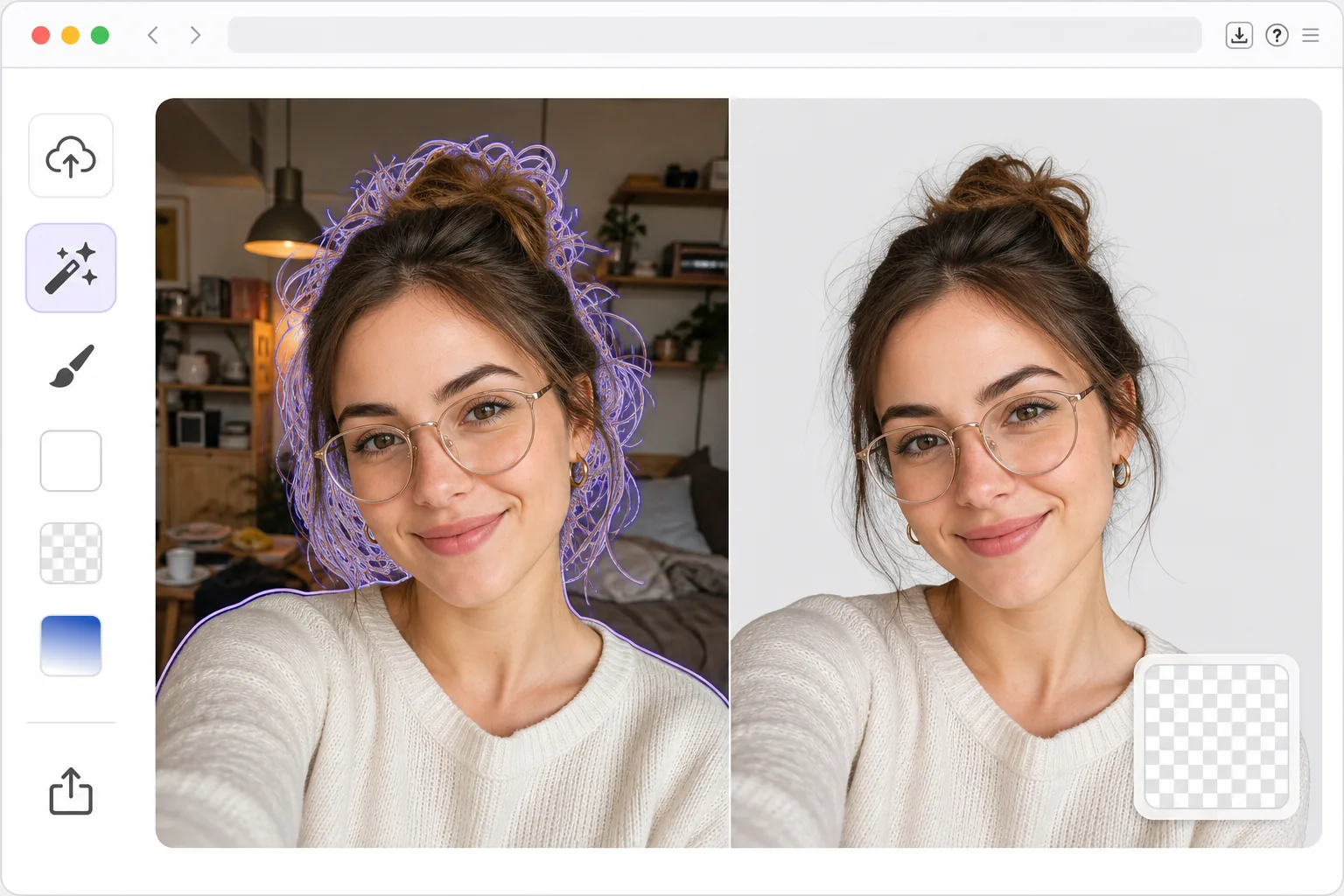
ทำไมพื้นหลังเซลฟี่จึงมีความสำคัญ
พื้นหลังที่เกะกะหรือรบกวนสมาธิอาจบ่อนทำลายแม้กระทั่งภาพเซลฟี่ที่ดีที่สุด ภาพเฮดช็อตแบบมืออาชีพใช้พื้นหลังสตูดิโอที่ได้รับการควบคุมด้วยเหตุผลบางประการ — พื้นหลังที่สะอาดตาจะเน้นไปที่ตัวคุณ แต่คุณไม่สามารถควบคุมสภาพแวดล้อมของคุณได้เสมอไป การลบพื้นหลังด้วย AI จะช่วยแก้ปัญหานี้ได้ด้วยการแยกรูปร่างของคุณออกจากพื้นหลังอย่างแม่นยำ โดยจัดการกับขอบที่ยุ่งยาก เช่น ผมที่ปลิวว่อน แว่นตา และต่างหู ซึ่งจะใช้เวลามากกว่า 20 นาทีในการมาสก์ด้วยตนเองใน Photoshop ผลลัพธ์ที่ได้คือรอยตัดที่ดูสะอาดตาที่คุณสามารถวางบนพื้นหลังใดก็ได้ — สีขาวสำหรับ LinkedIn, การไล่ระดับสีสำหรับโปรไฟล์ที่สร้างสรรค์ หรือโปร่งใสสำหรับการผสมผสานเข้ากับการออกแบบ
Before you start
ลบพื้นหลังเซลฟี่ในสามขั้นตอน
Start with อัปโหลดภาพเซลฟี่ของคุณ. The result preview above and tips below use this guide's existing content; no separate before-and-after proof is assumed.
- 1
อัปโหลดภาพเซลฟี่ของคุณ
เปิด Magic Eraser บนเว็บ, iOS หรือ Android แล้วเลือกเครื่องมือ Background Eraser อัปโหลดภาพเซลฟี่ของคุณ - กล้องหน้า กล้องหลัง โหมดแนวตั้ง หรือปกติ AI ทำงานได้กับทุกคุณภาพและทุกสภาพแสง แม้ว่าภาพถ่ายที่มีแสงสว่างเพียงพอจะสร้างมาสก์ขอบที่สะอาดที่สุดก็ตาม
- 2
ให้ AI ลบพื้นหลัง
AI จะตรวจจับรูปร่างของคุณทันทีและลบทุกสิ่งที่อยู่ข้างหลังคุณ เส้นผม กรอบแว่น และขอบเครื่องประดับจะถูกรักษาไว้ด้วยความแม่นยำระดับย่อยของพิกเซล ผลลัพธ์จะแสดงบนพื้นหลังกระดานหมากรุกโปร่งใส เพื่อให้คุณสามารถตรวจสอบคุณภาพการตัดออกได้
- 3
เลือกพื้นหลังใหม่และส่งออก
คงพื้นหลังโปร่งใสไว้สำหรับงานออกแบบ สลับเป็นสีทึบ (สีขาว สีดำ หรือแบบกำหนดเอง) ใช้การไล่ระดับสี หรืออัปโหลดพื้นหลังทดแทนแบบกำหนดเอง ส่งออกเป็น PNG เพื่อความโปร่งใสหรือ JPEG สำหรับพื้นหลังทึบ ผลลัพธ์มีความละเอียดสูง เหมาะสำหรับการพิมพ์ ไม่ใช่แค่โซเชียลมีเดีย
ดีที่สุดสำหรับ
- ผู้หางานสร้างภาพหน้าตรงแบบมืออาชีพจากการถ่ายเซลฟี่แบบทั่วไปสำหรับ LinkedIn และประวัติย่อ
- ผู้สร้างเนื้อหาที่ต้องการภูมิหลังที่สอดคล้องกันในโปรไฟล์โซเชียลมีเดีย
- พนักงานระยะไกลตั้งค่ารูปโปรไฟล์ระดับมืออาชีพสำหรับ Slack, Zoom และ Teams
- นักเรียนเตรียมรูปถ่ายติดบัตรและรูปถ่ายหน้าแอปพลิเคชันในราคาประหยัด
- นักออกแบบดึงผู้คนออกจากภาพเซลฟี่เพื่อใช้สื่อทางการตลาดและคอมโพสิต
เคล็ดลับเพื่อผลลัพธ์ที่ดีที่สุด
ถ่ายเซลฟี่ในสภาพแสงที่ดีโดยมีความเปรียบต่างระหว่างคุณกับพื้นหลัง — AI จะจัดการคอนทราสต์ต่ำ แต่ขอบที่คมชัดจะให้ภาพตัดที่สะอาดตายิ่งขึ้น หลีกเลี่ยงท่าที่แขนหรือมือยื่นไปด้านหลังศีรษะ เนื่องจากก่อให้เกิดรูปทรงที่ซับซ้อนซ้อนกัน เพื่อให้พื้นหลังทดแทนดูเป็นธรรมชาติที่สุด ให้ปรับทิศทางของแสงให้ตรงกัน: หากใบหน้าของคุณสว่างจากด้านซ้าย ให้เลือกพื้นหลังที่มีแสงใกล้เคียงกัน เมื่อสร้างภาพเฮดช็อตสำหรับการใช้งานระดับมืออาชีพ สีทึบ (สีขาว สีเทาอ่อน หรือสีน้ำเงินกรมท่า) จะอ่านได้เป็นทางการมากกว่าการไล่ระดับสีหรือพื้นหลังที่สวยงาม
คำถามที่พบบ่อย
- มันใช้ได้กับผมยุ่งหรือผมหยิกหรือเปล่า?
- ใช่. AI ใช้การแบ่งส่วนความหมายเพื่อทำความเข้าใจขอบเขตของเส้นผม ไม่ใช่การตรวจจับขอบแบบง่ายๆ มันจัดการผมหยิก ผมเปีย ผม Flyaway และเสียงแฉ่ โดยรักษารูปทรงตามธรรมชาติของทรงผมของคุณในส่วนคัตเอาต์
- ฉันสามารถใช้ผลลัพธ์เป็นภาพเฮดช็อตของ LinkedIn ได้หรือไม่
- อย่างแน่นอน. ส่งออกบนพื้นหลังสีขาวหรือสีเทาอ่อนที่ความละเอียดเต็มเพื่อภาพเฮดช็อตที่ดูเป็นมืออาชีพ คุณภาพจะตรงกับภาพถ่ายบุคคลในสตูดิโอเพื่อการแสดงผลแบบดิจิทัล
- การลบพื้นหลังเซลฟี่ฟรีหรือไม่?
- ใช่. การลบพื้นหลังมีให้ใช้งานในระดับฟรีโดยจำกัดการใช้งานรายวัน พรีเมียมขจัดขีดจำกัดและเปิดใช้งานการประมวลผลแบบกลุ่มสำหรับเซลฟี่หลายตัวในคราวเดียว