
วิธีแก้ไขแสงในภาพถ่าย
ภาพถ่ายกู้ภัยได้รับความเสียหายจากแสงที่ไม่ดี เช่น ภายในที่มืด หน้าต่างที่สว่างจ้า เงาที่รุนแรง อุณหภูมิสีผสม และวัตถุย้อนแสง AI Enhance ของ Magic Eraser วิเคราะห์ฉากและใช้การแก้ไขอัจฉริยะที่คืนรายละเอียดของเงา ลดแสงไฮไลท์ และปรับสมดุลการรับแสงโดยรวม โดยไม่ต้องใช้แถบเลื่อนความสว่างพื้นฐานที่ดูเรียบๆ และผ่านการประมวลผลมากเกินไป
Last updated
ตอนนี้แก้ไขระบบไฟแล้ว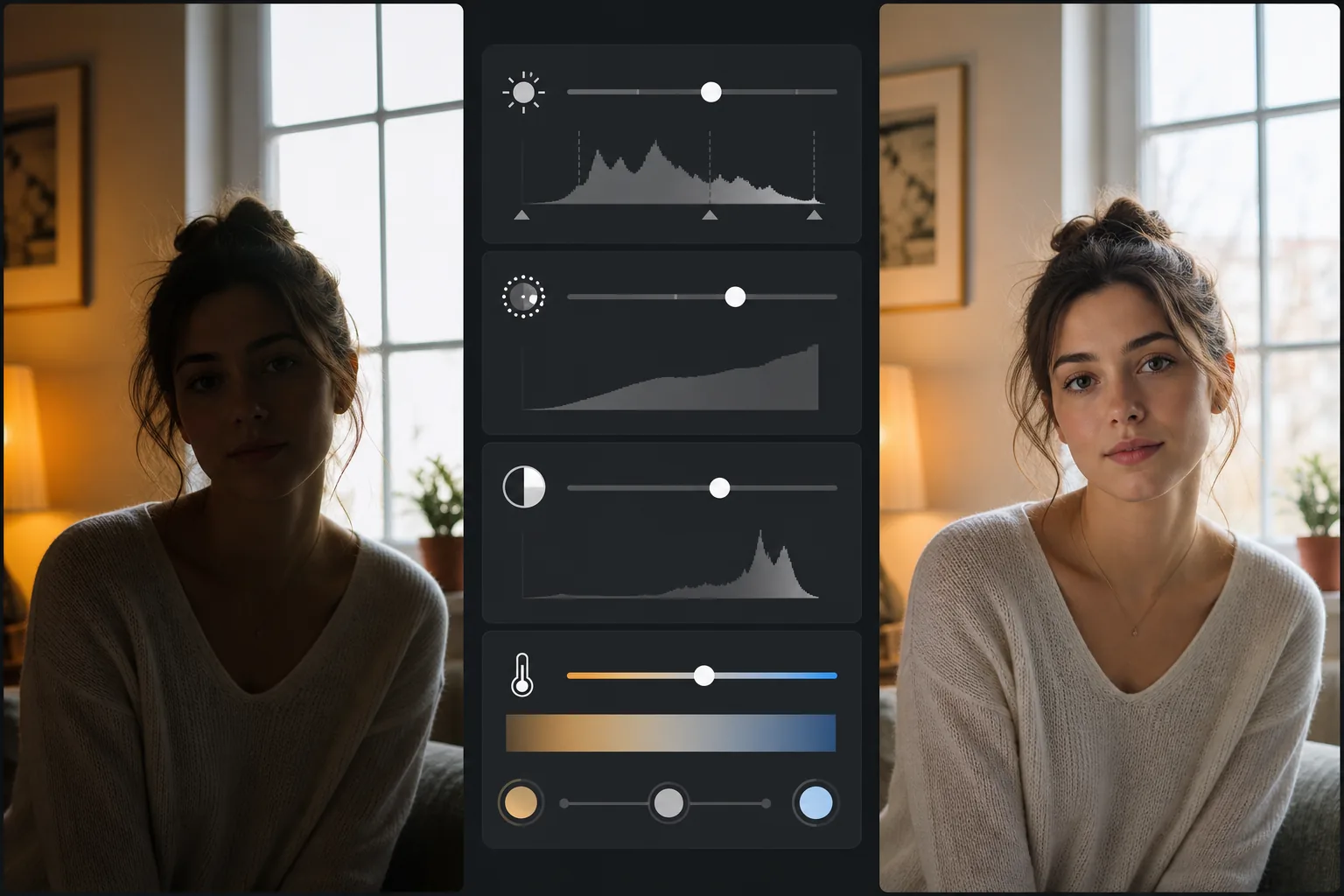
เหตุใดปัญหาระบบแสงสว่างจึงแก้ไขด้วยตนเองได้ยาก
หากต้องการแก้ไขแสงในภาพถ่าย ให้เปิด Magic Eraser บนเว็บ iOS หรือ Android อัปโหลดรูปภาพ แล้วใช้ AI Enhance — มันจะวิเคราะห์ฉากทีละส่วน เพิ่มความสว่างให้เงามืด ปรับแสงไฮไลต์ที่จ้าเกินไปให้พอดี และลบโทนสีที่เพี้ยนออกได้ในขั้นตอนเดียว ใช้งานได้ฟรี ไม่ต้องสมัครสมาชิก เพราะมันทำงานทีละพื้นที่แทนการลากแถบปรับความสว่างทั้งภาพ จึงสามารถดึงฉากหน้าที่มืดให้สว่างขึ้นได้โดยไม่ทำให้หน้าต่างที่สว่างอยู่แล้วขาวโพลน ส่วนจะกู้คืนได้มากแค่ไหนขึ้นอยู่กับภาพต้นฉบับ รายละเอียดที่แค่มืดจะกลับมาได้ดี ในขณะที่บริเวณที่ดำสนิทหรือขาวจนเกินไปแล้วจะไม่มีข้อมูลเหลือให้กู้คืน หากผลลัพธ์ดูแรงเกินไป ให้ลดความเข้มลงเพื่อให้ได้ผลที่เป็นธรรมชาติ การจัดแสงส่งผลต่อทุกแง่มุมของภาพถ่าย ไม่ว่าจะเป็นการรับแสง สี คอนทราสต์ ความลึกของเงา และรายละเอียดไฮไลต์ ภาพที่ถ่ายโดยใช้แสงผสม (โคมไฟภายในโทนอุ่นบวกกับแสงจากหน้าต่างโทนเย็น) มีอุณหภูมิสีสองสีที่ขัดแย้งกันในเฟรมเดียวกัน การแก้ไขสีหนึ่งจะทำให้อีกสีแย่ลง ภาพถ่ายในร่มที่ได้รับแสงน้อยซึ่งเพิ่มความสว่างด้วยแถบเลื่อนการรับแสงแบบธรรมดาจะขยายสัญญาณรบกวนพร้อมกับเนื้อหาภาพ ทำให้เกิดภาพที่มีจุดหยาบ ท้องฟ้าที่เปิดรับแสงมากเกินไปไม่สามารถกู้คืนได้หากข้อมูลไฮไลท์ถูกตัดออกจากไฟล์ต้นฉบับ AI Enhance ของ Magic Eraser จัดการปัญหาเรื่องแสงอย่างชาญฉลาดโดยการวิเคราะห์ขอบเขตของภาพตามภูมิภาค โดยจะเพิ่มความสว่างให้กับเงามืดโดยไม่ขยายสัญญาณรบกวน คืนรายละเอียดไฮไลต์ที่ยังมีข้อมูลอยู่ ปรับสีที่ผสมให้เป็นกลาง และปรับสมดุลการรับแสงโดยรวม โดยใช้การแก้ไขที่แตกต่างกันไปยังพื้นที่ต่างๆ ของภาพ แทนที่จะปรับทั่วทั้งภาพแบบเดียวกัน
Before you start
แก้ไขแสงสว่างในสามขั้นตอน
Start with อัปโหลดภาพถ่ายที่มีแสงน้อย. The result preview above and tips below use this guide's existing content; no separate before-and-after proof is assumed.
- 1
อัปโหลดภาพถ่ายที่มีแสงน้อย
เปิด Magic Eraser บนเว็บ, iOS หรือ Android แล้วอัปโหลดภาพที่มีปัญหาเรื่องแสง ปัญหาทั่วไป ได้แก่ ภายในที่มืด เงาในตอนกลางวันที่รุนแรง วัตถุย้อนแสง (ภาพซิลูเอตต์ตัดกับพื้นหลังที่สว่าง) ท้องฟ้าที่สว่างจ้า และแสงสีผสม เครื่องมือนี้ยอมรับ JPEG, PNG, HEIC และ WebP ในทุกความละเอียด
- 2
สมัคร AI Enhance
เลือก AI Enhance และ AI จะวิเคราะห์ภาพเพื่อหาปัญหาแสง โดยระบุบริเวณที่ได้รับแสงน้อยเกินไป (เงามืด ภายในที่มีแสงสลัว) พื้นที่ที่ได้รับแสงมากเกินไป (ท้องฟ้าที่พัดผ่าน หน้าต่างที่สว่างจ้า) อุณหภูมิสีที่ไม่ตรงกัน (แสงผสมโทนอุ่น/โทนเย็น) และปัญหาคอนทราสต์ (ภาพที่แบนและพร่ามัว) AI ใช้การแก้ไขแบบกำหนดเป้าหมายกับแต่ละภูมิภาค เช่น การเพิ่มความสว่างของเงา การกู้คืนไฮไลท์ การปรับสีให้เป็นกลาง และปรับปรุงคอนทราสต์ ในการประมวลผลครั้งเดียว
- 3
ตรวจสอบและส่งออก
เปรียบเทียบภาพที่ปรับปรุงกับต้นฉบับ ตรวจสอบว่าบริเวณเงาแสดงรายละเอียดที่ได้รับคืนโดยไม่มีสัญญาณรบกวนมากเกินไป ไฮไลท์คงพื้นผิวไว้แทนที่จะปรากฏเป็นสีขาวเรียบๆ และโทนสีผิวดูเป็นธรรมชาติ สำหรับภาพที่เปิดรับแสงน้อยเกินไปอย่างรุนแรง AI อาจเพิ่มความสว่างได้รุนแรงกว่าที่ต้องการในบางพื้นที่ ซึ่งพบได้น้อยแต่สามารถเกิดขึ้นได้กับภาพที่มีแหล่งกำเนิดมืดมาก ส่งออกด้วยความละเอียดสูงสุดเพื่อการแชร์ พิมพ์ หรือแก้ไขเพิ่มเติม
ดีที่สุดสำหรับ
- ภาพถ่ายในร่มโดยไม่ใช้แฟลชซึ่งห้องต่างๆ ดูมืดเกินไปเมื่อเทียบกับสิ่งที่ตาเห็น
- ภาพถ่ายภายในอสังหาริมทรัพย์ที่มีหน้าต่างที่ยื่นออกมาและการตกแต่งภายในห้องสลัวๆ ในเฟรมเดียวกัน
- ภาพถ่ายบุคคลที่มีแสงด้านหลังโดยที่ใบหน้าของแบบอยู่ในเงาโดยมีพื้นหลังที่สว่าง
- ภาพถ่ายวันที่มืดครึ้มที่ดูเรียบๆ และไม่มีคอนทราสต์หรือสีที่สดใส
- กิจกรรมแสงผสมผสาน (งานแต่งงาน การประชุม) ที่มีทังสเตนโทนอุ่นและโทนแสงเย็นในพื้นที่เดียวกัน
- ภาพถ่ายพระอาทิตย์ตกและชั่วโมงทองที่มีเงาลึกเกินไปและไฮไลท์สว่างเกินไป
- ภาพถ่ายจากสมาร์ทโฟนจากร้านอาหารที่มีแสงน้อย คอนเสิร์ต และกิจกรรมยามเย็น
- ภาพถ่ายเก่าที่สแกนซึ่งค่าแสงดั้งเดิมไม่ถูกต้อง ณ เวลาที่ถ่ายภาพ
เคล็ดลับในการแก้ไขแสงให้ดีที่สุด
AI ทำงานได้ดีที่สุดเมื่ออิมเมจต้นฉบับมีรายละเอียดที่สามารถกู้คืนได้ในพื้นที่ที่มีปัญหา ภาพถ่ายที่เปิดรับแสงน้อยซึ่งมีรายละเอียดซ่อนอยู่ในเงาดำนั้นตอบสนองได้ดีต่อการปรับปรุง — AI จะเผยให้เห็นสิ่งที่กล้องถ่ายได้แต่ไม่แสดงที่ความสว่างเริ่มต้น ภาพถ่ายที่ได้รับแสงมากเกินไปอย่างรุนแรงซึ่งมีส่วนสว่างเป็นสีขาวบริสุทธิ์ (ตัดทอน) จะไม่สามารถกู้คืนรายละเอียดในพื้นที่เหล่านั้นได้ เนื่องจากไม่ได้บันทึกข้อมูลไว้ เพื่อให้ได้ผลลัพธ์ที่ดีที่สุด ให้เริ่มต้นด้วยไฟล์ต้นฉบับคุณภาพสูงสุดที่มีอยู่ — ไฟล์ที่มาจาก RAW จะเก็บข้อมูลไฮไลต์และเงามากกว่า JPEG สำหรับการถ่ายภาพอสังหาริมทรัพย์ AI Enhance มีประสิทธิภาพเป็นพิเศษในการปรับสมดุลการรับแสงภายในและภายนอกในภาพถ่ายที่มีหน้าต่างที่มองเห็นได้ AI จะทำให้ห้องสว่างขึ้นโดยยังคงรักษามุมมองภายนอกไว้ โดยให้ผลลัพธ์ที่คล้ายกับ HDR อย่างที่ตัวแทนลงรายการคาดหวัง สำหรับการถ่ายภาพกิจกรรมภายใต้แสงผสม องค์ประกอบ Color correction ของ AI Enhance จะปรับสีที่แข่งขันกันให้เป็นกลาง ซึ่งจะต้องมีการปรับเส้นโค้งด้วยตนเองต่อภาพในการแก้ไขแบบดั้งเดิม
คำถามที่พบบ่อย
- แก้ไขแสงในภาพถ่ายฟรีไหม?
- ใช่. เทียร์ฟรีของ Magic Eraser ประกอบด้วย AI Enhance พร้อมขีดจำกัดการใช้งานรายวัน พรีเมียม ($29.99/ปี) ให้การปรับปรุงไม่จำกัดและการส่งออกที่มีความละเอียดสูงกว่า
- แก้ได้ทั้งบริเวณมืดและสว่างในภาพเดียวกันได้หรือไม่?
- ใช่. AI ใช้การแก้ไขระดับภูมิภาค — เพิ่มความสว่างให้กับเงามืดในขณะที่ควบคุมไฮไลท์ที่สว่างในพาสเดียวกัน ซึ่งคล้ายกับการประมวลผล HDR แต่ทำงานได้จากภาพเดียว ทำให้มีประสิทธิภาพสำหรับการตกแต่งภายในอสังหาริมทรัพย์ ภาพบุคคลย้อนแสง และฉากที่มีคอนทราสต์สูง
- มันจะเพิ่มเสียงรบกวนเมื่อทำให้บริเวณที่มืดสว่างขึ้นหรือไม่?
- AI รวม denoising เป็นส่วนหนึ่งของขั้นตอนการปรับปรุง เมื่อเพิ่มความสว่างให้กับพื้นที่ที่เปิดรับแสงน้อยเกินไป จะช่วยลดสัญญาณรบกวนที่จะมองเห็นได้เมื่อมีความสว่างสูงขึ้นไปพร้อมๆ กัน ผลลัพธ์ที่ได้จะสะอาดกว่าการเพิ่มการรับแสงด้วยตนเองในตัวแก้ไขพื้นฐาน
- สามารถแก้ไขสีเพี้ยนจากแสงประดิษฐ์ได้หรือไม่?
- ใช่. AI ระบุและแก้ไขสีเพี้ยนจากแสงจากหลอดฟลูออเรสเซนต์ (สีเขียว) หลอดไฟทังสเตน (สีส้ม/เหลือง) และไฟ LED (สีที่หลากหลาย) ให้สีที่เป็นกลางและดูเป็นธรรมชาติ
- มันแก้ภาพย้อนแสงที่ตัวแบบเป็นเงาดำได้ไหม?
- ขึ้นอยู่กับว่าตัวแบบมืดแค่ไหน ถ้าใบหน้าและเสื้อผ้าได้รับแสงน้อยเกินไปแต่ยังพอมีรายละเอียดอยู่ AI Enhance จะดึงให้สว่างขึ้นได้พร้อมกับคุมฉากหลังที่สว่างไว้ — ซึ่งเป็นกรณีภาพพอร์เทรตย้อนแสงที่มันถูกออกแบบมาเพื่อแก้พอดี แต่ถ้าตัวแบบเป็นเงาดำสนิทแทบทั้งหมด ก็แทบไม่มีรายละเอียดที่บันทึกไว้ให้กู้คืน AI จึงเติมเข้าไปให้ดูสมเหตุสมผลแทนที่จะเผยใบหน้าที่ไม่เคยถูกบันทึกไว้ การแก้ไขจะได้ผลดีที่สุดเมื่อยังมีรายละเอียดในเงาหลงเหลืออยู่บ้าง ส่วนเงาดำสนิทจริง ๆ ให้คาดหวังว่าจะเป็นการประมาณ ไม่ใช่การสร้างขึ้นใหม่ที่ตรงตามจริง