
AI Filter style
Filtro de fotos com IA Bordo
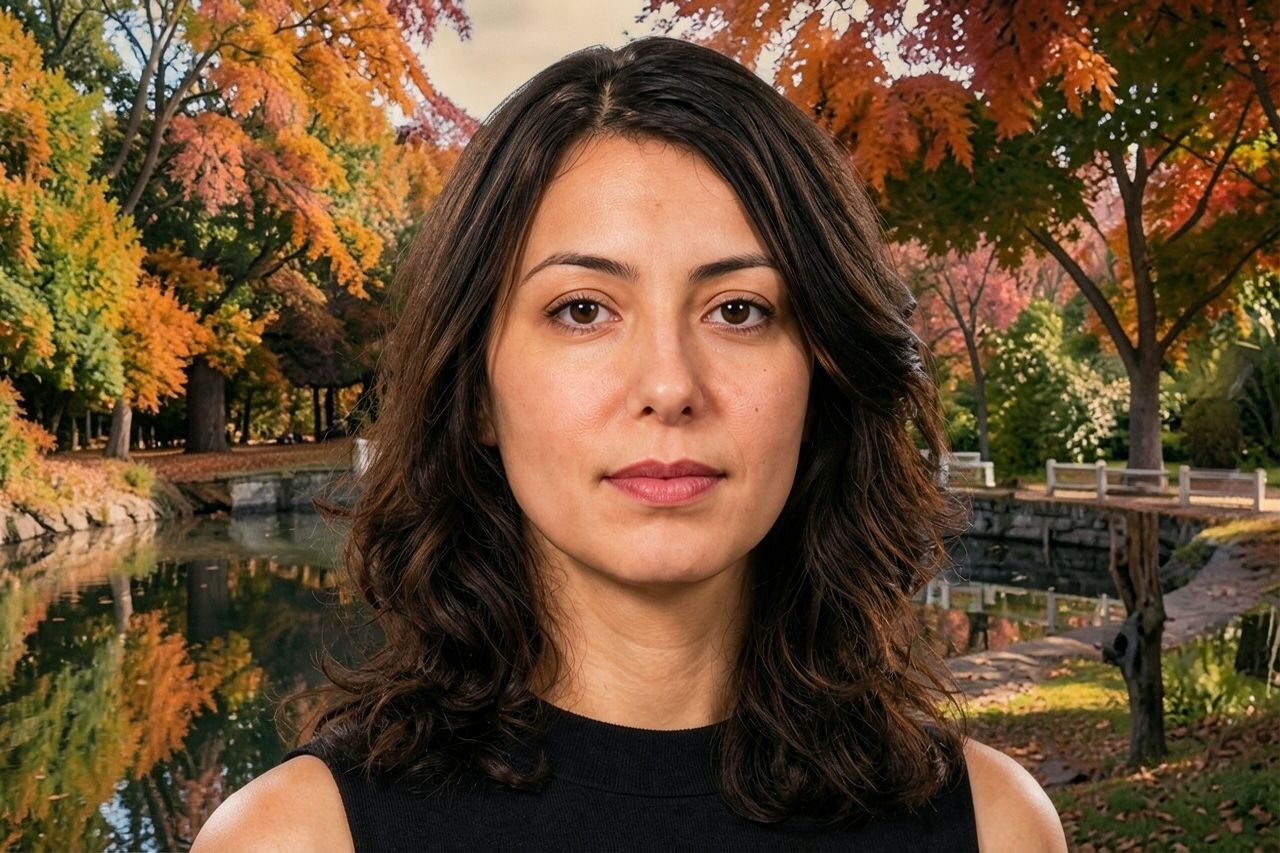
Aplique o filtro de fotos com IA Bordo a retratos, animais, produtos e fotos de viagem para obter um visual quente inspirado no outono, com tons âmbar, vermelhos e dourados. Confira a prévia e os detalhes importantes, depois recorte ou limpe a imagem antes de exportar.

Use case
Retratos sazonais, fotos de perfil e registros familiares acolhedores.
Use case
Visuais de produtos, comida, viagens e estilo de vida com tema de outono.
Use case
Posts sociais e rascunhos de campanha com uma paleta aconchegante em vermelho e dourado.

Filter preview
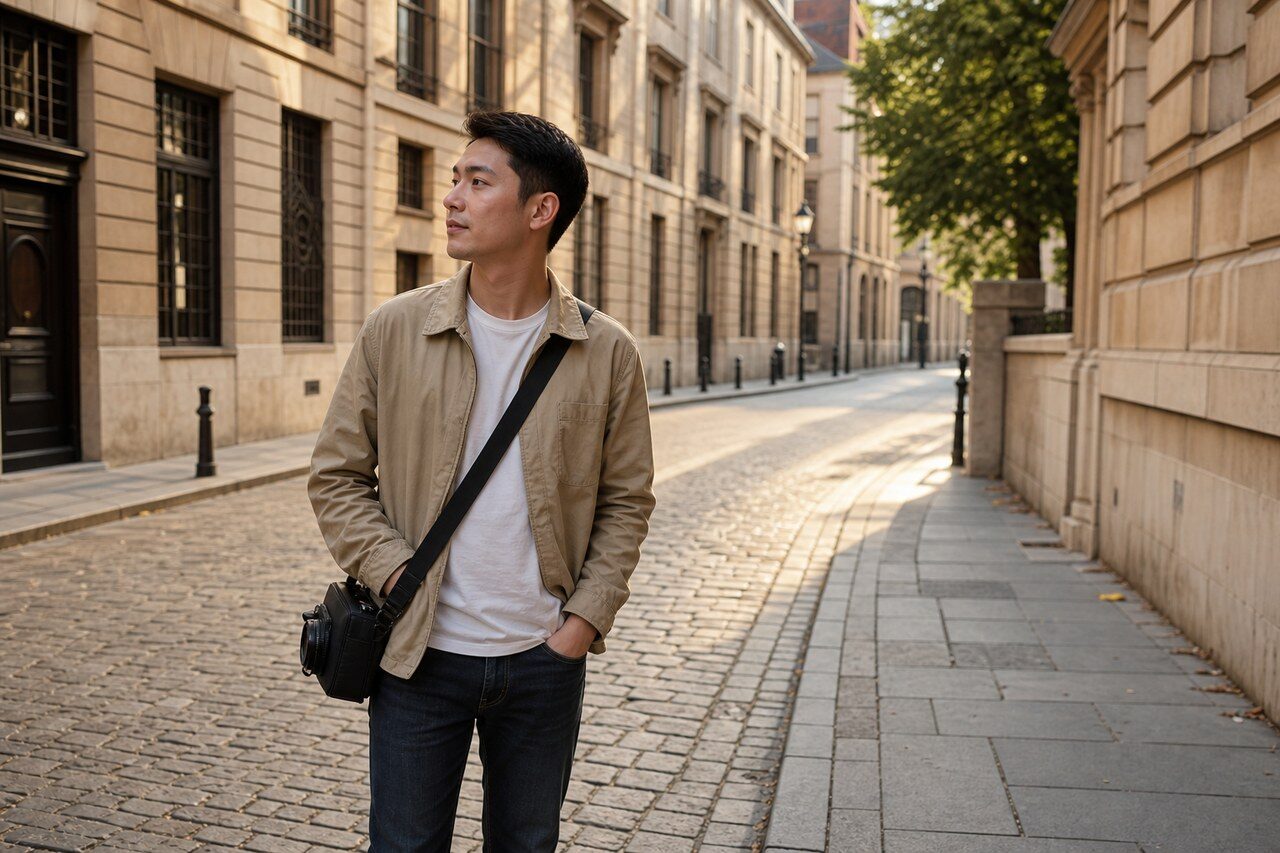
Compare the original photo with the maple result
The example uses a generated source photo and the same filter API path as the app, so users can judge the visual treatment before uploading their own image.
More examples
Test the maple filter on different photo types
Compare portrait, product, and pet examples before opening the filter. Each result uses the same filter API path as the Magic Eraser app.


Portrait
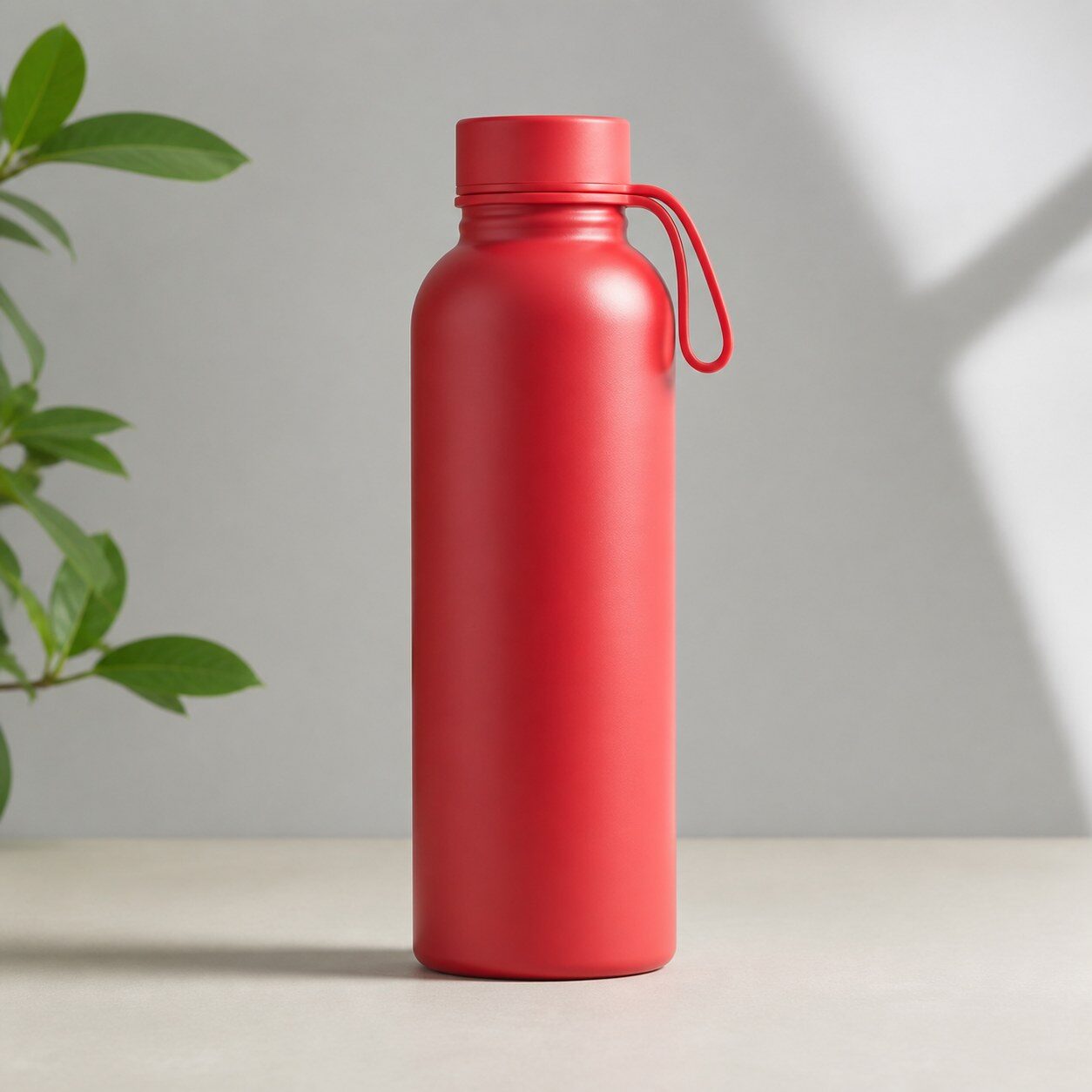
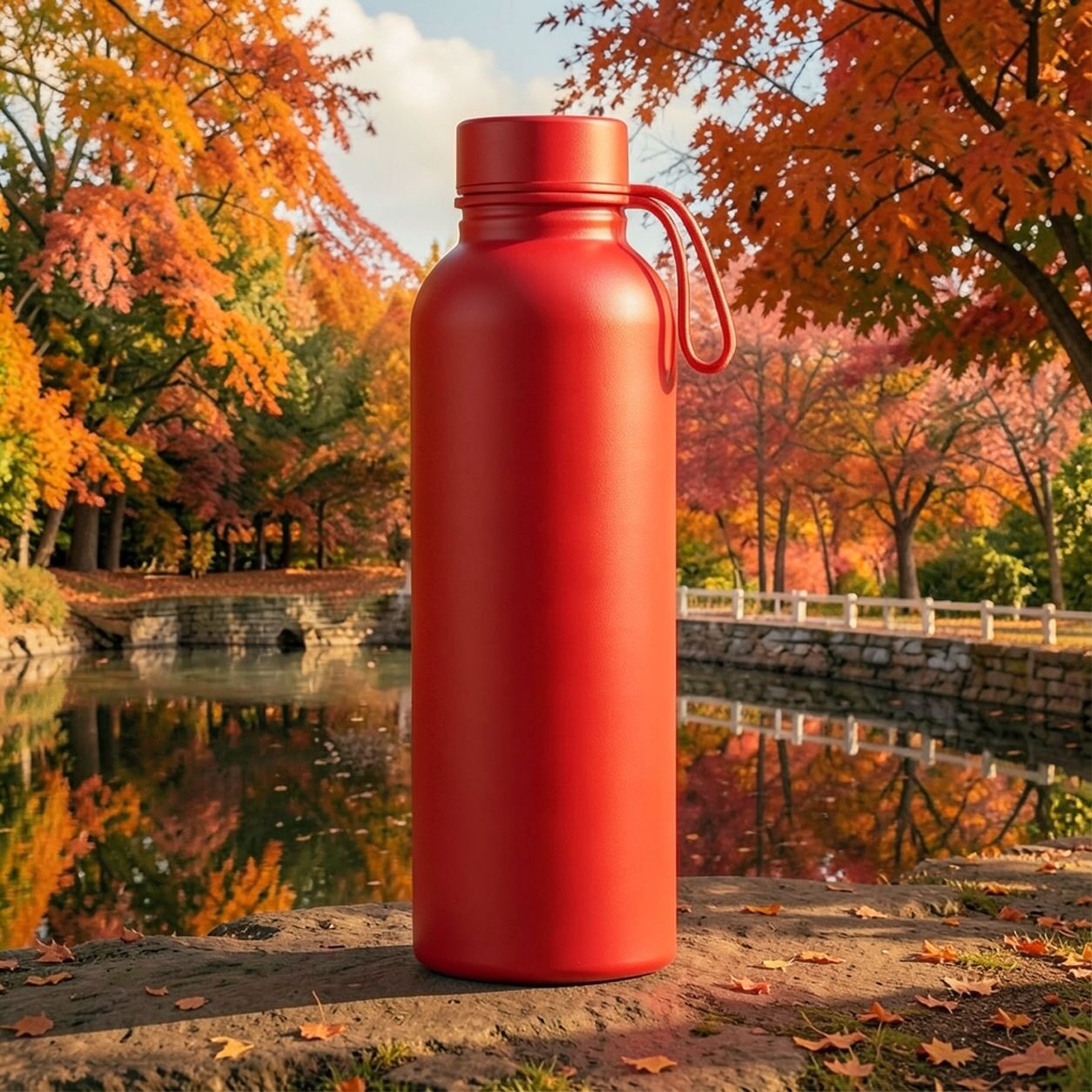
Product


Pet
Photo workflow
How to get a cleaner maple filter result
Escolha uma foto bem iluminada, com um assunto claro e contornos visíveis.
Abra o filtro Bordo, envie a foto e compare a prévia com o original.
Confira rostos, rótulos e detalhes sensíveis à cor; depois recorte ou remova distrações.
Best source photos
- Retratos, casais, animais de estimação e fotos de família.
- Comida, produtos, viagens e cenas de estilo de vida ao ar livre.
- Imagens adequadas a um clima quente inspirado no outono.
Filter tips
- Fotos neutras ou externas dão mais espaço para o tratamento de cores quentes.
- Evite o resultado quando precisar de cores exatas de produto ou fidelidade documental.
- Fundos simples mantêm o assunto legível mesmo com tons âmbar e vermelhos mais fortes.
Before upload checklist
- Use the largest clean version of the photo, not a compressed screenshot or reposted image.
- Crop loosely before filtering so the AI has enough room around the subject.
- Remove obvious distractions first if they sit directly on the face, product, or main subject.
- Check the result at the size where it will be used: profile image, feed post, story, thumbnail, or banner.
When this filter is a good fit
Choose the maple filter when the original photo already has a clear subject and the goal is a recognizable stylized version, not a fully new generated scene. It is strongest for social, creator, profile, event, and campaign images where mood matters more than documentary accuracy.
Use a different workflow when the image needs exact product color, legal documentation, medical accuracy, or unmodified identity details. In those cases, use cleanup, crop, enhancement, or background tools instead of a heavy creative filter.
Free browser tools after filtering
FAQ
What should I upload?
Use a clear photo with one main subject. Strong lighting and simple backgrounds usually make the AI filter easier to control.
Can I keep editing after the filter?
Yes. After applying the filter, use Magic Eraser to crop, clean distractions, refine backgrounds, and export the final image.
Is this filter selected automatically?
The CTA opens AI Filter with the maple style parameter, and the app falls back safely if the filter changes.