
Como criar uma colagem de fotos
Uma única foto conta um momento – uma colagem conta uma história. Esteja você resumindo férias, apresentando uma linha de produtos, criando uma comparação entre antes e depois ou construindo um quadro de humor, as colagens combinam várias imagens em um visual coeso. A ferramenta de design do Magic Eraser oferece layouts inteligentes, organização de arrastar e soltar e exportação instantânea.
Last updated
Crie uma colagem agora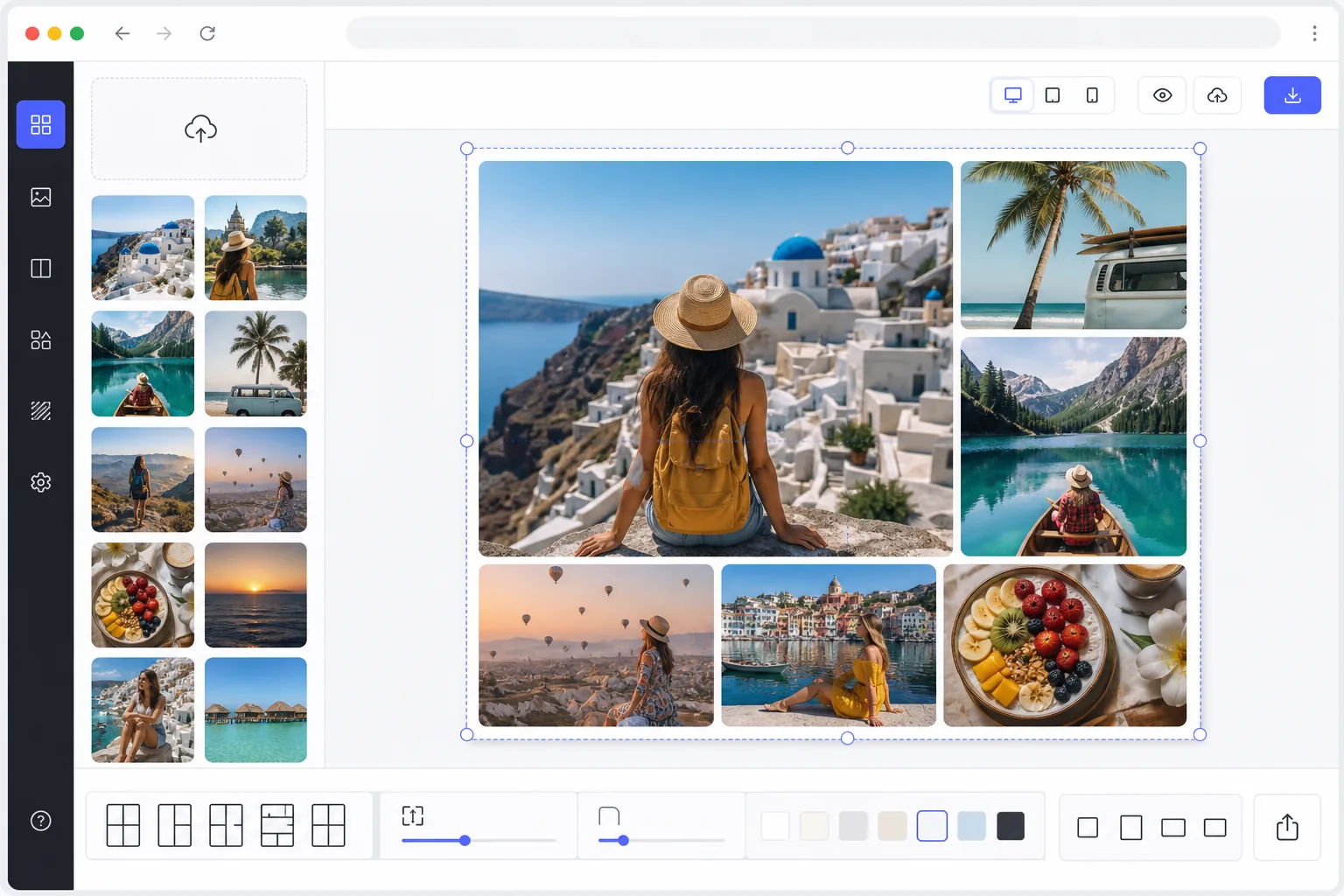
Como criar uma colagem de fotos
Para criar uma colagem de fotos, abra o Magic Eraser na web, no iOS ou no Android, selecione a ferramenta Design, carregue de 2 a 20 fotos, escolha um modelo de layout, arraste para reorganizar as células e exporte. É grátis e sem cadastro. A ferramenta corta cada foto automaticamente para encaixá-la na célula, mantendo os rostos centralizados, e você pode definir o espaçamento, a borda, o raio dos cantos e a proporção ideal para a sua plataforma. Uma colagem organiza fotos inteiras lado a lado numa grade — mas, se o que você quer é recortar os sujeitos e fundi-los numa única cena compartilhada, isso é uma montagem de fotos. Colocar fotos em uma grade é fácil. Criar uma colagem que realmente pareça boa requer equilibrar o peso visual em todo o layout, manter a temperatura de cor e a exposição consistentes entre as fotos, dimensionar as imagens para que os assuntos mais importantes sejam proeminentes, escolher espaçamentos e bordas que unifiquem sem desorganizar e selecionar uma proporção que funcione para a plataforma pretendida. A criação manual de colagens no Photoshop significa redimensionar e posicionar cada imagem individualmente, mascarar sobreposições, combinar tons de cores e reconstruir o layout do zero quando quiser trocar uma foto ou alterar a grade. A ferramenta de design do Magic Eraser lida com a inteligência do layout automaticamente – você escolhe fotos, escolhe um modelo, arrasta para reorganizar e exporta.
Before you start
Crie uma colagem em três etapas
Start with envie suas fotos. The result preview above and tips below use this guide's existing content; no separate before-and-after proof is assumed.
- 1
Envie suas fotos
Abra Magic Eraser na web, iOS ou Android e selecione a ferramenta Design. Carregue de 2 a 20 fotos para sua colagem. Misture orientações livremente – imagens em retrato, paisagem e quadradas funcionam. A ferramenta corta automaticamente cada foto para caber em sua célula, mantendo rostos e assuntos principais centralizados usando detecção de ponto focal baseada em IA.
- 2
Escolha o layout e personalize
Navegue por modelos de layout organizados por contagem e estilo de fotos — grades limpas, layouts de revistas, arranjos dispersos de forma livre ou faixas verticais em formato de história. Arraste as fotos entre as células para reorganizar. Ajuste o tamanho das células arrastando as bordas. Defina a cor de fundo, o espaçamento das células, o raio dos cantos e a proporção geral. A ferramenta mostra uma visualização ao vivo conforme você ajusta cada parâmetro.
- 3
Exporte a colagem finalizada
Visualize a colagem final e faça os últimos ajustes no posicionamento da foto ou no estilo de layout. Exporte na resolução que você precisa: alta resolução para impressão, otimizada para Instagram ou Pinterest, ou dimensões personalizadas para apresentações e sites. Escolha JPEG para tamanho de arquivo menor ou PNG para qualidade máxima. Compartilhe diretamente ou baixe.
Melhor para
- Recapitulações de viagens e férias combinando destaques de uma viagem em uma única imagem compartilhável
- Comparações antes e depois de atividades físicas, reformas residenciais ou transformações de produtos
- Vitrines de produtos exibindo vários ângulos ou cores em uma imagem de marketing
- Resumos de fotografia de eventos para casamentos, festas e eventos corporativos
- Criadores de conteúdo de mídia social criando postagens visualmente ricas que contam uma história
Dicas para melhores resultados
Limite sua colagem a 4 a 9 fotos para obter o impacto visual mais forte – muitas imagens encolhem cada uma a ponto de perder detalhes, especialmente em telas de dispositivos móveis. Escolha fotos com paletas de cores e iluminação semelhantes para obter uma aparência coesa ou use o recurso de correspondência de cores de IA para harmonizar fotos incompatíveis. Coloque sua imagem mais forte e atraente na célula maior para criar um ponto focal claro. Para Instagram, use a proporção de 1:1; para Pinterest, use 2:3 vertical; para fotos de capa do Facebook, use 16:9 horizontal. O espaçamento consistente entre as células (2-4px para uma aparência moderna e compacta, 8-12px para uma sensação arejada) faz uma diferença maior do que você esperaria. Os fundos brancos ou cinza claro funcionam universalmente e mantêm o foco nas fotos.
Perguntas frequentes
- Quantas fotos posso incluir em uma colagem?
- A ferramenta de design suporta de 2 a 20 fotos por colagem. Os layouts se ajustam automaticamente para acomodar o número de imagens. Para obter melhores resultados nas redes sociais, 4 a 9 fotos atingem o equilíbrio ideal entre contar histórias e cada imagem ser grande o suficiente para ser apreciada na tela do telefone.
- Posso ajustar qual parte de cada foto fica visível?
- Sim. Cada célula possui um controle panorâmico e zoom que permite reposicionar e redimensionar a foto dentro de seu quadro. A IA corta automaticamente para manter os rostos e assuntos principais centralizados por padrão, mas você pode substituir isso para focar em qualquer parte da imagem de sua preferência.
- A criação de colagens é gratuita?
- Sim. A ferramenta de design de Magic Eraser inclui a criação de colagens no nível gratuito com limites de uso diário. Faça upload de fotos, escolha um layout, personalize e exporte. Premium elimina limites, desbloqueia modelos adicionais e permite exportações de alta resolução para impressão.
- Como faço uma colagem de fotos no celular?
- Abra o Magic Eraser em qualquer navegador do celular ou no app de iOS ou Android, carregue suas fotos da galeria e abra a ferramenta Design. Escolha um layout, depois arraste as fotos entre as células e use o gesto de pinça para reposicionar cada uma dentro do quadro. Defina o espaçamento e a proporção e depois exporte — a colagem pronta vai direto para a sua galeria, prontinha para postar. Funciona igual à versão de computador e, se você usar o navegador, não precisa instalar nenhum app.
- Qual é a diferença entre uma colagem e uma montagem?
- Uma colagem mantém cada foto inteira e as organiza lado a lado numa grade ou layout — você continua vendo imagens distintas e emolduradas, como um resumo das férias ou um antes e depois. Uma montagem recorta os sujeitos do fundo e os funde numa única cena compartilhada, fazendo com que pareçam fotografados juntos. Use uma colagem para mostrar vários momentos de uma vez; use a ferramenta de montagem quando quiser que as partes se fundam numa só imagem composta.